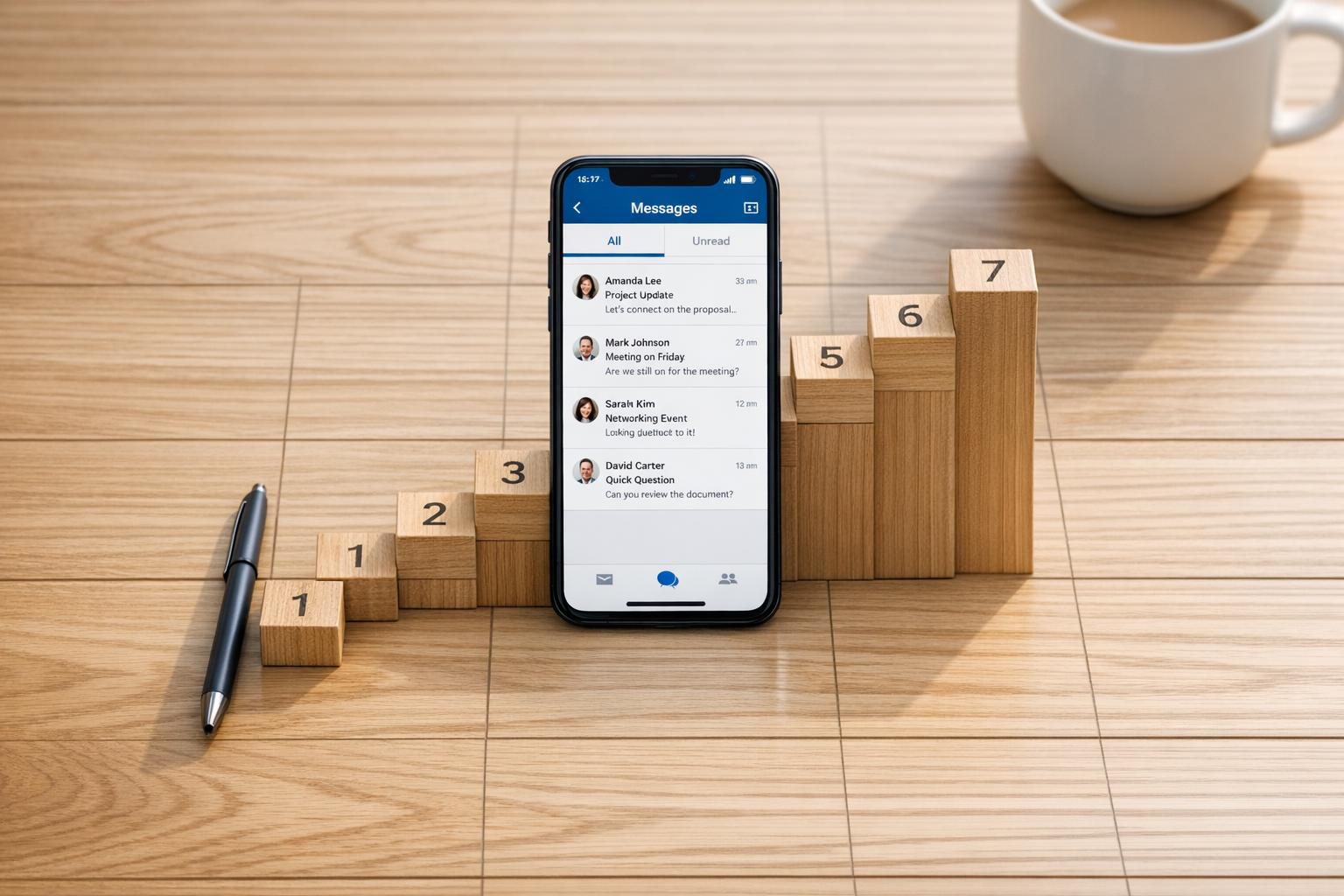
If managing your LinkedIn inbox feels overwhelming, you’re not alone. With messages piling up and important ones getting lost, it’s easy to feel unproductive. But there’s good news: you can regain control with these seven actionable strategies:
- Inbox Zero: Apply the 4D method – Do, Defer, Archive, Label – to process messages efficiently. Dedicate set times for triage to minimize distractions.
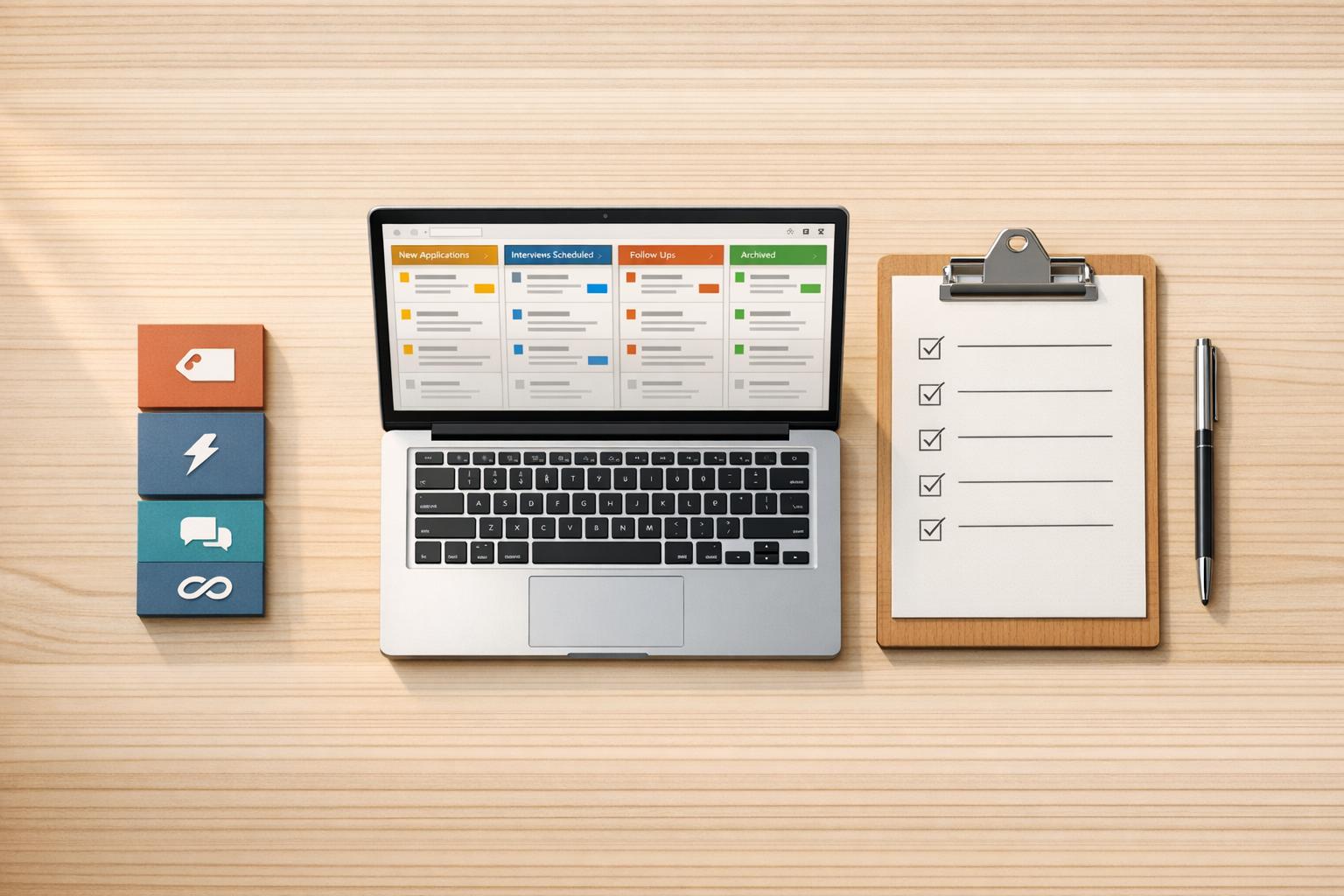
- Split Inboxes: Organize messages into categories like "Hot Leads" or "Follow-ups" for better prioritization.
- Custom Notifications: Adjust settings to focus on critical alerts and reduce unnecessary interruptions.
- Saved Snippets: Use pre-written, customizable templates to save time while keeping responses personal.
- Snooze Threads: Temporarily hide conversations and set reminders to follow up at the right time.
- Keyboard Shortcuts: Speed up navigation and actions with LinkedIn and Cesar.chat shortcuts.
- CRM Integration: Sync LinkedIn messages with tools like HubSpot or Slack to centralize communication and track leads.
These steps help you stay organized, respond faster, and focus on meaningful interactions, saving hours each week while boosting productivity.

7 LinkedIn Message Management Strategies for Busy Professionals
The LinkedIn Inbox Secret Nobody Talks About
Use Inbox Zero with Message Triage
Inbox Zero transforms your inbox into a decision-making hub rather than a storage space. Created by Merlin Mann, this productivity approach encourages you to make a clear decision about every message the first time you open it. It’s all about processing, not procrastinating.
At its heart is the 4D Triage Method: when you open a message, you choose one of four actions:
- Do: Respond immediately if it takes less than two minutes.
- Defer: Snooze it for later if it requires more time or thought.
- Archive: Move it out of your active inbox once it’s handled.
- Label: Categorize it by priority or project.
This method is especially useful when you consider that professionals spend 28% of their workday on emails and messages. Even worse, a single interruption can derail focus for an average of 23 minutes. By dedicating 15–20 minute blocks – morning, midday, and end-of-day – to process messages instead of reacting to them all day long, you can minimize disruptions and reclaim your time.
Now, let’s explore how to apply these principles specifically to your LinkedIn inbox.
How to Apply Inbox Zero on LinkedIn
LinkedIn’s features make the 4D method easy to implement. Start with a clean slate: archive all messages older than two weeks to remove unnecessary clutter. Don’t worry – LinkedIn’s archive automatically moves conversations back to your inbox if someone replies.
Once you’ve cleared the backlog, establish a routine. Open each message once and apply the two-minute rule: if you can reply quickly, do it on the spot. For more complex messages, use Cesar.chat’s snooze feature (shortcut H) to set a reminder. Snoozed messages will disappear from your inbox and reappear at the top when it’s time to act – whether that’s three days for a warm lead or seven days for a follow-up.
For completed conversations or low-priority messages, archive them using the E shortcut. This keeps your active inbox focused only on what needs attention. To organize your messages further, apply custom labels (shortcut L) like “Hot Lead,” “Needs Reply,” or “Meeting Scheduled.” Stick to 7–10 labels to avoid overwhelming yourself with options.
Finally, process your LinkedIn inbox at set times rather than checking it constantly. With keyboard shortcuts, you can quickly triage dozens of messages, turning your inbox into an efficient tool for managing high-priority conversations instead of a source of stress.
Set Up Split Inboxes for Prioritization
A single inbox lumps everything together – important prospects, casual inquiries, and spam all treated the same way. Split inboxes fix this by creating distinct views for different message categories, making it easier to focus on what truly matters. Building on the principles of Inbox Zero, this method refines your workflow by isolating high-priority conversations from general clutter.
With split inboxes, you can organize messages into separate "lanes" based on urgency, relationship type, or required action. For instance, you might set up one inbox for hot leads, another for follow-ups, and a third for networking opportunities. When you check your LinkedIn messages, you can zero in on one category at a time, ignoring the rest until you’re ready to tackle them.
"LinkedIn’s native inbox lacks organization tools – treating spam and $50k prospects the same way." – MasterInbox
This system also combats context switching, which can cost you up to 23 minutes of focus each time you switch between unrelated tasks. By grouping similar messages together, you can stay mentally sharp and process messages more efficiently. Professionals using structured inboxes report saving as much as 10 hours per week on managing their communications.
Creating Labeled Inboxes
To get started, design a labeling system that mirrors your workflow. Keep it straightforward – stick to 7–10 labels. The best systems typically fall into three categories:
- Relationship Type: Examples include Hot Leads, Active Clients, Partners, or Candidates.
- Action Required: Labels like Follow Up, Schedule Call, Send Info, or Waiting Response.
- Priority Level: Tags such as P1-Urgent, High Priority, or Low Priority.
In Cesar.chat, pressing L on any conversation lets you quickly apply a label. Once labeled, each category becomes its own inbox. For example, clicking on "Hot Leads" will show only those conversations, free from distractions.
For specific roles, labels can be tailored to fit your process. Sales professionals might use tags like New Lead, Meeting Scheduled, or Proposal Sent. Recruiters could go with Initial Contact, Screening, or Offer Stage. Update labels as conversations evolve – if a meeting is confirmed, re-label the thread as Meeting Booked to maintain an accurate pipeline.
With your inbox now sorted, the next step is to implement a routine for reviewing your categories.
Prioritization Techniques to Stay Focused
After organizing your inbox, a consistent review routine ensures you address messages at the right time. Set up a time-based triage system that aligns with your daily energy levels. For example:
- Start your day with "Urgent" and "Hot Lead" messages.
- Tackle "Follow-up" and "Waiting Response" messages mid-day.
- Wrap up with "Low Priority" tasks at the end of the day.
These strategies aren’t just theoretical. In 2025, Anton Titov, Founder at Archway.Finance, used a structured LinkedIn system to reach 400 agency owners. By keeping his inbox organized and following up systematically, he achieved a 65% response rate and raised over $1 million in funding. Similarly, Joey Kennedy, VP of Sales at KMS Healthcare, managed 20 LinkedIn campaigns and generated 5 to 10 high-quality leads per month with a 57% response rate.
The secret lies in immediate categorization. Apply labels as soon as a message comes in or its status changes. This ensures no conversation gets overlooked – especially important since 65% of prospects only respond after at least three follow-ups. Tools like Cesar.chat make this process seamless, allowing you to label, snooze, or archive messages using keyboard shortcuts, creating a fast and repeatable workflow.
Customize Notification Settings
Constant LinkedIn notifications can easily disrupt your focus. Every endorsement, group message, and connection update has the potential to pull you away from tasks that matter most. LinkedIn’s default settings often treat all notifications the same – giving work anniversaries the same priority as messages from potential clients. Customizing these settings ensures that only the most important alerts demand your attention in real time.
Think of it like organizing your inbox: by tailoring your notifications, you can ensure that only what truly matters breaks through the noise.
Steps to Adjust Notifications
If noisy conversations are taking over, you can mute them. Just click the three dots in the conversation window and select "Mute".
For group chats, switch to "Only mentions" mode. On the LinkedIn mobile app, open the group chat, tap "More", then "Notification settings", and choose "Only mentions". This way, you’ll only be notified when someone tags you directly.
To cut down on email overload, go to the "Communications" tab in your settings and adjust your "Email frequency" from "Individual Emails" to "Weekly Digest" for less urgent updates like endorsements or work anniversaries. Keep instant email alerts for messages that have a direct impact on your work. You can also activate features in Settings like Focused Inbox and message nudges. Focused Inbox prioritizes important messages, pushing them to the top, while nudges remind you to follow up on key conversations.
Using Cesar.chat for Advanced Control

If you want even more control, Cesar.chat offers an advanced way to fine-tune LinkedIn notifications. Once you’ve categorized your messages into labels like "Hot Leads" or "Follow Up", Cesar.chat lets you set notification preferences for each label instead of the entire conversation.
With this setup, you can enable instant alerts for your "Urgent" inbox while keeping other categories silent until it’s time for your scheduled review. The tool syncs seamlessly with your prioritization system, ensuring that notifications support your workflow rather than interrupting it. Plus, keyboard shortcuts make it easy to adjust notifications on the fly.
Use Saved Snippets for Quick Responses
Saved snippets are a game-changer for streamlining LinkedIn communication, especially when you’re managing a flood of daily messages. They eliminate the need for repetitive typing, giving you a head start on networking, scheduling calls, or following up.
Think of snippets as flexible templates. As Pablo Tonutti from JobWinner.ai explains:
"People can spot a script from a mile away. A human-sounding message is your edge in a world of automation".
The key to making snippets work is personalization. While the snippet provides the framework, it’s the small, specific details – like referencing a recent post, a shared connection, or a notable company milestone – that make your message stand out. Without this personal touch, snippets risk feeling robotic.
The stats back this up. Messages under 400 characters see 22% higher response rates than longer ones. Similarly, personalized messages on LinkedIn achieve 15% higher response rates compared to generic ones. By blending brevity with customization, you’re not just saving time – you’re actually boosting your chances of success.
How to Create Effective Snippets
A helpful structure for crafting snippets is the P.L.A.Y. framework: Purpose, Link, Ask, and You. This keeps your messages concise while ensuring they hit all the essential points that drive responses.
Here’s a quick guide to character limits for different types of messages:
- Connection requests: 150-200 characters (25-35 words)
- First messages: 300-400 characters (50-75 words)
- Follow-ups: 200-300 characters (35-55 words)
As one expert puts it:
"The most common mistake I see is excessive message length. My recommendation is to focus on one clear point and make it effortless for the recipient to respond with minimal consideration time".
Keep mobile users in mind by breaking your text into short paragraphs (2-3 lines), since over 70% of LinkedIn users are on mobile. Also, avoid pushy language. Gentle asks like “Worth a quick call?” or “Would you be open to a brief chat?” tend to perform better than more aggressive phrasing.
Deploying Snippets with Cesar.chat
Cesar.chat makes managing snippets even easier. For $24/month (Basic plan), you can store unlimited snippets and access them directly within LinkedIn’s messenger. No more digging through files or browser extensions – your entire library is just a few clicks away.
The real magic lies in how quickly you can use these snippets. With keyboard shortcuts, you can insert a snippet, tweak it with personal details (like the recipient’s name or a relevant reference), and send it off in seconds. This approach lets you maintain a high volume of outreach while avoiding "template fatigue", where messages feel overly automated. By combining quick customization with efficient tools, you can keep your workflow smooth and your messages engaging – all without sacrificing a personal touch.
sbb-itb-3e8f5dc
Snooze Threads for Smart Follow-Ups
Snoozing conversations can be a game-changer for managing your LinkedIn inbox while staying on top of follow-ups. Instead of letting messages pile up, snoozing temporarily removes threads from your active view. These conversations resurface automatically at a specified time, ensuring nothing slips through the cracks.
This method is particularly useful when you consider that about 65% of prospects only respond after receiving three follow-up messages. Without a reliable system to remind you when to follow up, it’s easy to miss opportunities. Snoozing automates this process, saving you from the hassle of manual tracking. Here’s how to make the most of snoozing and align reminders with your follow-up strategy.
When and How to Snooze Conversations
Timing is everything when it comes to snoozing. Set reminders that align with the context of each conversation. For example, schedule a 2–3 day reminder for your first follow-up, and extend it to 5–7 days for a second attempt if needed.
Adjust your timing based on the situation. If someone has accepted your connection request but hasn’t replied, wait at least 7 days before sending a follow-up. On the other hand, if a prospect is active on LinkedIn but hasn’t engaged with your messages, snooze the thread for 3–4 weeks. This allows you to approach them later with fresh insights or value. To maintain professionalism, experts advise limiting follow-ups to 2–3 messages.
Automated Reminders with Cesar.chat
Cesar.chat simplifies the snoozing process with its built-in reminder system. With a single keystroke – press "H" (for "hold") while viewing a conversation – you can instantly set a reminder. The tool even supports natural language scheduling, so you can type phrases like "next Wednesday", "in 4 days", or "Thursday 10 PM" to schedule follow-ups.
Once snoozed, the conversation disappears from your inbox, making it easier to maintain an "Inbox Zero" approach. When the reminder time arrives, the conversation reappears at the top of your inbox, marked with a purple indicator dot to signal it’s time to take action. If the recipient responds before the reminder, Cesar.chat automatically cancels the snooze. This smart automation ensures you complete your follow-up sequences without the stress of manual tracking, keeping your inbox organized and your workflow efficient.
Use Keyboard Shortcuts for Speed
Switching between your keyboard and mouse might not seem like a big deal, but those tiny delays – about 2 seconds per minute – add up quickly. Over the course of a year, mastering keyboard shortcuts could save you roughly 64 hours. That’s like gaining 8 extra workdays! If you’re managing a high volume of LinkedIn messages, these seconds can make a huge difference.
Keyboard shortcuts allow you to breeze through tasks like reviewing conversations, archiving messages, or replying – all without relying on your mouse. This not only speeds up your workflow but also helps reduce repetitive strain injuries caused by excessive mouse use.
Key Keyboard Shortcuts for LinkedIn
LinkedIn offers a handful of shortcuts to simplify navigation. For example:
- Press
g + mto jump straight to your Messaging tab. - Use
/to activate the search bar. - On Windows,
Ctrl + Nstarts a new message,Ctrl + Rlets you reply, andCtrl + Entersends your message.
Want a quick refresher? Just press Shift + ? to pull up LinkedIn’s full shortcut cheatsheet.
These shortcuts cover the basics, but pairing them with advanced tools can take your productivity to the next level.
Streamlining Actions with Cesar.chat
Cesar.chat brings in single-key commands that can make your message management up to three times faster than LinkedIn’s native options. For instance:
- Use
Jto move down your conversation list andKto move up – no mouse needed. - Press
Eto archive a message after replying, keeping your inbox clean and organized. - Hit
Lto apply labels for prioritizing leads or;to insert personalized message snippets like{firstName}. - Need to check out a prospect’s profile? Just press
Ito open it in a new tab. This simple step is linked to an 86% higher connection acceptance rate.
The Cmd/Ctrl + K command palette is the ultimate shortcut, giving you quick access to any action without needing to memorize a ton of key combinations. Users who adopt this system often see impressive results. For example, some reduce their response times from 24 hours to under 2 hours, and one sales development rep (SDR) cut missed follow-ups by 30%.
Integrate with CRM and Productivity Tools
Why CRM Integration Matters
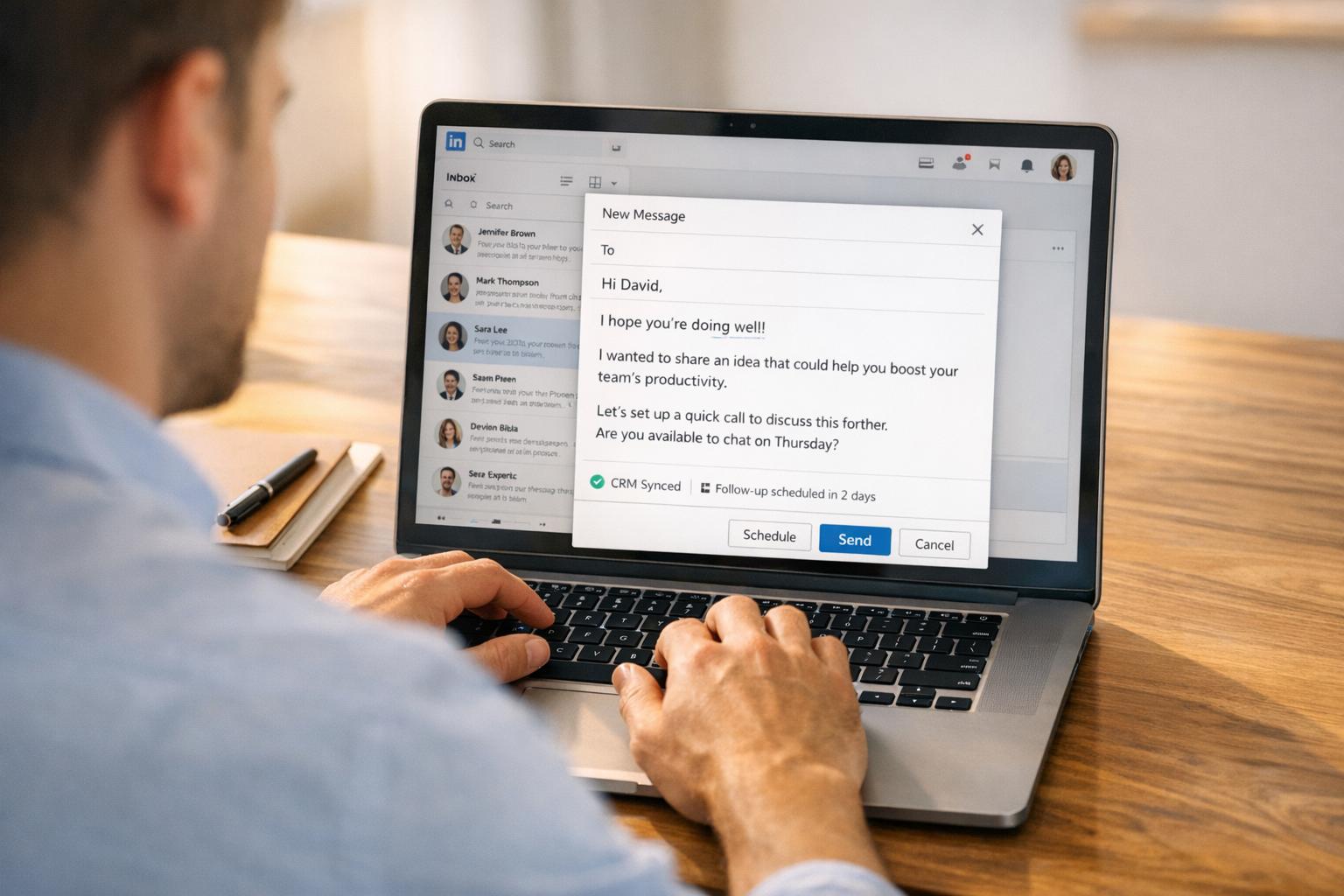
Jumping back and forth between LinkedIn and your CRM isn’t just frustrating – it’s a time sink. Think about it: manually logging each message takes about 3–5 minutes. If you’re engaging with 20 prospects a day, that’s over 3 hours wasted daily. Over a month, this adds up to around $3,300 in lost productivity (based on a $50/hour rate).
"If an activity isn’t in your CRM, it didn’t happen. Sync your LinkedIn conversations so your whole team has visibility." – Bastien Paul, Founder, Hublead
Integrating LinkedIn with your CRM ties all communication into one seamless timeline. Emails, calls, and LinkedIn messages appear in a single, chronological view, giving you the context needed for tailored follow-ups. It also ensures your sales manager can monitor outreach efforts that would otherwise be buried in personal inboxes. Plus, automated syncing minimizes errors and flags existing CRM records directly on LinkedIn to avoid duplicate outreach. By streamlining data entry, you keep follow-ups consistent and accurate. In fact, sales reps using LinkedIn Sales Navigator integrations report a 17% increase in win rates. Combined with your LinkedIn strategy, CRM integration takes productivity to the next level.
Using Cesar.chat for Streamlined Integration
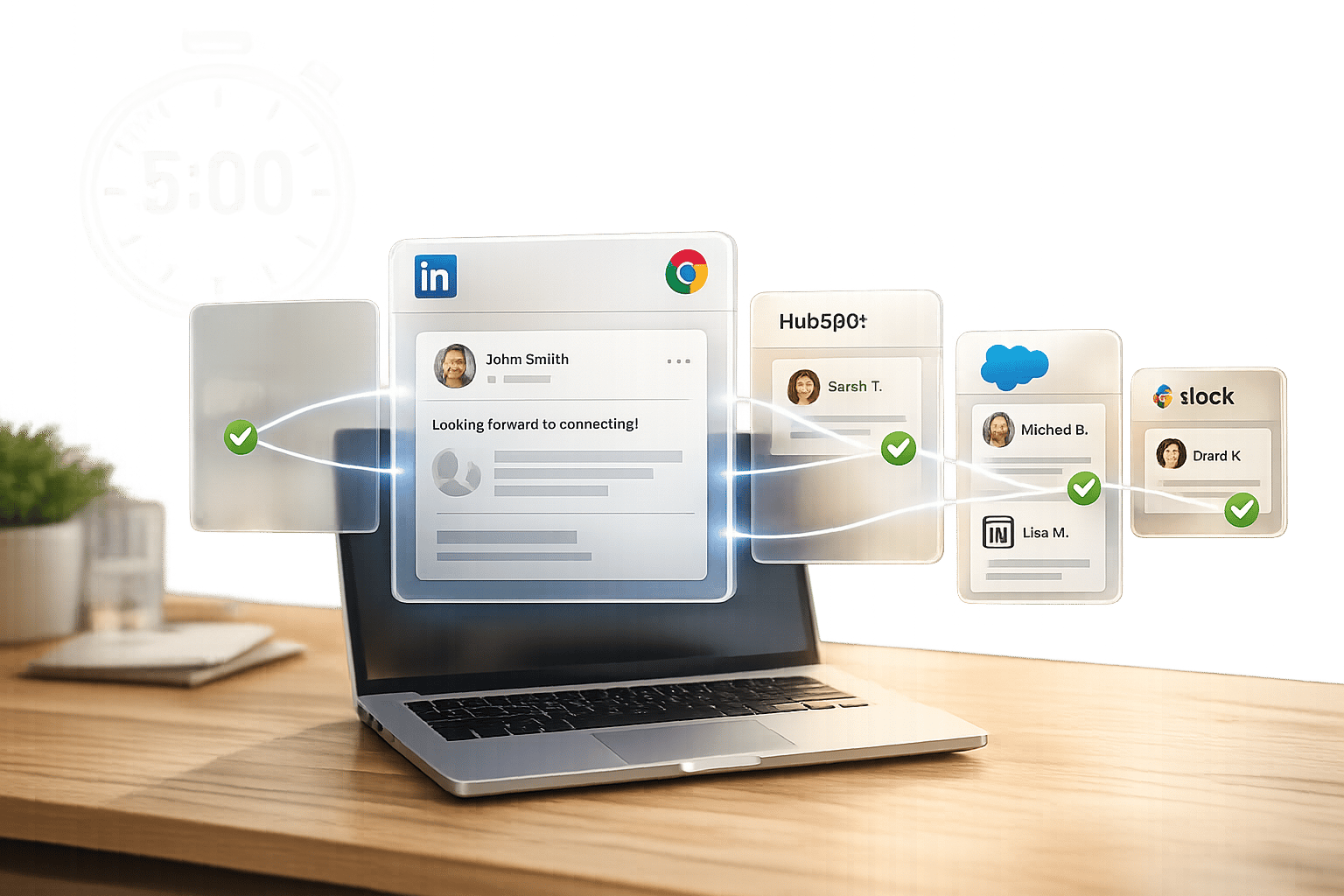
Cesar.chat makes these advantages even more accessible. It syncs your LinkedIn messages with tools like HubSpot, Notion, and Slack in real time, eliminating the need for manual updates. The Business plan ($32/month) supports up to 3 integrations, while the Enterprise plan ($40/month) offers unlimited sync destinations and personalized setup assistance.
With Cesar.chat, your LinkedIn conversations flow directly into your CRM, allowing your team to respond to leads within minutes. Why does this matter? Studies show that responding within one minute can boost conversions by an incredible 391%. You can also route LinkedIn notifications to Slack, ensuring your team gets instant updates when a prospect replies. For Notion users, Cesar.chat turns your LinkedIn inbox into a live database, keeping all prospect details organized and easy to manage. This way, no lead slips through the cracks, and your workflow stays efficient and focused.
Conclusion
Streamlining message management can turn the chaos of LinkedIn communications into a process that not only saves time but also drives revenue.
Managing LinkedIn messages doesn’t have to feel overwhelming. The seven strategies outlined – Inbox Zero triage, split inboxes, customized notifications, saved snippets, snoozed threads, keyboard shortcuts, and CRM integration – help transform LinkedIn from a scattered side task into a tool for meaningful engagement and business growth. Without these workflows, manual prospecting can eat up as much as 156 hours a month. Instead, these methods allow you to focus on impactful interactions that build trust and foster genuine conversations.
Professionals using these approaches often achieve higher Social Selling Index (SSI) scores, leading to 45% more opportunities and hitting their sales quotas 51% more frequently. Crafting personalized, concise messages under 400 characters has been shown to improve response rates by 22%. Combining LinkedIn outreach with CRM integration can boost reply rates from 12% to 42%. Even a timely second follow-up can increase reply rates by 4.05%, especially since LinkedIn’s basic inbox can bury earlier messages.
"The goal isn’t to spam people. It’s to scale personalized outreach so you can reach more relevant prospects while maintaining the human touch that drives conversations." – La Growth Machine
FAQs
What’s the fastest way to reach Inbox Zero on LinkedIn?
To get to Inbox Zero on LinkedIn efficiently, try using a clear, step-by-step system. For each message, decide whether to: reply, archive, set a reminder, or categorize it. Use labels to prioritize important messages and group similar ones together. You can also save time by batching your responses and setting specific times during the day to check your inbox. This approach helps you stay organized, avoid feeling overwhelmed, and maintain a smooth workflow.
How many labels should I use for split inboxes?
To keep your split inbox tidy and easy to navigate, aim for 7 to 10 labels. This number strikes a balance between staying organized and avoiding unnecessary clutter. Fewer labels keep things straightforward, ensuring each one serves a clear, action-oriented purpose, making it easier to manage your workflow effectively.
How do I keep saved snippets from sounding automated?
To make your saved snippets feel personal, weave in specific details about the recipient. Mention things like their interests, recent achievements, or even shared connections. Instead of relying on generic phrasing, include relevant tidbits like their work history or ongoing projects. This strategy helps your messages come across as genuine and thoughtfully tailored, keeping your interactions meaningful and engaging.