

Syncing LinkedIn with your CRM can save time, reduce errors, and improve sales efficiency, but it’s not without its challenges. Here are the five most common issues and their solutions:
- Manual Data Entry: Wastes time and leads to errors. Automate data syncing with tools like Cesar.chat to keep records accurate and up-to-date.
- Authentication Problems: Expired tokens or misconfigured settings disrupt connections. Use auto-refreshing authentication and ensure proper permissions.
- Field Mapping Errors: Misaligned data fields create chaos. Customize and test field mapping to match LinkedIn and CRM formats.
- Disorganized Messages: Leads get lost in LinkedIn’s inbox. Use tools to organize conversations, set reminders, and sync messages to your CRM.
- Data Limits and Over-Syncing: Exceeding LinkedIn’s API limits causes disruptions. Optimize sync frequency and monitor usage to avoid issues.
Key takeaway: Automating and fine-tuning your LinkedIn-CRM integration with reliable tools like Cesar.chat ensures smoother workflows, better data accuracy, and improved team collaboration.
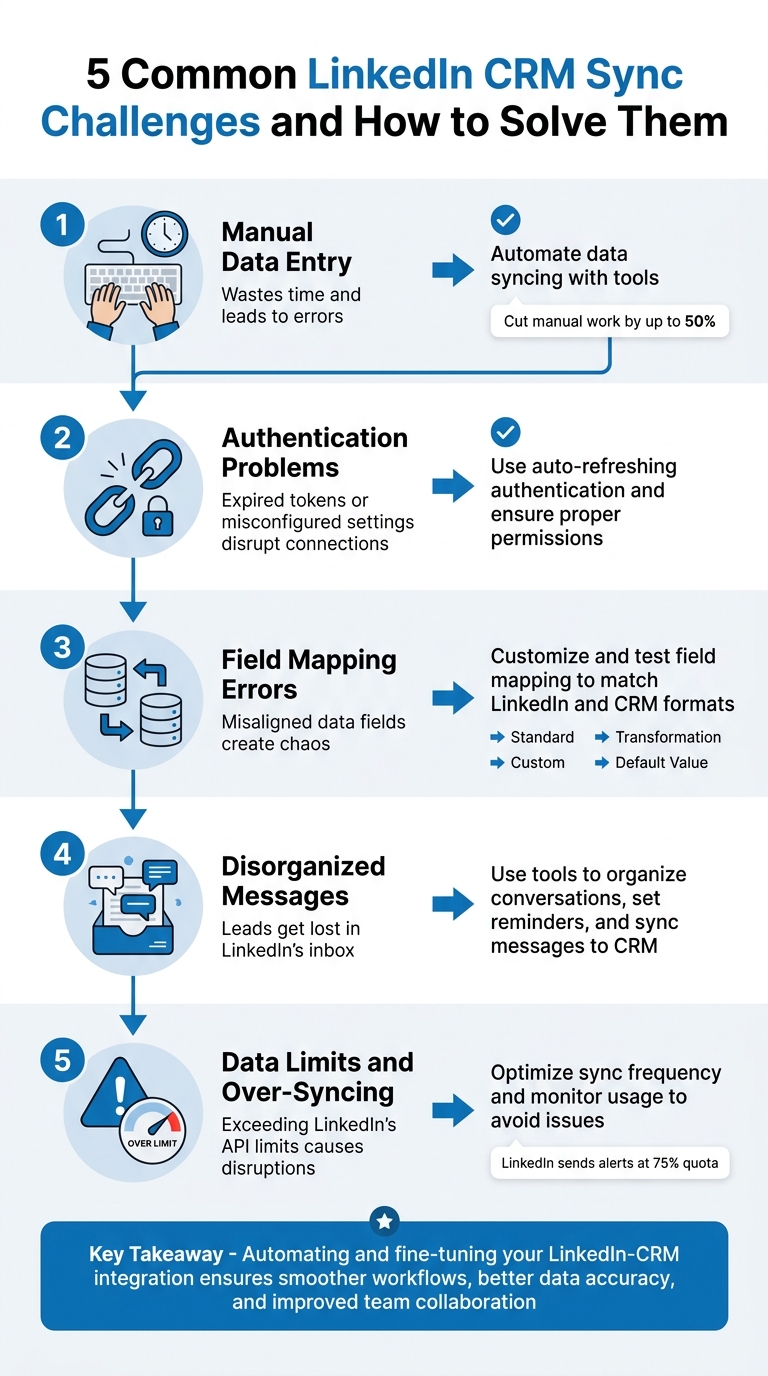
5 Common LinkedIn CRM Sync Challenges and Solutions
5 ways to integrate LinkedIn with your CRM for better sales-marketing collaboration
sbb-itb-3e8f5dc
Challenge 1: Manual Data Entry Wastes Time and Creates Errors
Manually transferring LinkedIn profile details into your CRM is a drain on productivity and a recipe for mistakes. Sales reps often spend countless hours flipping between browser tabs, copying and pasting names, job titles, company information, and contact details. This time-consuming process not only eats into valuable selling time but also increases the chances of errors – like typos in email addresses, inconsistent formatting, or missing key information.
But the problem doesn’t stop there. As PhantomBuster explains, “Manual updates can take time, disrupting the sales process”. When your team is bogged down with administrative tasks, prospecting and closing deals take a backseat. On top of that, manual data entry often misses real-time changes – like when a prospect updates their job title or contact info – leaving your CRM cluttered with outdated or duplicate records. Plus, LinkedIn interactions often go unlogged, meaning your team lacks a shared history of outreach efforts. These gaps can lead to missed opportunities and a disjointed sales process.
Clearly, a more efficient and accurate method is needed to keep CRM records up-to-date and error-free.
Solution: Automate Your Sync
The answer? Automation. Tools like Cesar.chat take the hassle out of manual data entry by syncing LinkedIn data directly to your CRM in real time. With a LinkedIn CRM Chrome extension, you can cut manual work by up to 50%, thanks to features like automated message syncing and lead enrichment.
Cesar.chat’s Business plan, priced at $32 per month, integrates seamlessly with platforms like HubSpot, Salesforce, and Notion. It automatically captures lead data and logs LinkedIn conversations, ensuring your CRM stays accurate and organized. For even more functionality, the Enterprise plan ($40 per month) offers live sync and unlimited sync destinations, so your team always has the latest contact details across all their tools. By automating this process, you eliminate errors and workflow disruptions, enabling your team to focus on what truly matters – driving your sales pipeline forward.
Challenge 2: Authentication and Connection Failures
When LinkedIn fails to connect with your CRM, it can throw your entire workflow into chaos. One common culprit is authentication failures, often caused by expired or disrupted linking tokens. Fixing this usually requires users to reconnect their LinkedIn Sales Navigator accounts individually, as an admin-level setup alone won’t cut it.
Browser-related issues – like cached data, cookies, or interfering extensions – can also block the token exchange process. On top of that, misconfigured CRM settings or incorrect permissions can further disrupt the sync. To make matters trickier, a LinkedIn Sales Navigator Advanced Plus license is essential for maintaining a stable connection. Lower-tier plans, such as Core or Advanced, don’t support automatic sync or write-back features, which are critical for seamless integration.
Solution: Use Reliable Authentication
To keep these disruptions at bay, look for a solution that offers auto-refreshing authentication and priority support. For example, Cesar.chat’s Enterprise plan ($40 per month) can help ensure your connection remains stable, letting your team focus on selling rather than fixing tech issues.
A few additional tips:
- Log into both systems during the same browser session or use an incognito window to avoid browser-related interference.
- Regularly review user permissions to make sure everyone has the right administrative access.
Once authentication is secure, you’re in a better position to fine-tune other aspects of your LinkedIn-CRM integration.
Challenge 3: Incorrect Field Mapping
When LinkedIn data doesn’t align with your CRM fields, it creates a chaotic and error-filled database. Imagine job titles ending up in phone number fields, company names syncing to custom fields instead of standard ones, or full names being crammed into a single field when your CRM expects separate "First Name" and "Last Name" entries. This kind of misalignment not only causes clutter but also disrupts the structure of your data.
Improper mapping – like syncing multi-select fields to single-line text fields or numbers to text fields – can lead to data loss, duplicate entries, and broken sorting. These issues, in turn, undermine your ability to extract meaningful insights. As LinkedIn warns:
"Without proper data mapping, you may end up with incomplete, duplicate, or conflicting data that can affect your customer interactions, reports, and insights"
When mapping goes wrong, your team is often forced to manually fix errors, which defeats the purpose of automation. Worse, poor mapping can result in communication mishaps that hurt customer relationships.
| Mapping Type | Purpose | Example |
|---|---|---|
| Standard | Connecting equivalent fields | LinkedIn "Email" to CRM "Email" |
| Custom | Mapping to user-created fields | LinkedIn "Seniority" to CRM "Lead Grade" |
| Transformation | Converting data formats | Splitting "Full Name" into "First" and "Last" |
| Default Value | Handling missing data | Setting "Lead Source" to "LinkedIn" if blank |
The root cause often lies in a rushed setup that skips over the details of data flow. For example, syncing dates into text fields can render the data useless because your CRM can’t process it correctly. To maintain a smooth LinkedIn-CRM sync, precise and tailored field mapping is a must.
Solution: Customize Field Mapping
Before you connect LinkedIn to your CRM, take the time to map out every field in both systems. Create a detailed mapping document to avoid making hasty decisions. Ensure field types are matched correctly – dates with dates, numbers with numbers, and text with text. If LinkedIn provides data that doesn’t fit into your CRM’s standard fields – like "Industry" or "Company Size" – set up custom fields specifically for those data points.
Use transformation mapping to solve structural mismatches automatically. For instance, if LinkedIn provides a full name but your CRM requires separate fields for first and last names, set a rule to split it during the sync. Similarly, you can convert date formats (e.g., MM/DD/YYYY to YYYY-MM-DD) to match your CRM’s requirements without manual effort.
Default values are another handy tool for dealing with missing data. For example, if a LinkedIn profile doesn’t include a "Lead Source", you can set it to default to "LinkedIn Lead" to keep your records complete.
Test your mapping with real LinkedIn profiles before launching it team-wide. Run a pilot sync to identify issues like special characters, unusually long values, or other edge cases that could disrupt your mapping rules. Tools like Cesar.chat allow you to customize mappings during the setup process, ensuring LinkedIn data lands in the right place within your CRM.
Finally, document your final mapping configuration. This will serve as a reference for troubleshooting if problems arise later.
"Good field mapping makes this process invisible to the user. Bad field mapping turns it into a daily headache." – AddToCRM
Challenge 4: Disorganized Messages and Missed Follow-Ups
Keeping your LinkedIn conversations organized is just as important as syncing your data accurately. Without a clear system in place, your LinkedIn inbox can quickly go from a treasure trove of opportunities to an overwhelming mess. This disarray often leads to missed follow-ups, forgotten leads, and lost deals.
The main issue? LinkedIn’s native inbox isn’t built with sales or recruitment in mind. It lacks tools like pipelines, automated reminders, or options to sort conversations by priority or deal stage. This forces users to manually track follow-ups and manage timelines, leading to scattered interactions across platforms. High-priority leads can easily get buried under connection requests, recruiter messages, and casual chats.
To make matters worse, most CRMs only integrate with LinkedIn Sales Navigator – starting at $135 per user per month on an annual plan. Even then, many users report that the insights from Sales Navigator often go unused. For smaller teams, this creates a frustrating dilemma: pay for expensive tools with limited functionality or waste time copying and pasting conversations into a CRM.
The inefficiencies add up. When conversations aren’t logged properly, data quality suffers, and team members risk duplicating outreach or even sending conflicting messages to the same prospect. Organizing your LinkedIn inbox is essential to prevent these issues and keep your sales process running smoothly.
Solution: Organize Your Messages
Turn your chaotic LinkedIn inbox into a well-structured workflow that integrates seamlessly with your CRM. Here’s how:
- Split inboxes: Categorize your messages into focused views like "Hot Leads", "Follow-Ups", or "General Networking." This eliminates endless scrolling and ensures that important conversations don’t get lost in the shuffle.
- Snooze non-urgent threads: When a prospect says, "Follow up in two weeks", snooze the conversation and set a reminder. The thread will reappear in your inbox at the right time, keeping your workspace tidy while ensuring you never miss a follow-up.
- Automated activity writeback: Sync LinkedIn messages directly to your CRM, including timestamps, message content, and contact details. This eliminates the need for manual updates and ensures every interaction is captured. Research shows that using a LinkedIn CRM Chrome extension can cut manual work by 50%.
Tools like Cesar.chat make organizing LinkedIn messages much easier. Starting at $24/month, it offers split inboxes, unlimited reminders, and saved snippets for faster responses. The Business plan, priced at $32/month, includes CRM integrations with platforms like HubSpot, Salesforce, and Pipedrive, along with analytics to monitor response times and message volume. For teams needing advanced features like unlimited sync destinations and white-glove setup, the Enterprise plan is available at $40/month.
The goal is to use tools that comply with LinkedIn’s terms of service while providing the organizational features that the native inbox lacks. With seamless CRM integration and automated reminders, you can stay on top of your conversations and stop losing deals to disorganization.
Challenge 5: Data Limits, Over-Syncing, and Poor Team Visibility
LinkedIn’s API restrictions can create hurdles, even with automation in place. The platform enforces strict rate limits on API calls, which reset daily at midnight UTC. These limits apply at both the application and member levels. If you exceed them, LinkedIn issues a 429 "Too Many Requests" error, stopping data syncing until the limits reset. The tricky part? LinkedIn doesn’t share standard rate limits – they vary by endpoint. To track usage, you’ll need to rely on the Developer Portal’s Analytics tab. While LinkedIn does send email alerts when your application reaches 75% of its quota, these alerts are often delayed by 1–2 hours, leaving little room for proactive adjustments.
Over-syncing adds another layer of complexity. Excessive syncing can overload LinkedIn’s API and your CRM, leading to data inaccuracies. Some native integrations even create intermediary tables for contact and account data, which increases technical overhead and raises privacy concerns. On top of this, poor team visibility can create chaos. If team members can’t see LinkedIn interactions in real time, you risk duplicate outreach and conflicting messages, which ultimately fragments your CRM data.
Solution: Optimize Sync Frequency and Team Collaboration
The best way to tackle these challenges is by finding the right balance between sync frequency and LinkedIn’s API limits, all while ensuring your team has full visibility into LinkedIn activity. Achieving this requires smarter sync scheduling and better collaboration tools.
Rather than syncing your entire database constantly, focus on automated enrichment. This approach pulls updated data only when specific triggers occur – like when a lead moves forward in your pipeline. To ensure your team stays aligned, use features like Activity Writeback to log every LinkedIn interaction directly into your CRM. This way, everyone has access to the same conversation history, reducing duplicate outreach and supporting cohesive messaging strategies.
For a streamlined solution, consider tools like Cesar.chat Business ($32/month), which includes built-in analytics to monitor sync health and team activity across shared channels. It also integrates seamlessly with CRMs like Salesforce and HubSpot. If you need more advanced options, the Enterprise plan ($40/month) offers unlimited sync destinations and personalized setup assistance.
To avoid disruptions, regularly check your Developer Portal’s Analytics tab to monitor sync usage. Configure your CRM to throttle activity before hitting the 75% quota threshold. This proactive approach helps you sidestep service interruptions and keeps your data flowing smoothly.
Conclusion
Simplify your LinkedIn-CRM sync to save time and reduce errors. Common challenges like manual data entry mistakes, authentication issues, mismatched fields, messy messages, and problems with data limits or over-syncing can slow you down. But with automation, secure authentication, proper field mapping, organized messaging, and fine-tuned sync settings, you can ensure every interaction is logged correctly, boosting productivity and cutting down on headaches.
The right tools make all the difference. Cesar.chat offers plans designed to handle these syncing challenges at any scale:
- Basic plan ($24/month): Perfect for individual sales reps or recruiters, it eliminates manual entries with unlimited labels, snippets, and reminders.
- Business plan ($32/month): Adds CRM integrations with platforms like Salesforce and HubSpot, alongside analytics to track sync performance.
- Enterprise plan ($40/month): Ideal for high-volume users, it includes unlimited sync destinations, personalized setup assistance, and priority support.
When LinkedIn conversations sync seamlessly with your CRM, your team gains full visibility into every interaction. This prevents duplicate outreach, ensures timely follow-ups, and transforms scattered inboxes into a structured, scalable sales pipeline that delivers results.
Pick the plan that fits your needs. Whether you’re managing a small number of leads or handling hundreds of candidates daily, automating your LinkedIn-CRM sync enhances accuracy, saves time, and keeps your team focused on what counts – achieving results.
FAQs
What LinkedIn permissions or licenses do I need for a reliable CRM sync?
To get your CRM to sync properly, you’ll need admin permissions and the right licenses. For example, a LinkedIn Sales Navigator Advanced Plus subscription is essential. These tools allow smooth integration with platforms like Salesforce, HubSpot, or Microsoft Dynamics 365, ensuring your data stays accurate and your workflows run more efficiently.
How do I choose which LinkedIn fields should map into my CRM?
To connect LinkedIn fields with your CRM, start by pinpointing essential data points such as profile URLs, names, email addresses, job titles, and company names. Align these with the appropriate CRM fields – for example, map "Job Title" from LinkedIn to "Title" in your CRM. To avoid duplicate entries, rely on unique identifiers like LinkedIn profile URLs or email addresses. Consistently standardizing data formats and mapping practices will help ensure smooth data synchronization and keep your CRM accurate.
How can I prevent API rate limits from breaking my LinkedIn-CRM sync?
To prevent API rate limits from interrupting your LinkedIn-CRM sync, keep a close eye on your usage through LinkedIn’s Developer Portal. Pay attention to response headers like X-RateLimit-Remaining, which indicate how many requests you can still make. Implement throttling techniques like exponential backoff and random delays to spread out your requests effectively.
You can also streamline your process by focusing on high-priority tasks first, grouping related requests into batches, and leveraging tools that automate scheduling and monitor usage in real time. These strategies will help ensure your sync runs smoothly without hitting those pesky rate limits.



