

Managing your LinkedIn inbox doesn’t have to feel like a losing battle. For SDRs, high message volumes and cluttered threads can lead to missed leads and wasted time. The solution? A structured system that prioritizes efficiency and organization, using LinkedIn tips and strategies to stay ahead.
Key takeaways:
- Inbox chaos wastes 40% of productive time. A cluttered inbox leads to slower responses and missed follow-ups.
- Structured systems boost results. SDRs using organized workflows book 30% more meetings and cut response times from 18 hours to 4 hours.
- Essential strategies:
- Triage messages using labeling and quick decisions (e.g., archive, respond, defer).
- Schedule inbox processing blocks (e.g., morning, midday, evening).
- Use tools like Cesar.chat for labels, reminders, and CRM syncing to save time.
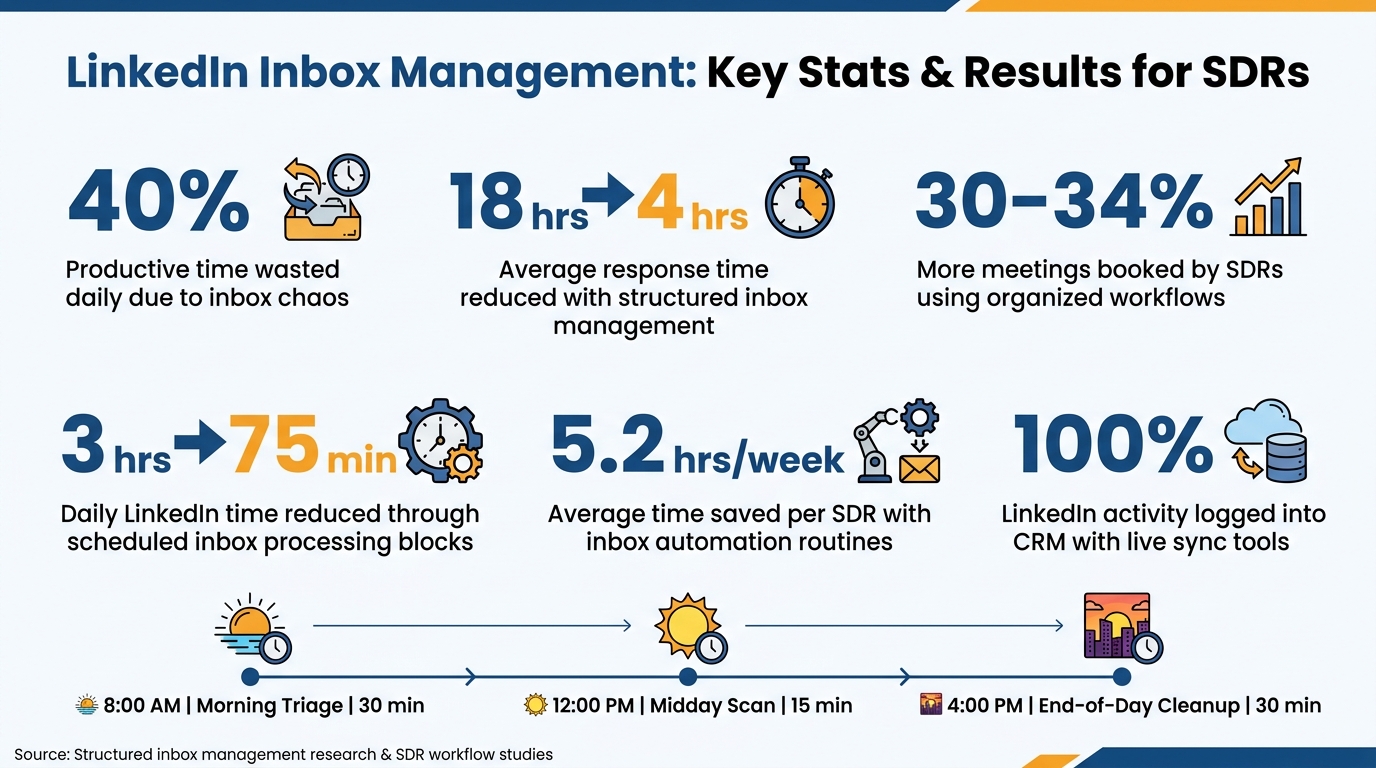
LinkedIn Inbox Management: Key Stats & Results for SDRs
Setting Priorities: Goals and Metrics for Your LinkedIn Inbox
Managing your LinkedIn inbox without clear goals is like flying blind. For SDRs aiming to book meetings, tracking the right metrics is essential for connecting inbox activity to sales success.
Define Key Metrics
Focusing on specific metrics ensures your inbox management efforts directly support your sales goals. Four key metrics to keep an eye on are response time, meetings booked, follow-up completion rate, and messages processed per session.
Among these, follow-up completion rate stands out. Research highlights that structured inbox management can push follow-up rates from 34% all the way to 91%, significantly improving your sales pipeline. On top of that, monitoring how efficiently you process messages can lead to more meetings being booked.
| Metric | Target | Why It Matters |
|---|---|---|
| Average Response Time | Under 4 hours | Faster replies increase lead conversion |
| Follow-Up Completion Rate | 91%+ | Ensures no deals slip through the cracks |
| Meetings Booked | 30–34% increase | Directly impacts revenue growth |
| Messages Processed per Session | +50% increase | Reflects how well you batch tasks |
Once you’ve nailed these metrics, align them with specific response targets to make your workflow even smoother.
Set Response Time SLAs
Not every message demands the same urgency. That’s where tiered response time targets, or service-level agreements (SLAs), come into play. They help you prioritize messages based on their importance.
Here’s a simple SLA framework: reply to hot leads within 24–48 hours, warm prospects within 3–5 days, and general networking messages within 1–2 weeks. For new high-intent connections, aim to respond within the first hour.
The idea isn’t to get it perfect right away. Start by defining your tiers, assign realistic response times, and refine as you go. This approach keeps you focused and ensures no opportunity is missed.
How to Build an Efficient LinkedIn Inbox Workflow
Once your SLAs are set and metrics are in place, the next step is creating a workflow that keeps your LinkedIn inbox manageable. A cluttered inbox can drain nearly 40% of your productive time daily. But with a structured system, you can regain control. Here’s how to do it step by step.
Triage and Categorize Messages
The quickest way to tackle inbox clutter is by treating each message as a task. For every message, decide to either Archive it (if no reply is needed), Respond right away (if it takes less than 2 minutes), Defer it for later, or Label it for follow-up before archiving the thread. This approach, inspired by the Inbox Zero philosophy, ensures every message is handled promptly. The two-minute rule is especially helpful – it prevents small, quick replies from piling up into a larger backlog.
Set Next Steps for Every Thread
Every message should leave your inbox with a clear action plan. Whether it’s scheduling a follow-up, tagging the thread based on the prospect’s sales stage, or sending a quick acknowledgment, ensure there’s a defined outcome. For messages that need more time, a short response like "Got this – I’ll provide more details by the end of the day" works well. If a meeting gets scheduled, document what sparked the prospect’s interest and note any objections. This ensures a smooth transition for your Account Executive.
Schedule Inbox Processing Blocks
Constantly checking your inbox disrupts productivity. Instead, process your LinkedIn messages in scheduled blocks throughout the day:
| Time | Activity | Duration |
|---|---|---|
| 8:00 AM | Clear overnight messages | 30 min |
| 12:00 PM | Address urgent responses | 15 min |
| 4:00 PM | Final processing and follow-ups | 30 min |
This batching method can cut your LinkedIn time from over 3 hours to just 75 minutes daily. Additionally, set aside a separate 15-minute block for managing connection requests. This keeps those tasks from interrupting your ongoing conversations.
Using Labels, Split Inboxes, and Status Updates to Stay Organized
Organizing your messages can save time and reduce the frustration of re-reading threads. By implementing a clear system for labeling, splitting inboxes, and tracking statuses, you can streamline your workflow and stay on top of important conversations.
Build a Labeling System
LinkedIn’s inbox is fairly basic – it doesn’t allow for custom labels or folders. Instead, it offers filters like "Unread", "InMail", and "Spam". To work around this limitation, you can use the Unread filter as a temporary label. For instance, mark messages requiring a thoughtful response as unread and archive them once they’re handled.
"Your inbox messages are tasks that need to be completed. They will need a reply, a follow-up, or something else, depending on the person." – Veer, LinkedIn outreach and automation specialist
If you need a more advanced system, consider tools that allow for custom labels. For example, Cesar.chat’s Basic plan ($24/month) offers unlimited labels, letting you categorize messages like Hot Lead, Follow-Up Needed, or Not a Fit to match your sales process.
Use Split Inboxes for Focused Work
Jumping between different types of messages – like leads, job alerts, and sponsored posts – can disrupt your focus. Split inboxes solve this by allowing you to work on one category at a time. For instance, you could create a "Hot Lead" view to concentrate on prospects without distractions. Since LinkedIn’s inbox combines multiple types of notifications, split inboxes help filter out irrelevant content.
Cesar.chat’s split inbox feature is tailored for SDRs, enabling them to isolate message categories. This focused approach makes it easier to prioritize tasks and naturally flows into tracking conversation statuses for better workflow management.
Track Conversation Statuses
To tie everything together, tracking conversation statuses gives you a clear picture of where each prospect stands. Tags like New, Waiting on Me, or Closed Out provide quick insights into the progress of each interaction. Integrating LinkedIn with your CRM through tools like Zapier or native connections can automatically sync conversation data with platforms like HubSpot or Salesforce.
For even greater efficiency, Cesar.chat’s Business plan ($32/month) includes live CRM syncing. This feature ensures that status updates happen in real time, eliminating the need for manual updates and keeping your workflow seamless.
How to Keep Follow-Ups on Track with Automation
Once you’ve got your inbox workflow running smoothly, automating your follow-ups is the next step to make sure no potential opportunities fall through the cracks.
Even with well-organized labels and clear statuses for your conversations, follow-ups are often where deals go to die. A prospect might say, "Reach out again in a few weeks", but without a system in place, that reminder can easily get lost. The solution isn’t to work harder – it’s to integrate automation into your inbox management.
Schedule Follow-Ups with Snooze and Reminders
Snooze and reminders are two simple tools that can help you stay on top of follow-ups. Here’s how they work:
- Snooze temporarily removes a thread from your active inbox, bringing it back on a specific date you choose. This is perfect for situations where a prospect says, "Check back next quarter."
- Reminders keep a thread visible and notify you if no response comes in after a set timeframe, like 3–5 business days. This ensures you don’t lose track of conversations where you’re waiting for a reply.
Cesar.chat’s Basic plan ($24/month) includes both snooze and reminder features right in the inbox, so you don’t need to juggle multiple tools to stay organized.
Once you’ve got follow-ups under control, you can save even more time by mastering navigation shortcuts.
Use Keyboard Shortcuts to Process Messages Faster
Switching from your mouse to your keyboard can dramatically speed up how you handle high volumes of messages. For instance:
- Press
Jto move to the next message andKto go back to the previous one. This small change can help you triage your inbox in minutes. - Use the
Ekey to archive messages you’ve already dealt with, keeping your workspace clean as you go.
For SDRs working with tools that integrate with LinkedIn, commands like Cmd + K or Ctrl + K let you search, label, and log activity without leaving the thread you’re working on. And if you enable "Press Enter to send" in your settings, you’ll eliminate an extra click for every reply – an efficiency boost that adds up quickly when you’re managing hundreds of messages each week.
Save Snippets for Common Reply Scenarios
Predefined snippets are an excellent way to save time on repetitive responses. Whether you’re confirming meetings, handling objections, or politely declining, snippets allow you to respond quickly without sacrificing a personal touch.
Here’s how to make them work for you:
- Create templates with placeholders like
[First Name],[Company], or[Pain Point]to keep your messages personalized. - Assign a simple keyboard trigger to each snippet. For example,
;calcould insert your calendar link,;introcould drop in your value proposition, and;notfitcould handle polite declines.
Cesar.chat’s Basic plan ($24/month) supports unlimited snippets and includes a Cmd + / search feature, letting you quickly find the right snippet without memorizing every trigger. Review your snippets regularly – if one isn’t getting the results you need, tweak it or replace it.
Automation tools like these don’t just save time – they help you stay consistent and on top of your follow-ups, ensuring no opportunity gets overlooked.
Connecting LinkedIn DMs to Your CRM and Sales Stack
Automation can handle follow-ups, but if your LinkedIn messages aren’t syncing with your CRM, you’re left with incomplete data. When conversations stay locked inside LinkedIn, it disrupts your workflow – deal stages go stale, team handoffs get confusing, and reporting becomes unreliable. By integrating LinkedIn messages into your CRM, you create a seamless process that keeps everything in sync. Let’s dive into how automated synchronization improves data accuracy and team collaboration.
Sync Conversations Automatically
Manually entering LinkedIn conversations into your CRM is time-consuming and prone to errors. That’s where Cesar.chat’s Live Sync comes in. This feature automatically syncs your LinkedIn messages, labels, and notes to your CRM in real-time – no more copy-pasting or switching between tabs.
"You can sync on demand from the Cesar inbox or turn on automatic streaming so HubSpot stays up to date in real time." – Cesar.chat
Currently, Cesar.chat integrates with HubSpot and Google Sheets, with additional platforms like Salesforce, Notion, and Zoho CRM in the pipeline. The sync includes custom labels (like "Hot Lead") and notes from your message threads, giving your CRM a complete view of each interaction. Teams using this feature log 100% of LinkedIn activity into their CRM and save over 5 hours per week by eliminating manual data entry.
Keep CRM Data Clean and Consistent
While syncing is essential, syncing everything indiscriminately can clutter your CRM. A smarter approach is to use smart labeling in your LinkedIn inbox before syncing. For example, tagging a thread as "Hot Lead" or "Client" maps that label to a custom property in your CRM, ensuring deal stages and lead sources update automatically. This eliminates the need for reps to clean up records later.
You can also log notes directly in Cesar.chat’s enhanced messenger. These notes sync alongside conversations, keeping your CRM timeline chronological and complete. This is especially helpful when deals are handed off to another team member or when a manager needs to review outreach quality.
Send Real-Time Updates to Your Team via Slack
In addition to CRM syncing, Slack integration ensures your team stays aligned on key LinkedIn conversations. With Cesar.chat’s Business plan ($32/month), important LinkedIn updates are automatically pushed to a shared Slack channel. For example, when a prospect replies to a high-priority thread or a label changes to "Meeting Booked", your team gets notified instantly – no need to check the inbox manually.
This feature is particularly useful for SDR-to-AE handoffs. Instead of manually messaging your team after every warm lead, updates flow automatically, preserving context and keeping response times fast. It’s a streamlined way to ensure everyone stays on the same page.
Daily, Weekly, and Monthly Inbox Routines for SDRs
With your CRM synced and your team aligned through Slack, a repeatable routine is your best defense against inbox chaos. Consistency is what separates SDRs who are always on top of their game from those constantly scrambling to catch up.
Daily Inbox Management
A structured workflow is key to maintaining focus and improving over time. Instead of reacting to every notification, the most efficient approach is to batch your inbox into three scheduled sessions. Constantly checking your inbox as messages arrive is one of the biggest productivity killers.
| Time Block | Duration | Focus |
|---|---|---|
| Morning Triage | 30 min | Label, archive, or defer all new messages; apply the Two-Minute Rule |
| Midday Scan | 15 min | Handle urgent replies; re-engage with non-responsive prospects |
| End-of-Day Cleanup | 30 min | Final processing: schedule deferred items and queue follow-ups for tomorrow |
During these sessions, use a simple decision framework: archive, respond (if it takes less than 2 minutes), defer, or label. This approach keeps your inbox from turning into a cluttered mess of half-processed threads.
"Inbox Zero isn’t about having zero messages. It’s about processing every message with a decisive action." – ConnectSafely.ai
Another habit worth adopting is reviewing your "Other" folder every Monday. LinkedIn often filters messages into this folder, and a quick 5-minute scan can help you catch missed opportunities, referrals, or legitimate inquiries.
Once you’ve nailed the daily routine, it’s time to think long-term with weekly and monthly reviews.
Weekly and Monthly Reviews
Set aside 30 minutes every Friday for a weekly review. This is your chance to analyze what’s working and what’s not. Look at which message snippets are generating responses, identify any bottlenecks in your threads, and retire templates that aren’t converting. Use this time to clean up outdated labels and ensure all follow-ups for the coming week are properly scheduled.
On a monthly basis, dig deeper into your metrics. Track things like average response time, meetings booked, and time saved through automation. Research shows that sales teams using structured inbox systems book 30% more meetings than those handling messages on the fly. SDRs who stick to these routines save an average of 5.2 hours per week. If your numbers aren’t improving, it’s a signal to revisit and tweak your workflow.
"The difference between an average SDR team and a high performing one often comes down to the SDR process they follow every day." – Casey Nolan
Monthly reviews are also a great opportunity to assess whether high-effort tactics, like sending voice notes to key prospects, are delivering enough value compared to simpler text outreach. Focus your energy on strategies with the highest ROI, and refresh your Cesar.chat snippets library to reflect what’s actually driving results.
Conclusion: Take Control of Your LinkedIn Inbox
Managing a cluttered LinkedIn inbox isn’t just about responding faster – it’s about adopting a structured workflow that works. Numbers back this up: structured inbox habits can cut response times to just 4 hours, increase meeting bookings by over 30%, and save significant time. For example, a team of 12 sales reps saw their response times drop from 18 hours to 4 in just 60 days. They also booked 34% more meetings and saved an average of 5.2 hours per week per rep. These aren’t small changes – they’re game-changing improvements.
Everything in this guide is designed to help you create a workflow that works seamlessly. Strategies like labeling, triage, scheduled processing blocks, automation, and CRM syncing remove the repetitive tasks that consume your day. When combined with daily, weekly, and monthly routines, these habits build momentum over time. The result? A system that not only simplifies your inbox but also boosts your sales results. By following these steps, SDRs can turn inbox chaos into a competitive advantage.
Tools like Cesar.chat make this even easier. With features like split inboxes, snooze options, saved snippets, and live CRM syncing, it puts everything in one place. At just $32/month for the Business plan, it ensures no lead slips through the cracks. Start applying these strategies today and take charge of your inbox – because with the right system, you control your workflow, not the algorithm.
FAQs
How do I decide which LinkedIn messages are “hot” vs “warm”?
To spot "hot" messages, pay attention to recent activities like profile views, engagement with your content, or a prospect’s job change – these are clear signs of immediate interest. On the other hand, "warm" messages come from prospects who have shown interest in the past, such as liking your content or interacting with you previously, but not as recently.
Prioritize "hot" leads for quick follow-up to capitalize on their current interest. Meanwhile, take the time to nurture "warm" leads, gradually building a stronger connection until they’re ready to take the next step.
What’s the simplest way to ensure every thread has a next step?
The easiest way to make sure every conversation leads to the next step is to assign a clear follow-up action during the discussion. Tools like setting reminders or labeling messages (e.g., "Follow-up" or "Next Step") can help you stay on top of things. You can also use pre-written templates with specific calls-to-action to keep conversations moving forward while maintaining an efficient and consistent workflow.
How do I sync LinkedIn DMs to my CRM without making a mess?
Syncing your LinkedIn DMs with your CRM doesn’t have to be a hassle. Using tools like Cesar.chat, you can automate the process and make it much simpler.
Here’s how to get started:
- Install Cesar.chat and sign up: Begin by downloading the tool and creating your account.
- Connect your LinkedIn account: This step allows the platform to sync your LinkedIn messages seamlessly.
- Integrate your CRM: Link your CRM platform and adjust the sync settings to match your preferences.
- Run a test: Ensure everything is connected properly by testing the sync for accuracy.
- Organize with automation: Set up automation features to keep your data structured and free from clutter.
With these steps, you’ll save time and keep your LinkedIn communications well-organized within your CRM.
