
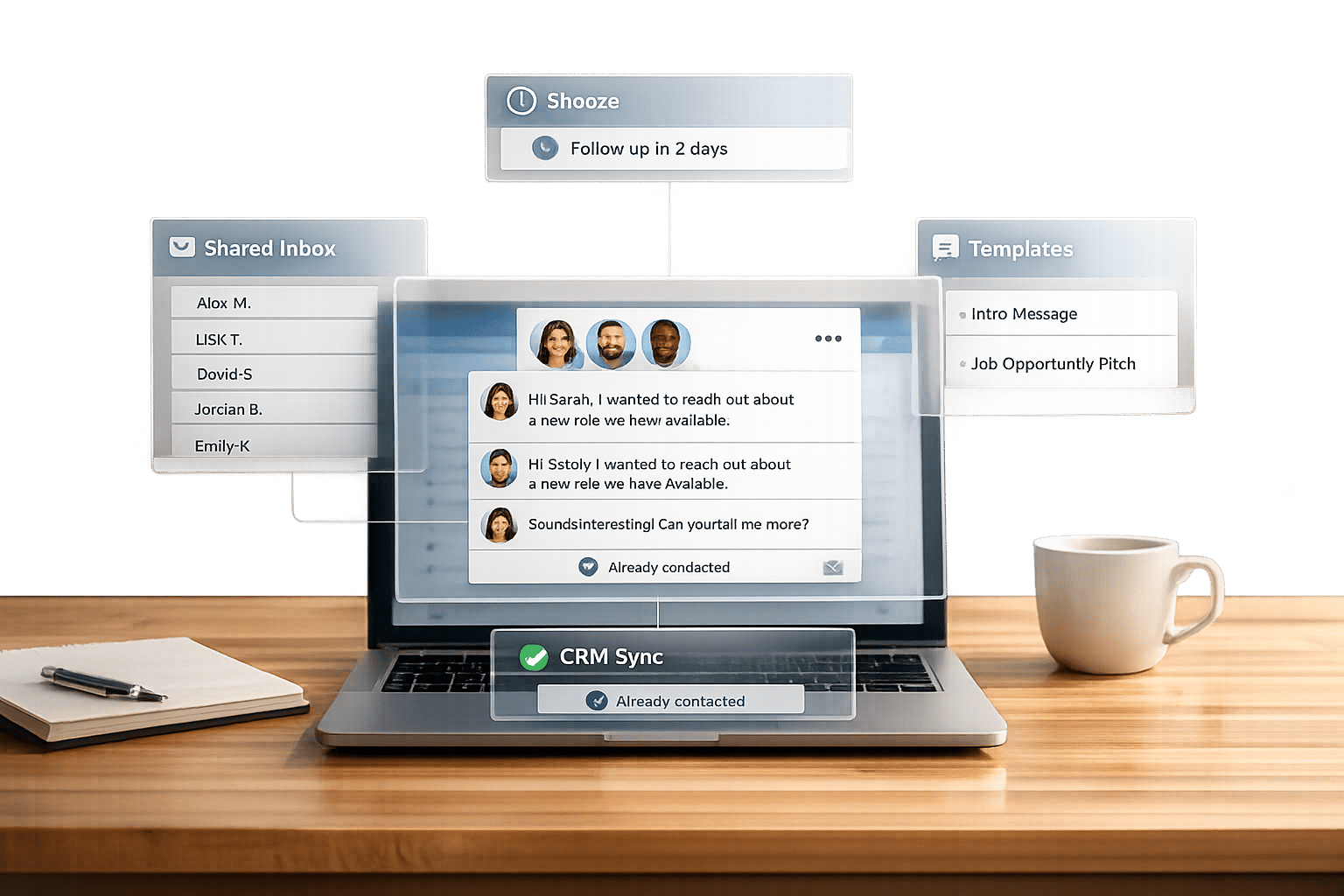
Recruiters often struggle with LinkedIn’s inbox, which lacks features for organizing multiple candidate conversations. This can lead to missed messages, duplicate outreach, and slow response times – critical issues when 65% of candidates reply to InMails within 24 hours. To fix this, teams can:
- Use shared inboxes to centralize communication and avoid overlap.
- Build message templates for faster outreach while personalizing key details.
- Label conversations by hiring stage and use snooze features for timely follow-ups.
- Sync LinkedIn with CRMs like HubSpot or Salesforce to log interactions automatically.
- Set team guidelines for response times, message length, and follow-up frequency.
Tools like Cesar.chat ($24/month) simplify these processes with features like split inboxes, saved snippets, and CRM integration, ensuring no candidate is overlooked.
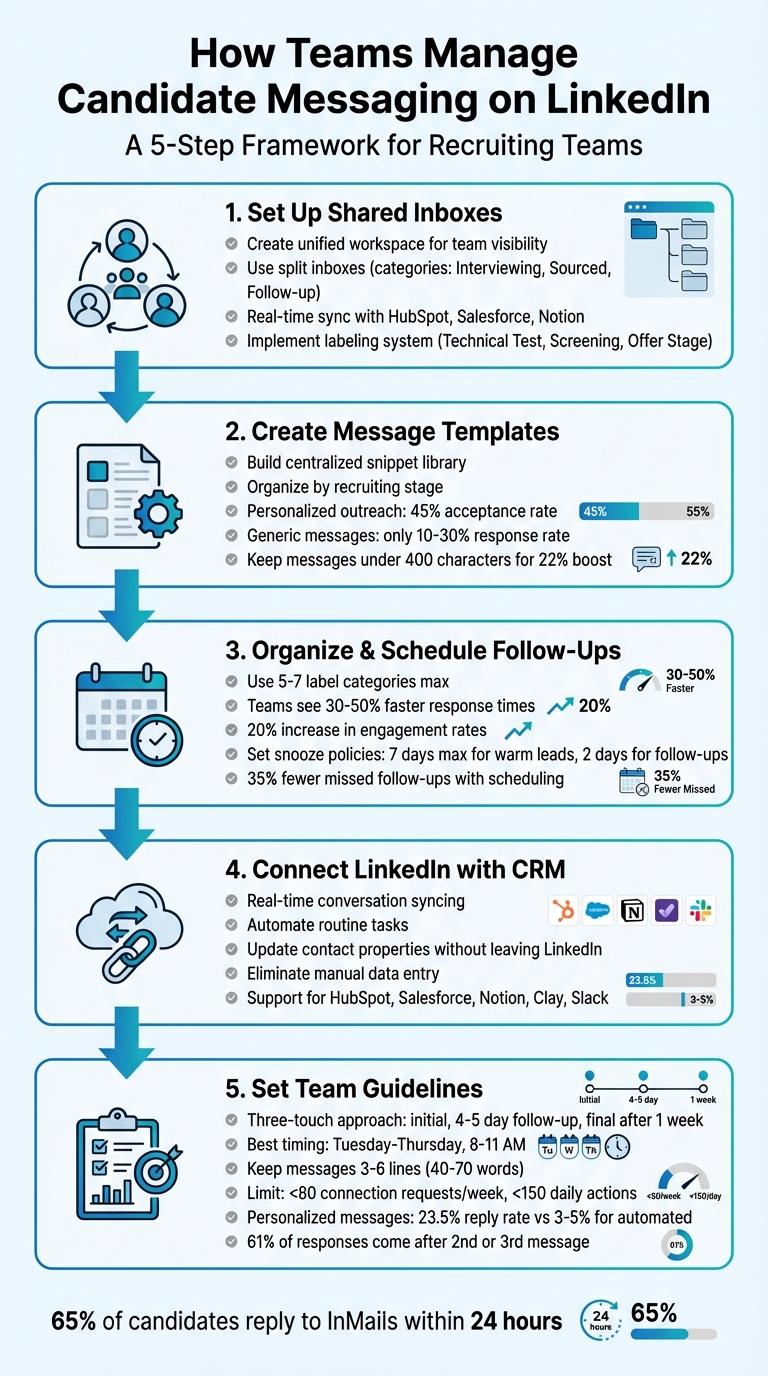
5-Step Process for Managing LinkedIn Candidate Messaging
Step 1: Set Up Shared Inboxes for Team Access
Why Shared Inboxes Work
LinkedIn’s built-in inbox isn’t designed for team collaboration. When recruiters operate from separate accounts, it’s easy for wires to get crossed – one recruiter might message a candidate without realizing someone else already has. Shared inboxes solve this problem by creating a unified workspace where all team members can view the same conversations. With split inboxes, you can organize messages into categories like "Interviewing", "Sourced", or "Follow-up", helping teams focus on the most pressing tasks. Plus, real-time synchronization with tools like HubSpot, Salesforce, and Notion means even team members not logged into LinkedIn can stay updated on the latest interactions. Here’s how to set up a shared inbox to streamline your candidate communications.
How to Configure Shared Inboxes
Start by segmenting your LinkedIn inbox with labels to make tracking candidate progress easier. Using Cesar.chat’s Basic tier ($24/month), you can create unlimited labels. Add specific tags like "Technical Test", "Screening", or "Offer Stage" to better organize your hiring pipeline.
Next, integrate your LinkedIn inbox with a CRM to automatically log messages and maintain shared records. The Business tier ($32/month) allows up to three integrations with tools like HubSpot and Slack. To speed up your workflow, set up keyboard shortcuts for quick navigation, labeling, and syncing. Lastly, implement a snooze system for candidates who aren’t responding. This keeps your active inbox tidy while ensuring you follow up at the right time.
sbb-itb-3e8f5dc
Step 2: Create Message Templates and Snippets
Building a Template Library
Typing out the same messages repeatedly is a major time drain. By creating a centralized library of message snippets, your team can access pre-approved templates for tasks like connection requests, follow-ups, and interview scheduling. Start by identifying the most common types of messages your team sends. These often include initial outreach to passive candidates, follow-ups after no response, and scheduling confirmations. Organize these templates by recruiting stage, and name them clearly – something like "SoftwareEng_Outreach_V1" makes it easy to find the right one quickly.
To keep the library effective, assign someone as the "template librarian" to ensure the tone and quality stay consistent. Encourage collaboration by using internal notes for drafts before adding them to the official collection. A peer-review process can help eliminate awkward phrasing and ensure all recruiters are on the same page. Tools like Cesar.chat’s saved snippets feature make this system even more efficient, letting you insert templates with keyboard shortcuts. What used to take minutes can now be done in seconds.
Once your library is set, focus on quick personalization to make each message stand out.
How to Personalize Templates
While templates save time, personalization is what really drives engagement. Generic messages tend to fall flat, achieving response rates of just 10%-30%. In contrast, personalized outreach can see acceptance rates soar to over 45%. The trick is combining speed with a personal touch. Use the template as a base, then spend about 30 seconds tailoring the message. Mention something specific, like a recent LinkedIn post, a company milestone (e.g., a funding round), or a shared connection. These small details make your outreach feel genuine.
A good formula to follow includes three parts: a personalized hook, clear value, and a low-friction call-to-action (CTA). For instance, instead of saying, "I saw your profile and think you’d be a great fit", try something like: "I noticed your post about migrating to microservices – we’re tackling similar challenges at [Company], and your experience with Kubernetes could be a game-changer. Open to connecting?"
Keep your messages concise – under 400 characters – to boost response rates by 22%. Avoid asking for too much upfront, like a 30-minute meeting right away, as this can deter candidates. Think of templates as flexible frameworks, not rigid scripts. By balancing efficiency with a personal touch, your team can save time without sacrificing the responses that matter.
Step 3: Organize and Schedule Follow-Ups
Label and Prioritize Conversations
Managing hundreds of candidate messages each week can get overwhelming without a structured system. A simple yet effective solution is to use labels like "Hot Lead", "Interview Scheduled", "Follow-Up Needed", or "Archive Later" within LinkedIn’s messaging interface. This method helps recruiters quickly identify which conversations demand immediate attention and which can wait. For instance, one recruiting team dealing with over 500 monthly interactions used labels such as "Qualified – Stage 1", "Nurture", and "Archive." By focusing 80% of their efforts on qualified threads, they boosted their hiring rates by 25%.
To keep things manageable, limit your labels to 5–7 categories. Assign these labels during daily triage sessions to distinguish high-priority candidates. Teams that adopt this approach often see response times improve by 30–50% and engagement rates increase by 20%. Tools like Cesar.chat can make this process even smoother. With features like split inboxes, recruiters can view conversations in separate tabs – such as "Urgent – Reply Today" or "Awaiting Response" – allowing them to process messages twice as fast compared to LinkedIn’s default interface. This labeling system lays the foundation for consistent and efficient follow-ups.
Set Reminders with Snooze Features
Once your conversations are labeled, the next step is ensuring timely follow-ups using snooze features. Instead of leaving messages unread, snooze them until the exact date you need to re-engage. LinkedIn offers a snooze function that lets you set preset or custom follow-up dates, helping you maintain a clean inbox while staying on top of your schedule. When the time comes, the thread automatically resurfaces for action.
To keep the process consistent, establish team-wide snooze policies. For example, set a maximum snooze of 7 days for warm leads and a standard 2-day snooze for follow-ups after no response. Advanced tools like Cesar.chat enhance this process with bulk snoozing capabilities and Slack integration. This means you can snooze up to 100 threads at once, set a "Follow up in 48 hours" reminder, and receive team-wide notifications – eliminating the need to constantly monitor your inbox. Teams using this collaborative approach report 35% fewer missed follow-ups because clear schedules keep everyone accountable.
Step 4: Connect LinkedIn with Your CRM and Tools
Once you’ve organized and scheduled your follow-ups, the next step is syncing your LinkedIn interactions with your CRM. This ensures every conversation is logged accurately and nothing slips through the cracks.
Sync Conversations in Real Time
When candidate data is scattered across LinkedIn, spreadsheets, and your CRM, it creates a disjointed process that can hinder your recruitment efforts. Real-time syncing solves this by automatically capturing LinkedIn interactions in your CRM. For example, when you send a message, it can appear in platforms like HubSpot or Salesforce within minutes, eliminating the need for manual data entry.
HubSpot’s Sales Navigator integration is a great example – it instantly saves LinkedIn profiles as contacts while syncing key details. For teams managing high volumes of interactions, tools like Cesar.chat offer a CRM sidebar directly within LinkedIn. This allows recruiters to update contact properties, add notes, or even create deals without ever leaving the LinkedIn interface. This kind of integration ensures that when a candidate is passed to another team member, the full conversation history – whether it happened on LinkedIn, email, or phone – is readily available.
Real-time syncing also helps uncover opportunities hidden in overlooked or buried threads. As more teams adopt this approach, CRMs are evolving from simple contact managers into unified platforms where LinkedIn and the CRM work as one system.
Automate Routine Tasks
Taking real-time syncing a step further, automating repetitive tasks can significantly improve efficiency. By integrating LinkedIn with your CRM, you can eliminate manual chores that eat up valuable time. For instance, HubSpot workflows can automatically enroll a LinkedIn contact into an email sequence as soon as they’re synced. Similarly, snoozing a message for follow-up on LinkedIn can trigger your CRM to create a task reminder for that specific date.
Cesar.chat’s Business plan ($32/month) supports up to three integrations – including Notion, Slack, and Clay – while the Enterprise plan ($40/month) offers unlimited sync options with a personalized setup. For example, tagging a LinkedIn conversation as "Interview Scheduled" can automatically send a Slack notification to your hiring manager and update the candidate’s status in Notion – all without switching between tools.
"I love that Instantly just works and does the basics exceptionally well… I appreciate the integration with HubSpot." – Chico C., G2 Reviewer
Automated logging also ensures every interaction is captured in team activity metrics, reducing the risk of gaps caused by manual updates. Teams that move from manual data entry to automated syncing often find they have more time to focus on engaging with candidates. This streamlined approach keeps workflows smooth and ensures no candidate is overlooked.
Step 5: Set Team Guidelines and Monitor Performance
Once your messaging system is optimized, the next step is to establish team guidelines. These ensure that every interaction with a candidate aligns with your recruitment goals. Clear standards help maintain consistent message quality and prevent missed opportunities that come from inconsistency.
Define Response Standards
Timeliness is key. A good rule of thumb is to follow a three-touch approach: an initial message, a follow-up after 4–5 days, and a final message about a week later. This approach keeps you visible without overwhelming candidates. For the best response rates, schedule messages between Tuesday and Thursday, ideally from 8:00 AM to 11:00 AM in the candidate’s local time zone.
Keep your messages brief. Aim for 3 to 6 lines, or roughly 40–70 words, as these are easier to read on mobile devices. Messages longer than 100 words can see reply rates drop by 30%. Use the "Hook-Bridge-Ask" framework: start by referencing something specific about the candidate (like a recent post or project), connect it to your opportunity, and finish with an easy-to-answer question.
Protect your team’s accounts. To avoid triggering LinkedIn’s limits, keep connection requests under 80 per week and total daily actions (like views, messages, or endorsements) under 150. These limits help ensure your accounts remain healthy and effective for outreach.
With clear guidelines in place, the next step is to measure how well your team is performing.
Measure Messaging Performance
Track the right metrics. Focus on connection acceptance rates, reply rates, and interview bookings to identify what’s working and what isn’t. By late 2025, templated automated outreach saw reply rates drop to just 3–5%, while personalized, research-based messages achieved reply rates as high as 23.5%. Monitoring these numbers can help you spot when your messages start to feel automated – an important insight since the typical B2B professional receives 11 unsolicited LinkedIn messages per week, most of which appear automated.
Prioritize quality over quantity. Instead of focusing on how many messages your team sends, shift the focus to meetings booked. Multi-channel outreach that combines LinkedIn and email tends to generate 40% more responses than LinkedIn-only efforts. Additionally, data shows that 61% of responses come after the second or third message, but going beyond three touches rarely leads to meaningful conversations.
"The replies you get on message seven are not the replies you want. You’ve either annoyed someone into responding or caught them at a moment of weakness." – Ibby Syed, Founder, Cotera
Regular performance audits are crucial. For passive candidates, aim for a response rate of 10–15%, with top-performing teams reaching as high as 25–30%. If you notice templates underperforming, it’s time to tweak your approach. Teams that transitioned from mass automation to personalized outreach found they needed to send 7.7 times fewer messages to achieve the same number of replies.
How Cesar.chat Improves Team Messaging
Cesar.chat takes team communication to the next level by addressing the challenges of managing candidate outreach on LinkedIn’s native messenger. Designed specifically for recruiting teams, Cesar.chat offers tools that prioritize speed, organization, and efficiency.
One standout feature is the split inbox, which tackles the common issue of losing track of high-priority candidates. By separating conversations into clear stages, recruiters can keep key candidates front and center without needing to juggle multiple tools. This feature integrates seamlessly into your existing workflow, making it easy to stay organized.
Another game-changer is the saved snippets feature. Forget repetitive copy-pasting – these snippets allow fast, personalized responses with simple keyboard shortcuts. The platform also supports quick navigation for essential actions, helping recruiters work through messages much faster. And with the snooze feature, important conversations resurface at a scheduled time, ensuring no follow-ups are forgotten.
For teams using CRMs, live sync with tools like HubSpot, Salesforce, Notion, Clay, and Slack eliminates the hassle of manual data entry. Notes, labels, and conversation data automatically update across your tech stack, keeping hiring managers informed in real time. Pricing starts at $24/month, with options that scale from unlimited labels and snippets to full CRM sync and premium support. These features combine to create a streamlined process for candidate messaging.
Unlike automated botting tools, Cesar.chat relies on official API interactions, ensuring your team’s LinkedIn accounts stay protected from restrictions. It’s designed for high-speed manual outreach, prioritizing personalized and research-driven messaging over automated responses.
Wrapping Up
Making candidate messaging on LinkedIn simpler doesn’t have to be complicated. By following five key strategies – centralizing conversations with shared inboxes, using templates and snippets, scheduling follow-ups, integrating with your CRM, and establishing clear team guidelines – recruiting teams can handle high-volume outreach without sacrificing a personal touch.
The magic lies in combining these steps into a smooth workflow. With a unified system, your team can process LinkedIn messages twice as fast, ensuring no candidate slips through the cracks. What used to be a chaotic and time-draining task can become an organized and efficient process.
Cesar.chat brings all of these tools together in one easy-to-use platform. Starting at $24/month, it offers features like keyboard shortcuts, real-time CRM syncing, and conversation categorization by recruitment stage – all while adhering to LinkedIn’s API rules. It’s a practical solution for teams looking to stay efficient and organized.
FAQs
How do we prevent duplicate outreach to the same candidate?
Keeping outreach efforts organized is key to avoiding duplicate messages. One way to streamline this process is by using tools like Cesar.chat, which offers features such as split inboxes. These allow teams to categorize conversations and keep track of which candidates have already been contacted.
Another helpful feature is the ability to snooze threads for follow-ups, ensuring candidates aren’t messaged too often or too soon. By maintaining a clear communication history, these strategies not only prevent confusion but also promote a respectful and efficient approach to outreach.
What should our LinkedIn follow-up schedule be?
The ideal timeline for follow-ups depends on the situation. After your initial message, aim to follow up within 1-5 business days. If the recipient checks out your profile but doesn’t reply, give it 3-5 days before reaching out again. For accepted connection requests, a good rule of thumb is to follow up within 1-2 days.
Keep your follow-ups professional by limiting them to 2-3 messages. This prevents your outreach from feeling pushy and helps maintain a respectful tone, increasing the likelihood of a positive interaction.
How can we log LinkedIn messages in our CRM automatically?
You can use Cesar.chat to automatically log your LinkedIn messages into your CRM. Its live sync feature ensures that messages, labels, and notes are instantly transferred to platforms like HubSpot, Salesforce, or Notion.
Getting started is simple: connect your LinkedIn account, set up labels and notes for better organization, and activate CRM integration. This way, you can skip manual logging, save time, and streamline your workflow.



