
LinkedIn is the top platform for B2B leads, with 80% of B2B social media leads coming from it and a 6.5% ad conversion rate, outperforming Google Search ads. But many professionals lose 3+ hours daily on manual tasks, risking missed opportunities and delayed responses to high-priority leads.
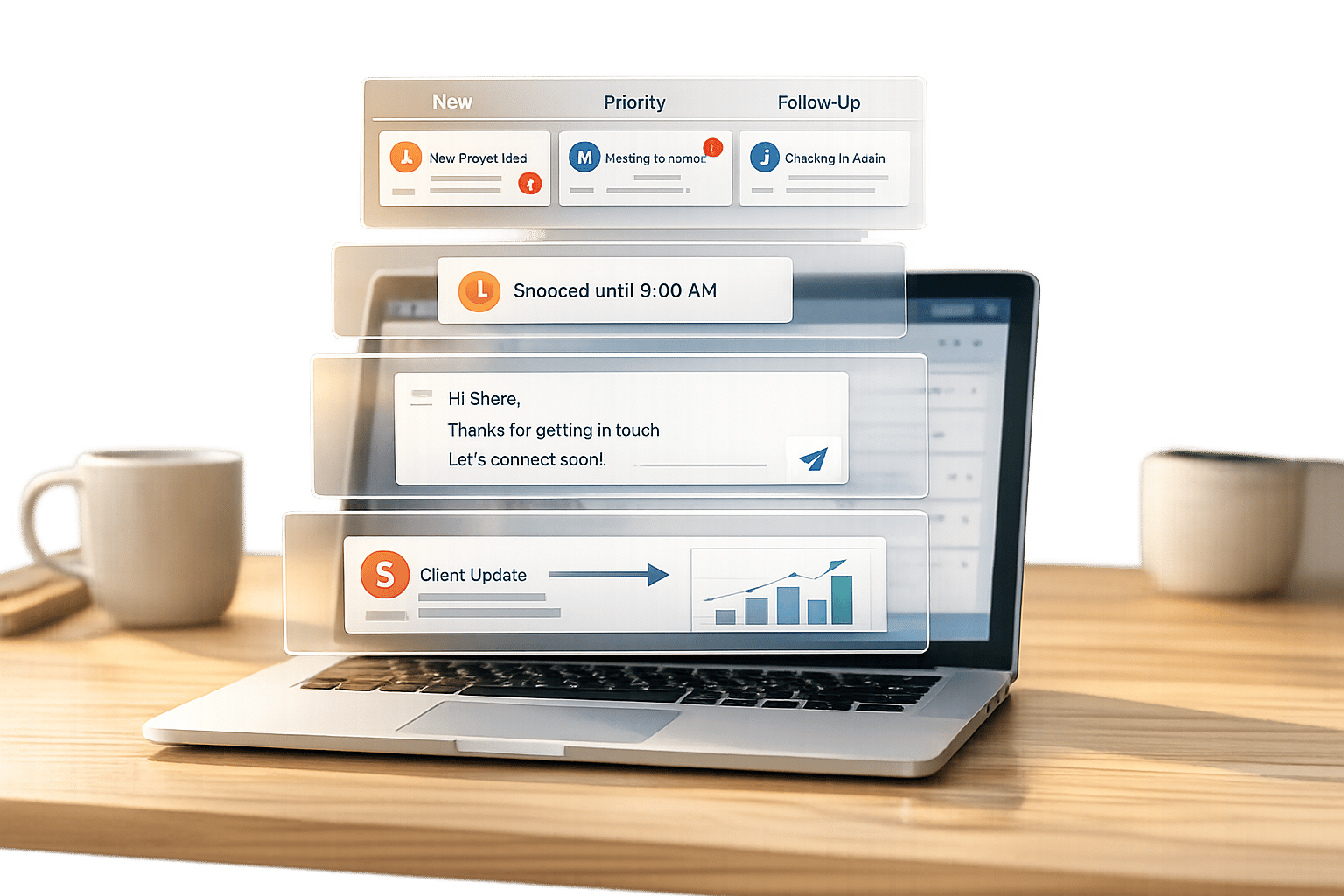
Here’s the solution: Cesar.chat transforms LinkedIn messaging into an efficient lead management system. Key features include:
- Split Inboxes: Organize messages by lead priority (e.g., Hot Leads, Follow Up Later).
- Snooze Threads: Schedule follow-ups and resurface conversations at the right time.
- Saved Snippets: Send responses faster with pre-written templates.
- CRM Integration: Sync LinkedIn data with tools like HubSpot and Salesforce.
- Analytics: Track reply rates and improve your outreach strategy.
With plans starting at $24/month, Cesar.chat helps you save time, respond faster, and close more deals without missing a lead.
Use Split Inboxes to Organize Your Leads
LinkedIn inboxes handle all messages the same way: chronologically. This means a casual "thanks for connecting" message might sit right next to a high-priority prospect asking about pricing. Nađa Komnenić, Head of Sales at HeyReach, put it best:
"Most SDRs don’t lose deals because they lack leads. They lose deals because, once replies start coming in, they work their LinkedIn inbox in the wrong order."
Cesar.chat’s split inbox feature solves this problem by letting you label conversations and sort them into dedicated inboxes. This way, high-priority prospects are easy to isolate, and you can handle messages twice as fast.
The importance of quick responses can’t be overstated – B2B lead qualification drops significantly if there’s a delay of more than 10–15 minutes. By prioritizing leads based on their intent rather than the order of their messages, you can ensure that your most valuable opportunities get immediate attention.
How to Set Up Split Inboxes for Different Lead Categories
Setting up split inboxes in Cesar.chat is straightforward. The tool syncs with LinkedIn using internal APIs, so any actions you take in the app are reflected on LinkedIn as well. The key is labeling: tag conversations to split them into separate inbox views, making it easier to track and prioritize leads.
Start by creating labels based on the lead’s stage or intent. A simple four-tag system could look like this:
- Hot Lead: High buying intent (e.g., pricing inquiries).
- Needs Nurture: Interested but not urgent.
- Follow Up Later: Timing objections like "reach out next quarter."
- Low Priority: Leads that aren’t a fit.
To keep things organized, spend about 10 minutes twice a day (morning and afternoon) tagging new replies and sorting them into the appropriate inbox. Begin with the "Hot Lead" filter to ensure high-intent prospects get the fastest responses.
For leads that aren’t ready to convert, you can use keyboard shortcuts to apply labels. Pair the split inbox with the snooze feature so that snoozed threads resurface at the top when it’s time to follow up.
To ensure no high-value contact is overlooked, integrate real-time alerts alongside your organized inboxes.
Connect Sales Navigator Alerts for Real-Time Updates

Once your split inboxes are set up, you can take things further by integrating Sales Navigator alerts for real-time updates. If you’re on the Business plan ($32/month) or higher, you can sync Sales Navigator messages directly into Cesar.chat. This integration automatically organizes key leads within your split inbox system.
Sales Navigator alerts are perfect for timely outreach without being intrusive. They provide triggers like "Lead Changed Jobs", "Lead Viewed Profile", "Account Growth" (e.g., hiring sprees), and "Buyer Interest Alerts" (such as visits to your company page). These triggers act as natural conversation starters, giving you a reason to engage when a prospect’s activity signals interest.
You can set up filters in your split inboxes to route Sales Navigator alerts into a dedicated "High-Value Alerts" category, ensuring you focus on decision-makers and high-priority leads. With Sales Navigator’s ability to track up to 10,000 leads and 1,000 accounts, this integration ensures no critical signals slip through the cracks.
Additionally, labels and conversation data from your split inboxes can sync seamlessly with tools like HubSpot, Salesforce, Notion, and Clay. This keeps your entire sales stack aligned and ensures you have a unified view of your leads and conversations.
sbb-itb-3e8f5dc
Set Up Snooze Threads and Reminders for Follow-Ups
After organizing your leads with split inboxes, the next step is making sure your follow-ups happen on time.
Here’s the reality: most LinkedIn conversations need multiple follow-ups to convert. In fact, 80% of sales require an average of five follow-up attempts, yet 94% of professionals stop after four. That means if you push through to a fifth follow-up, you’re in the top 6% of performers who close most deals.
But with a busy LinkedIn inbox, it’s easy to lose track of when and who to follow up with. That’s where Cesar.chat’s snooze threads and reminders come in. These tools help you stay on top of every lead by temporarily hiding conversations until it’s time to follow up.
How to Schedule Follow-Ups with Snooze Threads
Snoozing a conversation removes it from your inbox, allowing it to automatically resurface at the exact time you’ve scheduled. This keeps your inbox focused on active leads and prevents clutter.
Here’s how you can use this feature effectively:
- Follow a cadence: schedule your first follow-up for 3–5 days later, the second for 7–10 days, and a final check-in for 14–21 days.
- For long-term follow-ups, like when a lead says “reach out next quarter,” snooze the thread for three months. It’ll pop back up when it’s time to reconnect.
Keep your follow-up messages short and impactful. Messages under 300 characters tend to get better response rates. Instead of sending a generic “just checking in,” share something valuable, like a relevant article or resource. The snooze feature is included in all Cesar.chat plans starting at $24/month.
Once your snoozes are set, use reminders to stay on top of dynamic lead activity.
Use Lead Activity to Trigger Timely Reminders
Missing a follow-up can mean missing an opportunity. That’s why reminders are essential for staying in sync with your leads.
With Cesar.chat’s Reminders feature, you can set prompts for specific leads based on key updates from Sales Navigator alerts. For example, if a lead changes jobs or their company announces a hiring spree, set a reminder to follow up within 24–48 hours to keep the conversation moving.
These reminders integrate seamlessly with your split inboxes and CRM tools like HubSpot, Salesforce, or Notion. Unlike automation bots, Cesar.chat puts you in control of every interaction while helping you work faster and smarter.
Speed Up Responses with Saved Snippets and Keyboard Shortcuts
When it comes to managing LinkedIn leads, speed is everything. Quick responses can make all the difference in keeping a conversation alive. But typing out the same responses repeatedly can be time-consuming and prone to mistakes.
That’s where Cesar.chat’s saved snippets and keyboard shortcuts come in. These tools let you send polished, professional responses in just seconds. In fact, using snippets can cut response time from 30 seconds of typing to just 2 seconds. This means you can handle more conversations without compromising on quality.
How to Create and Use Saved Snippets
Saved snippets are pre-written message templates that can be inserted instantly into your conversations. Instead of typing out the same responses over and over or copying from external notes, you can store them directly in Cesar.chat and access them with a simple shortcut.
Think about the messages you send most often – things like meeting links, pricing details, service summaries, or responses to common objections. Save these as snippets. For example:
- Frequently sharing your Calendly link? Save it as a snippet.
- Getting a lot of pricing inquiries? Create a clear, concise snippet outlining your packages.
Once your snippet library is set up, you can drop these messages into your conversations effortlessly. This not only saves time but also ensures your responses maintain a consistent level of professionalism, no matter how many messages you’re juggling. Best of all, snippets are included in Cesar.chat plans starting at $24/month.
Use Keyboard Shortcuts for Faster Lead Engagement
Snippets are just the beginning – pair them with keyboard shortcuts to take your efficiency to the next level.
Keyboard shortcuts let you navigate Cesar.chat without relying on your mouse. You can move between conversations, apply labels, snooze threads, and insert snippets – all with a few keystrokes. This eliminates the need to click through menus and buttons, saving you valuable time.
A keyboard-first workflow can help you process up to three times more messages than manual clicking. For busy sales professionals and recruiters, this means reclaiming over 5 hours each week that might otherwise be lost to repetitive tasks. For example:
- Use shortcuts like J and K to move up and down between conversations.
- Apply labels instantly with a keystroke.
- Insert saved snippets without breaking your flow.
With these tools, you’ll stay focused and engaged with your leads while keeping your workflow smooth and efficient.
Connect Your CRM to Centralize Lead Data
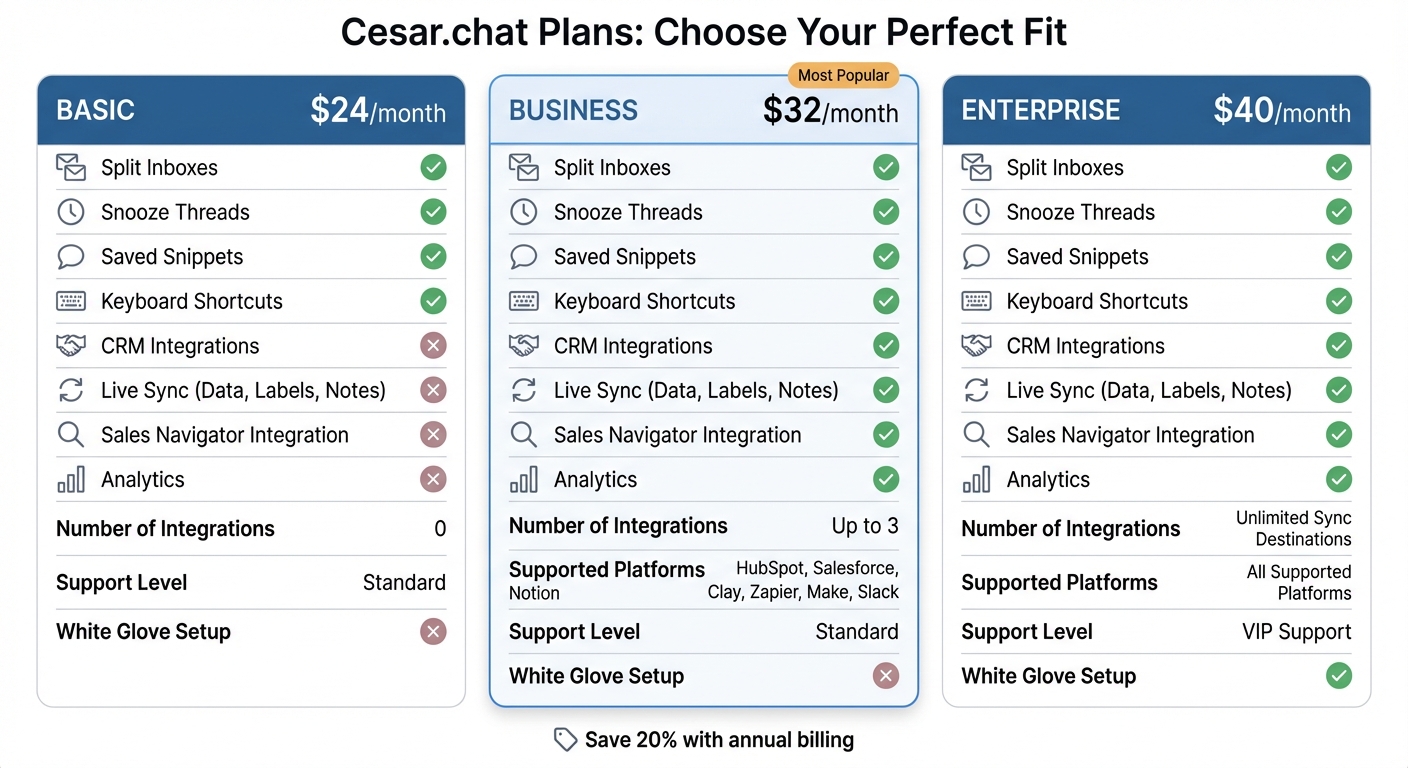
Cesar.chat Pricing Plans Comparison: Features and Costs
Managing LinkedIn leads can quickly become a hassle if your conversation data is scattered between platforms. Every time you manually copy messages, update contact records, or log interactions, you waste valuable time. Meanwhile, potential leads can lose interest while you’re stuck doing tedious data entry tasks. By integrating your CRM, you can bring all these actions together in one place, eliminating manual work and keeping your lead management consistent.
Cesar.chat’s CRM integration takes this a step further by offering live, automatic syncing of LinkedIn conversation data, labels, and notes directly into CRMs like HubSpot and Salesforce. For example, if you tag a lead as a "hot opportunity" in Cesar.chat, that label immediately reflects in your CRM. Add notes during a LinkedIn chat about a prospect’s challenges, and those details sync instantly too. This ensures your team has access to the full context of every LinkedIn interaction right from the CRM, without extra steps.
The results speak for themselves: LinkedIn-integrated insights can increase lead conversion rates by 30%, improve team efficiency by 34%, and save 5.5 hours per week on manual data entry. Bastien Paul from Hublead sums it up perfectly:
"Syncing messages to HubSpot keeps everything in one place, so no important details are missed".
How to Connect Cesar.chat with HubSpot and Salesforce
To set up CRM integration, you’ll need the Business plan ($32/month) or higher, as the Basic plan doesn’t support CRM connections. The Business plan allows up to three integrations, while the Enterprise plan ($40/month) offers unlimited sync options, along with hands-on setup assistance and VIP support.
Cesar.chat uses LinkedIn’s official APIs to ensure real-time syncing of sent and received messages. This approach avoids botting or scraping, keeping your LinkedIn account secure while managing your outreach efforts. Beyond traditional CRMs like HubSpot and Salesforce, Cesar.chat also supports integrations with tools like Notion, Clay, Zapier, Make, and Slack.
If you’re on the Enterprise plan, the Cesar.chat team will handle the setup for you, mapping data fields and configuring workflows to ensure everything works smoothly from the start. This eliminates the need for troubleshooting or manual adjustments on your end.
CRM Integration Features by Plan
| Feature | Basic ($24/mo) | Business ($32/mo) | Enterprise ($40/mo) |
|---|---|---|---|
| CRM Integrations | Not Included | Up to 3 Integrations | Unlimited Sync Destinations |
| Live Sync (Data, Labels, Notes) | No | Yes | Yes |
| Supported Platforms | N/A | HubSpot, Salesforce, Notion, Clay, etc. | All Supported Platforms |
| White Glove Setup | No | No | Yes |
| Support Level | Standard | Standard | VIP Support |
Choosing the right plan depends on your needs. If you only require basic integrations with tools like HubSpot or Salesforce, the Business plan is a great fit. For more complex workflows involving multiple platforms and hands-on setup assistance, the Enterprise plan is ideal.
This seamless CRM integration ties together your LinkedIn lead management process, ensuring every opportunity is tracked and acted on efficiently.
Track Performance with Cesar.chat Analytics
Understanding how your outreach efforts perform is crucial for fine-tuning your messaging. Without proper analytics, you’re left guessing. With Cesar.chat Analytics – available on the Business ($32/month) and Enterprise ($40/month) plans – you gain access to the data that helps you refine your approach and make the most of every opportunity.
This tool tracks essential metrics like reply rates, communication patterns, and engagement timing. For instance, it allows you to categorize conversations into statuses like "Accepted, no reply" or "Replied once, then stalled." These insights make it easier to see where prospects lose interest and align your lead management strategy for better results.
Monitor Reply Rates and Communication Patterns
A reply rate between 15% and 30% is considered a sign of effective messaging. If your rate falls below 15%, it might be time to revisit your targeting or tweak your messaging. On the other hand, rates above 30% suggest that your personalization efforts are hitting the mark.
Cesar.chat Analytics can help you compare different messaging strategies. For example, you can test problem-focused hooks against messages that use social proof to see which generates more positive responses. Research shows that sending up to two follow-ups can significantly improve response rates, while additional messages often lead to disengagement. Set aside 20–30 minutes each week to review unanswered threads and analyze the performance of high-value prospects.
Use Data to Improve Follow-Up Timing and Messaging
Beyond tracking responses, analytics can help fine-tune your follow-up schedule. With these insights, you can identify the optimal time gaps between messages and figure out the best times to reach out, depending on the industry or role you’re targeting. For example, waiting at least 7 days between follow-ups can prevent you from coming across as overly persistent and protect your account’s reputation.
You can also experiment with different call-to-action (CTA) styles. Binary choice CTAs – such as "Would a 10-minute call help, or should I send a case study?" – often outperform open-ended questions by making it easier for prospects to respond. Introducing a "break-up" message around Day 14 of your sequence can reduce pressure and potentially re-engage leads that have gone quiet.
Finally, compare the effectiveness of manual, signal-based follow-ups with automated sequences. This allows you to refine your approach, ensuring a balance between personalization and efficiency. With the power of analytics, you can adjust your strategy to maximize every LinkedIn lead.
Wrapping It Up
Missing out on a LinkedIn lead can mean letting a great opportunity slip through your fingers. But with tools like split inboxes, snooze threads, saved snippets, CRM integrations, and analytics, you can stay on top of every conversation and never lose sight of potential connections. By tackling the common inefficiencies that drain time and money, you ensure every lead gets the attention it deserves.
Cesar.chat simplifies managing high-volume outreach by keeping your leads organized, speeding up responses with keyboard shortcuts and saved snippets, and automating follow-up reminders to keep you on track. Plus, with live CRM syncing for platforms like HubSpot, Salesforce, and Notion, your lead data stays current without any manual effort.
Built on official APIs, Cesar.chat ensures your LinkedIn interactions are handled securely. Pricing starts at $24/month for the Basic plan, with Business ($32/month) and Enterprise ($40/month) tiers adding features like extra integrations, Sales Navigator messaging, and analytics. Opt for an annual plan and enjoy a 20% discount.
FAQs
What’s the fastest daily workflow to keep LinkedIn leads organized?
Speed up your workflow by automating LinkedIn activities and syncing them with your CRM. Automation tools can help you extract and manage leads effortlessly, while syncing LinkedIn messages directly into your CRM keeps everything organized in one place. Tools like LinkedIn Sales Navigator are perfect for targeted outreach, allowing you to connect with the right people more effectively.
To stay on top of things, organize your leads using CRM tags or segments. This makes it easier to track and prioritize opportunities. Also, keep an eye on metrics like response rates. Regularly analyzing these numbers helps you fine-tune your process for better results. Not only does this approach save time, but it also ensures your lead management stays smooth and efficient.
How do I choose the right snooze and follow-up schedule for my leads?
To find the best snooze and follow-up schedule, focus on balancing persistence with respect for your lead’s time. For longer sales cycles, aim to reach out consistently every 2–4 weeks. Stick to business hours for follow-ups, with Tuesday through Thursday being the ideal days. Pay attention to engagement signals, like when a lead views your profile or responds, to time your outreach effectively. A good approach is to send a sequence of 4 short, value-packed messages over a 14-day period, keeping your communication relevant without overloading your leads.
What LinkedIn data should I sync to my CRM to avoid losing context?
Syncing key LinkedIn data to your CRM is a smart move to stay organized and on top of your interactions. Include details like messages, interaction history, contact information, and engagement data from profiles or tools such as Sales Navigator. This way, your CRM reflects your LinkedIn activity in full, making it easier to manage follow-ups and maintain a clear overview of your connections.



