
If you’re managing high volumes of LinkedIn messages, LinkedIn‘s native messenger may not be enough. While it has basic features like message threading, starred conversations, and AI writing assistance for premium users, it lacks crucial tools for scaling outreach efficiently. Key limitations include no CRM integration, no custom inbox organization, and no follow-up reminders – making it hard to keep up with dozens of daily conversations.
This is where tools like Cesar.chat excel. Designed for sales teams, recruiters, and founders, Cesar.chat offers features like split inboxes, snooze reminders, keyboard shortcuts, and live CRM syncing. These tools help you organize conversations, save time, and avoid missing opportunities. Users report handling messages twice as fast compared to LinkedIn’s default interface.
Quick Overview:
- LinkedIn Native Messenger: Basic tools for casual use; lacks advanced organization and automation features.
- Cesar.chat: Advanced features like custom inboxes, automated reminders, and CRM sync; faster and more efficient for high-volume messaging.
Pricing Comparison:
- LinkedIn Native: Free (with limits) or included in Premium plans.
- Cesar.chat: Starts at $24/month, offering significant time savings for professionals.
If you’re juggling a few messages, LinkedIn’s native messenger might work. But for high-volume messaging, Cesar.chat provides the tools you need to stay efficient and organized.
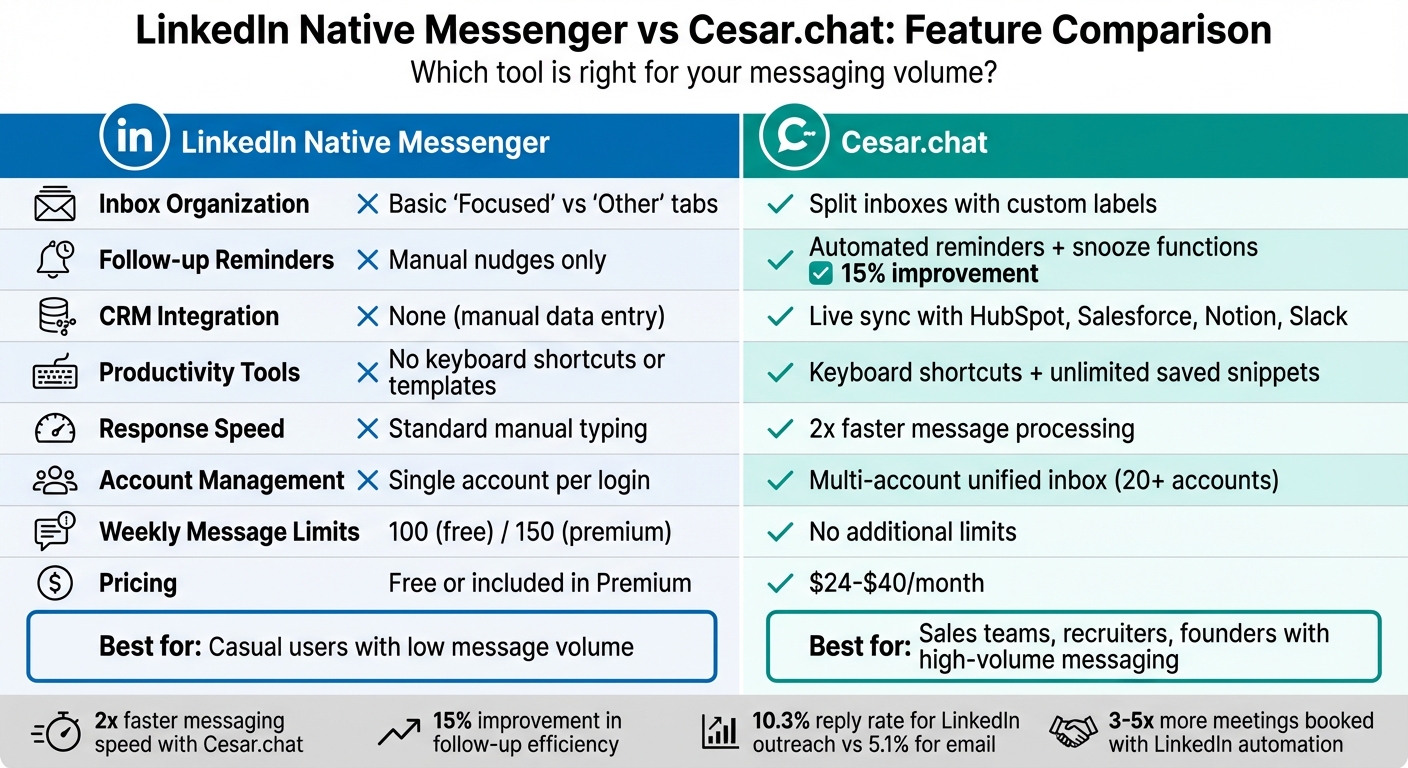
LinkedIn Native Messenger vs Cesar.chat Feature Comparison
Auto-Reply to LinkedIn DMs with Human Review
sbb-itb-3e8f5dc
LinkedIn Native Messenger: What It Offers and Where It Falls Short
LinkedIn’s built-in messenger includes handy tools like message threading, keyword search, mobile access, a Focused Inbox for sorting messages, pop-up chat windows, and the ability to star conversations for quick access. Premium users even get an AI Writing Assistant that drafts initial messages based on profile details.
But for sales reps and recruiters juggling dozens of daily conversations, these features may not be enough. Let’s break down what LinkedIn’s native messaging offers – and where it struggles.
Standard Features in LinkedIn Native Messenger
LinkedIn’s messenger allows you to edit or delete messages within 60 minutes of sending them. You can also mute or unmute multiple conversations at once, and group chats can include up to 50 members, with all participants able to manage the group. There’s a filtering system for unread messages, InMail, and starred conversations. Message Nudges remind you to follow up on flagged threads, and all messages are encrypted in transit using TLS for security.
While these tools cover the basics, they’re not ideal for handling high-volume outreach.
Main Drawbacks of LinkedIn Native Messenger
The platform has several notable limitations. For starters, there’s no way to create custom inbox categories (like "Hot Lead" or "Candidate"), which can make managing conversations chaotic. You also can’t snooze conversations or set follow-up reminders, so important threads might get buried. There are no keyboard shortcuts for faster navigation, no saved templates for quick replies, and no CRM integration – forcing users to manually transfer data into external systems.
"LinkedIn’s native inbox lacks the tools for this workflow: there’s no prioritization, no snooze/reminders, and no easy categorization." – Kondo
Another drawback is LinkedIn’s strict weekly limits. Free accounts can send about 100 messages per week, while premium accounts are capped at around 150. Free users also face a Commercial Use Limit, restricting search results to three per query after roughly 250–350 searches per month. Connection requests are limited to 20–40 per day, and free users can send only 5–10 personalized connection notes monthly. Sending too many messages or triggering spam filters can result in "LinkedIn Jail", where accounts face temporary restrictions – or even permanent suspension.
"If you send too many messages, LinkedIn will block or temporarily restrict your account… lasting from 24 hours to several days." – Zack Olivas, Founder & CEO, LeadLoft
These restrictions highlight the need for more advanced tools to streamline workflows and enhance outreach.
Feature Comparison: LinkedIn Native vs Enhanced Tools
| Feature | LinkedIn Native Messenger | Enhanced Tools |
|---|---|---|
| Inbox Organization | Basic "Focused" vs. "Other" tabs | Unified inbox with custom labels |
| Follow-up Reminders | Manual nudges only | Automated reminders, snooze functions, and drip sequences |
| CRM Integration | None (manual data entry required) | Native syncing with HubSpot, Pipedrive, and Salesforce |
| Productivity Tools | No keyboard shortcuts or templates | Keyboard shortcuts and snippets with dynamic variables |
| Account Management | Single account per login | Multi-account rotation for scalable outreach |
| Personalization | Manual typing or basic AI drafting | AI-generated voice notes and hyper-personalized variables |
Enhanced Tools: Advanced Features for LinkedIn Messaging
Third-party tools step in to solve the inefficiencies of LinkedIn’s native messenger, especially for users managing high volumes of messages. By eliminating the need for manual tracking and repetitive tasks, these tools add a layer of productivity that LinkedIn’s basic interface lacks. Here’s a closer look at how these features improve workflows.
One standout feature is enhanced inbox organization, which lets users create custom labels and segment conversations. This makes it easier to track important threads and avoid losing them in a flood of unread messages. Additionally, you can snooze conversations, prompting them to resurface at the top of your inbox when it’s time to follow up.
Keyboard shortcuts and saved snippets are another time-saver. These features allow users to navigate faster and respond to messages more efficiently. For instance, users of Cesar.chat report processing their DMs twice as quickly compared to LinkedIn’s native messenger.
Live CRM integration is a game-changer for syncing data. It automatically updates conversation details, labels, and notes to platforms like HubSpot, Salesforce, and Notion, eliminating the need for manual data entry. On top of that, a unified inbox consolidates messages from multiple LinkedIn profiles, allowing teams to manage over 20 accounts without the hassle of constant logins and logouts.
Main Benefits of Enhanced Tools
These tools don’t just improve operations – they bring noticeable advantages to outreach efforts.
One key benefit is workflow automation without risks. Unlike aggressive bots that could flag your LinkedIn account, tools like Cesar.chat use API-style interactions to keep accounts secure. These features offer functionality LinkedIn itself has yet to provide.
Split inboxes are another standout feature. They allow you to organize conversations based on categories like deal stage, lead type, or campaign focus. For example, a recruiter might create tabs for "Active Candidates" and "Referrals", while a sales rep could sort messages into "Demo Scheduled" or "Cold Outreach" tabs. This kind of visual organization makes prioritizing important conversations much easier.
The snooze function is perfect for managing leads who aren’t ready to engage immediately. Instead of risking these conversations being forgotten, you can snooze a thread for a set period – say, two weeks – so it resurfaces when it’s time to reconnect.
Saved snippets streamline responses while maintaining a consistent tone. Templates for common questions, like "What are your pricing options?" or "Can you share a case study?" can be quickly inserted using shortcuts. Adding placeholders like {{firstName}} or {{companyName}} ensures messages stay personalized.
CRM synchronization is another huge time-saver. Every LinkedIn interaction is automatically logged into your sales tools, including notes and labels. This eliminates manual copy-pasting and ensures your team has a complete view of each lead’s journey.
For teams managing multiple accounts, the unified inbox (or "Unibox") aggregates all messages into one dashboard. Team members can reply on behalf of one another, and multi-seat account rotation spreads outreach across profiles. For instance, instead of one account hitting LinkedIn’s 40-request daily cap, five accounts can collectively send 125 connection requests.
How Enhanced Tools Boost Response Rates
These organizational features and automated workflows directly improve response rates and follow-up effectiveness. By prioritizing hot leads in dedicated inboxes and setting automated reminders, fewer opportunities are missed. This addresses the limitations of LinkedIn’s native messenger, such as the lack of prioritization tools and follow-up reminders.
When done strategically, LinkedIn outreach achieves a 10.3% reply rate, compared to just 5.1% for email. Sales teams using LinkedIn automation report booking 3–5× more meetings per month than those relying solely on manual efforts. Additionally, combining LinkedIn with other channels like email and phone boosts response rates by 40% compared to single-channel approaches.
Another standout feature is stop-on-reply logic, which pauses automated sequences as soon as a prospect responds. This allows you to shift seamlessly into a personalized conversation, fostering genuine connections instead of sending generic messages.
Finally, CRM integration takes response quality to the next level. By syncing a prospect’s complete conversation history, sales teams can tailor follow-ups based on where the lead is in the funnel. Paired with dynamic snippets, this ensures messages are both efficient and personalized, saving time without sacrificing quality.
Cesar.chat – Enhanced LinkedIn Messenger: Core Features
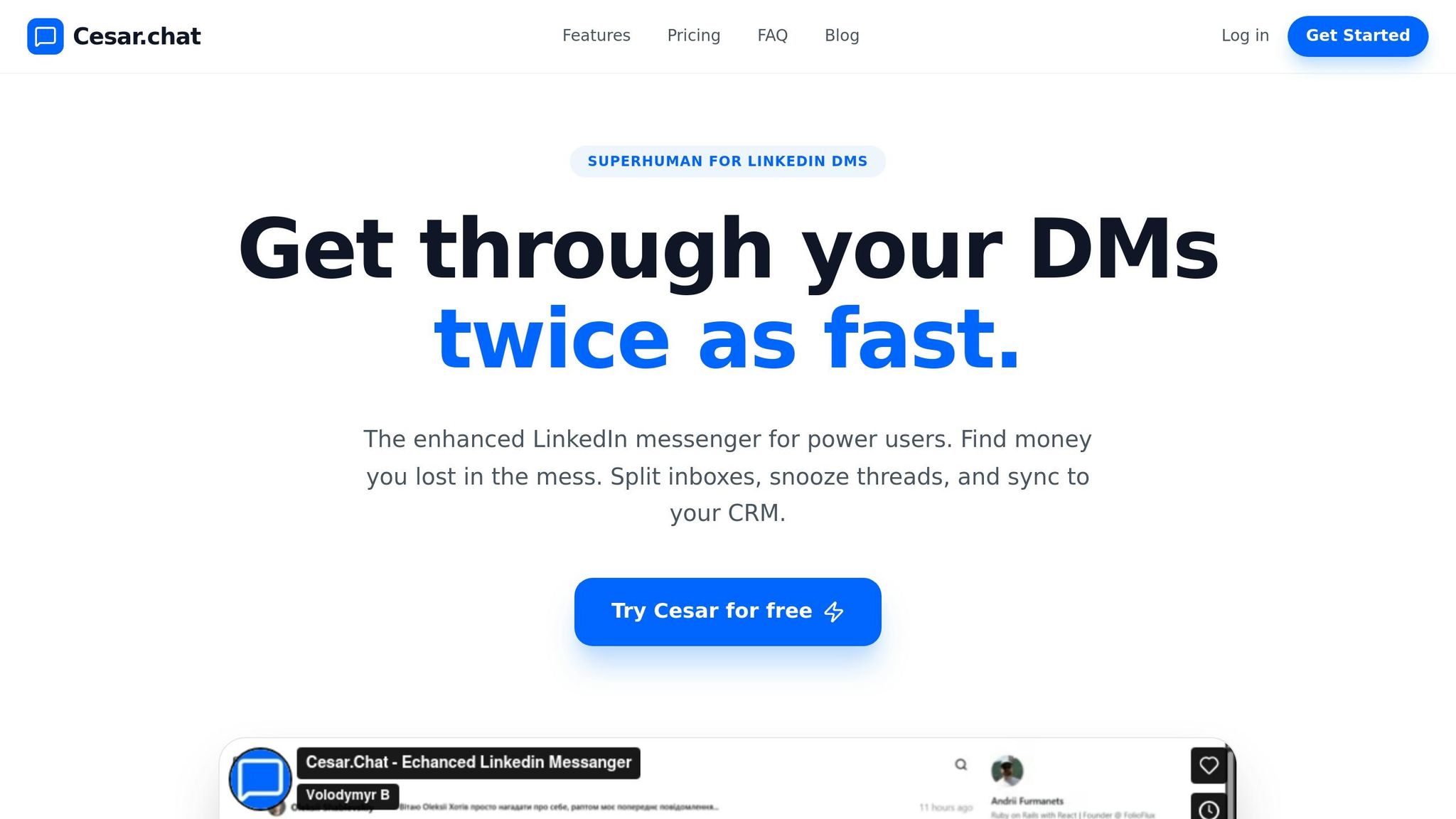
Cesar.chat takes LinkedIn messaging to the next level by offering a productivity-focused interface for users managing high volumes of LinkedIn DMs. Unlike automation tools, Cesar.chat is designed for manual use, helping users handle messages twice as fast without running the risk of account restrictions. By leveraging official-style API interactions, it seamlessly integrates into your workflow while keeping your LinkedIn account safe. Let’s dive into how features like split inbox organization and voice notes make LinkedIn messaging more efficient.
What Makes Cesar.chat Stand Out
Cesar.chat introduces a split inbox system that allows users to organize their conversations into labeled tabs. For instance, sales professionals might use categories like "Demo Scheduled", "Warm Leads", or "Cold Outreach", while recruiters could sort messages into "Active Candidates" or "Referrals." This setup ensures that important conversations are easy to locate and manage.
The platform also includes thread snoozing, which automatically resurfaces conversations at pre-set intervals, helping users stay on top of follow-ups.
To speed up workflows, Cesar.chat provides keyboard shortcuts for quick navigation and unlimited saved snippets with dynamic placeholders, making personalized responses effortless. Plus, it supports voice notes, a feature available even with the Basic plan.
Another key feature is live CRM integration, which syncs conversation data, labels, and notes with tools like Notion, HubSpot, Salesforce, Slack, Clay, Zapier, and Make. For users on the Business and Enterprise plans, it also supports Sales Navigator messages, ensuring that sales pipelines stay updated in real time.
Cesar.chat Pricing Plans
Cesar.chat offers flexible pricing tiers to cater to different needs, from individual users to teams managing complex workflows. A 20% discount is available for annual subscriptions:
| Plan | Price (Monthly) | Key Features Included |
|---|---|---|
| Basic | $24/month | Unlimited labels and snippets, reminders, and voice notes |
| Business | $32/month | All Basic features plus up to 3 integrations, Sales Navigator support, and analytics |
| Enterprise | $40/month | Everything in Business plus white-glove integration setup, unlimited sync destinations, and VIP support |
- The Basic plan is perfect for individuals looking to improve inbox organization and streamline responses, priced at $24/month.
- The Business plan, at $32/month, adds CRM integrations and analytics, making it ideal for professionals managing high outreach volumes.
- The Enterprise plan offers advanced features like unlimited sync destinations and dedicated support for $40/month, tailored for teams with complex requirements.
Source: Cesar.chat official website.
Side-by-Side Comparison: LinkedIn Native Messenger vs Cesar.chat
Feature, Productivity, and Pricing Comparison
Let’s break down how Cesar.chat stacks up against LinkedIn’s native messenger in terms of productivity and features. Spoiler: it’s not a close race.
For those managing high messaging volumes, LinkedIn’s native messenger can feel like a bottleneck. It organizes messages in a single chronological stream, making it easy for important conversations to slip through the cracks. Cesar.chat, on the other hand, offers split inboxes with custom labels, allowing you to prioritize leads and stay organized.
When it comes to follow-ups, LinkedIn relies on manual tracking – there are no built-in reminders. Cesar.chat steps in with a snooze function that automatically resurfaces conversations at scheduled intervals, improving follow-up efficiency by 15%. Add in keyboard shortcuts and saved snippets, and Cesar.chat lets you respond in seconds, effectively doubling your messaging speed compared to manual efforts.
| Feature | LinkedIn Native Messenger | Cesar.chat |
|---|---|---|
| Inbox Organization | Single chronological list; hard to manage | Split inboxes with custom labels for lead prioritization |
| Follow-up Tools | Manual tracking with no reminders | Snooze threads and set reminders for better follow-ups |
| Response Speed | Manual typing or copy-pasting | Keyboard shortcuts and saved snippets for fast replies |
| CRM Integrations | None; requires manual data entry | Syncs live with HubSpot, Salesforce, Notion, and Slack |
| Security | Standard native compliance | Fully secure; uses official-style API interactions without botting |
| Pricing | Included with LinkedIn (Free/Premium) | $24–$40 per month |
Cesar.chat also shines with CRM integrations, syncing seamlessly with tools like HubSpot, Salesforce, Notion, and Slack. This eliminates the need for manual data entry, saving time and reducing errors.
At $24–$40 per month, the platform can save you 2–4 hours of manual work each month – more than enough to justify the cost.
This comparison makes it clear: Cesar.chat is built to handle the fast-paced, high-demand world of LinkedIn messaging, offering tools that LinkedIn’s native messenger simply can’t match.
Conclusion: Which Messaging Solution Fits Your Needs
The best messaging tool for you depends on how often you send messages and how complex your workflow is. If you’re just sending a few messages here and there and don’t need CRM integration, the native LinkedIn messenger might be all you need – and it’s free.
But if you’re a recruiter, salesperson, or founder juggling a high volume of conversations, relying on LinkedIn’s basic interface could mean missing important messages. Features like split inboxes, snooze reminders, and keyboard shortcuts can make a huge difference in keeping your communication efficient. That’s where Cesar.chat steps in, doubling your messaging speed and ensuring no conversation slips through the cracks.
Its CRM sync feature takes things further by automatically connecting your conversation details with platforms like HubSpot and Salesforce, making it easier to stay organized and save time.
"Find money you lost in the mess. Split inboxes, snooze threads, and sync to your CRM." – Cesar.chat
FAQs
Will enhanced inbox tools get my LinkedIn account restricted?
Using advanced inbox tools on LinkedIn can come with risks, especially if they’re not handled carefully. LinkedIn actively tracks behaviors like sudden spikes in activity, overly generic messages, or patterns that resemble automation. These actions can raise red flags and potentially lead to account restrictions.
To avoid issues, stick to LinkedIn’s activity limits, steer clear of overly aggressive automation, and adhere to recommended guidelines. Even tools marketed as "safe" can lead to trouble if they’re used improperly. The key is to exercise caution and use these tools responsibly.
How do I know when I’ve outgrown LinkedIn’s native inbox?
If handling outreach on LinkedIn feels chaotic or time-consuming, it might be a sign you’ve outgrown the platform’s built-in inbox. Common issues include messy conversations, no way to categorize or prioritize messages, and the absence of features like automated follow-ups or message sequences. When you’re reaching out to hundreds of prospects each week, managing everything manually becomes nearly impossible and increases the risk of missed opportunities. That’s where tools like Cesar.chat come in, offering a more organized and efficient way to handle high-volume messaging.
What should I sync to my CRM from LinkedIn messages?
When syncing LinkedIn messages to your CRM, make sure to include everything from the conversation – messages, notes, and activity logs. This keeps your communication records detailed and organized. Adding contact details, lead updates, and activity history like InMails, calls, and notes ensures your CRM remains up-to-date and well-rounded. This approach helps you monitor interactions, follow up efficiently, and maintain context, making your sales and networking efforts more personalized and effective.



