
Managing two LinkedIn inboxes – Sales Navigator and the regular LinkedIn inbox – can be frustrating and time-consuming. Messages are split based on where conversations originate, leading to inefficiencies like frequent tab switching, missed follow-ups, and delayed responses.
Here’s the issue:
- Sales Navigator Inbox: Handles InMails and prospecting tools but keeps conversations separate.
- Regular LinkedIn Inbox: Manages standard messages, connection requests, and replies outside Sales Navigator.
This separation wastes up to 8 hours monthly and risks 8 missed follow-ups weekly. While LinkedIn offers basic solutions like manual switching and notifications, they’re far from ideal.
Solution: Tools like Cesar.chat merge both inboxes into one dashboard, syncing messages every 5–15 minutes. Features like split inboxes, follow-up reminders, and CRM integrations save time and improve response rates by 67%.
If you’re tired of juggling tabs, a unified inbox can streamline your workflow and keep you focused on high-priority conversations.
Difference Between Sales Navigator Inbox Vs LinkedIn Inbox
sbb-itb-3e8f5dc
How Sales Navigator and LinkedIn Inboxes Differ
Sales Navigator vs Regular LinkedIn Inbox: Key Differences and Message Routing
LinkedIn designed Sales Navigator as a standalone platform for prospecting, not just an extension of a regular LinkedIn account. Because of this, the inboxes on both platforms operate independently, and where a message lands depends on how the conversation was initiated.
What the Sales Navigator Inbox Offers
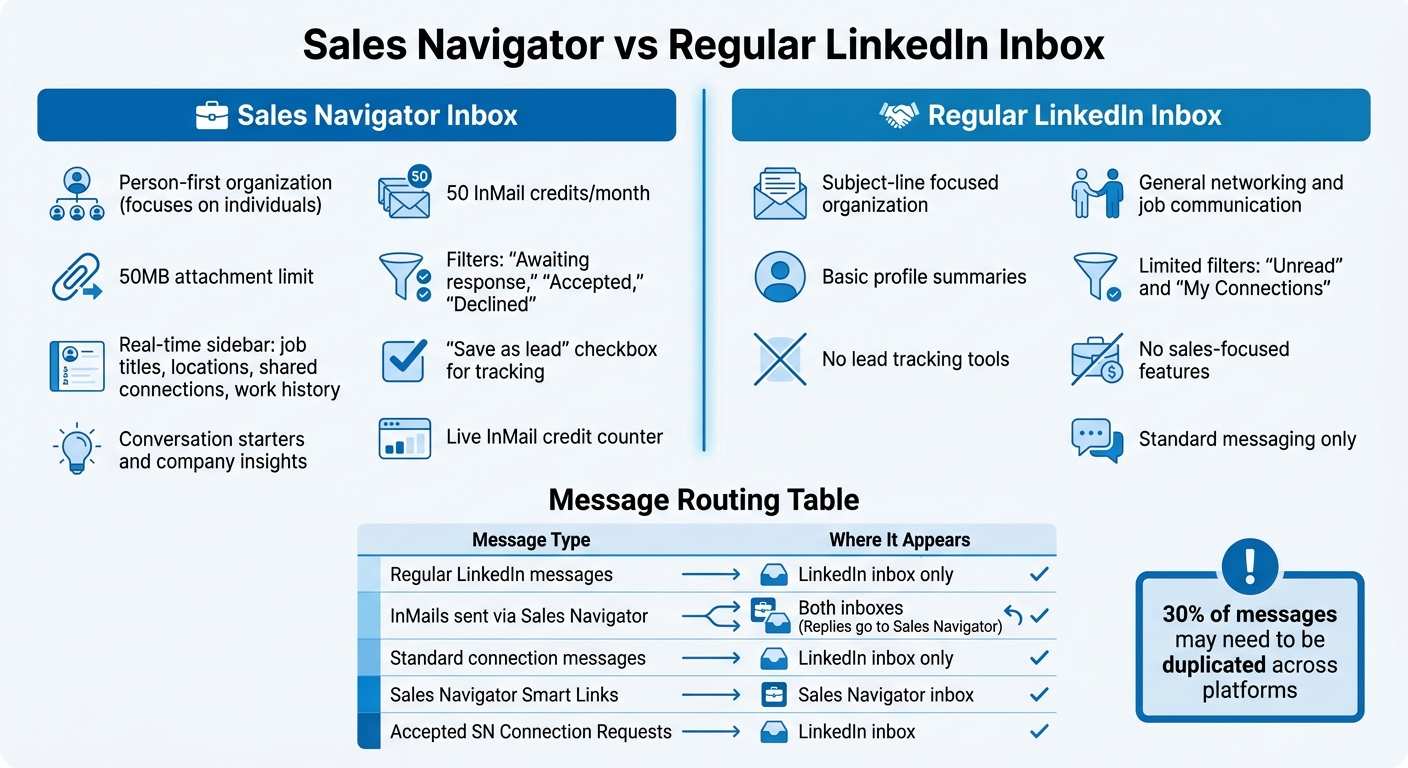
Sales Navigator takes a person-first approach to organizing conversations, focusing on individuals rather than subject lines. This setup makes it easier to track prospect relationships without dealing with endless message threads. The inbox includes filters like "Awaiting response", "Accepted", and "Declined" for InMails, along with a sidebar displaying real-time details such as job titles, locations, shared connections, and work history.
Each month, you get 50 InMail credits and can send attachments up to 50MB. A "Save as lead" checkbox is also available, which allows you to add prospects to your tracking system directly from the inbox – even if they haven’t replied yet. Plus, the message composition tools provide conversation starters, company insights, and a live counter showing your remaining InMail credits.
What the Regular LinkedIn Inbox Offers
The standard LinkedIn inbox is geared more toward general networking and job-related communication. It’s where responses to connection requests and messages from personal contacts typically appear. Unlike Sales Navigator, this inbox focuses on basic profile summaries and offers limited filtering options, such as "Unread" and "My Connections." It lacks tools for lead tracking or sales-focused features, making it less suited for prospecting workflows.
The differences between these inboxes can create some practical challenges for managing your messages effectively.
Problems with Managing Two Separate Inboxes
Having two separate inboxes can complicate your workflow. For instance, replies to InMails sent through Sales Navigator stay in the Sales Navigator inbox. However, if you send a connection request with a message via Sales Navigator and the recipient accepts, that conversation moves to the regular LinkedIn inbox. Similarly, any messages that weren’t initiated through Sales Navigator will go directly to the standard LinkedIn inbox.
This routing system often causes inefficiencies. Around 30% of messages may need to be duplicated across platforms, requiring you to search both inboxes to find specific conversations. It’s easy to lose track of where a discussion began, adding unnecessary friction to your workflow.
| Message Type | Where It Appears |
|---|---|
| Regular LinkedIn messages | LinkedIn inbox only |
| InMails sent via Sales Navigator | Both inboxes (Replies go to Sales Navigator) |
| Standard connection messages | LinkedIn inbox only |
| Sales Navigator Smart Links | Sales Navigator inbox |
| Accepted SN Connection Requests | LinkedIn inbox |
"Sales Navigator maintains a completely separate messaging system – and natively, you can’t fully merge them."
– ConnectSafely
This separation underscores the importance of understanding how these systems work before diving into native LinkedIn tools for managing both inboxes. Streamlining your messaging process starts with recognizing these differences.
LinkedIn’s Built-In Options for Managing Both Inboxes
LinkedIn doesn’t offer a unified inbox, but it does provide some basic tools to help manage messages across its two platforms. The primary method involves manually switching between inboxes and setting up notifications to stay on top of incoming messages. However, this manual approach can be time-consuming and inefficient.
How to Switch Between Inboxes Manually
Switching between LinkedIn’s standard inbox and the Sales Navigator inbox requires a bit of navigation. When you’re in the Sales Navigator inbox, you can click "Go to LinkedIn Messaging" in the top-right corner to access your regular LinkedIn inbox. This action opens the standard inbox in a new tab or window. Unfortunately, there’s no shortcut to return to Sales Navigator from the LinkedIn inbox, meaning you’ll need to manually navigate back to the platform.
To make this process slightly easier, consider bookmarking direct links to both inboxes: linkedin.com/messaging/ for regular messages and linkedin.com/sales/inbox for Sales Navigator. Pin these tabs at the start of your workday so you can switch between them more quickly without repeatedly searching for the links.
One major drawback is the lack of a unified search feature. If you’re trying to find a specific conversation, you’ll need to search each inbox separately. This fragmented setup essentially forces you to manage two separate communication channels. It’s no surprise that teams relying on manual switching report an average of 8 missed follow-ups per week.
How to Set Up Notifications for Both Inboxes
Notifications can help reduce the chances of missing important messages, but because the two inboxes function independently, you’ll need to configure them separately. For the LinkedIn mobile app, enable push notifications for both "Message" and "InMail" alerts. On your desktop, activate notifications specifically within Sales Navigator’s settings.
To avoid losing track of high-priority messages, set up Sales Navigator to send email notifications for InMail responses. This ensures that critical communications with prospects don’t get overlooked. To stay organized, dedicate 10 minutes every Friday to review LinkedIn’s "Other" folder and Sales Navigator’s "Unread" filter. This simple audit helps catch any messages that might have slipped through your notification setup.
Even with notifications in place, the manual system has its flaws. Teams that transition from this fragmented approach to a more streamlined workflow report a 67% improvement in response times, decreasing from 18 hours to just 6 hours. This highlights why many professionals seek integrated tools to better manage their LinkedIn communications. For those looking to optimize their workflow, exploring strategies for LinkedIn power users can provide additional efficiency gains.
How Cesar.chat Combines Both Inboxes
Cesar.chat simplifies communication by merging Sales Navigator and regular LinkedIn messages into a single, unified dashboard. This integration is powered by secure OAuth and syncs every 5–15 minutes to ensure your data stays updated.
How Cesar.chat Brings Messages Together
Cesar.chat consolidates messages by overlaying and syncing real-time data through API connections. It organizes conversations chronologically in a threaded view, with labels like "Sales Nav" or "LinkedIn" to show where each message originated. The system also filters out duplicates and archived threads, ensuring a clean and streamlined inbox. Plus, any actions you take in Cesar.chat – like replying or archiving – are mirrored on LinkedIn, and vice versa.
Now, let’s look at how this integration helps you stay organized and efficient.
Features That Improve Your Messaging Workflow
Cesar.chat includes tools designed to make managing your inbox faster and easier. Custom split inboxes allow you to filter messages by priority, using criteria like sender, keywords, or tags. Other features, such as snoozing messages, saving response snippets, and setting follow-up reminders, help you stay on top of your communication.
These tools can make a big difference for sales teams. For example, users report saving over 5 hours per week on manual messaging tasks. Follow-up open rates improve by 35%, and one SaaS sales rep reduced daily inbox switching from 45 minutes to just 10. This efficiency led to a 25% increase in responses and 15% more deals closed each quarter.
And there’s more – Cesar.chat integrates seamlessly with other essential tools to further boost productivity.
Connecting Cesar.chat with Your Other Tools
Cesar.chat extends its functionality by connecting with your existing systems. It offers native integrations with HubSpot, Salesforce, and Pipedrive, automatically syncing CRM data, creating contacts, and logging every message. It also links with Notion for exporting tasks and notes, and with Slack to send real-time alerts for high-priority messages.
The platform’s streaming feature ensures that conversations and notes are instantly transferred to your CRM. Whether a prospect replies via Sales Navigator InMail or a LinkedIn DM, the interaction appears in your HubSpot contact record immediately. This eliminates the need for platform switching or manual data entry, saving you time and effort.
How to Set Up Cesar.chat for Inbox Integration
To get started with Cesar.chat, download the desktop app and connect it to your LinkedIn account. The app functions as a native desktop tool, similar to how an email client integrates with Gmail. After installation, you’ll securely link your accounts, allowing the app to pull in message histories from both standard LinkedIn and Sales Navigator. Once that’s done, you can connect your LinkedIn and Sales Navigator accounts for seamless integration.
Connecting Your LinkedIn and Sales Navigator Accounts
Launch the Cesar.chat desktop app and follow the setup prompts. The app uses secure API connections to combine messages from both LinkedIn inboxes into one streamlined interface. Once you’ve connected your accounts, the system will immediately begin syncing your conversations.
Customizing Your Inbox Settings in Cesar.chat
Personalize your inbox by setting up custom labels and notification preferences. You can also decide whether to sync messages manually or automatically, depending on your workflow. For example, create labels like "Hot Lead", "Client", or "Networking" to easily organize and prioritize messages.
Plan options:
- The Business plan ($32/month) includes Sales Navigator integration and up to three CRM connections.
- The Enterprise plan ($40/month) offers unlimited sync destinations and white-glove setup support.
Once your settings are customized, make sure to verify your integration to ensure everything is working properly.
Testing and Adjusting Your Setup
Use the "Active syncs" dashboard to confirm everything is running smoothly. Look for a "healthy" connection status and check the timestamp on the latest sync (e.g., "12s ago"). Send a test message on LinkedIn and ensure it appears in Cesar.chat within a few minutes. If you’ve enabled CRM syncing, double-check that the conversation appears on the correct contact’s timeline, complete with all notes and labels.
How to Get More Done with Cesar.chat
Once you’ve set up inbox integration, Cesar.chat offers tools to help you manage conversations quickly and follow up with ease. It simplifies your workflow, allowing you to handle LinkedIn DMs at double the speed. These features focus on prioritizing key messages and ensuring follow-ups are handled efficiently.
Using Split Inboxes to Stay on Top of Key Messages
Cesar.chat’s split inbox feature builds on the unified messaging system by letting you organize conversations with labels. This way, you can separate messages into different views, ensuring high-priority opportunities don’t get lost in the mix. For instance, you can create labels like "Hot Lead", "Follow-up Required", or "Client" to categorize messages based on urgency. With this setup, you can quickly jump to your "Hot Lead" inbox as soon as you log in, keeping your attention on active deals while less pressing messages stay out of the way.
Automating Follow-Up Reminders
The snooze feature helps you manage non-urgent conversations by letting you schedule reminders. For example, if a prospect asks for a callback in two weeks, you can snooze the message for 14 days. This ensures you won’t forget to follow up, without needing to track it manually. Combined with automatic CRM syncing, this feature creates a seamless follow-up system.
Keeping Everything Synced with Your CRM
Cesar.chat takes care of logging all your LinkedIn conversations, notes, and labels directly into your CRM. This eliminates the need for manual data entry and ensures no messages are overlooked. With automatic syncing, your HubSpot timeline or Google Sheets stays updated in real time as conversations happen. Plus, if a LinkedIn contact isn’t already in your CRM, Cesar.chat can create a new record automatically, keeping your communication hub organized and up-to-date.
Conclusion
Integrating your Sales Navigator and standard LinkedIn messages with Cesar.chat can save you 15–30 minutes daily by streamlining your workflow. Over a month, that adds up to more than 8 hours of saved time. This efficient system also helps cut down missed follow-ups by 75% and boosts response times by 67%, reducing the average reply time from 18 hours to just 6.
With features like split inboxes, snooze reminders, and CRM syncing, Cesar.chat lets you focus on high-priority leads and automates follow-ups. You can schedule reminders without the hassle of manual tracking, and every interaction is automatically logged into tools like HubSpot or Google Sheets. For those who need to manage LinkedIn DMs twice as fast, these tools ensure you stay on top of your opportunities instead of letting them slip away. Ready to take control of your LinkedIn messaging? Cesar.chat makes it easy to get started.
Setup takes just a few minutes, and early access is currently free for the first 1,000 users. Simply connect your accounts, customize your labels, and watch your messaging process become more efficient.
Stop wasting time switching between tabs – reclaim over 8 hours a month and focus on the conversations that grow your business.
FAQs
Will merging inboxes affect my LinkedIn or Sales Navigator message history?
When you merge your LinkedIn and Sales Navigator inboxes, your message history stays intact and unaffected. Messages from each inbox remain separate: responses to InMails sent through Sales Navigator will stay in the Sales Navigator inbox, while regular LinkedIn messages will continue to appear in the LinkedIn inbox. While third-party tools can assist in organizing your messages, they won’t alter this separation.
How do I prevent duplicate threads when syncing both inboxes?
Managing LinkedIn and Sales Navigator inboxes effectively can prevent duplicate threads and streamline communication. A great way to achieve this is by setting up shared inboxes. Tools like Cesar.chat can centralize your conversations, ensuring everything stays organized in one place.
To keep things even clearer, consider using message templates for consistent communication and labeling conversations based on their stage. This makes it easier to track progress and avoid confusion.
Since Sales Navigator operates with its own inbox, maintaining disciplined message management routines is key to reducing duplicate threads and keeping your workflow smooth.
Is it safe to connect my LinkedIn account for inbox syncing?
Syncing your LinkedIn account with your inbox is generally safe if you’re using a reliable platform like Cesar.chat. To protect your information, make sure the tool uses strong security protocols, has clear permissions, and follows strict data protection policies. Always double-check that the platform adheres to privacy standards to keep your data secure.



