
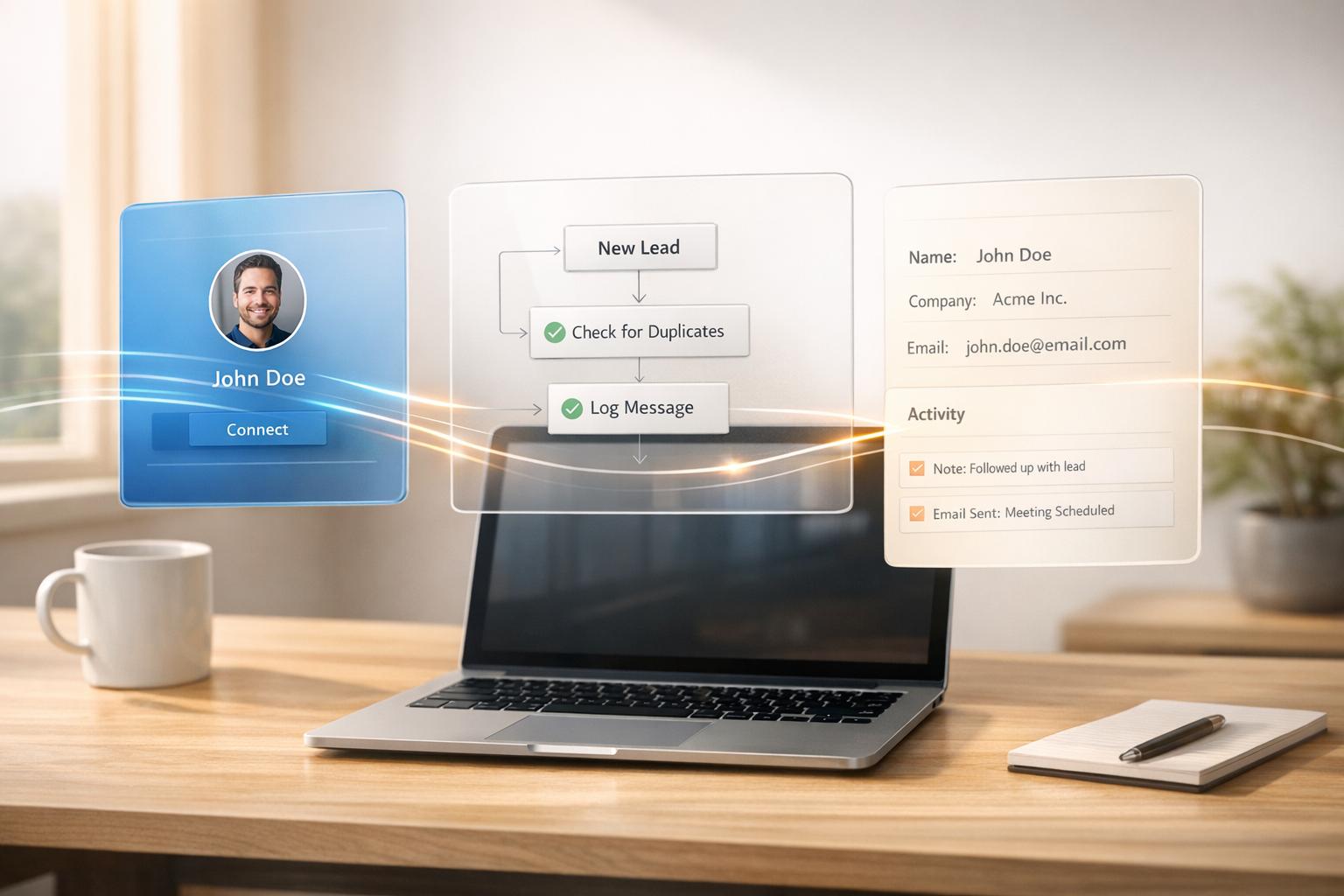
If you’re tired of manually entering LinkedIn leads into your CRM, there’s a better way. Automating this process saves time, ensures no lead is missed, and helps you respond faster – key when responding within 5 minutes increases contact rates by 100x. Using tools like Cesar.chat, you can set up a LinkedIn-to-CRM workflow in minutes, no coding required.
Key Steps:
- Get the right tools: A LinkedIn account, CRM (e.g., HubSpot, Salesforce), and Cesar.chat.
- Set up triggers: Automate syncing LinkedIn messages, connection requests, and labels into your CRM.
- Map fields: Link LinkedIn data (e.g., profile URL, job title) to CRM fields.
- Sync data: Choose real-time or manual sync options to keep your CRM updated.
- Test the workflow: Ensure data flows correctly into your CRM and adjust as needed.
Why It Matters:
- 75%-85% of B2B leads come from LinkedIn.
- Automating this process can save 5+ hours per week.
- Stay organized with features like labels and reminders.
With tools like Cesar.chat, you can streamline your LinkedIn lead management, eliminate manual tasks, and focus on closing deals.
This Automation Sends LinkedIn Leads Straight to CRM
What You Need Before Starting
Before diving into building your workflow, make sure you have the right accounts, tools, and a basic grasp of automation. The good news? You don’t need to know how to code – just come prepared with the essentials.
Required Accounts and Tools
Here’s what you’ll need:
- A LinkedIn account
- A CRM like HubSpot, Salesforce, Pipedrive, Zoho, or Microsoft Dynamics 365
- A Cesar.chat account
While a standard LinkedIn account works fine, upgrading to LinkedIn Sales Navigator Advanced or Advanced Plus (starting at about $99 per month) gives you access to native data syncing with most major CRMs. Cesar.chat acts as the bridge, automating LinkedIn message handling and syncing contact details into your CRM – no coding required.
Basic Workflow Terms to Know
To set things up smoothly, get familiar with these terms:
- Trigger: The event that kicks off the automation, like receiving a new LinkedIn message or connection request.
- Action: What happens after the trigger, such as adding a new contact to your CRM.
- Field Mapping: The process of linking LinkedIn data (e.g., “Job Title”) to the correct CRM fields (e.g., “Position”).
Setting Up CRM Fields for LinkedIn Data
Standard CRM fields like “First Name” and “Email” won’t cut it for social selling. You’ll need to create custom fields tailored to LinkedIn data, such as:
- LinkedIn Profile URL
- Current Headline
- Last Engagement Date
Also, set up deduplication rules to keep your database clean and accurate. This prevents duplicate records when prospects interact with you multiple times, ensuring your reporting stays on point.
Once you’ve got these accounts and CRM fields ready, you’re all set to configure Cesar.chat for LinkedIn messaging.
Configuring Cesar.chat for LinkedIn Messaging
Get started with Cesar.chat, a desktop app designed to streamline your LinkedIn messaging. This app combines your regular LinkedIn and Sales Navigator inboxes into one interface, simplifying message management and syncing directly with your CRM. Follow these steps to set up your account and take advantage of its features.
Creating Your Cesar.chat Account
First, download and install the Cesar.chat app. Once installed, connect your LinkedIn account. The setup process is quick – less than a minute – and once connected, all your LinkedIn messages will appear in a single unified inbox.
Right away, you can start using features like split inboxes, saved snippets, and thread snoozing to organize and prioritize messages. These tools can help you save time, even before you integrate your CRM.
Turning On Live CRM Sync
To connect your CRM, use the Cesar.chat interface. Currently, the app supports HubSpot and Google Sheets, with Salesforce, Zoho CRM, and Notion integrations coming soon.
You can choose between two sync options: on-demand, where you manually push conversations from Cesar.chat to your CRM, or automatic streaming, which logs your LinkedIn activity in real time. Automatic streaming ensures that all LinkedIn interactions are captured without extra effort. If a contact isn’t already in your CRM, Cesar.chat will create a new record during synchronization.
Synced data includes your full message history, conversation notes, and any labels you’ve applied (e.g., “Hot Lead” or “Client”). These labels are mapped to custom CRM properties, making it easier to track and manage your leads. Once your CRM sync is active, you’re ready to explore the available plans.
Selecting Your Cesar.chat Plan
CRM sync is available with the Business tier or higher. Here’s a breakdown of the plans:
| Plan | Price | Key Features | CRM Sync |
|---|---|---|---|
| Early Access | $0 | Full product access for the first 1,000 users (104 claimed so far) | Yes |
| Basic | $24/month | Unlimited labels, snippets, reminders, and voice notes | No |
| Business | $32/month | Includes all Basic features, plus up to 3 integrations, Sales Navigator support, and AI analytics | Yes |
| Enterprise | $40/month | Includes all Business features, plus unlimited sync destinations, white-glove setup, and VIP support | Yes |
If you’re among the first 1,000 users, you’ll receive full access, including CRM sync, at no cost. Otherwise, the Business plan at $32/month provides everything needed to automate your LinkedIn-to-CRM workflow.
Once Cesar.chat is set up and integrated with your CRM, you’re ready to create a seamless workflow that connects your LinkedIn activity with your broader sales and communication efforts.
Building Your LinkedIn-to-CRM Workflow
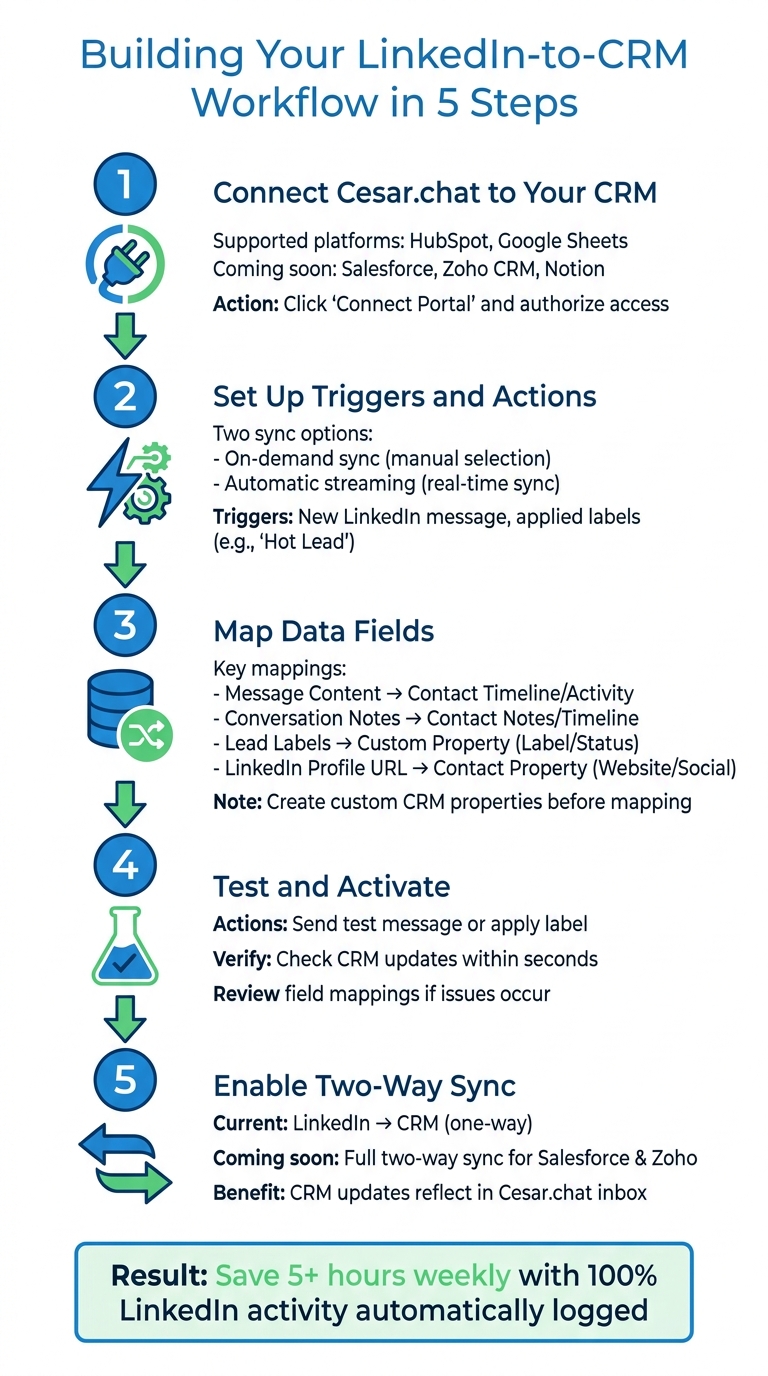
5-Step LinkedIn to CRM Workflow Setup Process
With Cesar.chat connected to your CRM, you can streamline the flow of data between LinkedIn and your CRM in just five steps.
Step 1: Connect Cesar.chat to Your CRM
Start by opening Cesar.chat, navigating to the integrations section, and connecting your CRM. Currently, the platform supports HubSpot and Google Sheets, with Salesforce, Zoho CRM, and Notion expected soon.
For HubSpot users, click “Connect Portal” and authorize Cesar.chat to access your account. This integration functions as a native HubSpot app, ensuring secure and compliant data handling. For Google Sheets, simply authenticate your Google account and choose the spreadsheet where LinkedIn data should be stored.
Once connected, Cesar.chat will automatically send data to your CRM, creating records for LinkedIn contacts that weren’t previously logged.
Step 2: Set Up Triggers and Actions
Next, decide how you want LinkedIn data to flow into your CRM. You can choose between automatic streaming or on-demand sync, both of which save time compared to manual data entry.
- On-demand sync: You manually select which LinkedIn conversations to push into your CRM.
- Automatic streaming: Data like LinkedIn messages, notes, and labels syncs in real time.
To enable automatic streaming, toggle the setting in Cesar.chat’s integration panel. Once active, triggers – like receiving a LinkedIn message or applying a label such as “Hot Lead” – will update your CRM instantly. For example, a new LinkedIn message will appear in the contact’s timeline, while assigning a label updates a custom property in your CRM.
Step 3: Map Data Fields
Field mapping ensures LinkedIn data gets placed in the right CRM fields. While Cesar.chat automates much of this, you can customize mappings to match your workflow.
Link LinkedIn fields to CRM properties (see table below) to maintain data accuracy and avoid duplicates. Before mapping, create custom properties in your CRM for fields like “LinkedIn Profile URL” or “Lead Label.” Use a unique identifier, such as an email address or LinkedIn URL, to ensure records don’t duplicate during syncing.
| LinkedIn Data Field | CRM Destination Field (HubSpot Example) | Sync Type |
|---|---|---|
| Message Content | Contact Timeline / Activity | Automatic |
| Conversation Notes | Contact Notes / Timeline | Automatic |
| Lead Labels (e.g., Hot Lead) | Custom Property (Label/Status) | Configurable |
| LinkedIn Profile URL | Contact Property (Website/Social) | Automatic |
Step 4: Test and Activate
Before going live, test your workflow with sample leads. Send a LinkedIn message or apply a label to a conversation, then check if your CRM updates correctly.
For on-demand sync, manually push a conversation from the Cesar.chat inbox to your CRM. For automatic streaming, updates should appear within seconds, including full message threads, notes, and labels. If something doesn’t sync as expected, review your field mappings and ensure your CRM has the necessary custom properties. Once testing confirms everything works smoothly, you’re ready to activate the workflow.
Step 5: Enable Two-Way Sync
After verifying your setup, take it a step further by enabling two-way sync. This feature keeps LinkedIn and your CRM fully aligned. Updates made in your CRM – like changing a lead status or adding a note – can flow back into Cesar.chat.
Currently, the integration focuses on pushing LinkedIn data into your CRM. However, two-way sync, which will allow updates in your CRM to reflect in Cesar.chat, is coming soon for platforms like Salesforce and Zoho CRM. Until then, using Cesar.chat as your main LinkedIn messaging tool ensures your CRM stays updated.
“Cesar.chat pushes every LinkedIn conversation, label, and note straight into HubSpot – saving hours weekly while making sure no lead falls through the cracks.” – Cesar.chat
When two-way sync becomes available, CRM updates – like a closed deal or reassigned lead – will appear in your Cesar.chat inbox, giving you a comprehensive view of each contact.
Testing and Improving Your Workflow
Testing with Sample Leads
Start by running a test message or connection to ensure everything is working smoothly. For example, label a test message as “Hot Lead” and check if your CRM reflects the update within minutes. Look for key details like the full message thread, any notes you’ve added, and the label appearing in the contact’s timeline.
If you’re using an on-demand sync, manually push the test conversation to confirm the setup. For automatic streaming, updates should show up almost instantly. If any data is missing, double-check the field mapping to ensure everything is aligned.
Keep an eye on these tests to catch any performance hiccups early.
Tracking Workflow Performance
If you’re on Cesar.chat’s Business or Enterprise plans, you have access to analytics tools that help you monitor how well your workflow is running. Use the “Active Syncs” dashboard regularly to confirm that your connections to HubSpot or Google Sheets are functioning as expected. On average, Cesar.chat users save more than 5 hours each week by avoiding manual data entry. Tracking these time savings can help underscore the value of the tool.
Pay attention to sync failures or delays, as these could indicate authentication or API issues. If the failure rate climbs above 2%, it’s time to tweak your workflow. Reviewing these analytics weekly can uncover useful patterns – like which lead labels drive the most conversions or which types of messages get the best responses. This information is key to refining your strategy over time. For more LinkedIn power user tips, explore our latest insights.
And when message volumes spike, managing them effectively becomes even more critical.
Handling High Message Volumes
When you’re dealing with a flood of messages, use priority labels like “Hot Lead” or “Client” to focus on the most important conversations first. These labels sync directly to CRM views, making it easy to zero in on high-value leads. Automated reminders can help bring buried conversations back to your attention, ensuring no lead is forgotten during busy periods.
The unified inbox is a game-changer for teams juggling LinkedIn and Sales Navigator messages. By consolidating everything in one place, it eliminates the need to switch between tabs. For teams handling hundreds of messages every week, features like keyboard shortcuts and saved snippets make it easier to keep response times quick while still maintaining a personal touch.
Conclusion
Setting up a LinkedIn-to-CRM workflow using no-code tools is simpler than you might think. You’ve just explored how to connect Cesar.chat to your CRM, map data fields, configure triggers, and test the system with sample leads. The payoff? Save over 5 hours every week and ensure 100% of your LinkedIn activity is automatically logged in your CRM.
Enable Live CRM Sync to keep updates flowing seamlessly. Use labels like “Hot Lead” or “Client” to stay organized and improve sales forecasting. Need to revisit an old conversation? Set follow-up reminders to bring them back to the forefront. Plus, with the unified inbox, you can manage both standard LinkedIn and Sales Navigator messages all in one place.
These real-time updates don’t just simplify your workflow – they help you save time and reduce costs instantly. Right now, Cesar.chat is offering free early access with no credit card required. HubSpot and Google Sheets integrations are already live, with Salesforce, Zoho, and Notion integrations on the way. Say goodbye to endless tab switching and manual data entry – let automation take over.
“LinkedIn left your inbox in 2000. Bring it into 2026.” – Cesar.chat
Start small by testing your workflow with a few leads, then scale up as you grow more confident. This setup allows you to reclaim lost hours while keeping your CRM accurate and up to date.
FAQs
How do I prevent duplicate contacts when syncing LinkedIn leads to my CRM?
To keep duplicate contacts at bay when syncing LinkedIn leads with your CRM, set up your CRM to identify duplicates using unique identifiers like custom fields. Leverage workflows or tools – Cesar.chat, for instance – to verify and match leads against existing contacts before adding new ones. Also, activate duplicate detection rules in your CRM to merge or update records instead of generating duplicates during the sync process.
What LinkedIn details should I store as custom fields in my CRM?
When managing LinkedIn connections, it’s a smart move to store messages, notes, tags, and contact details – like verified emails and phone numbers – directly in your CRM. Tools such as Cesar.chat make this process easier by syncing LinkedIn conversations, labels, and notes straight into your CRM system. You can even use custom field mapping to pull in profile details and engagement data, helping to enrich your CRM records. This setup can simplify workflows, whether you’re focused on sales or recruitment.
How can I troubleshoot missing messages, notes, or labels after sync?
If messages, notes, or labels disappear after syncing, start by checking the LinkedIn-to-CRM connection and permissions. Expired tokens or access restrictions can often interrupt the sync process. Next, review your sync settings to confirm that all necessary data is included. If the problem continues, test the connection, inspect error logs for clues, and reauthorize or adjust the sync settings to fix the issue.



