
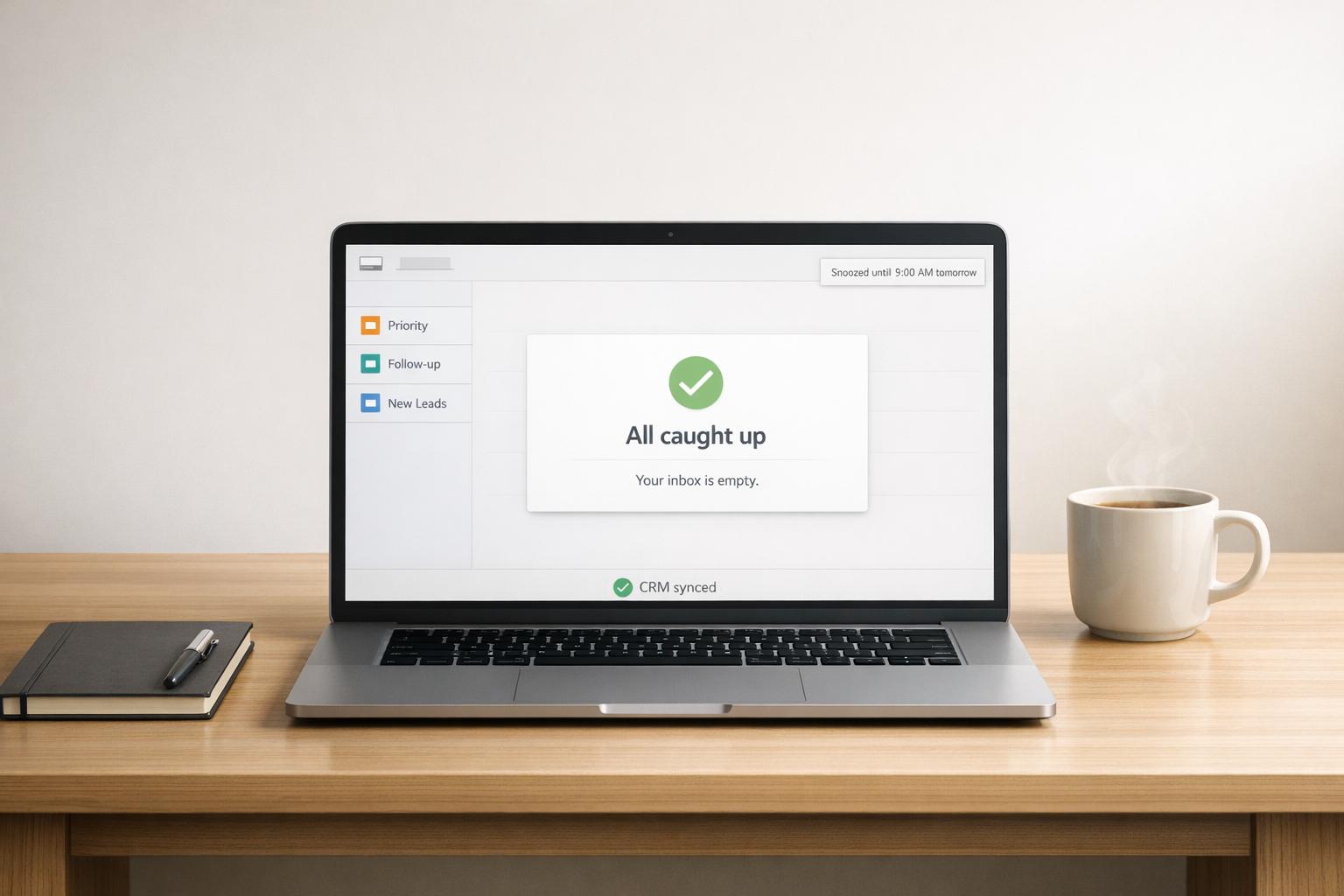
Missed LinkedIn messages can cost you leads, deals, and relationships. With reply rates as high as 48% for LinkedIn prospecting messages compared to 6% for cold emails, timely responses are critical. But challenges like "silent failures", spam filters, and LinkedIn’s automatic sorting into "Focused" and "Other" tabs often bury important conversations. Here’s how to stay on top:
- Use LinkedIn’s filters (Unread, Starred, InMail, My Connections, Jobs) to organize messages.
- Mark messages as unread to track follow-ups or use LinkedIn’s Message Nudges for reminders.
- Implement an Inbox Zero approach: reply, defer, or archive every message.
- Establish daily messaging routines to review and manage conversations.
For advanced tools, Cesar.chat enhances LinkedIn messaging with features like split inboxes, snooze reminders, and CRM integrations (HubSpot, Salesforce, Notion). Plans start at $24/month, with early access free for the first 1,000 users.
Missed messages don’t have to derail your outreach – combine LinkedIn tools with structured workflows and apps like Cesar.chat to ensure no reply goes unanswered.
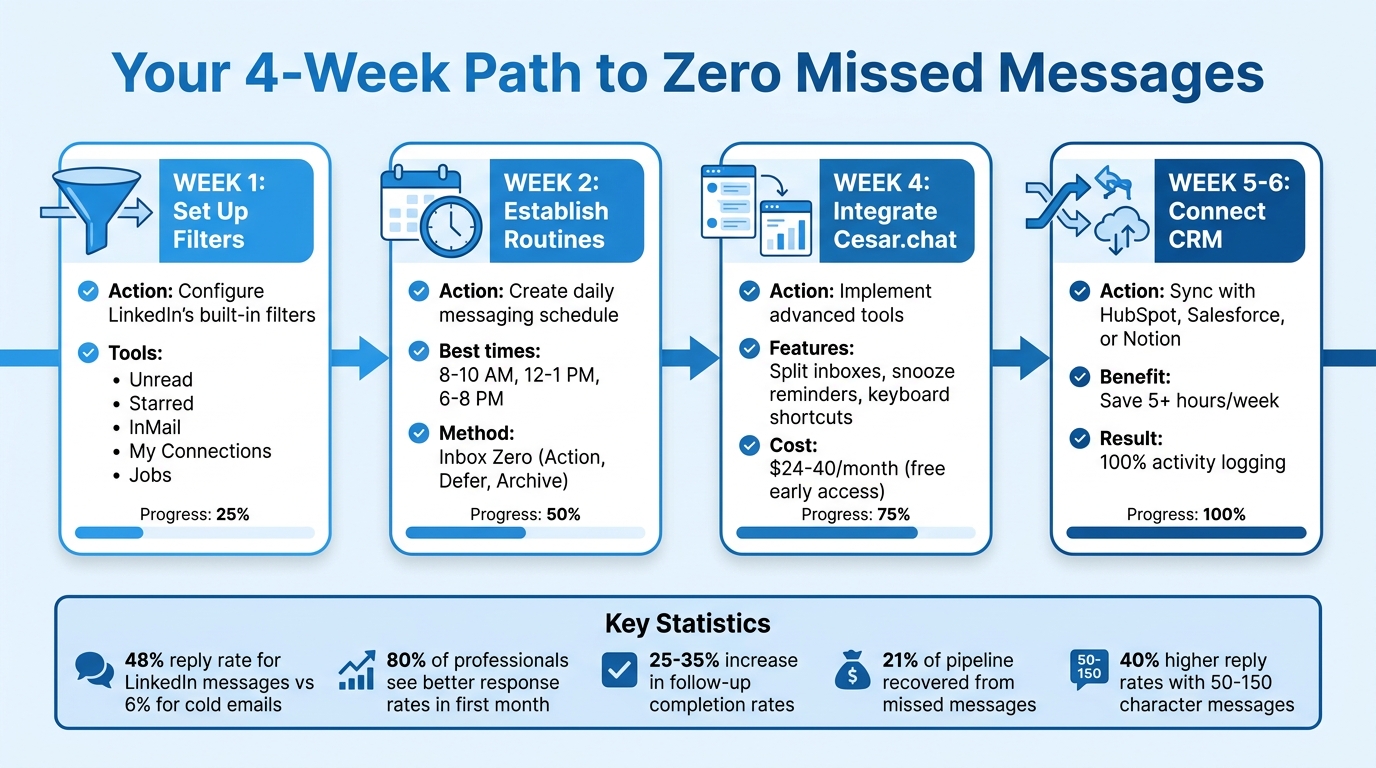
4-Week LinkedIn Messaging Implementation Timeline
HOW TO Make The Most of LinkedIn Messaging | TOP 6 LinkedIn Messaging TIPS
sbb-itb-3e8f5dc
Using LinkedIn’s Built-in Message Management Features
Keeping your LinkedIn inbox organized is essential if you want to stay on top of opportunities. Before turning to third-party tools, take advantage of the features LinkedIn already provides. These built-in tools can help you manage conversations and track follow-ups – though many users don’t fully tap into their potential.
Organizing Messages with Filters
LinkedIn divides your messages into Focused and Other tabs by default, but it doesn’t stop there. By clicking the Filter icon at the top of your messaging screen, you can dig deeper into your inbox and uncover hidden conversations.
Here are some filters and how they can help:
- Unread: Displays messages you haven’t opened or marked as read. Perfect for catching up on replies you might have missed during a hectic day.
- Starred: Highlights conversations you’ve flagged as important, such as ongoing deals or key prospects.
- InMail: Groups messages from people outside your network, like recruiters or sales professionals, to keep them separate from your direct connections.
- My Connections: Focuses only on messages from your existing network.
- Jobs: Helps you manage conversations specifically tied to job opportunities.
| Filter Name | Use Case |
|---|---|
| Unread | Find unopened messages or those saved for later. |
| Starred | Quickly access high-priority conversations. |
| InMail | Separate outreach from people outside your network. |
| My Connections | Focus on conversations within your professional network. |
| Jobs | Organize messages related to job opportunities. |
Once you’ve handled a conversation, archive it to keep your inbox streamlined and focused on active threads. If you’re looking for something specific, the search bar is a quick way to find any conversation instantly.
With these filtering tools, you can also keep track of follow-ups by marking important messages for later action.
Marking Messages as Unread for Follow-Up
Filters are great for organizing your inbox, but marking messages as unread is a simple way to ensure you don’t lose track of critical replies. Think of it as turning your inbox into a temporary to-do list.
On desktop, hover over a conversation, click the three-dot menu, and select "Mark as unread." On mobile, tap the Messaging icon, then use the Filter option in the search bar to do the same. This creates a visual reminder of what still needs your attention.
Additionally, LinkedIn’s Message Nudges feature can help by automatically reminding you to respond to messages the platform considers important. While this can be useful, manually starring or marking critical threads ensures you don’t rely solely on LinkedIn’s algorithm to prioritize your responses.
Creating Workflows to Prevent Missed Messages
Manual filters and reminders can only do so much – they’re reactive tools. To truly stay on top of your LinkedIn messages, you need a proactive system that ensures every conversation is accounted for. Think of your LinkedIn inbox like your email inbox: without a structured workflow, important messages can easily get overlooked. A proactive system builds on basic management techniques by assigning clear actions to every message.
The idea is to create a routine that keeps your inbox at or near zero unresolved conversations. This doesn’t mean you have to respond to everything immediately. Instead, it’s about making deliberate decisions for each message – whether to act on it, save it for follow-up, or archive it once it’s handled. A disciplined approach like this not only simplifies message management but also ensures you don’t miss out on potential leads.
Applying Inbox Zero: Action, Defer, and Archive
The Inbox Zero method revolves around sorting messages into three categories: Action, Defer, and Archive.
- Action: These are messages you can reply to right away, typically within a couple of minutes.
- Defer: These require more time, such as additional research, a thoughtful response, or input from your team. Mark them for follow-up.
- Archive: These are conversations that are completed or no longer relevant. Archiving keeps your inbox uncluttered and focused on active discussions.
Here’s a simple rule: if it takes less than two minutes to respond, do it immediately. For anything else, defer or archive. Keeping your inbox clear of irrelevant or inactive threads helps you focus on what matters most. Plus, concise responses – especially those between 50 and 150 characters – can boost reply rates by 40%. So, when you do respond, keep it short and mobile-friendly.
Establishing Daily Messaging Routines
Inbox Zero works best when paired with a consistent daily review process. Set aside specific times each day to review your messages – ideal windows include 8–10 AM (before meetings), 12–1 PM (lunchtime), or 6–8 PM (evening wrap-up). These routine check-ins help you stay organized and responsive.
During these sessions, use the Inbox Zero method to review all messages. Don’t forget to check both the Focused and Other tabs, as LinkedIn often places sales outreach or lower-priority messages in the "Other" tab. Once a week, also review your Sent invitations tab. Withdraw any connection requests older than 14–30 days to free up space in your weekly connection quota.
Consistency is key. Staying organized and maintaining a high response rate signals to LinkedIn that you’re an active and reliable communicator. This can help you avoid account restrictions or shadow bans. Additionally, keeping your connection acceptance rate at 40% or higher reduces the risk of increased scrutiny from the platform. Building a daily messaging routine isn’t just about organization – it’s about keeping your LinkedIn activity running smoothly.
Using Cesar.chat to Improve LinkedIn Messaging
Cesar.chat takes your LinkedIn messaging game to the next level by building on LinkedIn’s basic tools. While LinkedIn’s messaging features are functional, they often rely on manual effort to stay organized. Cesar.chat streamlines the process with advanced tools aimed at users like founders, recruiters, and sales professionals who need to handle their inboxes up to twice as quickly as LinkedIn’s default setup. Unlike automation bots that can pose risks, Cesar.chat uses official APIs to sync your messages in real time, keeping everything secure and efficient.
Prioritizing Messages with Split Inboxes and Labels
LinkedIn’s single inbox can make it tough to separate urgent conversations from less critical ones. Cesar.chat solves this by offering split inboxes and unlimited labels. You can categorize messages by urgency, sender, or topic – think hot leads, partnership talks, or recruiting chats. This setup lets you focus on what matters most while keeping everything else neatly organized for later.
Using Snooze Reminders for Follow-Ups
Ever lost track of an important follow-up in a crowded inbox? Cesar.chat’s snooze feature ensures that doesn’t happen. It lets you temporarily remove a conversation and have it pop back to the top of your inbox at a scheduled time. For instance, if you follow a 14-day follow-up schedule, you can snooze a message for two weeks. When the time comes, the thread reappears at the top, saving you from endless scrolling. Pairing snooze reminders with custom labels also gives you quick context, so you’re always ready to take the next step.
Responding Faster with Keyboard Shortcuts and Snippets
Managing dozens – or even hundreds – of conversations demands speed. Cesar.chat helps by offering unlimited snippets for quick, pre-written replies. To keep responses effective, the tool suggests limiting snippets to 75 words or fewer, which can improve reply rates. Pair this with keyboard shortcuts for smoother navigation, and you’ve got a system that supports a "3-touch" follow-up strategy – balancing speed, personalization, and value without slowing you down.
Cesar.chat is available in three pricing tiers: the Basic plan costs $24/month (with unlimited labels, snippets, and reminders), the Business plan is $32/month (adding CRM integrations and analytics), and the Enterprise plan is $40/month (including white-glove setup and VIP support). Early access is free for the first 1,000 users. With this suite of tools, you’ll never miss an important message again.
Connecting LinkedIn Messages with CRM and Productivity Tools
Syncing your LinkedIn messages with CRM and productivity tools simplifies how you manage leads and organize conversations. When your LinkedIn messages and deal data are stored in separate systems, it’s easy for crucial details to get lost. By integrating these tools, you create a centralized hub for all your communication, eliminating the need to switch between tabs or copy notes manually. In fact, automated syncing between LinkedIn and your CRM can save sales teams over 5 hours every week. Plus, these tools log 100% of LinkedIn activity automatically, ensuring nothing slips through the cracks.
Syncing Conversations to HubSpot
Cesar.chat’s HubSpot integration makes it easy to keep your CRM updated without lifting a finger. Messages, notes, and labels from LinkedIn are automatically synced to HubSpot, keeping contact timelines, deals, and records current. If a contact doesn’t already exist in HubSpot, Cesar.chat creates a new record for you. You can choose to sync conversations manually or let the system handle it with real-time updates.
Getting started is straightforward: just connect your HubSpot portal to Cesar.chat and enable the "automatic streaming" option. This ensures your contact timelines stay up-to-date in real time. You can also use custom labels in your LinkedIn inbox, like "Hot Lead" or "Client", which are synced to HubSpot properties to improve lead tracking and reporting. The integration supports messages from both standard LinkedIn and Sales Navigator, sending everything directly to your CRM for seamless management.
Integrating with Notion, Slack, and Salesforce
In addition to HubSpot and Google Sheets, new integrations with Salesforce, Notion, and Zoho CRM are on the horizon. These will further streamline your communication and task management processes. For example, Salesforce will sync leads and contact timelines, while Notion will allow two-way data syncing for CRM updates.
These CRM and system sync features are part of Cesar.chat’s Business tier, priced at $32/month. However, during the early access period, the service is available for free. Whether you’re tracking deals in Salesforce, organizing tasks in Notion, or collaborating with your team in Slack, this setup ensures your LinkedIn conversations are always accessible and in sync.
Conclusion
Missed messages and unanswered replies don’t have to throw your LinkedIn outreach off track. The secret lies in using LinkedIn’s built-in tools alongside structured daily routines and efficient messaging systems. Start by leveraging filters and unread markers to organize your inbox, then stick to consistent Inbox Zero workflows.
For professionals handling 50+ messages a day, tools like Cesar.chat can significantly improve messaging efficiency. Features like split inboxes keep your most important leads front and center, snooze reminders help you follow up on time, and keyboard shortcuts speed up your responses. Plus, integrations with platforms like HubSpot and Salesforce automatically sync your messages, saving you from tedious manual data entry.
The impact of these tools is backed by data.
"Missed messages cost salespeople 21% of their pipeline – tools like Cesar.chat effectively recover 21% of lost pipeline opportunities." – LinkedIn Sales Expert, Gartner Webinar 2026
The statistics are clear: 80% of professionals who adopt structured messaging systems see better response rates within the first month. Teams using Cesar.chat experience 25-35% increases in follow-up completion rates, while automated CRM syncing saves sales teams over 5 hours per week.
The implementation process typically takes 4–6 weeks, with noticeable improvements along the way. Start by setting up filters in the first week, establish daily routines in the second week, integrate Cesar.chat by week four, and connect your CRM by week five.
If you’re ready to streamline your workflow, Cesar.chat’s Business plan at $32/month offers integrations with HubSpot, Salesforce, Notion, and Slack. By adopting these strategies and tools, you can ensure consistent, high-impact LinkedIn messaging that drives results.
FAQs
Why do LinkedIn messages end up in the “Other” tab?
LinkedIn organizes its inbox with a categorization system that separates messages into two tabs: Focused and Other. The Focused tab is where priority messages land, making it easier to access important conversations quickly. Meanwhile, the Other tab holds messages considered less urgent or relevant, ensuring they’re still available for review without cluttering the main inbox. This setup helps users stay organized and concentrate on what matters most.
What’s the fastest daily routine to avoid missing replies?
Streamline your LinkedIn messaging by taking a few simple steps to stay organized and responsive. Start by organizing your inbox into categories such as Hot Leads or Follow Up Later to keep track of priorities. Then, schedule follow-ups by snoozing threads, ensuring you never miss a reply.
For quicker responses, use saved snippets to send consistent messages without retyping the same information. Finally, integrate your CRM to efficiently track conversations and maintain a clear overview of your interactions. This daily routine only takes a few minutes but can make a big difference in improving your response rates.
How do I sync LinkedIn messages to my CRM without manual copy-paste?
You can seamlessly sync LinkedIn messages to your CRM with Cesar.chat’s native integrations, such as the HubSpot sync. This functionality automatically transfers LinkedIn conversations, notes, and labels into your CRM. Say goodbye to tedious manual data entry and keep your records consistently up-to-date.



