
Managing LinkedIn inboxes can feel chaotic, especially when you’re juggling 50-100 weekly messages. Missed follow-ups and lost opportunities are common, but organizing your inbox can change everything. Research shows structured inboxes boost response rates by 30% and cut response times significantly.
Here are 5 practical ways to organize your LinkedIn inbox for better productivity:
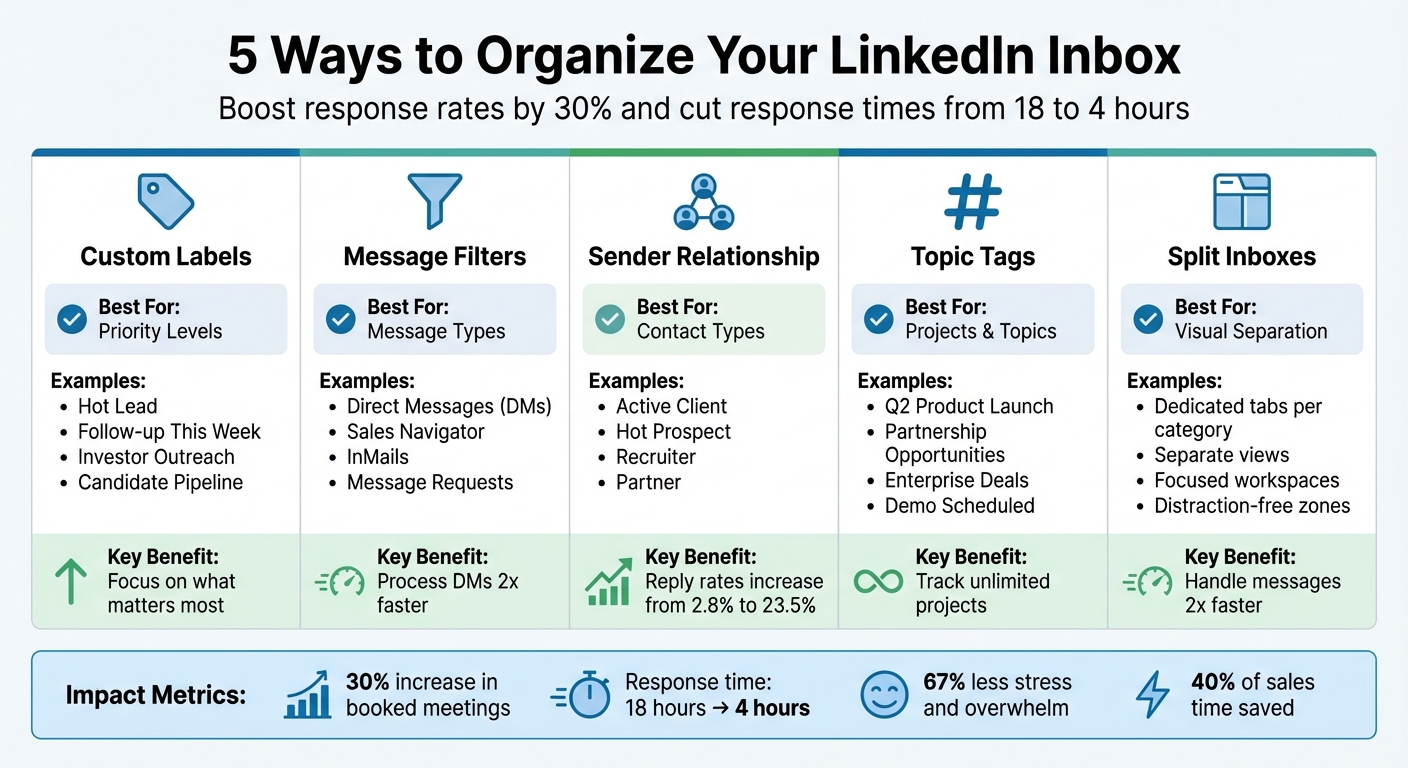
- Custom Labels: Prioritize messages with labels like "Hot Lead" or "Follow-up This Week."
- Message Filters: Separate DMs, InMails, and requests for faster sorting.
- Sender Categories: Group by relationship type (e.g., "Client" or "Recruiter") to focus on key connections.
- Tags: Track topics or projects with tags like "Q2 Launch" or "Partnerships."
- Split Inboxes: Create tabs for different message types to avoid clutter.
Using tools like Cesar.chat, you can apply these strategies and integrate them with platforms like HubSpot or Salesforce for even greater efficiency. These methods ensure you stay organized, respond faster, and never lose track of important conversations.
5 LinkedIn Inbox Organization Methods Comparison
How I Organize LinkedIn Inbox (So I Don’t Miss Leads)
sbb-itb-3e8f5dc
1. Use Custom Labels for Priority Levels
Managing your LinkedIn messages can feel overwhelming, but custom labels make it easier to prioritize. Let’s face it – not every message carries the same weight. A warm introduction to an investor? That’s a big deal. A generic connection request? Not so much. Custom labels help you focus on what matters most, so you can address high-priority conversations first.
Tailoring Labels to Your Workflow
With tools like Cesar.chat, you can create as many custom labels as you need to fit your workflow. Whether it’s "Hot Lead", "Follow-up This Week", "Investor Outreach", or "Candidate Pipeline", the system adapts to your needs. You’re not stuck with generic categories – you design a system that works for you. As you read through messages, you can instantly apply labels, ensuring that important opportunities never slip through the cracks. This tailored approach not only keeps your inbox organized but also sets the foundation for a more streamlined workflow.
Turning Chaos into Clarity
Labels transform a cluttered inbox into a more focused, manageable space. They allow you to quickly spot critical conversations, speeding up your response time and ensuring you never miss a follow-up.
"Label conversations and split them into different inboxes to track and prioritize. Never lose a hot opportunity in mess again." – Cesar.chat
Seamless Integration with Your Tools
The beauty of these labels? They don’t just stay within your inbox. A "Qualified Lead" label can automatically sync with platforms like HubSpot, Salesforce, Notion, or Clay. No more wasting time on manual updates – this feature keeps your productivity tools in sync and helps you stay on top of your game.
2. Filter by Message Type and Status
Building on custom labels, filtering takes your inbox organization to the next level, helping you manage conversations with precision.
Efficiency in Organizing Conversations
Not all LinkedIn messages carry the same weight. A direct message (DM) from a close connection is far more critical than an InMail from someone you don’t know. Filtering by message type helps you separate important conversations from the noise, allowing you to focus on what truly matters. Standard LinkedIn DMs, Sales Navigator messages, and message requests each demand different levels of attention. Treating them all the same can lead to missed opportunities.
With tools like Cesar.chat, message types are presented in separate views, making it easier to prioritize without constant mental switching. According to Cesar.chat’s own data, this setup allows users to process DMs twice as fast. By starting with basic filtering, you create a foundation for more sophisticated tools like status management.
Advanced Features Like Split Inboxes or Reminders
Adding status management takes filtering a step further by introducing time-based organization. Features like Snooze let you temporarily hide threads that don’t require immediate action. For example, if a follow-up is needed in three days, you can snooze the conversation so it reappears exactly when you need it. No more endless scrolling to keep track of follow-ups – it’s all handled seamlessly.
This transforms your inbox from a static list into a dynamic workflow. Messages shift between statuses such as active, waiting for a reply, or snoozed for later. Instead of just organizing, you’re creating a system that aligns with your outreach strategy and ensures nothing falls through the cracks.
Integration with Productivity Tools
These filtering and status management features integrate smoothly with your favorite productivity tools. The real magic happens when these filters sync with platforms like HubSpot, Salesforce, Notion, or Clay. For instance, marking a LinkedIn conversation as a "Qualified Lead" can automatically update your CRM. This eliminates manual data entry, keeps your CRM updated, and ensures your team knows the status of every lead – whether they’re hot, warming up, or need nurturing. By aligning your inbox with your broader workflow, you turn inbox management into a strategic advantage rather than a tedious task.
3. Organize by Sender Relationship
Making Sense of Your LinkedIn Inbox
Your LinkedIn inbox isn’t just a random collection of messages – it’s a reflection of your professional network. Sorting conversations by the type of relationship can save you time and energy. For instance, a message from a potential client should take priority over a general networking inquiry. By categorizing senders into groups like "Active Client", "Hot Prospect", "Recruiter", or "Partner", you can manage your messages more effectively.
This method ensures you don’t miss out on crucial opportunities. Instead of wasting time scrolling through endless threads to find an important follow-up, you can quickly access your "Hot Prospects" folder. And the payoff is real: personalized communication strategies have been shown to increase reply rates from 2.8% to 23.5%, dramatically improving meeting conversions. The key? Focusing on the relationships that matter most and responding accordingly. To make this even smoother, advanced tools can take your inbox management to the next level.
Tools That Simplify Organization
Platforms like Cesar.chat make it easier to stay organized by creating separate inboxes for different groups. Imagine having "Active Leads" in one inbox, "Current Clients" in another, and "Partners" in a third. This setup minimizes distractions and helps you focus – no need to mentally switch between pitching to a prospect and following up with a client.
You can also use snooze features to temporarily set aside conversations that require follow-ups later. This way, you stay on top of re-engagement without cluttering your active inbox.
Syncing with Productivity Tools
The benefits don’t stop at organizing your inbox. Integrating with tools like HubSpot, Salesforce, or Notion ensures your relationship data stays updated automatically. By tagging conversations and syncing them with your CRM, you avoid the hassle of manual data entry and maintain a clear, accurate picture of your professional connections.
4. Apply Tags for Topics or Projects
Customizable Tagging
Tags work like your personal filing system for LinkedIn messages. Instead of letting your inbox get overloaded, you can create custom tags that match your workflow. With no limit on the number of tags, you can track projects and initiatives in detail – whether you’re juggling a few campaigns or handling multiple deals at once. For example, you might use tags like "Q2 Product Launch" for time-sensitive tasks or "Partnership Opportunities" for business development conversations.
Keeping Conversations Organized
Tagging goes beyond simple organization – it helps ensure important opportunities don’t slip through the cracks. Use tags like "Enterprise Deals" to quickly locate critical conversations. When paired with split inboxes, this method makes it easy to separate active clients, potential leads, and partnerships into dedicated tabs. It’s a practical approach that streamlines your messaging workflow, especially when used alongside productivity tools.
Integration with Productivity Tools
Tags can sync directly with your favorite productivity platforms. For instance, Cesar.chat allows labeled conversations to be sent to tools like Notion, HubSpot, Salesforce, or Slack, cutting out manual updates. If you tag a message as "Demo Scheduled", that status is automatically updated in your CRM, creating a unified view of your project progress. With Cesar.chat’s live CRM syncing, your messaging stays as up-to-date as your network.
Advanced Features: Split Inboxes and Reminders
Take advantage of keyboard shortcuts to assign tags quickly, and pair them with snooze features to ensure you follow up at the right time.
5. Use Split Inboxes to Separate Conversations
Split inboxes take LinkedIn message management to the next level by visually organizing your conversations into distinct categories.
Keeping Conversations Organized
Split inboxes create dedicated tabs for different types of conversations, making it easier to stay on top of your messages. Instead of sifting through a chaotic inbox where high-priority leads might get overlooked, you can assign labels to conversations and view them in separate, focused tabs. This approach ensures that key opportunities don’t get lost and allows you to tackle messages more methodically. In fact, using these tools can help you handle direct messages twice as quickly.
When paired with labels and filters, split inboxes provide a seamless workflow that keeps distractions at bay. For example, labels like "Hot Lead" or "Follow-Up Needed" can each have their own tab, helping you zero in on urgent conversations. Additionally, features like snooze allow you to set reminders for follow-ups, ensuring nothing falls through the cracks.
Syncing with Your Workflow
Split inboxes become even more effective when integrated with your existing productivity tools. Platforms like Cesar.chat can sync labeled conversations directly with tools such as HubSpot, Salesforce, Notion, and Slack. This eliminates the need for manual updates and ensures your CRM reflects the latest status of each conversation. With real-time synchronization, you maintain an accurate and centralized view of your communication across all tools.
Boosting Productivity with Advanced Features
Features like keyboard shortcuts and saved message templates make navigating and responding to messages faster. By combining split inboxes with snooze functionality and CRM syncing, you can stay on top of follow-ups while keeping your conversations neatly organized and actionable.
Conclusion
Managing LinkedIn conversations doesn’t have to be chaotic. With tools like custom labels, message filters, topic tags, and split inboxes, you can transform a cluttered inbox into a streamlined system that works for you.
Why does this matter? A poorly managed LinkedIn inbox can drain nearly 40% of a sales professional’s productive time. On the flip side, teams that adopt structured inbox systems often see a 30% increase in booked meetings. Even better, categorizing messages systematically can slash response times from 18 hours to just 4 hours, with 67% of users reporting less stress and overwhelm.
Cesar.chat combines all these strategies into one platform. Starting at $24/month, it offers unlimited labels, saved snippets, and snooze features. For those needing more, higher-tier plans integrate seamlessly with CRM tools like HubSpot, Salesforce, and Notion, saving time and keeping your team in sync.
The key is to find a system that matches your workflow and stick to it. Whether you’re handling sales leads, recruiting, or building your network, effective organization ensures no conversation gets overlooked. Start with the tools that address your biggest challenges, and watch your productivity soar. There’s no better time than now to take control of your LinkedIn inbox.
FAQs
Which LinkedIn message categories should I start with?
To get a handle on your LinkedIn inbox, start by creating categories that help you prioritize your messages. For example, you might have a category like Hot Leads for those urgent or high-priority connections. Another useful category could be Follow-ups for conversations that require action later. Sorting your messages this way helps you stay on top of important communications and keeps your workflow efficient.
How do labels, tags, and filters differ on LinkedIn?
Labels, tags, and filters on LinkedIn play a crucial role in keeping conversations organized and easy to manage.
- Labels let you group conversations or assign statuses to threads, like marking them as "Hot Leads" or "Follow-up."
- Tags act as keywords, making it easier to search for and locate specific conversations later.
- Filters help you sort or display messages based on criteria like labels or tags. This allows you to focus on specific groups, such as unread messages or high-priority threads.
These tools streamline communication and ensure nothing important slips through the cracks.
How can I make sure follow-ups don’t get missed?
To keep track of follow-ups, consider using tools that streamline scheduling and conversation management. For example, Cesar.chat provides a Follow-Up Reminder Calculator to help you pinpoint the ideal time to reconnect, factoring in your outreach and the recipient’s response. Plus, the snooze feature lets you temporarily hide conversations and set reminders, ensuring you return to them when needed. These tools make staying organized and consistent much easier.



