
LinkedIn messages can lead to great opportunities, but without tracking, it’s easy to lose touch with prospects. Here’s what you need to know:
- Most replies need follow-ups: Successful conversations often require 5+ follow-ups, yet many stop after one.
- Built-in tools: LinkedIn offers features like read receipts, message filters, and typing indicators to manage conversations.
- Manual tracking: Use spreadsheets or CRMs to log messages, schedule follow-ups, and track progress.
- Cesar.chat: A dedicated app that organizes LinkedIn messages, sets reminders, and syncs data with CRMs, saving time and boosting efficiency.
For effective LinkedIn outreach, use tools and systems to stay organized, follow up consistently, and monitor response rates.
Using LinkedIn‘s Built-In Tracking Features

LinkedIn offers handy built-in tools to help you keep tabs on your message activity. These features make it easier to monitor conversations, spot unread messages, and identify when follow-ups are needed – all without relying on third-party software.
Checking Message History for Replies
LinkedIn uses simple visual cues to show the status of your messages. For example:
- An empty circle means the message hasn’t been sent.
- A checkmark (✓) confirms delivery.
- A mini profile photo appears when the message has been read.
Your messaging sidebar is designed to keep things organized. Unread messages are bolded, making them stand out, while messages you’ve already checked appear in regular font. You can also use the filter icon to sort your inbox by categories like "Unread", "Starred", or "InMail", which helps you quickly find conversations that need attention. If you open a message but can’t reply right away, you can click "Mark as Unread" to keep it flagged for later.
One thing to note: LinkedIn’s message counter labels messages as "Unseen" rather than "Unread." This means the counter resets as soon as you click the Messaging icon, even if you haven’t opened individual conversations yet. To avoid missing anything, you’ll need to actively scan your inbox instead of relying solely on the badge notifications.
In addition to these status indicators, LinkedIn provides other tools like real-time read receipts and typing notifications.
Using Read Receipts and Typing Indicators
Read receipts let you know when a message has been viewed, while typing indicators show when someone is actively responding. These features are enabled by default for direct connections, offering a real-time look at engagement. As LinkedIn Help explains: "Read receipts and typing indicators let you know when a message has been read and when someone is actively typing a response. They help make communication more timely and transparent and give you more control of your messaging experience".
However, there’s a catch: both you and the recipient must have these features turned on in your privacy settings for them to work. If either party disables them, neither will see the indicators. To adjust these settings, go to Settings & Privacy > Data Privacy > Messaging Experience. Keep in mind, these features don’t apply to InMail messages, group chats, or message requests from non-connections until the request is accepted.
Another helpful tool is the green availability indicator, which shows whether a connection is currently active on LinkedIn. On desktop, this appears as a solid green dot; on mobile, it’s an empty green circle. Sending a follow-up message while someone is active increases the odds of getting a quick reply, as they’ll receive instant notifications.
sbb-itb-3e8f5dc
Manual Tracking Methods
LinkedIn’s built-in tools are convenient, but manual tracking methods can provide more flexibility and control over your data. If you don’t need specialized software, you can still manage your LinkedIn message activity effectively using spreadsheets or CRM software. While these methods require more effort, they’re great for maintaining control and are ideal for handling a moderate number of conversations.
Manual tracking ensures no conversation slips through the cracks. This is especially important when you consider that 80% of sales need at least five follow-ups to close, yet 44% of salespeople stop after just one attempt. Staying consistent with manual tracking can make all the difference.
Creating a Spreadsheet for Message Tracking
A well-structured spreadsheet can act as a simple CRM for managing your LinkedIn outreach. Include columns like:
- Lead Name
- Company
- LinkedIn Profile URL
- Status/Stage (e.g., New, Contacted, Replied, Interested)
- Last Contact Date
- Next Follow-up Date
- Notes
The LinkedIn Profile URL is particularly handy, as it lets you jump straight to a prospect’s profile without digging through your inbox.
To make the spreadsheet more efficient:
- Use Data Validation to create dropdown menus for fields like "Status" or "Priority" (High, Medium, Low). This minimizes errors and makes filtering easier.
- Apply conditional formatting (e.g.,
=$F2<=TODAY()) to highlight overdue follow-ups. - Add a "Lead Age" column with a formula like
=IF(A2<>"", TODAY()-B2, "")(where B2 is the Date Added) to track how long leads have been in your pipeline.
Leads contacted within 5 minutes are 21 times more likely to convert than those contacted after 30 minutes, so having these tools in place can improve your response time.
For better organization, create separate tabs:
- Contacts Tab: Stores fixed information like names, profile links, and company details.
- Interactions Tab: Logs dynamic data such as message history and follow-up dates. Use cross-sheet references (e.g.,
=Contacts!A2) to link data between tabs and avoid duplicating entries.
Logging Messages in CRM Software
If you already use CRM software for other sales activities, it’s a good idea to manually log LinkedIn conversations there. This keeps all your interactions in one place and lets you set automated follow-up reminders.
When logging LinkedIn messages:
- Tag them as "LinkedIn Activity" or "LinkedIn Outreach" to distinguish them from emails or phone calls.
- Record key details like the date, contact name, message type (e.g., InMail, Connection Request, Follow-up), outcome, and next steps.
- Highlight intent signals, such as mentions of "pricing", "demo", or "budget", to prioritize those leads for immediate follow-ups.
Rather than deleting old conversations, archive them. This maintains a record of all interactions, which is especially useful for team transitions or when revisiting past leads. By logging and archiving your LinkedIn activity, you create a reliable system that supports consistent follow-up and improves overall messaging efficiency.
Tracking Messages with Cesar.chat
When managing a moderate volume of messages, spreadsheets and CRM systems can work just fine. But for those handling higher volumes, Cesar.chat steps in as a game-changer. This desktop app is tailored to track LinkedIn messages efficiently while simplifying follow-up management. It works as an overlay on LinkedIn’s messenger, allowing you to organize conversations, schedule follow-ups, and sync data automatically – all while staying within LinkedIn’s guidelines.
Sales teams using Cesar.chat report saving over 5 hours each week and achieving complete logging of their LinkedIn activity. The app supports both standard LinkedIn and Sales Navigator messages, combining them into one unified view. This makes it particularly useful for professionals juggling a significant amount of outreach.
Let’s take a closer look at how Cesar.chat helps you prioritize and manage your conversations.
Organizing Messages with Split Inboxes
Cesar.chat’s split inbox feature is a handy way to keep your LinkedIn messages organized. You can assign custom labels like "Hot Lead", "Client", or "Networking" to conversations. These labeled threads are then sorted into separate inboxes, ensuring your high-priority messages are easy to find and don’t get lost in the clutter of your general inbox.
For advanced users, this feature can double the speed of managing outreach compared to LinkedIn’s default interface. The labels also sync automatically with integrated CRMs, maintaining consistent tracking across platforms. And if you’re all about speed, keyboard shortcuts allow you to move between labeled inboxes without even touching your mouse. Pair this with the snooze feature, and you’ve got a system that keeps time-sensitive follow-ups front and center.
Setting Follow-up Reminders with Snooze Threads
Cesar.chat takes follow-up management to the next level with its snooze threads feature. This tool temporarily removes a conversation from your inbox and brings it back at a scheduled time, ensuring you never lose track of important messages.
"Snooze conversations to bring them back to the top of your inbox later. No more scrolling around to find who to follow up with." – Cesar.chat
When snoozing a thread, you simply choose the date and time for it to reappear. This declutters your inbox, allowing you to focus on immediate tasks. When the scheduled time arrives, the conversation pops back to the top of your inbox. Plus, a "Reminders due" indicator in the sidebar keeps you informed about how many snoozed conversations are ready for action. This feature is included in the Basic tier, priced at $24/month, and works seamlessly across both LinkedIn and Sales Navigator inboxes.
Syncing Data with Live CRM Integration
Cesar.chat also excels in keeping your data in sync with its live CRM integration. It automatically updates message threads, notes, and labels to your CRM. Currently, it integrates with HubSpot, Google Sheets, Slack, and Clay, with upcoming support for Notion, Salesforce, and Zoho CRM.
Once connected to your HubSpot portal, Cesar.chat creates contact records for new LinkedIn connections and attaches all message activity to the appropriate contact’s timeline. Syncing happens either on-demand or automatically every 12 seconds, ensuring your data is always up to date.
Custom labels like "Hot Lead" are synced to CRM custom properties, making sales forecasting and reporting easier. Additionally, internal notes written within Cesar.chat are attached directly to contact records, preserving the full history of your conversations. This live sync feature is available in the Business tier at $32/month (or $25.60/month when billed annually), which includes up to three integrations. For teams with more complex workflows, the Enterprise tier at $40/month offers unlimited sync destinations and white-glove integration setup.
Measuring Response Rates and Message Performance
Tracking LinkedIn messages is one thing, but understanding their impact through response rates is what truly matters. Without these metrics, your outreach might just be floating in the void.
A solid LinkedIn reply rate usually falls between 10% and 15%. Standout campaigns, however, can hit reply rates of 30% to 40%. On average, InMail reply rates land somewhere between 18% and 25%. With these benchmarks in mind, let’s dive into how Cesar.chat Analytics turns raw numbers into meaningful insights.
Monitoring Response Rates with Cesar.chat Analytics
Cesar.chat’s analytics dashboard is packed with tools to help you track and optimize your messaging efforts. Available with the Business ($32/month) or Enterprise plan ($40/month), the platform syncs directly with your LinkedIn DM data. It not only identifies which conversations lead to meetings but also flags areas where your outreach might be falling short.
Additionally, Cesar.chat integrates seamlessly with CRMs like HubSpot, Salesforce, and Pipedrive, syncing conversation data, labels, and notes. This gives you a full view of your sales pipeline. The split inbox feature is another standout – it allows you to segment conversations (e.g., "Hot Lead" or "Client"), making it easier to see which types of prospects are most responsive.
Finding Patterns in Your Messaging Data
Once you have your response rate data, the next step is to uncover patterns that can improve your results. For instance:
- Messages under 150 characters can boost reply rates by 29%.
- Adding context, like referencing a recent post or milestone, increases replies by 25%.
- A light call-to-action (CTA) can improve responses by up to 34%.
Morgan J Ingram, an influencer at AMP Social, sums it up perfectly:
"My LinkedIn response rates went from 4% to 20% with this one change… Be brief, be brilliant, and be gone."
Timing also plays a big role. Messages sent on Tuesday through Thursday, either between 8–10 am or 2–4 pm, tend to perform best. In contrast, sending messages on Monday mornings or Friday afternoons can result in a 20% lower response rate. Keep in mind, LinkedIn calculates reply rates based on responses received within the first 30 days of sending a message.
Cesar.chat’s labeling and segmentation tools make it easier to act on these insights. For example, you can test different message lengths, tones, or CTAs to see what resonates most. By categorizing conversations by industry or lead source, you’ll gain a clearer picture of which segments drive the best engagement. These adjustments can make all the difference in refining your outreach strategy.
Daily Routine for Managing Replies and Follow-ups
Having a consistent daily routine is essential for staying on top of your communications and ensuring no opportunities slip through the cracks. The goal is to build a workflow that’s easy to maintain and doesn’t lead to burnout.
By incorporating tracking tools into your daily habits, you can respond promptly and manage follow-ups effectively.
Focusing on High-Priority Messages
Start your day at 9:00 AM by opening Cesar.chat’s split inboxes to focus on high-priority conversations. This tool automatically organizes messages into categories like "Hot Leads", "VIP Contacts", or "Urgent Follow-ups" based on your custom filters. Begin with the high-priority inbox, scanning for new replies and flagging any conversations that need extra attention. For example, a SaaS sales professional used labeled inboxes such as "Prospects Replying" and "Decision-Makers" at the same time each morning, resulting in a 25% boost in deal closures.
Creating Daily Follow-up Reminders
At 10:00 AM, set aside 15 minutes to schedule follow-ups using Cesar.chat’s snooze feature. Limit this to 5–10 threads to keep things manageable and avoid feeling overwhelmed. For instance, one recruiter snoozed eight candidate threads each day, adding notes like "Follow up on interview availability – target Wed 2:00 PM." This approach led to a 40% response rate, compared to just 15% when relying on manual tracking.
Checking Your Analytics Each Day
Wrap up your day at 4:00 PM by reviewing Cesar.chat’s analytics dashboard (available with Business or Enterprise plans). Check your daily response rates (aim for 25–35%) and identify which message templates are performing best. If your rates dip below 30%, adjust your strategy accordingly. Take note of trends, such as "videos boost replies by 15%", and use this information to fine-tune your messaging. Analyze the status of snoozed threads and refine your approach based on these insights to keep improving your results.
Comparing Different Tracking Methods
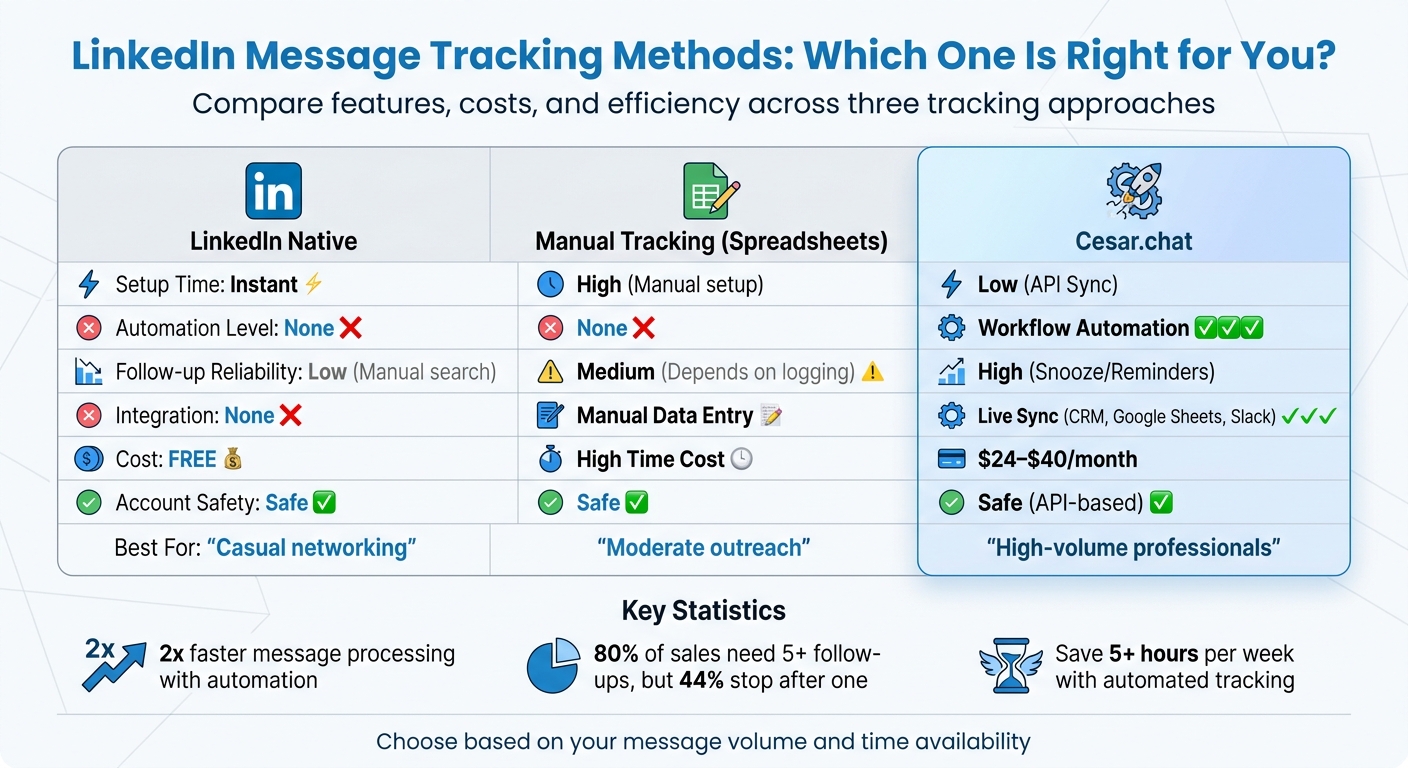
LinkedIn Message Tracking Methods Comparison: Native vs Manual vs Cesar.chat
Selecting the right tracking method hinges on factors like your time availability, budget, and the scale of your LinkedIn outreach efforts. While LinkedIn’s built-in features work well for occasional networking, they tend to fall short when you’re juggling a high volume of conversations daily. On the other hand, manual tracking with spreadsheets offers more control but demands a hefty time commitment. Tools like Cesar.chat simplify the process by automating key tasks while safeguarding your account. Here’s a breakdown of how these methods stack up.
When evaluating tracking options, keep in mind aspects like setup time, automation, follow-up reliability, integration with other tools, cost, and account safety.
Follow-up reliability is a key factor. Messages on LinkedIn can easily get lost in the shuffle, and manual tracking requires painstaking data entry, increasing the chance of missed follow-ups. Cesar.chat solves this with a snooze feature that resurfaces important conversations at a scheduled time, ensuring nothing slips through the cracks.
Cost is another important aspect. While LinkedIn’s native tools and spreadsheets are free, they come with a steep time cost. Cesar.chat, priced at $24–$40 per month, helps you handle your messages twice as fast, making it a smart choice for professionals who prioritize efficiency and time savings. By weighing these options, you can pick the method that best aligns with your goal of boosting response rates.
The table below provides a clear comparison of the strengths and limitations of each tracking method.
Tracking Methods Comparison Table
| Feature | LinkedIn Native | Manual Tracking (Spreadsheets) | Cesar.chat |
|---|---|---|---|
| Setup Time | Instant | High (Manual setup) | Low (API Sync) |
| Automation Level | None | None | Workflow Automation |
| Follow-up Reliability | Low (Manual search) | Medium (Depends on logging) | High (Snooze/Reminders) |
| Integration | None | Manual Data Entry | Live Sync (CRM, Google Sheets, Slack, etc.) |
| Cost | Free | High Time Cost | $24–$40/mo |
| Account Safety | Safe | Safe | Safe (API-based) |
This comparison highlights how Cesar.chat can streamline your outreach process, ensuring you stay on top of important conversations without sacrificing efficiency or safety as your networking efforts grow.
Conclusion
Keeping track of LinkedIn conversations can be overwhelming, especially when managing a high volume of messages. Manual tracking eats up time and often leads to missed opportunities. While LinkedIn’s built-in tools, like read receipts and message history, offer some help, they’re not enough for professionals juggling dozens of interactions every day.
That’s where Cesar.chat steps in, removing the hassle of manual updates with automation and smart organization. Features like split inboxes allow you to prioritize messages, ensuring that hot leads stand out from general networking chats. The snooze threads option ensures no follow-up is forgotten by resurfacing conversations at just the right time. Plus, live CRM integration syncs every message, note, and label with platforms like HubSpot, Salesforce, and Notion, cutting down on repetitive data entry.
For busy professionals, these tools can double the speed of processing LinkedIn messages while ensuring timely follow-ups. With plans ranging from $24 to $40 per month, the time saved more than covers the cost, freeing up hours to focus on meaningful networking.
The secret to success lies in building a system that scales with your networking needs without adding unnecessary complexity. Start by organizing conversations with split inboxes, schedule follow-ups with snooze reminders, and centralize your workflow using CRM sync. This step-by-step approach creates a streamlined system that grows alongside your professional network, making LinkedIn outreach more effective and efficient.
FAQs
How do I know who needs a follow-up?
If someone has accepted your connection request but hasn’t replied to your message within 4–7 business days, it might be time for a follow-up. Tools like Cesar.chat can make this process easier by organizing your LinkedIn conversations and flagging overdue follow-ups.
Additionally, keeping an eye on their reply activity and engagement levels can help you spot contacts who may need a nudge or a message offering more value.
What’s a good LinkedIn reply rate to aim for?
A LinkedIn reply rate above 20% is generally seen as solid, while anything over 30% is considered top-tier according to industry benchmarks for 2025. These numbers reflect how well your messaging resonates and how effective your communication strategy is at engaging your audience.
How can I track LinkedIn messages in my CRM automatically?
To keep your LinkedIn messages organized and synced with your CRM, you can use tools designed to integrate the two platforms effortlessly. A great example is Cesar.chat, which connects your LinkedIn inbox with popular CRMs like Salesforce, HubSpot, and Zoho.
Here’s how it typically works:
- Install a Chrome extension provided by the tool.
- Authorize access to your LinkedIn account.
- Link the tool to your CRM.
Once everything is set up, your LinkedIn messages sync in real time. This ensures you have accurate records in your CRM and makes it easier to follow up with leads or contacts efficiently.



