
Want to save hours on LinkedIn? Keyboard shortcuts can help you respond to messages three times faster, reclaiming over 5 hours weekly. With up to 50% response rates on LinkedIn compared to 0.5% for cold emails, mastering these shortcuts is a game-changer for professionals like recruiters, sales teams, and founders.
Here’s what you’ll learn:
- Navigation Shortcuts: Quickly access your inbox, profile, and notifications.
- Messaging Shortcuts: Compose, send, archive, and manage conversations without a mouse.
- Advanced Features: Use labels, templates, and voice notes to stay organized and efficient.
- Cesar.chat Integration: Boost productivity further with custom tools for high-volume messaging and CRM sync.
Example: Sarah, an SDR, reduced her response time from 24 hours to 2 hours and increased meeting bookings by 35% by switching to a keyboard-first workflow.
Whether you’re managing leads or building connections, these shortcuts will help you work smarter and faster. Ready to take control of your LinkedIn workflow? Let’s dive in.
New! Navigate LinkedIn Faster with Keyboard Shortcuts on Desktop
sbb-itb-3e8f5dc
Prerequisites and Setup
Getting your system ready is the first step to mastering LinkedIn shortcuts and improving your workflow. The setup process is quick and ensures a smooth experience.
Browser Compatibility and Settings
LinkedIn shortcuts are designed for desktop browsers only and work seamlessly with Chrome, Firefox, and Edge.
If you’re using a Mac, you’ll need to enable Full Keyboard Access to prevent macOS from blocking certain commands. You can do this by navigating to System Preferences > Keyboard > Shortcuts. Windows users, on the other hand, don’t need to make any adjustments – shortcuts function right out of the box.
"Keyboard navigation is turned on by default in your system preferences. You need to allow Full Keyboard Access on your Mac device for some navigation options." – Google Chrome Help
If shortcuts aren’t working, check for browser extensions that might be causing conflicts and disable them as needed.
Once your system is configured, test the shortcuts directly on LinkedIn to ensure everything is functioning properly.
How to Enable Keyboard Shortcuts in LinkedIn
The good news? LinkedIn shortcuts are turned on by default. To access the menu for toggling hotkeys, simply press Tab while on your feed.
To see the full list of available shortcuts, press Shift + ?. This will open a handy cheat sheet showing all the hotkeys you can use on the current page.
"You can press the Tab key to activate the menu, where you can toggle the hotkeys on or off." – LinkedIn Help
As you navigate, LinkedIn highlights the active component on your screen, making it easy to see where your keyboard focus is. This feature is especially helpful when moving through posts, profiles, or conversations without using a mouse.
LinkedIn Keyboard Shortcuts for Navigation
LinkedIn offers handy keyboard shortcuts to help you move quickly through its core sections, making navigation faster and more efficient. These shortcuts are a great way to streamline your experience, whether you’re browsing your feed, managing messages, or exploring profiles. Below, you’ll find key shortcuts for messaging, profiles, and search to help you get the most out of LinkedIn.
Messaging and Inbox Shortcuts
LinkedIn’s "go to" shortcuts let you access important sections with just a couple of keystrokes. For instance, pressing g + m takes you straight to your messaging inbox. If you’re on Windows, you can also use Alt + 4 for the same result.
Once you’re in your inbox, there are additional shortcuts to make messaging easier:
- Press
cto start composing a new message. - Hit
Enterto send your message. - Use
JandKto move between conversations. - Press
Eto archive messages you’ve already addressed. - Tap
Ito open the sender’s profile in a new tab, giving you quick access to more context.
These shortcuts make it easy to manage your messages without ever touching your mouse.
Profile Navigation Shortcuts
Accessing profiles quickly can make a big difference, especially when you’re networking. Did you know that viewing someone’s profile increases the likelihood of them accepting your connection request by 86%? With that in mind, here are some shortcuts to help you navigate profiles efficiently.
- Press
g + pto jump directly to your own profile, or useAlt + 6on Windows. - While on your profile, hit
eto open the editing options. - To manage your network, press
g + worAlt + 2to see your connections and pending requests. - When scrolling through your feed or search results, highlight a profile name or picture and press
Enterto open it in a new tab – this keeps your place while you explore.
These shortcuts save time and keep your networking efforts smooth and organized.
Search and Activity Feed Shortcuts
Make the most of LinkedIn’s search and activity features with these quick commands. Press / to activate the search bar instantly, or use Ctrl + E on Windows. Once you’ve started a search, use Tab to toggle between filters like People, Jobs, and Posts – all without needing a mouse.
When browsing your activity feed, you can interact with posts using these shortcuts:
- Press
jorkto move between posts. - Hit
lto like a post,cto comment,rto repost, orsto share. - Use
nto open the sharebox and start creating a new post.
For notifications, press g + n or Alt + 5 to jump to the notifications tab, then navigate through them using j and k.
These shortcuts help you stay engaged with your network and manage your activity efficiently.
Advanced Shortcuts for Workflow Optimization
Once you’ve got the basics down, it’s time to step up your game with shortcuts designed to handle high-volume messaging and lead management. These advanced tools build on foundational commands, making your LinkedIn workflow even smoother.
Labels, Snippets, and Voice Notes
Using the L key, you can quickly label and group threads into categories like "Hot Lead", "Candidate", or "Client." This creates organized, focused inboxes that make managing conversations much easier. Need to send pre-written messages? The ; (semicolon) shortcut gives you instant access to saved snippets. These templates even include personalization variables like {firstName} or {company}, saving you from rewriting the same messages over and over. If you need to pause a conversation for later, hit the H key to snooze it – it’ll reappear when it’s time for a follow-up. Want to add a personal touch? The V shortcut lets you record and send voice notes directly from your desktop, a feature LinkedIn itself doesn’t provide. And for instant access to actions, use Cmd/Ctrl+K to speed up your workflow by up to three times, potentially saving over 5 hours each week.
Multi-Thread Management and CRM Integration
Managing multiple conversations at once? Use J and K to move between threads without touching your mouse, and press the E key to archive completed messages, helping you maintain an "Inbox Zero" system. For even better organization, advanced tools can sync your labeled conversations to CRMs like HubSpot, Salesforce, Notion, or Google Sheets through integrations with platforms like Zapier or Make. This ensures every interaction is tracked and accounted for. Considering that LinkedIn outreach boasts response rates as high as 50%, compared to cold email’s mere 0.5%, having a streamlined workflow is a game-changer.
How Cesar.chat Extends LinkedIn Shortcuts
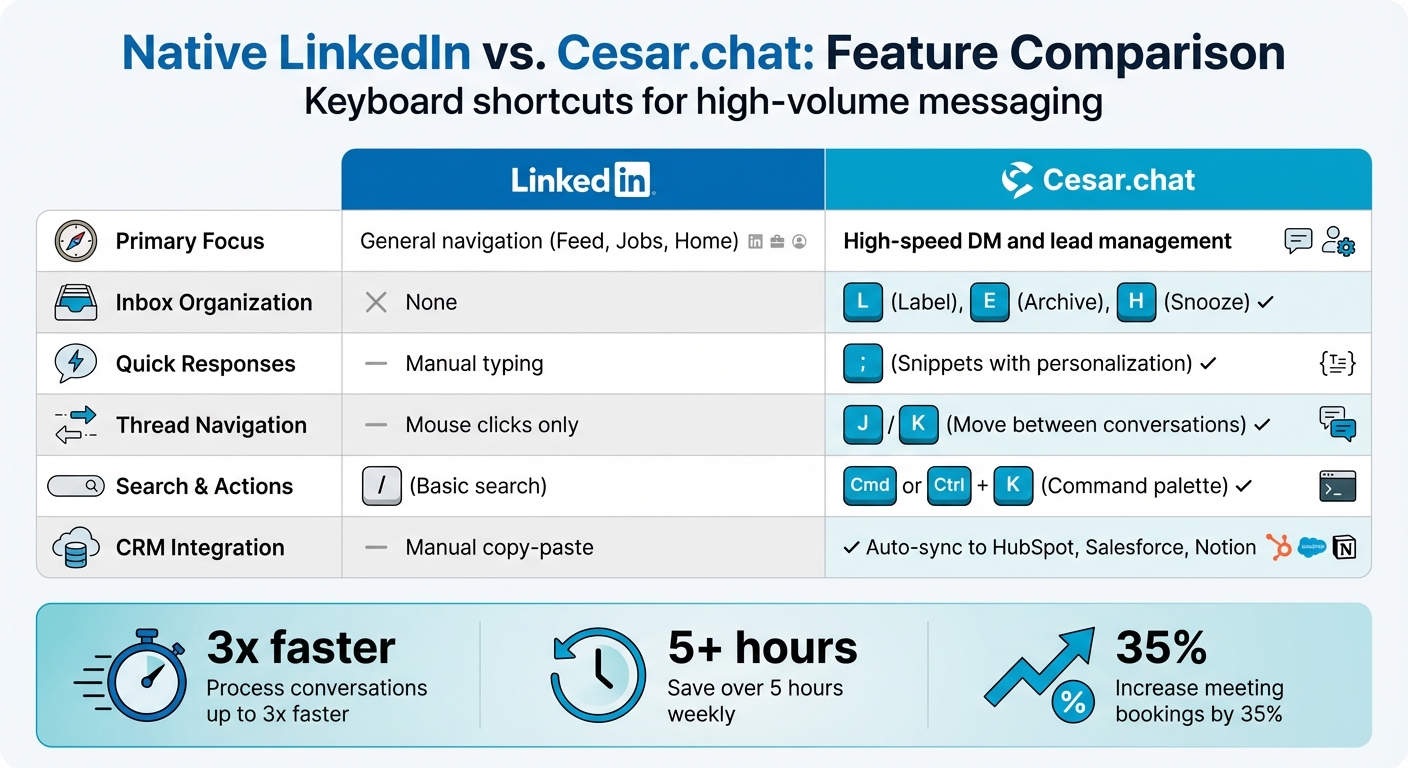
LinkedIn Native Shortcuts vs Cesar.chat Features Comparison
Cesar.chat takes LinkedIn’s already useful keyboard shortcuts and pushes them further, creating a system designed for professionals managing heavy outreach or intricate sales pipelines. While LinkedIn’s shortcuts are great for basic navigation, they don’t quite address the needs of users handling high-volume interactions. Cesar.chat fills this gap with a keyboard-first workflow that helps users respond faster and engage more effectively.
Custom Shortcuts for Split Inboxes and Snippets
Cesar.chat introduces a set of shortcuts that streamline inbox management and personalize communication:
- Press
Lto open a label menu, where you can categorize conversations into split inboxes like "Hot Lead", "Follow-Up", or "Candidate." This ensures important prospects stay visible and organized. - Use the
;(semicolon) shortcut to insert templated responses. These templates include dynamic variables like{firstName}, automatically personalizing your messages for each recipient. - The
Cmd/Ctrl+Kshortcut launches a command palette, serving as a central hub for actions like searching conversations or toggling your inbox – no mouse required. - Hit
Ito view a prospect’s profile in a side panel. Interestingly, viewing profiles has been shown to increase connection acceptance rates by 86%.
Native LinkedIn vs. Cesar.chat Shortcuts
To better understand the advantages Cesar.chat offers, here’s a side-by-side comparison of its features against LinkedIn’s native tools:
| Feature | Native LinkedIn | Cesar.chat |
|---|---|---|
| Primary Focus | General navigation (Feed, Jobs, Home) | High-speed DM and lead management |
| Inbox Organization | None | L (Label), E (Archive), H (Snooze) |
| Quick Responses | Manual typing | ; (Snippets with personalization) |
| Thread Navigation | Mouse clicks only | J/K (Move between conversations) |
| Search & Actions | / (Basic search) |
Cmd/Ctrl+K (Command palette) |
| CRM Integration | Manual copy-paste | Auto-sync to HubSpot, Salesforce, Notion |
These shortcuts make a noticeable difference in productivity. For example, users can process conversations up to 3x faster, saving over 5 hours a week by relying on keyboard-only workflows. One standout case is Sarah, an SDR at a B2B SaaS company, who used Cesar.chat to handle over 100 conversations weekly. By leveraging these tools, she reduced her response time from 24 hours to just 2 hours and increased her meeting booking rate by 35%.
Conclusion
Streamlining your keyboard workflow doesn’t just save time – it makes professional communication smoother and more effective. By mastering LinkedIn shortcuts, you can reclaim hours and improve how you manage relationships. In fact, professionals who adopt a keyboard-first approach can save enough time to add up to eight full workdays per year. That extra time can be used to build stronger connections, close more deals, or simply reduce stress.
Pairing LinkedIn’s native shortcuts with Cesar.chat’s advanced tools takes this efficiency to the next level. LinkedIn commands like navigating feeds or sending messages faster are a great start. But Cesar.chat adds powerful tools – like split inboxes, saved snippets, and CRM integration – that let users handle conversations three times faster. This means response times drop from 24 hours to under 2 hours, and meeting bookings increase by 35%.
"I’m booking more meetings because I never miss a follow-up now." – Sarah, SDR
To get started, use Shift + ? to pull up the command list, practice J/K for navigation, and try C to compose messages. Once you’ve got the basics down, dive into Cesar.chat’s features, like L for labels or ; for snippets, to further boost your productivity. With plans starting at $24/month, the time you save can be a game changer for managing your LinkedIn workflow.
The choice is clear: you can either spend hours clicking through countless conversations or take control with shortcuts and tools that help you master your inbox. The difference? Efficiency that lets you focus on what truly matters.
FAQs
Why aren’t LinkedIn keyboard shortcuts working on my Mac or Windows PC?
If LinkedIn keyboard shortcuts aren’t functioning, it could be due to them being disabled or your focus being on the wrong element. To fix this, press Tab to activate the menu and enable hotkeys. Make sure your keyboard focus is on the correct section of the platform. On Mac, shortcuts rely on the Command (⌘) key, while Windows users should use Ctrl or Windows key combinations. If the issue persists, try refreshing the page or restarting your browser.
What are the fastest shortcuts to manage messages without using a mouse?
Here are some handy LinkedIn keyboard shortcuts to manage your messages without needing a mouse:
- g + m: Jump straight to the Messaging section.
- c: Start composing a new message instantly.
- Enter: Send your message after typing it out.
- Up Arrow/Down Arrow: Scroll through your messages with ease.
These shortcuts are a simple way to save time and stay efficient while managing conversations on LinkedIn.
How can I connect labels and snippets to my CRM workflow?
You can use keyboard shortcuts on LinkedIn to connect labels and snippets directly to your CRM workflow, simplifying message management and activity tagging. For instance, press L to label leads, H to set follow-up reminders, and E to archive messages. These shortcuts allow you to quickly tag contacts, organize follow-ups, and optimize your outreach process, making CRM integration faster and more efficient.