
Managing LinkedIn leads effectively can turn casual interactions into real opportunities. Here’s how you can stay organized, respond faster, and improve your results:
- Define your leads clearly: Focus on behaviors like inbound messages, connection requests, or repeated profile views to identify high-priority prospects.
- Set up a pipeline: Move leads through stages like Awareness, Engagement, Qualification, and Close. Avoid adding unqualified contacts too early.
- Prioritize follow-ups: Respond within an hour when possible. Use a 3-message sequence to nurture relationships, as most conversions happen after multiple touchpoints.
- Use tools: LinkedIn’s Sales Navigator and third-party tools like Cesar.chat can help track leads, automate follow-ups, and sync data with your CRM.
- Build a routine: Dedicate 20 minutes daily to inbox management and 30–45 minutes weekly for reviewing your pipeline.
Key stat: Responding to a lead within an hour makes you 7x more likely to qualify them than waiting two hours. Tools like split inboxes, snooze reminders, and message templates simplify the process, saving time and ensuring no lead is overlooked.
This guide explains how to manage your LinkedIn conversations efficiently, integrate them into your workflow, and stay consistent with follow-ups for better results.
How to Keep Track of New Leads on LinkedIn | LinkedIn Data Tracking Tutorial & Benchmarks
sbb-itb-3e8f5dc
Building a LinkedIn Lead Management Workflow
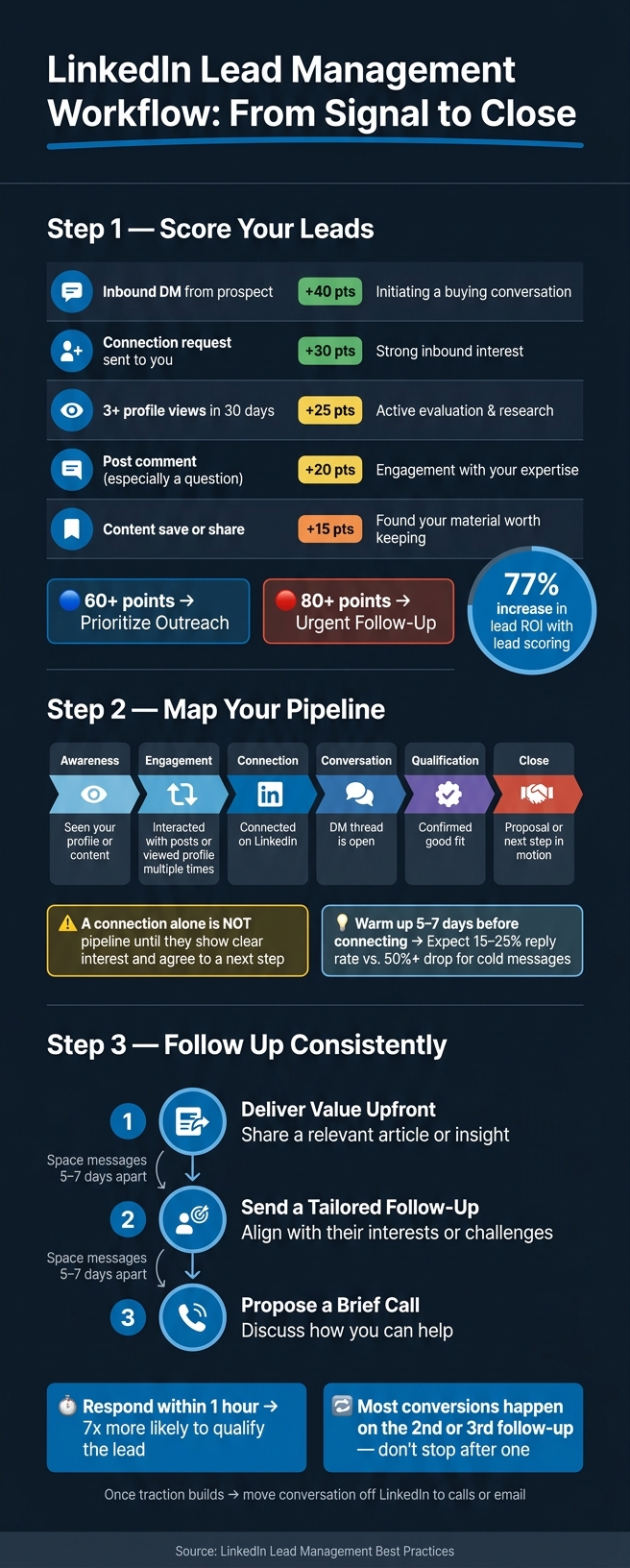
LinkedIn Lead Management Workflow: From Signal to Close
Creating a LinkedIn lead management workflow is all about turning scattered interactions into a structured process that ensures you never miss an opportunity. A well-organized workflow helps you manage conversations effectively and keeps you in control of every lead. For those looking to optimize their workflow further, exploring LinkedIn power user tips can provide additional strategic depth.
How to Define a LinkedIn Lead
Not every connection on LinkedIn is a lead. The key is to focus on behavioral signals rather than superficial details like job titles or company size. For example, someone who sends you a direct message (DM) is showing much stronger intent than someone who simply matches your target audience but hasn’t engaged with you.
A point-based scoring system can make this process more objective. For instance, an inbound DM from a prospect carries the most weight because it signals active interest. A connection request sent to you is another strong indicator, while repeated profile views suggest someone is researching you. Comments on your posts, especially those with questions, show genuine engagement. Even content saves or shares hint that your material resonated with them.
| Signal | Score | What It Means |
|---|---|---|
| Inbound DM from prospect | +40 pts | Indicates they’re initiating a buying conversation |
| Connection request sent to you | +30 pts | Shows strong inbound interest |
| 3+ profile views in 30 days | +25 pts | Suggests active evaluation and research |
| Post comment (especially a question) | +20 pts | Reflects engagement with your expertise |
| Content save or share | +15 pts | Shows they found your material worth keeping |
Using lead scoring can significantly improve your results. In fact, companies that implement lead scoring report a 77% increase in lead ROI compared to those that don’t. Set clear thresholds: prioritize outreach for leads above 60 points, and treat anyone surpassing 80 points as an urgent follow-up.
Once you’ve scored your leads, the next step is to guide them through a well-defined pipeline.
Mapping Your LinkedIn Conversation Pipeline
"Leads are names on a list. Pipeline implies qualification and progression." – Fuzzy AI Blog
A pipeline isn’t just a collection of names – it’s a system that tracks how leads move through different stages. On LinkedIn, these stages typically include:
- Awareness: They’ve seen your profile or content.
- Engagement: They’ve interacted with your posts or viewed your profile multiple times.
- Connection: You’ve connected with them on LinkedIn.
- Conversation: A direct message thread is open.
- Qualification: You’ve confirmed they’re a good fit.
- Close: A proposal or next step is in motion.
Here’s the golden rule: A connection alone isn’t part of your pipeline until they’ve shown clear interest and agreed to a next step. Moving someone to the "Qualified" stage too early can inflate your pipeline and give you a false sense of progress.
To maximize your chances, take a gradual approach. Spend 5–7 days warming up the relationship by viewing their profile and engaging meaningfully with their content before sending a connection request. This extra effort pays off – personalized outreach after this warming phase typically results in a 15–25% reply rate, while cold messages can see reply rates drop by 50% or more.
Once you’ve mapped out your pipeline, the next task is to maintain consistent follow-ups.
Setting Follow-Up Standards
A pipeline only works if you follow up consistently. Space your messages 5–7 days apart and make sure each one adds something new, whether it’s a relevant article, an observation about their business, or a question tailored to their needs. Avoid sending generic follow-ups – each message should provide real value.
After a connection accepts your request, use a three-message sequence to nurture the relationship:
- Deliver value upfront (e.g., share an article or insight).
- Follow up with a tailored message that aligns with their interests or challenges.
- Propose a brief call to discuss how you can help.
Most conversions happen on the second or third follow-up, yet many people stop after just one attempt. Once the conversation gains traction, move it off LinkedIn. Direct messages are great for introductions, but more serious discussions are better suited for calls or emails.
Using LinkedIn’s Built-In Tools to Track Leads
Once your pipeline is in place and your follow-up routine is set, LinkedIn’s built-in tools can help you stay organized. These features are often more powerful than they seem, offering ways to manage your leads without the need for extra software.
Getting More Out of LinkedIn Messaging
LinkedIn’s messaging inbox is designed to keep conversations organized, with filters for Unread, Sent, and Archived messages. Plus, the search bar makes it easy to find specific chats by name or keyword.
For better engagement, respond to post comments within the first hour – it can double your content’s reach.
While the standard inbox is great for basic communication, Sales Navigator steps things up with advanced filters and AI-powered insights, making it an essential tool for serious lead tracking.
Using Sales Navigator for Lead Management
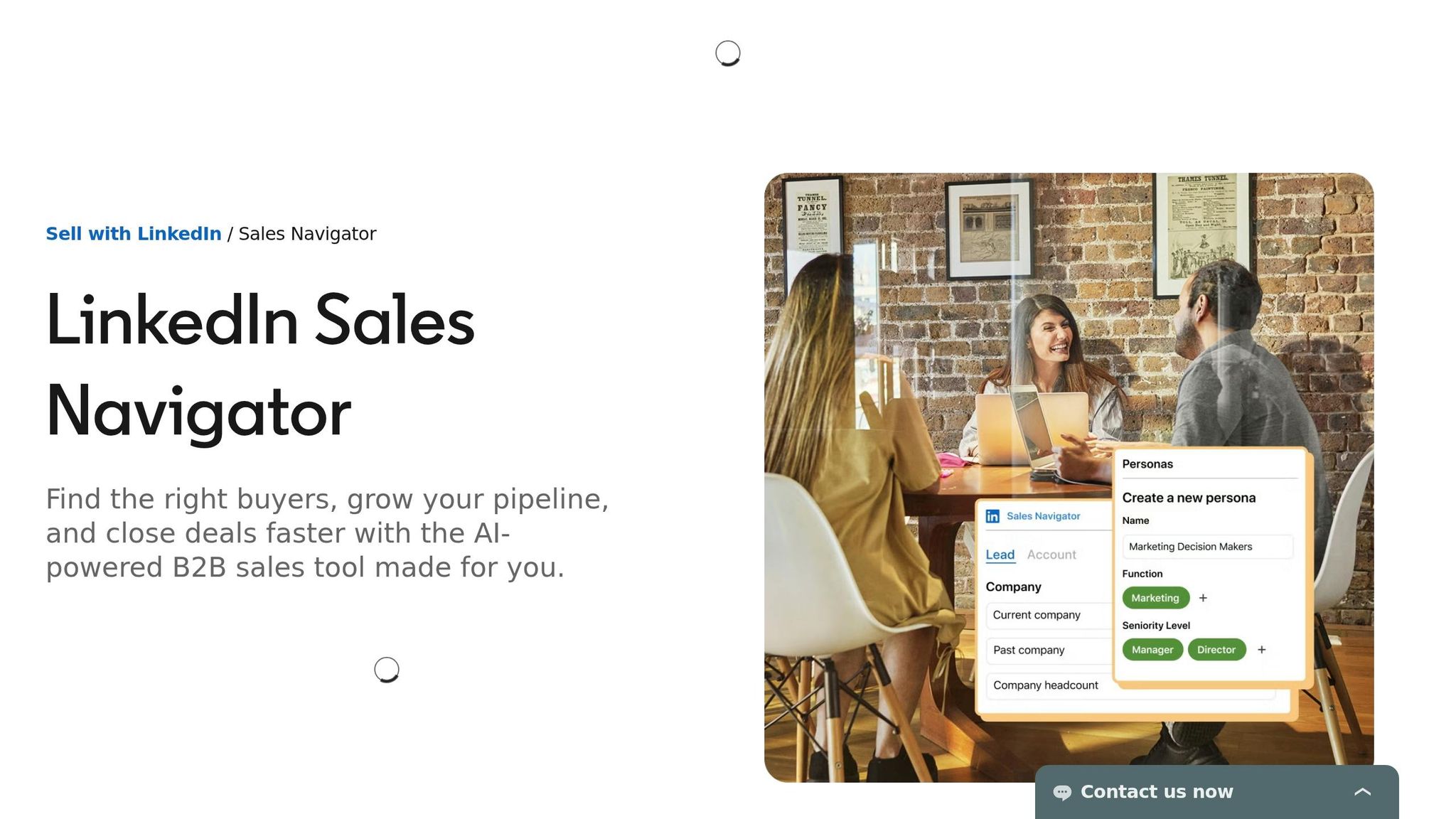
Sales Navigator offers a more advanced approach to managing leads. With 40+ search filters, including "Spotlight" options, it helps you pinpoint prospects who are more likely to respond. For example, Spotlight filters can identify leads who recently changed jobs or were mentioned in the news. This is important because decision-makers are 62% more likely to engage after a job change.
The tool also lets you organize leads into specific lists, such as "Decision Makers", "Warm Prospects", or "Current Customers." Features like Account IQ provide AI-generated summaries of a company’s priorities and financials, saving you time on research. For teams, TeamLink taps into your colleagues’ connections, making introductions warmer – prospects are 5x more likely to respond when approached this way.
| Feature | What It Does | Why It Matters |
|---|---|---|
| Spotlight Filters | Highlights leads by recent activity (e.g., job changes) | Helps focus on prospects likely to respond |
| Account IQ | Summarizes company priorities using AI | Reduces time spent on pre-outreach research |
| TeamLink | Uses colleagues’ connections for introductions | Turns cold outreach into warm leads |
| Saved Searches | Sends alerts for new matching prospects | Keeps your pipeline updated automatically |
Turning Profile Views and Post Interactions into Conversations
LinkedIn is not just about finding leads – it also helps turn engagement into meaningful conversations. Profile views and post interactions are clear signs of interest. When someone views your profile or engages with your content, check the "Save as lead" box when sending a connection request. This immediately adds them to your pipeline, even if they don’t reply right away.
After a connection accepts your request, use the "Accepted" filter in Sales Navigator to quickly locate new contacts. The messaging sidebar provides useful details like job title, location, shared connections, and recent activities. Use this information to craft a personalized message instead of relying on a generic introduction.
Connecting LinkedIn to Your CRM and Productivity Tools
Organizing LinkedIn conversations in your inbox is a great start, but the real game-changer is integrating those conversations into your CRM. This ensures that every lead detail is tracked, so no opportunities are lost as a lead progresses from the initial message to a potential deal.
Syncing LinkedIn Conversations with Your CRM
If you’re using LinkedIn’s Sales Navigator Advanced Plus plan, you’re in luck – it offers native CRM integration with platforms like Salesforce, HubSpot, and Microsoft Dynamics 365. With features like Activity Writeback, you can automatically log InMails and messages directly into your CRM timeline. This eliminates the need for manual data entry and ensures that new contacts, conversation history, notes, and lead statuses are updated instantly. For Microsoft Dynamics 365 users, keep in mind that Activity Writeback authentication needs to be renewed every 90 days.
"Data validation brings the power of LinkedIn data to your CRM by flagging out-of-date contacts." – LinkedIn Sales Navigator Help
However, this native syncing feature is exclusive to the Advanced Plus plan. If you’re on the Standard Core or Advanced plans, this functionality won’t be available.
Reducing Manual Data Entry with Automation
Manually logging LinkedIn interactions into your CRM can be tedious and prone to errors. By automating these workflows, sales teams can save around 15 minutes per day – equating to roughly 5.5 hours per week – and potentially increase sales efficiency by up to 34%. Automation also ensures your data stays accurate. For instance, if a prospect updates their job title on LinkedIn, the integration captures this change immediately. You can even configure workflows to trigger follow-up tasks based on signals like a prospect changing roles or a company expanding. Before implementing, test the integration in a sandbox environment and review your deduplication settings to avoid complications.
Fitting LinkedIn into Your Existing Workflows
If your team doesn’t have access to the Sales Navigator Advanced Plus plan, third-party tools like Cesar.chat can help bridge the gap. This tool automatically syncs LinkedIn DMs, custom labels (like "Hot Lead"), and internal notes to HubSpot contacts. The Business tier, priced at $32 per month, supports up to three integrations (e.g., HubSpot and Google Sheets) and is currently free during its early access period.
"When prospecting lives in LinkedIn while deal management lives in HubSpot, sales teams operate with a fractured workflow." – Markezing Team
Here’s a quick comparison of native Sales Navigator integration versus third-party tools:
| Native Sales Navigator (Advanced Plus) | Third-Party Tools (e.g., Cesar.chat) | |
|---|---|---|
| Best For | Enterprise account-based selling | Smaller teams without Sales Navigator licenses |
| CRM Support | HubSpot, Salesforce, Dynamics 365, Oracle | HubSpot, Google Sheets, Notion |
| Setup | Complex, enterprise-level | Quick setup (under a minute) |
| Cost | $3,400+/year | From $32/month |
| Key Strength | Embedded profiles and ROI reporting | Unified inbox, labels, and reminders |
Whether you choose native integration or a third-party tool, the goal is the same: ensure that LinkedIn activity is logged in your CRM, not just left in your inbox. This creates a smoother workflow and keeps your sales process organized.
How Cesar.chat Improves LinkedIn Lead Management
Cesar.chat takes your LinkedIn workflow to the next level by making lead management more organized and efficient. It categorizes conversations, streamlines follow-ups, and ensures no lead slips through the cracks. For account executives, missing a conversation can mean losing a potential deal, but Cesar.chat helps prevent that.
Organizing Leads with Split Inboxes
LinkedIn’s default inbox can quickly become a mess. Replies to cold outreach, warm referrals, messages from existing clients, and random connection requests all pile up in one place. Split inboxes fix this by creating separate views for different types of conversations.
Imagine this setup: one inbox for "New Leads", another for "Needs Reply", a third for "Meeting Booked", and a fourth for "Nurture." For example, when a prospect from the U.S. responds to your initial message, you move them from "New Leads" to "Needs Reply." That conversation is now easy to find in the right inbox. Nothing gets lost. In fact, one SDR reduced daily triage time from 30 minutes to just 10 minutes using a "Needs Reply Today" view.
You can also use custom labels like "Hot Lead" or "Client" to create even more focused views. These labels sync directly with CRMs like HubSpot, so the stages you assign in Cesar.chat automatically update in your pipeline – no need for manual copy-pasting.
Using Snooze and Reminders to Stay on Top of Follow-Ups
Missed follow-ups usually happen because reps rely on memory instead of a system. Snooze eliminates that risk.
With Snooze, you can set a thread to reappear at a specific date and time – say, 05/30/2026 at 9:00 AM. For instance, if a prospect says, "Let’s revisit this next quarter", you can snooze the conversation until the first Monday of that quarter at 9:00 AM. Instead of relying on sticky notes or calendar reminders, the thread will resurface at the top of your inbox, complete with all the context you need. This works even for prospects who haven’t replied, keeping long-term nurture leads from falling through the cracks.
Accelerating Routine Tasks with Keyboard Shortcuts and Messaging Snippets
"Get through your LinkedIn DMs twice as fast." – Cesar.chat
Keyboard shortcuts save time by letting you navigate conversations, reply, archive, and snooze without using your mouse. If you’re handling 40–60 LinkedIn messages daily, shaving 2–3 seconds off each action can save you 5–10 minutes a day – or up to 2–3 hours a month. In a fast-paced sales environment, that time adds up.
Snippets simplify repetitive messaging. These pre-written templates include placeholders like [First Name], [Company], or [Pain Point] to make personalization quick and easy. For example, a follow-up snippet might say: "Hi [First Name], just following up on our chat about [Outcome]. Would a quick overview next Tuesday or Wednesday morning (Eastern time) work for you?" To stay effective, review and update your snippets every quarter to reflect current offers and language trends.
Syncing Cesar.chat with CRMs and Productivity Tools
Cesar.chat integrates seamlessly with tools like HubSpot and Google Sheets, with Notion, Salesforce, and Zoho CRM integrations on the way. It automatically syncs new contacts, conversation history, labels, and internal notes with your CRM.
For teams using Slack, Cesar.chat can send updates to a dedicated #linkedin-leads channel whenever a lead moves to a key stage. This keeps everyone informed without requiring the team to log into multiple tools. By connecting LinkedIn activity to your existing systems, Cesar.chat ensures your sales workflow stays cohesive and efficient.
Building a Daily and Weekly LinkedIn Review Routine
Staying consistent is what sets successful professionals apart when it comes to managing leads. Tools like split inboxes, snooze features, and message snippets can only deliver results if they’re used regularly. This routine builds on your existing LinkedIn lead management process, ensuring every conversation is tracked and nurtured effectively.
Your Daily LinkedIn Inbox Checklist
You don’t need to spend hours on LinkedIn every day. The goal of a daily review is to make sure no leads slip through the cracks.
"Stay consistent: Even 20 minutes daily can yield long-term results." – Eric Standlee, Founder, Aether Systems
A well-structured 20 minutes can go a long way. Here’s a breakdown of how to make the most of that time:
| Time Block | Task Category | Specific Actions |
|---|---|---|
| 0–5 min | Network Growth | Accept pending connection requests and send personalized welcome messages |
| 5–10 min | Active Conversations | Reply to new messages and respond to comments on your recent posts |
| 10–15 min | Outbound Engagement | Like and comment on 2–3 posts from prospects or industry leaders |
| 15–20 min | Review & Planning | Check analytics and set follow-up goals for the next day |
Once you’ve completed these tasks, consider blocking specific times in your schedule to ensure LinkedIn becomes a seamless part of your daily workflow.
Blocking Time for LinkedIn Each Day
Treat your LinkedIn review like an important meeting that can’t be missed. Set aside two time slots each day: one in the morning (around 8:30–9:00 AM) to handle messages that came in overnight, and another in the early afternoon to follow up on responses. This approach ensures you’re staying on top of conversations and integrating LinkedIn updates into your CRM without delay.
If daily posting feels overwhelming, try batching your content creation over the weekend. This way, your weekday focus can remain on conversations and follow-ups.
Running a Weekly Pipeline Review
Daily check-ins are important, but a weekly review is where you solidify long-term engagement and keep your pipeline in order. Use this time to go through your conversations, update statuses, and set follow-up actions. A weekly review helps you identify inactive threads that might need re-engagement or archiving. Keeping your pipeline organized not only makes it easier to manage but also simplifies reporting on your progress.
Conclusion: Keeping Your LinkedIn Lead Management on Track
Key Takeaways
Effectively managing LinkedIn leads boils down to one critical factor: creating a system you can stick with. Here are the main points to remember from this guide:
- Define your leads clearly: Set clear criteria for what qualifies as a lead – think about factors like job role, company size, and buying intent.
- Organize your inbox as a pipeline: Create clear stages for your leads, such as New, Qualified, In Conversation, Proposal Sent, and Closed.
- Be consistent with follow-ups: Respond promptly during business hours, follow up multiple times over a few weeks, and then shift to a nurturing schedule for longer-term prospects.
- Go beyond LinkedIn: Sync important conversations and contact details into your CRM to avoid keeping critical data siloed on LinkedIn.
- Use tools to streamline the process: Features like Cesar.chat’s split inboxes, snooze reminders, and message snippets can save you over 5 hours a week by bridging LinkedIn with your broader workflow.
- Review regularly: Dedicate 20 minutes daily to inbox management and 30–45 minutes weekly to reviewing your pipeline to keep everything on track.
Final Thoughts
A well-structured lead management system ensures that every LinkedIn interaction has purpose and impact. Without a plan, warm leads can slip through the cracks. But with tools like split inboxes to separate new leads from active conversations, snooze reminders to follow up at the right time, and automated CRM syncing to log every lead, your pipeline stays organized and actionable.
Timing and persistence are key. Responding within an hour can dramatically increase conversion rates, while most deals require 4–7 meaningful touchpoints to close. Features like reminders and snooze options aren’t just conveniences – they’re essential for staying on top of each step.
Start small. Pick one or two metrics to focus on this month, such as your average response time or the percentage of leads that receive at least two follow-ups. Review these during your weekly pipeline check and adjust as needed. Remember, managing LinkedIn leads isn’t a one-and-done task – it’s a habit that grows stronger over time.
FAQs
What’s the fastest way to tell if someone is a real LinkedIn lead?
The fastest way to spot a genuine LinkedIn lead is by interacting with their activity, like posts or comments. Pay attention to consistent engagement and genuine interest. Profiles with little to no activity often indicate inactive users, making it easier to focus on active prospects.
When should I move a LinkedIn chat into my CRM?
When a LinkedIn conversation involves ongoing follow-up, detailed tracking, or needs to align with your sales process, it’s time to move it into your CRM. This is particularly crucial for high-priority leads or when you want to avoid losing track of messages in LinkedIn’s chronological inbox. By syncing chats to your CRM, you centralize all information, reduce manual data entry, and ensure no follow-ups slip through the cracks – making lead management smoother and more efficient.
How do I follow up without sounding pushy on LinkedIn?
To follow up without coming across as pushy, keep your tone respectful and your approach personalized. Tools like "Snooze Threads" can help you set reminders for timely follow-ups, ensuring you stay organized without overwhelming your contacts. When crafting your messages, focus on offering something meaningful – whether that’s helpful information, a solution, or a resource – rather than pushing for a sale.
Personalization goes a long way, so use saved snippets to tailor your communication to each recipient. Prioritize reaching out to contacts who’ve shown interest or engagement. Above all, be patient and respectful, focusing on building authentic relationships rather than chasing quick wins.



