
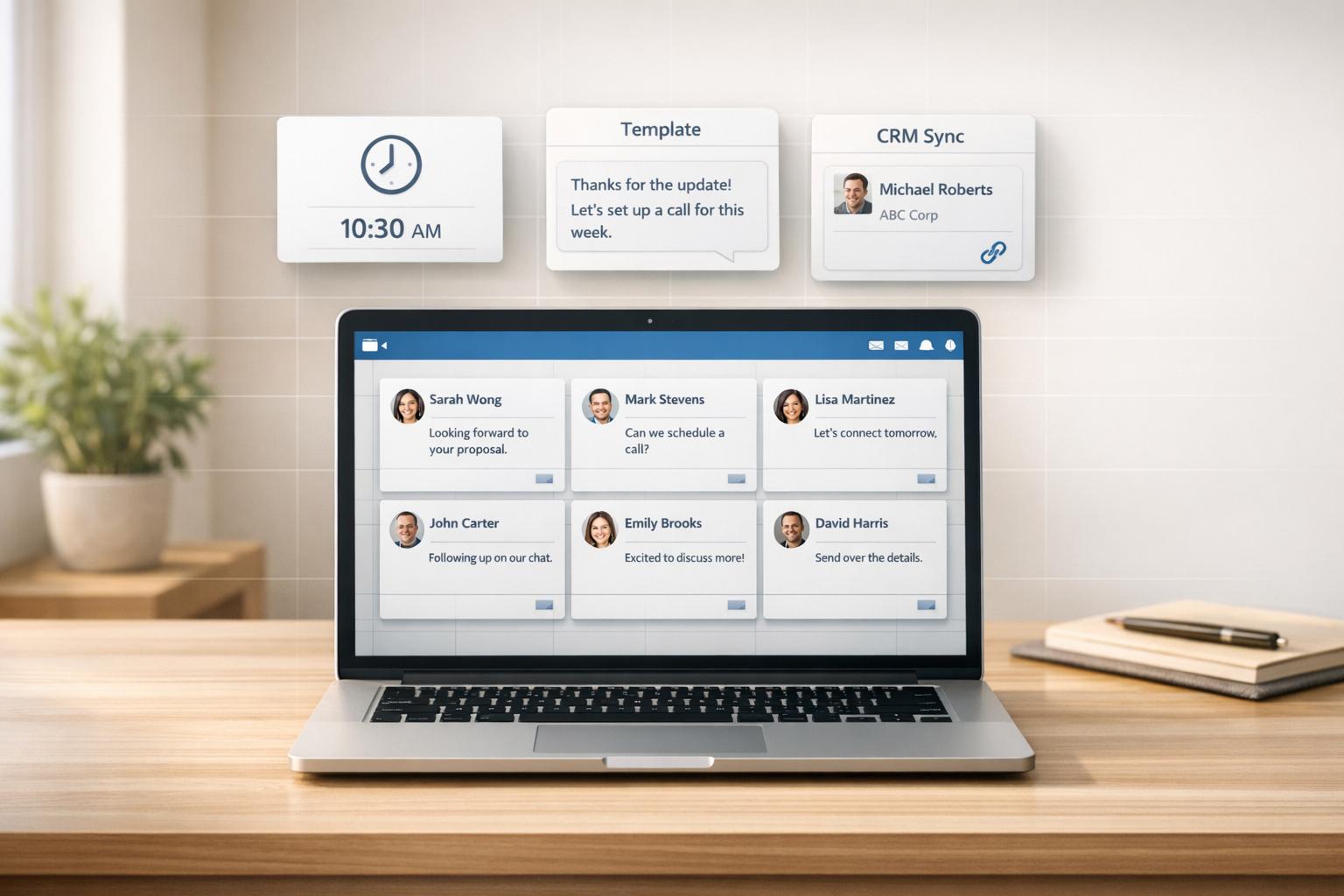
Managing LinkedIn messages effectively is critical for sales success. A cluttered inbox can lead to missed opportunities, lost revenue, and wasted time. Here’s what you need to know:
- 57% of sales professionals lose deals due to inbox chaos.
- Poor follow-up execution can cost teams $14,200/month in missed opportunities.
- Responding to leads within 5 minutes makes you 21 times more likely to qualify them.
- LinkedIn InMail messages have an 18-25% response rate, far better than cold emails (3-5%).
To stay competitive, you need tools and strategies to organize your LinkedIn inbox, prioritize leads, and ensure timely follow-ups. Solutions like Cesar.chat help sales teams streamline workflows with features like split inboxes, labels, snooze reminders, and CRM integration. These tools can reduce response times, improve follow-up rates, and recover lost revenue.
Start by organizing your inbox, setting up reminders, and leveraging templates. With the right approach, you can turn LinkedIn into a powerful sales tool and close more deals.
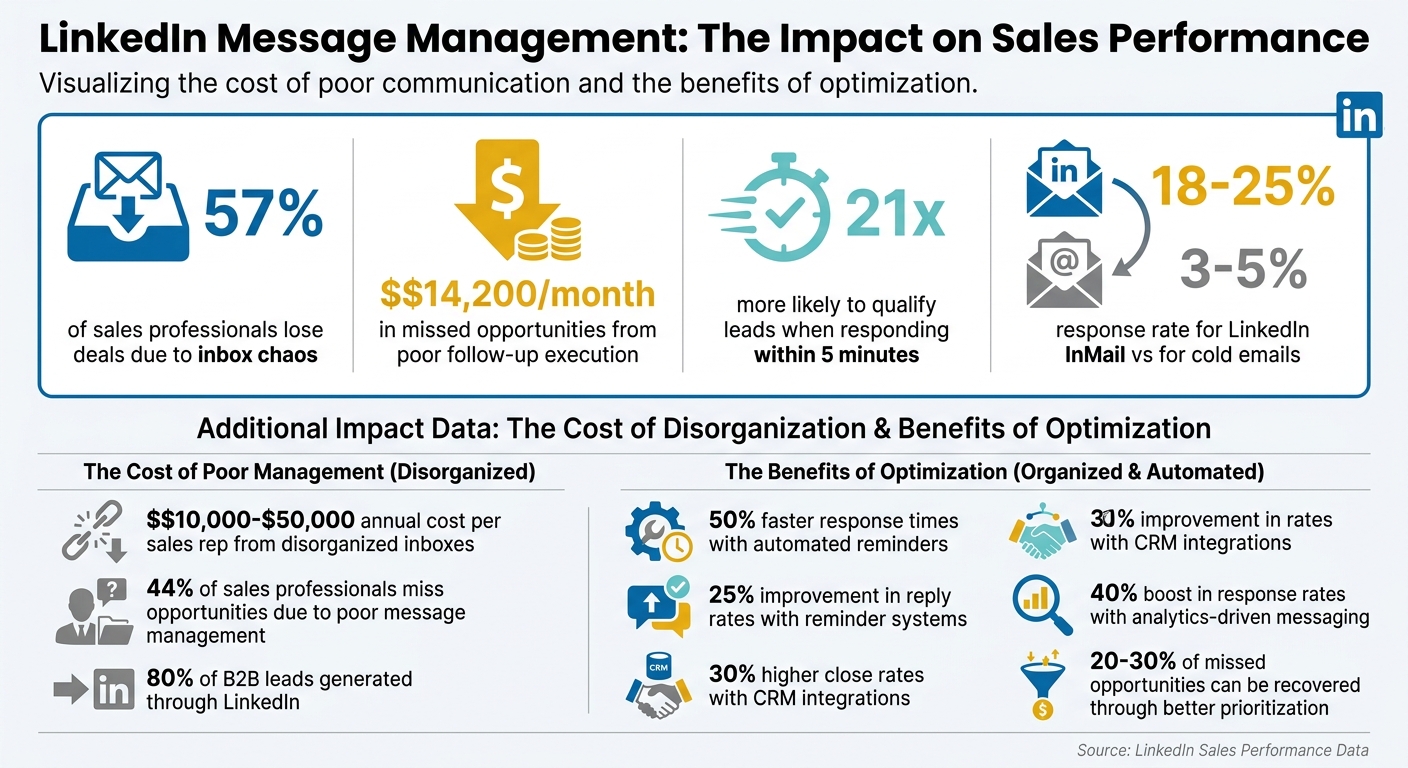
LinkedIn Message Management Impact on Sales Performance: Key Statistics
LinkedIn Inbox Management for Beginners (2026)
sbb-itb-3e8f5dc
How to Organize Your LinkedIn Inbox by Priority
LinkedIn’s default inbox setup places all messages in chronological order, treating every conversation equally – whether it’s a critical prospect or a routine connection request. For anyone juggling more than 50 active sales conversations, this can quickly lead to chaos, with important leads getting buried. Cesar.chat’s split inbox feature changes the game by allowing you to assign labels and filter conversations into specific views. This means you can focus on what truly matters without the clutter. Here’s how you can set up your inbox for maximum efficiency. For more LinkedIn power user tips, explore our latest strategies.
Creating Split Inboxes in Cesar.chat
With Cesar.chat, you can create split inboxes by setting up custom labels that align with your sales process. Instead of dealing with a single overwhelming inbox, you can divide your messages into categories that match your funnel stages. For example:
- Hot Leads: Prospects ready to close.
- Follow-Ups: Conversations waiting for your next action.
- Meeting Scheduled: Confirmed appointments.
- Cold Leads: Contacts for long-term nurturing.
Cesar.chat integrates seamlessly with LinkedIn, so when new messages arrive, you can assign a label based on the prospect’s position in your pipeline. Once labeled, the conversation automatically moves to the corresponding split inbox. Even better, the Basic plan ($24/month) offers unlimited labels, giving you the flexibility to organize your inbox exactly as your workflow requires.
This setup ensures that your inbox is no longer overwhelming, making it easy to focus on specific categories, like high-priority leads, when needed.
How to Use Labels to Focus on High-Priority Messages
Labels transform your workflow from chaotic to strategic. Instead of wasting time scrolling through a single inbox where urgent messages are buried alongside less critical ones, you can zero in on your "Hot Opportunities" inbox during your most productive hours. This focused method is why Cesar.chat users often report responding to their messages twice as quickly.
"Label conversations and split them into different inboxes to track and prioritize. Never lose a hot opportunity in mess again." – Cesar.chat
As conversations evolve, you can dynamically update labels to reflect the current stage. For instance, move a warm lead from "Follow-Ups" to "Meeting Scheduled" when a demo is booked. Similarly, after sending a proposal, shift the conversation to a "Proposal Sent" category. This real-time organization ensures your pipeline stays accurate and prevents any deals from slipping through the cracks.
For teams using the Business plan ($32/month), labels can even sync directly with popular CRMs like HubSpot, Salesforce, or Notion. This eliminates the need for manual data entry and keeps your deal tracking centralized and up-to-date.
Never Miss a Follow-Up with Snooze and Reminder Features
In sales, timing can make or break a deal. Following up at just the right moment often determines whether you close or lose an opportunity. Cesar.chat’s snooze and reminder features take the guesswork out of this process by ensuring conversations resurface exactly when you need to re-engage.
How to Snooze LinkedIn Threads in Cesar.chat
Snoozing a conversation in Cesar.chat is simple and efficient. Open the thread, click the snooze icon (or right-click), and select a duration – options include 3 days, 1 week, or a custom time frame. Once snoozed, the thread temporarily disappears from your main inbox and will automatically reappear at the scheduled time, complete with a notification, right at the top of your view.
"Snooze conversations to bring them back to the top of your inbox later. No more scrolling around to find who to follow up with." – Cesar.chat
This feature works best when used strategically. For instance, snooze conversations with inactive leads if they haven’t responded within 48 hours, set weekly reminders for prospects in longer sales cycles, or temporarily pause low-priority conversations during busy periods. With Cesar.chat’s timed snooze and automatic notifications, you’ll never miss a critical follow-up.
To maximize your outreach, combine snoozing with well-timed reminders to keep your sales pipeline moving.
Setting Up Follow-Up Reminders
Follow-up reminders go hand-in-hand with snoozing, helping you maintain momentum and stay on top of every deal. To set one up, select a thread, choose the reminder option from the menu, and decide on a one-time or recurring notification. Timing matters – set reminders based on where your lead is in the sales process: 3 days for early-stage leads, 5–7 days after a demo for mid-stage prospects, or 24–48 hours for late-stage negotiations. You can even add a custom note, such as "Send case study", to ensure you’re prepared when the reminder pops up.
Timing your follow-ups to match common B2B response patterns can make a big difference. For example, reaching out on Tuesdays through Thursdays between 9–11 AM local time has been shown to boost response rates by up to 25%. Cesar.chat’s Basic plan ($24/month) includes unlimited reminders, while the Business plan ($32/month) takes it further by syncing reminders with your CRM, triggering automatic updates as deals progress. Consistent use of reminders has been linked to a 15–20% increase in close rates, keeping your deals on track through the typical 60-day B2B sales cycle.
Speed Up Responses with Keyboard Shortcuts and Message Templates
When it comes to sales, speed is everything. Faster responses can make all the difference in keeping a prospect engaged and moving deals forward. With tools like keyboard shortcuts and message templates, you can cut response times in half compared to the standard interface, giving you a real edge in deal velocity.
Instead of typing the same responses over and over, create a library of reusable snippets tailored to different sales scenarios. Pair that with keyboard shortcuts, and you’ll be flying through your inbox, focusing more on closing deals and less on repetitive tasks.
Building Your Message Template Library
In Cesar.chat, snippets take the hassle out of repetitive copy-pasting. They’re perfect for common situations like outreach emails, follow-ups after demos, or confirming meetings. If you’re on a paid plan – starting at $24/month for the Basic plan – you get unlimited snippets, making it easy to streamline your workflow.
But here’s the trick: speed doesn’t mean sacrificing a personal touch. Use snippets as a starting point, but always customize them based on the prospect’s profile, recent interactions, or relevant company updates. For instance, a post-demo follow-up snippet could include placeholders for the specific challenges the prospect mentioned during your conversation. And remember, shorter is better – messages under 400 characters perform 22% better than longer ones.
Think about the scenarios you encounter most often. Maybe it’s connection requests referencing a shared LinkedIn group, follow-ups tied to a prospect’s recent post, or quick answers about pricing or implementation. The goal here is efficiency, not automation – you’re cutting out repetitive typing so you can focus on the parts of the message that matter most.
Using Keyboard Shortcuts to Navigate Faster
Cesar.chat is designed for speed, and its keyboard-first interface lets you manage your inbox without ever touching your mouse. Shortcuts are available for almost everything – navigating between conversations, inserting snippets, snoozing threads, or applying labels.
This setup keeps your workflow smooth and uninterrupted. You can jump from one conversation to another, send a snippet, and schedule a follow-up in seconds. To get started, enable shortcuts in your settings and take the time to learn the essential commands. While there’s a small learning curve, the payoff is huge – especially when you’re juggling dozens of conversations and need to keep your pipeline moving efficiently.
"Lightning fast navigation with keyboard shortcuts for everything. Save snippets for quick responses instead of copy-pasting." – Cesar.chat
Connect Cesar.chat with Your CRM for Centralized Deal Tracking
Manually transferring LinkedIn conversations to your CRM is a productivity killer. Every time you paste a message into Salesforce or update a deal stage in HubSpot, you’re losing valuable time that could be spent selling. Even worse, 81% of IT leaders say that data silos are a major obstacle to their digital transformation efforts.
Cesar.chat solves this problem by syncing your LinkedIn conversations, labels, and notes directly to your CRM in real time. Instead of juggling fragmented data across multiple platforms, you get one cohesive system where your entire team can access the full context of every deal. Supported platforms include popular CRMs like HubSpot, Salesforce, Pipedrive, and Zoho, along with productivity tools like Notion, Clay, Zapier, and Make. Plus, Cesar.chat uses official API interactions – not scraping – so your LinkedIn account stays safe. Ready to set it up? Here’s how.
Steps to Integrate Cesar.chat with Your CRM
Getting started is simple, but you’ll need to be on the Business plan ($32/month) or Enterprise plan ($40/month), as the Basic plan doesn’t support CRM integrations. After upgrading, head to the "Sync" section in Cesar.chat, pick your CRM from the list of supported platforms, and log in to authorize access. Next, configure how your labels, notes, and conversation data map to your CRM fields – this step is crucial to ensure everything lands in the right place.
If you’re on the Enterprise plan, you can take advantage of a white-glove setup service for complex workflows or syncing across multiple destinations. Once the setup is complete, test it by sending a message or labeling a thread.
Before syncing, clean up your data by removing duplicates and filling in any missing details. During the first few days, monitor the integration closely to catch and resolve any potential issues early.
Manual Tracking vs. CRM Integration: What You Gain
The difference between manual tracking and automated integration is night and day. Manual processes are slow, prone to errors, and can cause you to miss out on opportunities. With Cesar.chat’s live sync, you get real-time accuracy and efficiency across your entire sales operation.
| Feature | Manual Tracking Drawbacks | Cesar.chat Advantage | Impact on Close Rates |
|---|---|---|---|
| Syncing Conversations | Time-consuming copy-pasting between LinkedIn and CRM | Automated live sync of messages, labels, and notes | Higher data accuracy |
| Tracking Follow-Ups | Leads may slip through without proper visibility | Centralized tracking with reminders and labels | Improved follow-up rates |
| Data Updates | Requires manual entry, causing delays and errors | Real-time updates with automatic data mapping | Faster deal progression |
| Analytics Availability | Limited insights from fragmented data | Comprehensive analytics with full context | Better decision-making |
"When your business tools don’t talk to each other, things slip." – Capsule CRM
The Business plan allows up to 3 integrations, while the Enterprise plan provides unlimited sync destinations. For businesses managing high volumes of LinkedIn messaging, this integration ensures your CRM reflects every interaction in real time.
Use Analytics to Improve Your LinkedIn Messaging Strategy
Tracking key metrics can provide valuable insights into how your messages are performing and highlight areas that need improvement.
Cesar.chat’s analytics dashboard offers a clear view of essential metrics like open rates (the percentage of prospects who view your messages), response rates (the percentage who reply), and engagement patterns (which message types generate the most interaction). These metrics are directly tied to your sales performance. For example, setting specific benchmarks – such as achieving a 25% response rate on personalized follow-ups within 90 days – can help you turn broad goals into actionable targets. This allows you to connect your messaging efforts to actual deal outcomes. With this foundation, you’ll be better equipped to make effective use of tools like Cesar.chat.
How to Access Message Analytics in Cesar.chat
To access analytics, you’ll need to subscribe to either the Business plan ($32/month) or the Enterprise plan ($40/month), as the Basic plan doesn’t include this feature. Once you’ve upgraded, you can find the analytics dashboard in the main menu. Here, you can filter data by date, recipient type, or message template, making it easier to uncover performance trends.
The dashboard provides insights into which saved snippets drive the most engagement, which prospect groups respond most frequently, and where conversations tend to lose momentum. For instance, you can analyze data by buyer persona or funnel stage to pinpoint the most responsive segments. This allows you to focus your follow-up efforts where they’ll have the most impact. By using this data, you can fine-tune your messaging strategy to improve overall results.
Adjusting Your Messaging Based on Performance Data
Data is only useful if you act on it. Plan to review your performance metrics monthly for tactical updates and quarterly for larger strategic adjustments to ensure your messaging stays on track.
For example, if your data shows that prospects in certain stages of the funnel respond better to detailed case studies than to generic check-ins, adjust your follow-ups accordingly. If specific message templates consistently underperform, replace them with variations based on your top-performing messages. Additionally, tracking engagement velocity – how quickly prospects open and respond to your messages – can help you identify those who are most ready to buy. Cesar.chat’s labeling feature lets you tag these high-engagement prospects, making it easier to prioritize them in your daily workflow.
Don’t forget to A/B test different messaging approaches. For instance, send two variations of a follow-up message to similar prospect groups and compare their response rates using the dashboard. Focus on what works and drop what doesn’t. This method not only speeds up follow-ups but also boosts your close rates. By relying on data, you can turn LinkedIn messaging into a powerful, measurable tool for driving revenue.
Conclusion: Take Control of LinkedIn Messaging to Close More Deals
Disorganized LinkedIn inboxes can cost sales professionals between $10,000 and $50,000 per year per rep, with 44% missing out on opportunities due to poor message management. The strategies in this guide – like using split inboxes for better organization, leveraging snooze and reminder features for timely follow-ups, adopting message templates and shortcuts for efficiency, integrating with CRMs for seamless tracking, and using analytics to refine your approach – equip you to transform LinkedIn messaging into a powerful sales tool.
To get started, dedicate just a few minutes to setting up these workflows: spend 10 minutes creating split inboxes and labels, 15 minutes drafting 3–5 key message templates, and 20 minutes integrating your CRM system. Once set, schedule reminders for every open conversation to ensure no follow-up slips through the cracks. Teams using automated reminders respond 50% faster and see reply rates improve by 25%.
After one week, analyze your results. Review which templates resonate most, identify which prospect groups are engaging, and pinpoint where conversations lose momentum. Sales reps who use CRM integrations report 30% higher close rates due to improved tracking, while analytics-driven messaging boosts response rates by an average of 40%. These improvements directly contribute to closing more deals.
With LinkedIn generating 80% of B2B leads, managing it effectively is essential. By adopting these workflows, you could recover 20–30% of missed opportunities through better prioritization and consistent follow-ups. Timely and reliable follow-ups are key to success. Tools like Cesar.chat streamline organization, reminders, and tracking, allowing you to focus on building strong connections and closing more deals.
FAQs
What labels should I use for my LinkedIn sales pipeline?
To keep your LinkedIn sales pipeline organized and running smoothly, use labels that reflect engagement levels and relationship stages. Examples include:
- Leads: For initial prospects.
- Hot Leads: For those showing strong interest.
- Follow-Up: For contacts requiring further interaction.
- Qualified: For prospects that meet your criteria.
- Proposal Sent: For those who’ve received a formal offer.
- Closed: For deals that are finalized.
These labels make it easier to track progress and manage your workflow efficiently.
When should I snooze a thread vs set a reminder?
Use snooze to temporarily move a conversation out of view and have it pop back up automatically at a time you select – perfect for when you want to follow up later without losing track.
Opt for reminders when you need an active nudge to revisit or respond to a conversation at a specific time, helping you stay on top of important actions.
How do I sync LinkedIn messages to my CRM without manual copy-paste?
If you’re looking to sync LinkedIn messages to your CRM without the hassle of manual updates, tools like Cesar.chat can make it happen. This tool bridges your LinkedIn inbox with popular CRMs like Salesforce, HubSpot, and Zoho.
Here’s how it works: Install the Chrome extension, grant access to your LinkedIn account, and connect your CRM. Once everything is set up, the tool automatically syncs messages, notes, and tags in real time. This not only saves you countless hours of manual data entry but also ensures your CRM is always up-to-date without any extra effort.



