

When managing LinkedIn outreach, tracking replies is crucial. Without it, you risk missing opportunities or following up at the wrong time. Here’s what you need to know:
- LinkedIn’s Native Tools: Use the "Unread" filter or read receipts to identify unanswered messages. Sales Navigator offers advanced filters like "InMail – Awaiting response" and lets you organize leads into lists for better tracking.
- Cesar.chat Features: Tools like split inboxes and snooze threads streamline response management. Split inboxes sort messages by priority (e.g., "Hot Lead"), while snooze threads help schedule follow-ups. CRM integration syncs LinkedIn conversations automatically, saving time on manual updates.
- Analytics for Improvement: Cesar.chat’s analytics reveal response rates, average reply times, and engagement trends. For example, warm follow-ups to engaged contacts yield a 36.4% response rate, while cold pitches only convert at 11.4%.
- Pricing: Cesar.chat starts at $32/month for its Business plan, which includes these features.
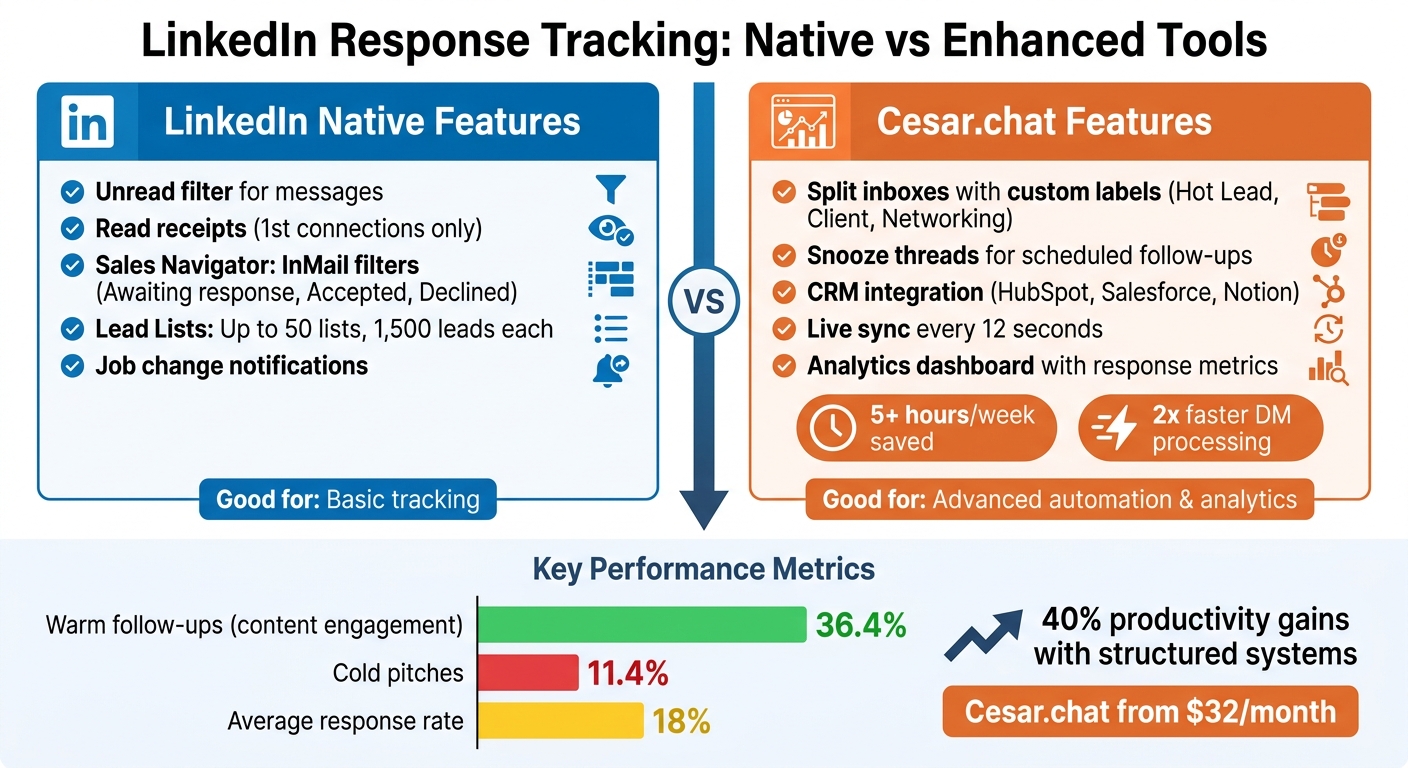
LinkedIn Response Tracking: Native Tools vs Cesar.chat Features Comparison
LinkedIn Message Follow-Ups (How to Get Replies in 2026?)

sbb-itb-3e8f5dc
How to Track Responses Using LinkedIn’s Native Features
LinkedIn provides several built-in tools to help you monitor responses and identify who has replied and who hasn’t. These tools work across both standard LinkedIn Messaging and Sales Navigator, though the level of detail varies. Using these features properly can save you a lot of manual effort. Here’s how to make the most of LinkedIn’s native tracking options.
Filter Messages by Read and Unread Status
The Unread filter in LinkedIn Messaging is a straightforward way to track unanswered messages. To use it, click the Messaging icon at the top of your homepage, then locate the filter icon within the "Search messages" bar. Select Unread to display conversations that still need your attention.
LinkedIn also offers read receipts, which show a small version of the recipient’s profile photo next to your sent message once it’s been read. This feature works only for 1st-degree connections and requires both you and the recipient to enable delivery indicators in the Settings & Privacy section under Data privacy. If the profile thumbnail isn’t visible, the message likely hasn’t been read. A helpful tip: if you open a message but can’t respond immediately, use the Mark as Unread option to keep it in the unread filter for easy follow-up later.
For Sales Navigator users, the tracking options are even more detailed. In the Sales Navigator inbox, you can use the "All messages" dropdown to filter messages. Select InMail – Awaiting response to find leads who haven’t replied to your InMail. You can also filter by InMail – Accepted (positive responses) or InMail – Declined (negative responses, which prevent further InMails in that thread). LinkedIn refunds the InMail credit if a response – whether manual or automated – is received within 90 days.
Sales Navigator also enhances tracking with lead organization tools, making it easier to manage responses across campaigns.
Organize Leads with Sales Navigator Lists
The Lead Lists feature in Sales Navigator helps you group prospects by campaign, territory, or ideal customer profile (ICP) segment, making it easier to track engagement. To create a lead list, go to the "Lists" tab, select Lead Lists, and click + Create lead list. You can add prospects individually using the "Save" icon or in bulk by selecting multiple leads.
Once your leads are organized into lists, tracking their activity becomes much simpler. Sales Navigator allows up to 50 lead lists, each accommodating up to 1,500 leads. Within these lists, you can add custom notes to monitor where each prospect stands in your outreach sequence. Additionally, Sales Navigator notifies you of key events, such as when a lead changes jobs or posts on LinkedIn. These "trigger events" are great opportunities for personalized outreach, which has been shown to triple reply rates. You can even filter lists by activity, focusing on leads who have recently posted or changed roles – both strong indicators of engagement potential.
Track Responses Better with Cesar.chat Features
Cesar.chat takes LinkedIn’s basic tracking tools and turns them into a powerhouse for managing responses. LinkedIn’s native features are helpful but often fall short when dealing with a cluttered inbox where important messages can easily slip through the cracks. Cesar.chat changes the game by enabling you to handle LinkedIn DMs twice as quickly as the platform’s default interface. Two standout features – split inboxes and snooze threads – make response tracking seamless. These tools work across both standard LinkedIn messages and Sales Navigator DMs, all within one streamlined view. No need to jump between tabs anymore.
Use Split Inboxes to Prioritize Messages
Split inboxes let you organize conversations by assigning custom labels like "Hot Lead", "Client", or "Networking". Once labeled, these conversations automatically move to their own dedicated inbox views, keeping them separate from the general message feed. For instance, you can open your "Hot Lead" inbox to instantly see replies from your top prospects, avoiding the chaos of unrelated messages. This clear organization ensures you don’t miss out on opportunities. Plus, these labels can sync with CRMs like HubSpot, saving sales teams over 5 hours each week on manual inbox management and data entry.
Getting started is simple: create labels for your key priorities and apply them with quick keyboard shortcuts. For example, if a prospect shows interest, you can label the conversation as "Hot Lead" and it will immediately move to the appropriate inbox. This system keeps your outreach organized and helps you stay on top of every response.
Snooze Threads to Schedule Follow-Ups
The snooze feature in Cesar.chat ensures you never forget to follow up. It lets you temporarily hide conversations and schedules them to reappear at a specific time. Say a prospect asks you to follow up in two weeks – you can snooze the thread for 14 days, and it will pop back into view at the scheduled time. This eliminates the hassle of setting separate reminders or scrolling endlessly to find old conversations. By keeping your inbox focused on current tasks and surfacing follow-ups exactly when needed, you maintain consistent engagement with your prospects.
With the combination of split inboxes and snooze threads, Cesar.chat helps you manage LinkedIn responses efficiently while staying on top of future outreach. You’ll never lose track of an important conversation again.
Connect Cesar.chat with Your CRM for Automatic Tracking
Manually tracking LinkedIn responses can be a time sink, requiring endless copy-pasting, record updates, and logging. But Cesar.chat takes care of all that by syncing your LinkedIn conversations directly with your CRM. Sales teams using this feature save over 5 hours each week on manual data entry. That’s extra time to focus on closing deals instead of wrestling with spreadsheets. Plus, setting up this integration is quick and easy – it only takes a few minutes to get started.
Cesar.chat works seamlessly with platforms like HubSpot, Salesforce, and Notion, with plans to add others like Zoho soon. Every LinkedIn reply, complete with custom labels and notes, is automatically logged in your CRM. If a matching contact doesn’t exist, no problem – a new record is created instantly.
Set Up CRM Integration with Cesar.chat
You can get everything running in under 15 minutes. Here’s how:
- Log into your Cesar.chat dashboard and go to Integrations > CRM.
- Choose your platform – HubSpot, Salesforce, or Notion – and authenticate using OAuth 2.0 (HubSpot and Salesforce) or API tokens (Notion).
- Make sure your CRM permissions are correctly set.
- Map your LinkedIn message fields to the relevant CRM objects.
- Enable auto-sync for new conversations.
- Test the setup by sending a sample LinkedIn message to confirm it shows up in your CRM.
This process is straightforward, secure, and efficient, thanks to role-based access controls and a streamlined interface.
How Live Sync Improves Outreach Management
Once your integration is live, Cesar.chat’s live sync feature takes your outreach to the next level. While native tools can track messages, live sync ensures your CRM is updated in real time.
Here’s how it works: using webhooks and polling every 1–5 minutes, Cesar.chat pushes LinkedIn updates directly to your CRM. For example, when a prospect replies, the system logs the full conversation thread – complete with a timestamp (in MM/DD/YYYY format) – in HubSpot. Updates can happen as often as every 12 seconds, so your data is always current.
This real-time syncing changes the game for sales teams. Non-replies are flagged as "No Response" after 7 days, automatically triggering nurture email sequences. Meanwhile, replies are logged as activities that move leads to "Engaged" status. Teams using this workflow have reported 25% higher close rates, as reps can focus on warm leads instead of wasting time on cold ones. Plus, you can track essential metrics like:
- An average response rate of 18%
- Time-to-reply measured in hours
- Lead progression insights
For example, Salesforce reports show an average response time of 3.2 days, giving you valuable insights into your outreach performance.
Measure Response Rates and Improve Your Follow-Ups
Tracking responses is just the beginning. To truly enhance your outreach, you need to dig into what drives replies. Cesar.chat’s Analytics feature, included in the Business ($32/month) and Enterprise ($40/month) plans, offers the tools to move past guesswork and pinpoint what’s working – and what’s not – when it comes to your messaging strategy.
A study of over 8,400 LinkedIn conversations reveals a stark difference in effectiveness between outreach methods. For instance, follow-ups sent to people who engage with your content (like commenting or liking) boast a 36.4% response rate. Meanwhile, cold pitch messages lag behind, converting at only 11.4%. Without these insights, you risk wasting time on ineffective approaches.
Track Response Metrics with Cesar.chat Analytics
Cesar.chat’s analytics dashboard provides a clear view of your messaging performance. You can monitor response rates, average reply times, and engagement trends across all conversations. Even better, it breaks down performance by message type, helping you identify which strategies resonate most. For example, you might find that warm follow-ups outperform cold outreach, allowing you to shift your efforts accordingly.
The tool also highlights dormant contacts – leads that could still be valuable with a personalized re-engagement strategy. For LinkedIn Recruiter users, this is especially useful, as the platform requires maintaining at least a 13% InMail response rate on 100+ messages within 14 days.
Melanie Goodman, a LinkedIn consultant, sums it up well:
"Volume creates the illusion of activity. Most professionals assume their most-used message type is their best performer. In my data, the correlation ran the other way."
The days of generic outreach are fading quickly. For example, birthday message response rates have plummeted from 29% in 2021 to just 5.5% in 2024.
Adjust Your Outreach Based on Data
Armed with clear metrics, you can fine-tune your outreach to focus on the interactions that truly matter. Save your best-performing follow-up templates as Snippets and use keyboard shortcuts to keep messages personal yet efficient. If your analytics show that same-day follow-ups to content engagement yield the highest conversions, prioritize those over cold messages.
You can also use labels and split inboxes to organize leads by engagement level. This allows you to concentrate on "hot opportunities" – the contacts most likely to respond, based on your data. The CRM sync feature tracks conversation history and labels automatically, ensuring your entire team stays aligned on what’s working and can adapt strategies seamlessly. With these data-driven refinements, your follow-ups will become more targeted, timely, and effective.
Conclusion
Keeping track of LinkedIn responses doesn’t have to feel like a never-ending task. Start with LinkedIn’s native tools – use filters to sort messages by read/unread status and organize leads with Sales Navigator lists. These features provide a solid starting point for managing engagement, though they can become limiting when handling larger outreach volumes.
That’s where Cesar.chat steps in. Features like split inboxes help you focus on high-priority opportunities, the snooze function ensures timely follow-ups, and CRM integration takes care of logging data automatically – saving you from the hassle of manual entry . In fact, users have reported processing their LinkedIn DMs twice as fast compared to sticking with the native interface.
Once you’ve streamlined your tracking, it’s time to measure the impact. Cesar.chat’s analytics (available in the Business plan for $32/month) let you monitor response rates, pinpoint your top-performing messages, and refine your approach based on concrete data. By combining LinkedIn’s reach with Cesar.chat’s automation and CRM syncing, you create a system that grows alongside your outreach efforts. This integrated method ensures every interaction is logged and optimized for better results.
Ready to start? Use LinkedIn’s filters, test out Cesar.chat’s split inboxes, and track your first 100 messages. Professionals who adopt structured response systems report 40% productivity gains, turning LinkedIn outreach into a powerful engine for revenue growth.
FAQs
What’s the fastest way to see who hasn’t replied on LinkedIn?
The fastest way to figure out who hasn’t replied on LinkedIn is by using Cesar.chat’s response tracking tools. These features help you keep tabs on message engagement, check reply times, and quickly identify unanswered messages. This makes it easier to manage follow-ups and boost your chances of getting responses.
How often should I follow up if a message was read but not answered?
When it comes to following up on a read message, giving it a few days to a week is usually a good idea. This timing strikes a balance between staying on their radar and not coming across as overly eager. Be sure to space out your follow-ups thoughtfully to avoid seeming pushy. Each message should offer something meaningful and match the level of interest the recipient has shown.
Using tools like follow-up reminders can make it easier to plan your outreach in a way that feels professional and considerate.
How do I auto-log LinkedIn replies to my CRM without manual copy-paste?
To save time and keep your CRM updated effortlessly, tools like Cesar.chat can automatically log LinkedIn replies. This tool integrates seamlessly with CRMs like HubSpot, Salesforce, and Zoho. Here’s how it works:
- Install the Cesar.chat Chrome extension.
- Authorize access to your LinkedIn account.
- Connect your CRM to the tool.
Once everything is set up, LinkedIn replies sync in real-time, cutting out the need for manual data entry and making your workflow smoother.



