
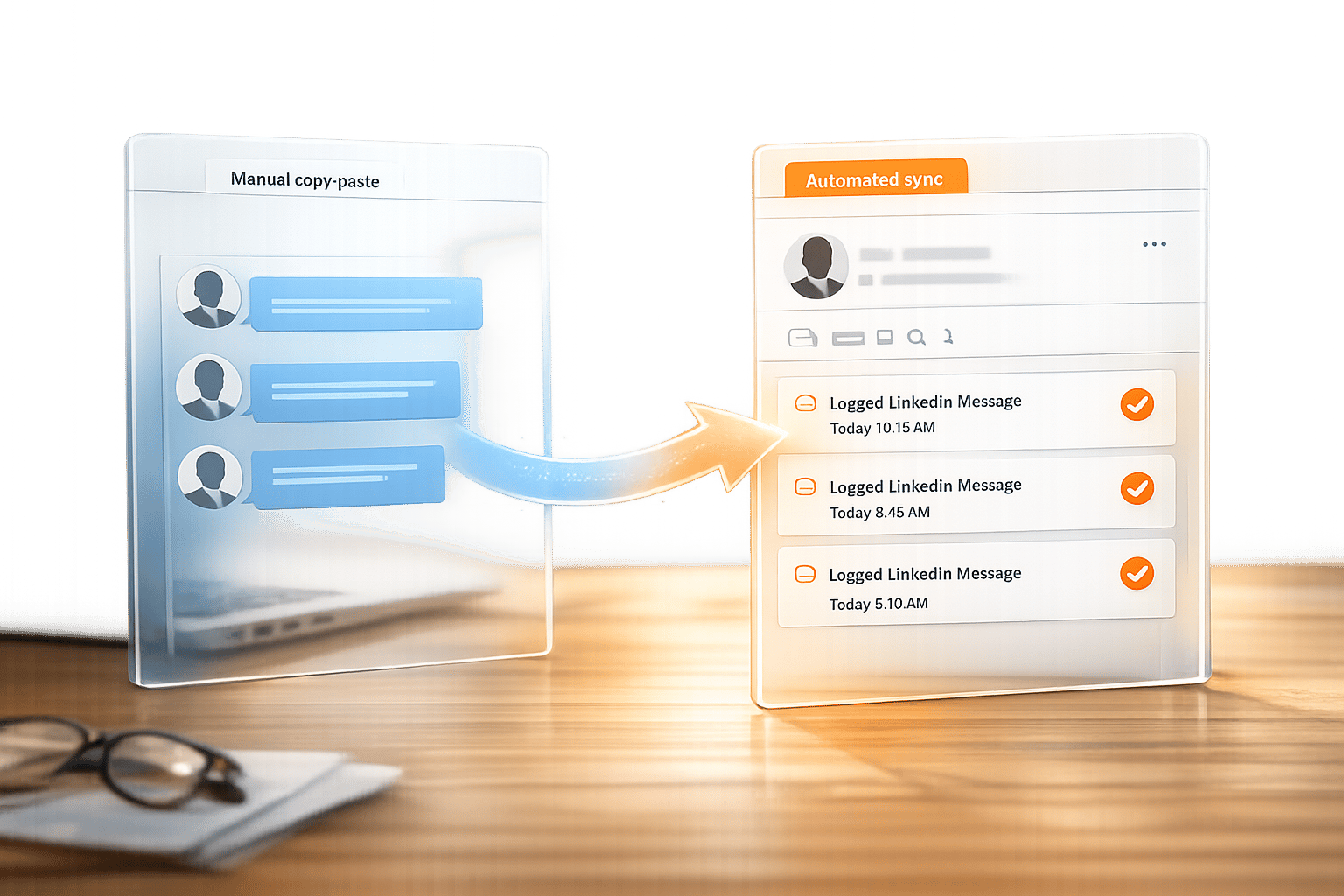
Logging LinkedIn messages in HubSpot can save time, reduce errors, and centralize your communication history. Here’s the breakdown:
- Manual Logging: Copy and paste LinkedIn messages into HubSpot notes or timeline activities. Works for all HubSpot tiers but is time-consuming and prone to errors.
- Automated Logging with Cesar.chat: Syncs LinkedIn messages directly to HubSpot in real time. Requires a subscription ($32/month for the Business plan) but eliminates manual data entry and improves accuracy.
Key Tools and Requirements:
- For HubSpot’s native integration: Sales Hub Professional/Enterprise and LinkedIn Sales Navigator Advanced Plus.
- For Cesar.chat: Works with most HubSpot tiers and standard LinkedIn accounts.
Benefits of Automation:
- Saves up to 10 hours/month.
- Prevents duplicate records.
- Tracks LinkedIn outreach impact on revenue.
Quick Comparison:
| Feature | Manual Logging | Automated (Cesar.chat) |
|---|---|---|
| Time Required | 3–5 minutes per message | Instant, real-time sync |
| Setup | None | 5 minutes |
| Accuracy | Prone to human error | High, via API integration |
| Cost | Free | $32/month (Business plan) |
For high-volume LinkedIn outreach, automation with Cesar.chat is the faster, more reliable choice.
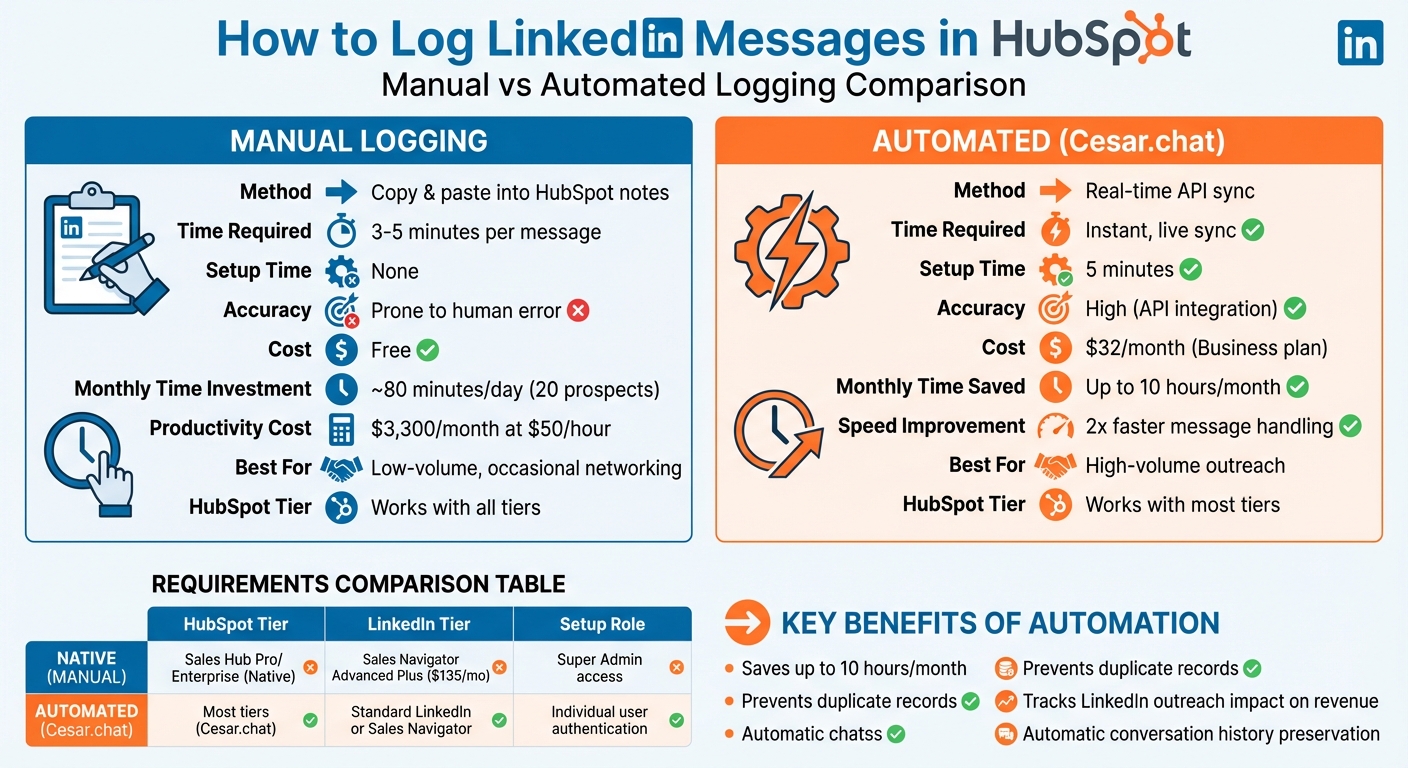
Manual vs Automated LinkedIn Message Logging in HubSpot Comparison
What You Need Before Getting Started
Before you dive into logging LinkedIn messages into HubSpot, it’s important to make sure your account settings and tools are ready to go. The setup process varies depending on whether you’re using HubSpot’s native integration or a third-party tool like Cesar.chat.
HubSpot Account Requirements
You’ll need a HubSpot Sales Hub Professional or Enterprise subscription with either Super Admin or App Marketplace access. Unfortunately, Free and Starter plans don’t support LinkedIn activity logging or reporting features.
As HubSpot Freelancer Karsten Köhler explains:
"If you’re on Professional subscription, then yes. Activities like LinkedIn messages can be visualized in activity reports… If you’re on a free or Starter subscription, this is unfortunately not possible."
Additionally, ensure that users are assigned a paid Sales Hub Professional or Enterprise seat to access the native LinkedIn CRM Sync.
LinkedIn Account Access

To use HubSpot’s native integration, you’ll need a LinkedIn Sales Navigator Advanced Plus plan. Lower-tier plans like Core or Advanced won’t support the official CRM sync. However, if you don’t have Sales Navigator Advanced Plus, you can still log LinkedIn messages manually or opt for a third-party tool compatible with standard LinkedIn accounts.
For those without premium LinkedIn plans, Cesar.chat offers a practical alternative with real-time message syncing.
Using Cesar.chat for Live Sync
Cesar.chat provides live syncing of LinkedIn messages without requiring premium HubSpot or LinkedIn subscriptions. Acting as an enhanced messaging interface, it syncs messages, labels, and notes directly to HubSpot in real-time. As Cesar.chat explains:
"Cesar.chat gets your messages from LinkedIn’s internal APIs. Whatever messages you send and receive on LinkedIn are synced to Cesar and vice versa."
The tool uses official API interactions to ensure account security. To integrate with HubSpot, you’ll need at least the Business tier at $32/month, which includes up to three CRM integrations and Sales Navigator message support. The Enterprise tier at $40/month offers unlimited sync destinations and white-glove setup assistance.
| Requirement | Native HubSpot Integration | Cesar.chat Integration |
|---|---|---|
| HubSpot Tier | Sales Hub Professional or Enterprise | Works with most tiers |
| LinkedIn Tier | Sales Navigator Advanced Plus | Standard LinkedIn or Sales Navigator |
| Setup Role | Super Admin / App Marketplace Access | Individual user authentication |
| Primary Function | CRM Sync and profile insights | Live DM sync, split inboxes, snippets |
sbb-itb-3e8f5dc
How to Log LinkedIn Messages Manually in HubSpot
Manually logging LinkedIn conversations in HubSpot ensures accurate record-keeping while staying compliant with LinkedIn’s Terms of Service. Although it requires extra effort, this method works across all HubSpot tiers.
Copy and Paste Messages into HubSpot Notes
The simplest way to log LinkedIn messages is by copying them into HubSpot contact notes. Start by navigating to Contacts > Contacts, selecting the relevant contact record, and clicking the orange Log a Note icon. Copy the LinkedIn message content and paste it into the note text box. To keep things neat, use HubSpot’s formatting tools to organize the conversation.
Adjust the date and time in HubSpot to match the LinkedIn message timestamp. Since HubSpot doesn’t automatically pull metadata from LinkedIn, include the sender’s name and, if helpful, add a link to their LinkedIn profile for quick access. As Umbrex explains:
"The simplest (though time-consuming) approach is copying key points from a LinkedIn message into a Note or Log > Call in HubSpot. This ensures you stay within LinkedIn TOS".
For a more detailed method, you can use HubSpot’s timeline logging feature.
Log Activities Using HubSpot’s Timeline
For a more organized approach, use HubSpot’s timeline feature. In the Communications section of a contact record, click the LinkedIn message button (marked with the orange LinkedIn icon). This creates a specific LinkedIn activity entry. Add a brief summary in the "Summary" field, paste the full conversation into the "Message" field, and click Log to save it.
Keep in mind that HubSpot doesn’t automatically track whether a message is incoming or outgoing. As HubSpot Freelancer Karsten Köhler notes:
"there currently isn’t a feature to specify the direction of a LinkedIn message – and subsequently not filters in lists, reports, workflows etc".
To address this, manually indicate whether the message is incoming or outgoing in the activity description. For ongoing conversations, update the same activity entry for that day instead of creating multiple entries – this keeps your timeline clean and easy to follow.
If you notice that logged messages aren’t showing up on the contact timeline, check your Filter activity settings. Ensure the "LinkedIn" box is selected under the Communication section.
How to Automate Logging with Cesar.chat
Using Cesar.chat to automate your LinkedIn message logging is a smart way to save time and improve data accuracy in HubSpot. This tool acts as a messaging overlay on LinkedIn, syncing your conversations directly into HubSpot without relying on scraping or bots. Instead, it uses official-style API interactions to ensure your LinkedIn account remains secure. No more manual data entry – Cesar.chat takes care of it for you.
Setting Up Cesar.chat for HubSpot Integration
To get started, install the Cesar.chat extension from the Chrome Web Store. Once it’s installed, open the extension and head to the integration settings. From there, authenticate your HubSpot account by following the on-screen prompts to grant Cesar.chat the necessary permissions for syncing your conversation data.
Keep in mind that you’ll need at least the Business plan ($32/month) to access HubSpot integration. This plan supports up to three integrations, including HubSpot, Sales Navigator messages, and analytics. If you’re on the Basic plan ($24/month), you’ll still have access to features like labels, snippets, and reminders, but CRM integrations aren’t included. For those on the Enterprise plan ($40/month), you can enjoy a white-glove setup service, where the Cesar.chat team handles the integration process for you.
Once your accounts are connected, test the integration by syncing a LinkedIn message to HubSpot. Cesar.chat uses LinkedIn’s internal APIs to sync messages, ensuring that everything you send or receive on LinkedIn is reflected in both Cesar.chat and HubSpot.
After this setup, the tool takes over, logging your LinkedIn interactions automatically. Let’s dive into how its one-click sync capabilities work.
One-Click and Auto-Sync Features
Once configured, Cesar.chat’s auto-sync features handle the rest. The Live Sync feature ensures that all conversation data, labels, and notes are logged in HubSpot in real time. Every LinkedIn message – complete with timestamps and context – appears instantly in the corresponding HubSpot contact timeline. This applies to both standard LinkedIn messages and Sales Navigator messages (available with Business and Enterprise plans).
The sync works both ways. Messages sent through Cesar.chat will show up in your LinkedIn inbox, and messages from LinkedIn are mirrored in Cesar.chat. This two-way synchronization keeps your conversation history intact while ensuring all data is stored securely within your CRM.
Other Productivity Features in Cesar.chat
Cesar.chat doesn’t stop at logging messages – it also includes features to speed up your LinkedIn workflows. Tools like split inboxes and snooze threads help you manage leads more effectively. With split inboxes, you can label and organize conversations into tabs, while snooze temporarily hides threads and brings them back when you need to follow up.
Saved snippets are another time-saver. These allow you to create templates for common responses, so you can insert pre-written text with a few keystrokes instead of typing the same messages repeatedly. Additionally, keyboard shortcuts make navigating your inbox faster and more efficient, eliminating the need for constant mouse clicks. According to Cesar.chat, these features can help users handle their LinkedIn messages twice as fast.
It’s important to note, however, that Cesar.chat is not designed for automating the sending of messages. Instead, it focuses on improving organization, efficiency, and CRM integration for LinkedIn communications.
Creating Custom HubSpot Properties for LinkedIn Activities
Custom properties in HubSpot can help you keep track of LinkedIn-specific details, giving you better insight into your interactions and making reporting more efficient. While HubSpot’s standard fields are useful, they don’t capture LinkedIn-specific data – like connection status or when a message was sent. By creating custom properties, you can fill in these gaps and streamline your workflows.
Adding LinkedIn-Specific Properties
To set up a custom property, go to Settings > Properties, choose the relevant object (most often Contacts), and click on Create property. Use clear, descriptive names like "LinkedIn [Property Name]" to keep things organized.
Here are some key properties to consider:
- LinkedIn Connection Request Sent: Use a checkbox or date property to track whether an invite has been sent.
- LinkedIn Message Date: A date picker property to log the most recent message sent to a contact.
- LinkedIn Contact Source: A dropdown menu to categorize how you found the lead, such as Sales Navigator, Personal Profile, or LinkedIn Group.
- LinkedIn Profile URL: A single-line text field to store the direct link to the contact’s LinkedIn profile.
For HubSpot Enterprise users, the Property Sync feature can copy LinkedIn-related data from contact records to associated deal records. This ensures your sales team has all the context they need, especially during the closing phase. You can also use HubSpot’s Breeze AI to quickly generate these properties with simple text prompts.
Building Workflows for Activity Insights
Custom properties become even more powerful when paired with workflows. Workflows let you automate tracking and follow-ups based on LinkedIn activities. For example, to trigger a workflow for LinkedIn messages, create a contact-based workflow with criteria that recognizes "Any Communication" where the Type is "LinkedIn Message."
Here are some ways to use workflows effectively:
- Automatically update the LinkedIn Message Date property each time a LinkedIn activity is logged.
- Enroll contacts in follow-up sequences when the LinkedIn Contact Source property is updated.
- Set up follow-up tasks by creating a workflow that triggers when "Activity Type is LinkedIn Message", scheduling a task 60 days later.
"Syncing messages to HubSpot keeps everything in one place, so no important details are missed."
– Bastien Paul, Hublead
If you’re using third-party tools to import LinkedIn contacts, you can filter by "Original Source Drill Down 2 = 1451878" to identify these contacts and assign them to specific workflows. Industry data suggests that automating LinkedIn message syncing and property updates can save sales reps up to 10 hours a month.
Troubleshooting Common Issues with LinkedIn-HubSpot Sync
Even with a well-configured setup, challenges like permission errors, duplicate contacts, and interface changes can arise. Addressing these issues promptly ensures your LinkedIn-HubSpot sync remains dependable and your CRM data stays accurate.
Fixing Permission Errors
Permission issues are one of the most common reasons for sync failures. These problems often occur without clear warnings, making them tricky to identify.
To avoid these errors, ensure the connecting user has the correct LinkedIn permissions. This includes being a Super Admin, Content Admin, or Lead Gen Forms Manager. On the HubSpot side, users need either "Social > Publish" permissions or Super Admin access to manage the integration.
If you’re using the native CRM sync, keep in mind that it requires LinkedIn Sales Navigator Advanced Plus ($135/month) and HubSpot Sales Hub Professional or Enterprise, which starts at $500/month. Additionally, every team member must authenticate their Sales Navigator account in the "CRM Settings" section.
"LinkedIn’s access tokens expire regularly to protect account security. If HubSpot can’t refresh the token, even an ‘active’ connection may stop working." – Jigar Thakker, HubSpot Certified Expert, INSIDEA
For token expiration issues, navigate to HubSpot Marketing > Social > Settings, click the LinkedIn link, and complete the re-authorization process. Ensure that pop-up blockers and third-party cookie blockers are disabled during this step. If synced messages aren’t visible, check the contact’s Activity feed and activate the "LinkedIn" filter.
Preventing Duplicate Contacts in HubSpot
Duplicate contacts are another common issue, especially since HubSpot deduplicates based on exact email addresses. LinkedIn interactions often lack email data, and manual data entry can lead to duplicates due to typos or inconsistent formatting (e.g., "John Smith" in one record and "J. Smith" in another).
To prevent duplicates, tools like Cesar.chat use multi-point verification, cross-referencing LinkedIn URLs, full names, and company domains before creating new records. This real-time matching feature alerts users with a "possible matches found" notification if a prospect already exists in HubSpot.
"Prevention beats cleanup every time: clean form submissions, proper imports, and syncing LinkedIn activity directly with HubSpot reduce duplicates before they happen." – Bastien Paul, Data & CRM
For existing duplicates, use HubSpot’s "Manage Duplicates" tool under Settings > Data Management. Be aware of the tool’s limits: 2,000 results for Professional plans, 5,000 for Operations Hub Pro, and 10,000 for Enterprise. To further reduce duplicates, establish team-wide guidelines for formatting names and company titles to align with HubSpot’s deduplication logic.
Handling LinkedIn Interface Changes
LinkedIn frequently updates its interface, which can disrupt third-party browser extensions that rely on page scraping. While native HubSpot integrations are generally more stable, platform updates can still cause connection issues.
"Third-party message-scraping tools can break unpredictably. Keep them updated if you rely on them." – Umbrex
If your sync stops working after a LinkedIn update, try these steps:
- Disconnect your HubSpot-linked account.
- Remove the HubSpot connection in LinkedIn’s "Permitted Services" section.
- Reconnect the accounts.
For tools like Cesar.chat, ensure any related Chrome extensions are updated regularly, as developers often release patches to address UI changes. You can also reinstall the CRM Sync app from the HubSpot Marketplace to refresh all records. During periods of instability, consider manually copying important conversation details into HubSpot "Notes" to avoid losing data while waiting for integration updates.
Manual Logging vs Automated Logging with Cesar.chat
Keeping LinkedIn messages properly logged is essential for smooth CRM management and boosting productivity. Deciding between manual and automated logging depends on how many messages your team handles daily. While manual logging might be fine for occasional networking, it quickly becomes a time sink during high-volume outreach. Think about it: logging each message manually takes about 3–5 minutes. If you’re managing 20 prospects daily, that’s roughly 80 minutes lost each day – over 3 hours per week. At $50/hour, this adds up to around $3,300 monthly in lost productivity. Clearly, manual logging struggles to keep up with the demands of busy workflows.
On the other hand, Cesar.chat offers automated logging that syncs conversations, labels, and notes directly to HubSpot in real time. Thanks to its official API integrations, it ensures your account remains secure.
"Whatever messages you send and receive on LinkedIn are synced to Cesar and vice versa. You can see us as a messaging app for DMs the same way your email app layers on top of Gmail." – Cesar.chat
Cesar.chat also enhances efficiency with features like keyboard shortcuts, saved message snippets, and split inboxes. The setup process is quick – about 5 minutes through a Chrome extension – and requires the Business plan ($32/month) or higher for HubSpot integration.
Comparison Table: Manual vs Automated Logging
Here’s a quick look at how manual logging stacks up against Cesar.chat’s automated solution:
| Factor | Manual Logging | Automated (Cesar.chat) |
|---|---|---|
| Speed | 3–5 minutes per message | Instant, live sync |
| Automation | None (manual copy-paste) | Automatic background sync |
| Accuracy | Prone to human error | High, thanks to API integration |
| Setup Time | No setup required | About 5 minutes |
| Use Cases | Low-volume activities | High-volume outreach and advanced workflows |
Choosing automation with Cesar.chat not only saves time but also ensures accuracy and streamlines your daily tasks.
Conclusion
Logging LinkedIn messages in HubSpot can be a breeze when automation takes the wheel. While manually copying and pasting messages might work for the occasional interaction, it quickly becomes overwhelming when you’re managing a high volume of outreach.
This is where automation shines. Cesar.chat simplifies the process by syncing conversation data, labels, and notes directly to HubSpot in real time. No more manual data entry – your CRM updates itself automatically. Users have reported handling LinkedIn messages twice as fast compared to using the native LinkedIn interface, saving up to 10 hours each month.
With automation, you’re not just saving time – you’re ensuring data accuracy. Every conversation, label, and note is logged seamlessly, creating a complete relationship history in HubSpot. This ensures your records remain intact, even if team members move on. Tools like split inboxes, snooze threads, and keyboard shortcuts make it easier to focus on key opportunities and stay on top of follow-ups.
For teams aiming to align their CRM processes, Cesar.chat offers a straightforward solution. It eliminates manual logging and ensures account safety by utilizing official API integrations. Plans start at $32 per month (billed annually with a 20% discount), making it an efficient choice for sales and recruitment teams looking to optimize their workflows.
Take back your time – discover more at Cesar.chat and see how automated LinkedIn-HubSpot syncing can transform your approach.
FAQs
Will LinkedIn messages log to the right HubSpot contact automatically?
LinkedIn messages don’t automatically log to the correct HubSpot contact unless you take extra steps. HubSpot doesn’t have a built-in function for this, so you’ll need to manually log your interactions or rely on third-party tools like Cesar.chat. If you want a smoother way to track LinkedIn activity in HubSpot, some setup or external tools are usually necessary.
Can I log both LinkedIn and Sales Navigator messages in HubSpot?
Yes, you can log messages from both LinkedIn and Sales Navigator in HubSpot, though the process differs for each.
For LinkedIn messages, logging typically requires manual effort or the use of third-party tools. LinkedIn itself doesn’t offer built-in message logging, so external integrations are often needed to sync messages seamlessly with HubSpot.
On the other hand, Sales Navigator offers a more streamlined option. By connecting it to HubSpot through CRM sync, you can enable automatic data and activity writebacks, simplifying the process of tracking messages and interactions.
How do I avoid duplicate contacts when syncing LinkedIn messages to HubSpot?
To avoid duplicate contacts when syncing LinkedIn messages with HubSpot, make sure the contact already exists in HubSpot before starting the sync. Look at the LinkedIn or Sales Navigator profile for the "Add to CRM" option. If you see it, add the contact to HubSpot or link them to an existing record first. This simple step helps maintain clean and consistent data without creating duplicate entries.



