
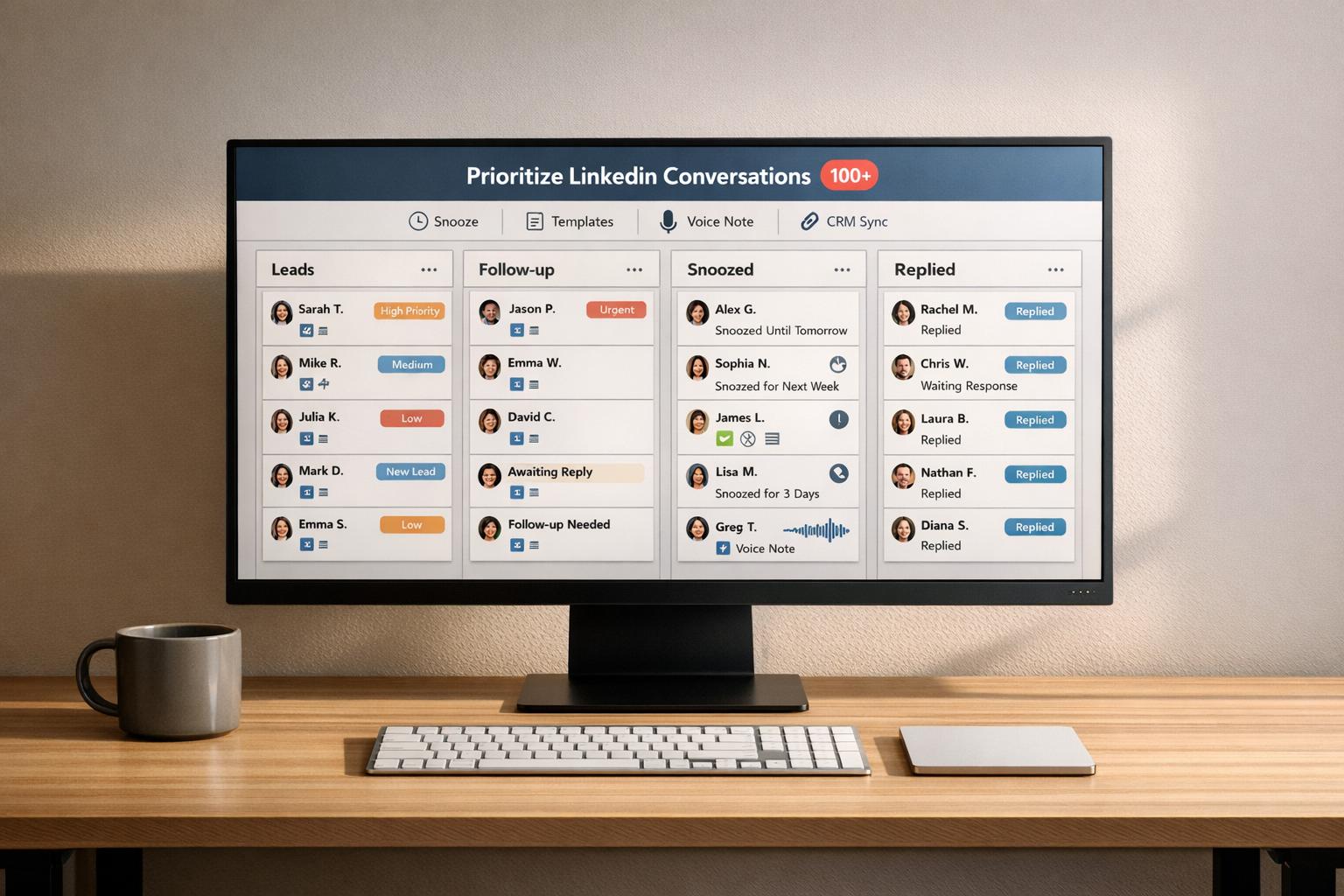
When your LinkedIn inbox is flooded with over 100 messages, it can feel impossible to keep up. Missed replies could mean lost opportunities, especially when 48% of LinkedIn prospecting messages get a response – far higher than the 6% average for cold emails. Here’s how to stay on top of your LinkedIn messages without wasting hours:
- Organize with Split Inboxes: Separate messages into categories like Hot Leads, Warm Leads, Clients, and Networking using tools like Cesar.chat.
- Prioritize High-Value Messages: Look for engagement signals like mentions of pricing or mutual connections. Focus on these first.
- Use Snooze for Follow-Ups: Temporarily remove non-urgent conversations and have them reappear when needed.
- Save Time with Templates: Create reusable snippets for common replies and use keyboard shortcuts to respond faster.
- Leverage Voice Notes and CRM Sync: Add a personal touch with voice messages and automatically sync conversations with your CRM.
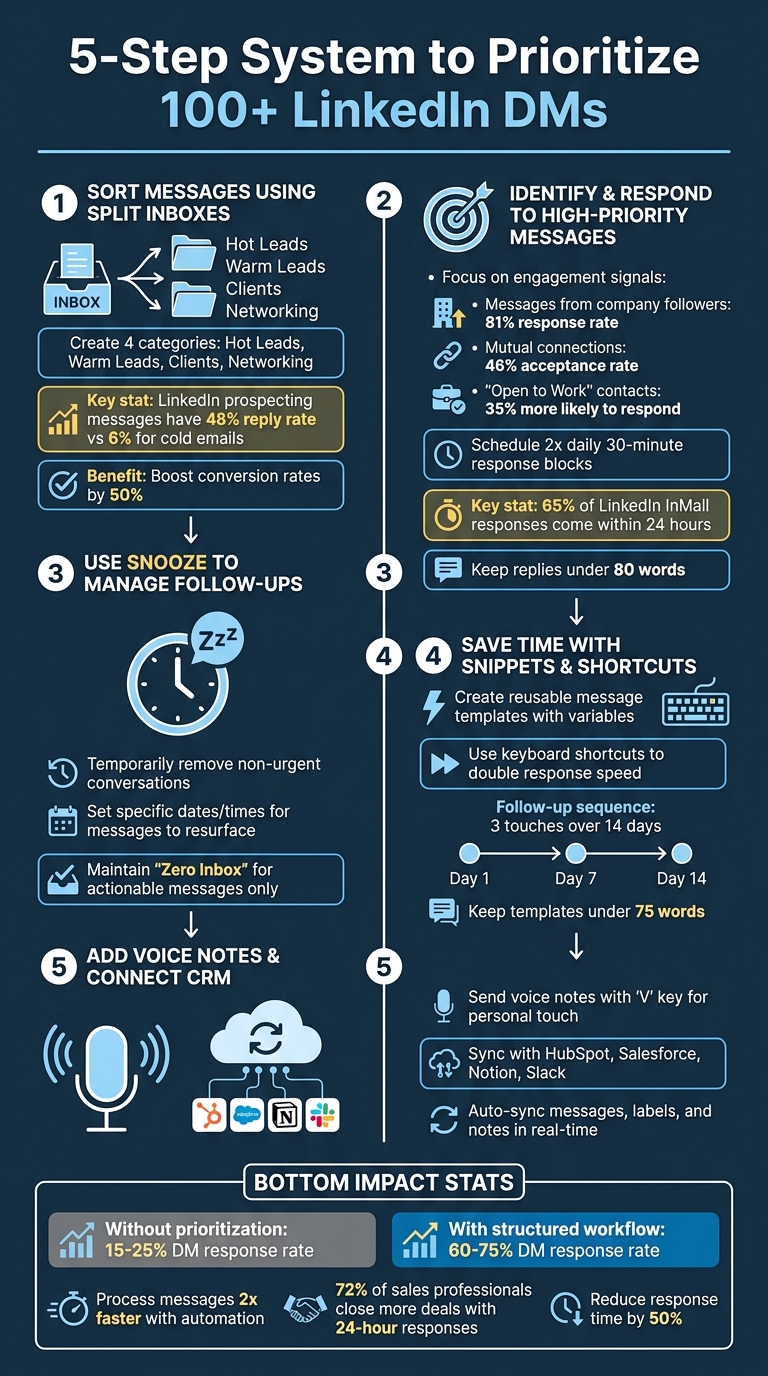
5-Step LinkedIn DM Prioritization System for 100+ Messages
How I Organize LinkedIn Inbox (So I Don’t Miss Leads)
sbb-itb-3e8f5dc
Step 1: Sort Messages Using Split Inboxes
Managing over 100 LinkedIn messages in a single inbox can feel like searching for a needle in a haystack – important conversations often get buried under less relevant ones. The solution? Stop treating your inbox like a dumping ground and start using it as a lightweight CRM. That’s where Cesar.chat’s Split Inbox feature comes in.
With the Split Inbox feature, you can assign labels to individual conversations and sort them into separate inboxes. Think of it as creating dynamic folders that highlight your most critical messages. This tool operates as a messaging layer on top of LinkedIn, using official-style API interactions to ensure your account stays secure.
Here’s why this matters: LinkedIn prospecting messages boast a 48% reply rate, far outpacing the 6% average for cold emails. And professionals using tools like Sales Navigator for advanced lead filtering report a 312% ROI over three years. Without a system to organize your inbox, you risk missing out on these high-value opportunities.
How to Create Message Categories
To make the most of Split Inboxes, align your message categories with your business goals. Start with four main categories: Hot Leads, Warm Leads, Clients, and Networking.
- Hot Leads: These are prospects showing clear buying intent – keywords like "pricing", "demo", or "proposal" are good indicators. These conversations should take top priority, as they often lead directly to revenue.
- Warm Leads: This category includes prospects who are engaged but haven’t made a commitment yet.
- Clients: Keep a dedicated inbox for ongoing client communication and support.
- Networking: Use this for general relationship-building or exploratory conversations that don’t immediately tie to revenue.
Each category requires a different level of effort. Hot Leads demand fully tailored responses, while Warm Leads can often be addressed with partially personalized templates. Networking messages, on the other hand, can be handled with lighter, more casual engagement. This structured approach can boost your conversion rates by as much as 50%.
Daily Message Sorting Process
Start your day by scanning your inbox for intent signals – mentions of competitors, discussions about pricing, or steps toward a decision – and check for recent profile activity. Label any high-priority messages as Hot Leads right away.
Once labeled, Cesar.chat will automatically sort these conversations into their respective inboxes. For messages that don’t need immediate attention, use the Snooze feature to have them resurface later. With your inbox organized, you can zero in on high-value conversations and handle LinkedIn DMs twice as efficiently.
Step 2: Identify and Respond to High-Priority Messages
Once your inbox is organized, it’s time to act. Focus on the messages that have the greatest potential to generate revenue. Here’s why: only 5% of potential B2B buyers are actively "in-market" at any given time. That means your goal is to identify and engage with this small but crucial group.
Start by spotting engagement signals. For example, messages from company followers have an 81% response rate, while contacts with mutual connections show a 46% acceptance rate. These are signs of warm engagement – prioritize them right away.
LinkedIn’s "Likelihood of Interest" feature can also be a game-changer. This tool uses AI to analyze signals like "Open to Work" status and past InMail acceptance rates, helping you zero in on high-priority contacts. People marked as "Open to Work" are about 35% more likely to respond than others. Keep an eye on these indicators when scanning your Hot Leads inbox.
By focusing on these signals, you can streamline your workflow and concentrate on contacts with the highest conversion potential.
Set Up Daily Response Blocks
Avoid multitasking – it’s a productivity killer. Studies show that after a notification interrupts your workflow, it takes an average of 23 minutes and 15 seconds to fully regain focus. To combat this, schedule two 30-minute blocks each day – one in the morning and one in the afternoon – for handling high-priority messages.
During these blocks, dedicate your attention exclusively to your Hot Leads inbox. Start with a quick triage: spend the first 5 minutes identifying active buyers and warm contacts before diving into responses. This structured approach can cut your LinkedIn time by 40-60%, all while improving the quality of your replies. And since 65% of LinkedIn InMail responses come within 24 hours, sticking to a 24-hour response window shows professionalism and keeps the conversation flowing.
Once you’ve set aside time for responses, focus on crafting messages that feel personal and relevant.
Write Personalized Replies
Every message you send should feel tailored. Reference something specific – a recent article, a shared interest, or a mutual connection – to show you’ve done your homework.
Maria Mencias, Lead Recruiter at Okta, shares: "A few personalized touches really help make your message feel tailored to them."
Keep your messages short and to the point. Aim for replies under 80 words to ensure they’re easy to read on mobile devices. Messages with fewer than 400 characters have a 22% higher response rate than average.
End with a low-pressure call to action. Instead of jumping straight to a 30-minute meeting request, try something simpler, like: "Is this worth a quick look?" or "Would a 2-minute video help?"
Cam Pezet, Senior Recruiter at Nike, advises: "Make sure that whatever skill or accomplishment you recognize aligns with why you’re reaching out."
This approach keeps the conversation moving forward without overwhelming the recipient.
Step 3: Use Snooze to Manage Follow-Ups
Once you’ve prioritized high-value messages, the next step is handling follow-ups effectively.
Not every message needs an instant reply. Some conversations are waiting for a response, while others can sit for a few days before you revisit them. Trying to track these manually is not only time-consuming but also increases the chance of overlooking important opportunities.
The Snooze feature in Cesar.chat simplifies this process by temporarily removing conversations from your main inbox. At the time you specify, these snoozed messages will automatically reappear at the top of your inbox, ensuring you never miss a follow-up.
Schedule Messages for Later
When a message isn’t urgent but still requires attention, snooze it. You can set an exact date and time – like 3:00 PM on May 12, 2026 – so it pops back up when it’s relevant. This is especially handy for messages with high-intent keywords like "pricing", "demo", "proposal", or "budget". For example, if someone says, "Let’s reconnect in two weeks", you can snooze the thread for 14 days. When it resurfaces, you’ll have the context you need to pick up where you left off.
Considering LinkedIn prospecting messages have a 48% reply rate – much higher than the 6% average for cold emails – timely follow-ups can make a big difference in your results. Snooze helps you stay organized while keeping your inbox focused on what matters most right now.
Keep Your Inbox Focused
By snoozing less urgent conversations, you can maintain a "Zero Inbox" where only actionable messages are visible. This method is far more effective than using LinkedIn’s built-in features like "stars" or "nudges", which can still clutter your view and require manual tracking.
For even more efficiency, pair snoozing with labels. Tag conversations before snoozing them – marking them as a hot lead, warm prospect, or long-term opportunity – so when they resurface, you can quickly assess their importance at a glance. This combination keeps your inbox clean and ensures you’re always prepared to follow up at the right time.
Step 4: Save Time with Snippets and Keyboard Shortcuts
Managing 100+ LinkedIn DMs can feel overwhelming, but using saved snippets and keyboard shortcuts can simplify the process. Typing out the same responses repeatedly wastes valuable time. With Saved Snippets in Cesar.chat, you can create reusable message templates that you can insert instantly. Combine these snippets with keyboard shortcuts to double your response speed, all while keeping your messages personal.
Cesar.chat is built to make manual outreach more efficient. Even the Basic plan, priced at $24/month, comes with unlimited snippets, so you can create as many templates as you need for different situations.
Set Up and Use Message Templates
Snippets are perfect for common responses like outreach messages, follow-ups, meeting requests, or FAQs. You can even personalize them automatically using variables like {firstName}, which Cesar.chat replaces with the recipient’s details when you insert the snippet.
For follow-ups, keep your templates short – 75 words or fewer. Shorter messages often get better response rates and feel less pushy. A simple 3-touch follow-up sequence works well:
- First message: Add value to the conversation.
- Second message: Follow up after a week.
- Third message: Send a final touchpoint 14 days later.
This 14-day schedule keeps your conversations alive without being intrusive, ensuring you maintain consistency across multiple threads.
To speed things up even more, take advantage of keyboard shortcuts.
Navigate Faster with Keyboard Shortcuts
Keep your workflow efficient by staying on the keyboard. Use ; to open the snippet menu instantly – no need to waste time searching through menus. Once the menu pops up, type a few characters to find your snippet, then press Enter to insert it.
For inbox navigation, the J and K keys let you move between conversations quickly, helping you scan through 100+ messages without touching your mouse. Combine this with features like labels to organize conversations or snooze to temporarily clear threads that don’t need immediate attention. This way, you’ll always be focused on the most important messages, saving time and effort in managing your inbox.
Step 5: Add Voice Notes and Connect Your CRM
Handling over 100 DMs can make personalization feel almost impossible. But tools like voice notes and CRM integrations can help you keep that personal touch while efficiently managing your lead data.
Send Voice Notes from Your Desktop
Voice notes add a layer of personality to your messages that text alone can’t achieve. They let you convey tone, emotion, and sincerity, which can build trust much faster than written responses.
With Cesar.chat, recording a voice note is as easy as pressing the V key on your desktop. This shortcut makes it simple to send voice messages, especially for follow-ups where a warm, personal touch can go a long way. Instead of typing out a long reply, a quick voice note can feel more genuine and help boost your response rates. Combine these notes with a 3-touch follow-up system to keep your interactions personal and effective.
Sync Messages with Your CRM
Manually logging conversations from LinkedIn into your CRM is tedious and can lead to missed opportunities. Cesar.chat solves this with live CRM sync, seamlessly integrating with tools like HubSpot, Salesforce, Notion, and Slack. Every message, label, and note from your LinkedIn inbox is automatically synced in real time, giving your sales team a centralized and up-to-date view of all interactions.
This integration helps avoid duplicate lead entries and ensures no conversation is overlooked. The Business plan ($32/month) allows up to three integrations, while the Enterprise plan ($40/month) offers unlimited sync destinations along with white-glove setup support. If you prefer, you can also use Zapier or Make to connect LinkedIn messaging to your CRM – no coding required. Combine this with the Snooze feature to ensure conversations resurface when it’s time to follow up.
Cesar.chat Pricing Plans
Cesar.chat provides three pricing options tailored to meet your LinkedIn messaging needs. Whether you’re managing over 100 direct messages solo or coordinating efforts across a sales team, there’s a plan that aligns with your workflow.
Each plan is structured to enhance the messaging strategies mentioned earlier, helping you get the most value out of every LinkedIn interaction. Here’s a quick rundown of the features included in each tier to help you decide which one suits your needs best.
The Basic plan is available for $24/month and includes core tools: unlimited labels for message organization, unlimited snippets for quick replies, follow-up reminders, and the ability to send voice notes for a more personal touch. This plan is perfect for users who want to streamline their inbox and speed up responses.
For $32/month, the Business plan builds on the Basic features with split inbox functionality, a snooze option, and up to three CRM integrations (compatible with platforms like HubSpot or Salesforce). It also offers support for Sales Navigator messages and analytics to track performance. This plan is ideal for professionals looking to integrate LinkedIn messaging into their broader sales operations.
The Enterprise plan, priced at $40/month, includes everything in the Business plan but adds unlimited CRM syncs, white-glove setup assistance, and VIP support. This option is designed for teams managing multiple CRM platforms or those needing dedicated help to get started quickly.
Plan Comparison
| Feature | Basic ($24/mo) | Business ($32/mo) | Enterprise ($40/mo) |
|---|---|---|---|
| Unlimited Labels | ✓ | ✓ | ✓ |
| Unlimited Snippets | ✓ | ✓ | ✓ |
| Reminders | ✓ | ✓ | ✓ |
| Voice Notes | ✓ | ✓ | ✓ |
| Split Inboxes | – | ✓ | ✓ |
| Snooze | – | ✓ | ✓ |
| CRM Integrations | – | Up to 3 | Unlimited |
| Sales Navigator Support | – | ✓ | ✓ |
| Analytics | – | ✓ | ✓ |
| Support Level | Standard | Standard | VIP + White-glove |
All plans are billed monthly, with no long-term contracts required. Users report processing messages twice as fast with Cesar.chat compared to LinkedIn’s built-in messenger.
Choose the plan that aligns with your workflow and helps you engage more effectively in LinkedIn conversations.
Conclusion
Handling over 100 LinkedIn DMs doesn’t have to feel overwhelming or lead to missed opportunities. By following the five steps shared here – sorting with split inboxes, prioritizing key messages, using snooze for follow-ups, applying message templates and shortcuts, and syncing voice notes with your CRM – you can stay organized and responsive without spending extra hours.
Here’s the impact: Professionals without prioritization tools typically respond to just 15-25% of their DMs, while structured workflows can boost response rates to 60-75%. LinkedIn data also reveals that 72% of sales professionals close more deals by focusing on high-priority messages within 24 hours. With tools like Cesar.chat, users report processing messages twice as fast and reducing response times by 50%.
Cesar.chat simplifies the process by combining features like split inboxes, snooze scheduling, message templates, voice notes, and CRM integration into a single workspace. This eliminates the need to juggle tabs or manually track leads, turning your inbox into a lead-generation powerhouse. Experts highlight that manual sorting can result in 40% missed opportunities, while automated organization and CRM syncing improve response quality by 35%.
Start today by setting up split inboxes to separate leads from general messages. Use daily response blocks and the snooze feature to stay focused. These small adjustments can help you reclaim your time and ensure every important conversation gets the attention it deserves.
FAQs
How do I decide what counts as a hot lead vs. a warm lead?
To tell the difference between hot leads and warm leads, pay attention to their level of interest and how close they are to taking action. Hot leads are highly engaged and prepared to make a decision soon, while warm leads show some interest but might need more details or encouragement before moving forward. On LinkedIn, you can streamline your process by organizing messages into categories like "Hot Leads" and "Follow-ups". This way, you can prioritize the best opportunities without losing track of others that still need nurturing.
What’s a realistic daily routine to handle 100+ DMs without falling behind?
Managing over 100 LinkedIn DMs every day might seem overwhelming, but with a structured approach, it’s absolutely doable. Start by setting aside dedicated time slots, like 15–30 minutes in the morning and afternoon, to sort through your inbox. This ensures you stay on top of things without interruptions taking over your day.
To make prioritization easier, organize messages into categories such as "Hot Leads" or "Follow-ups." This way, you can focus on what matters most first. For frequently asked questions or common replies, use saved responses to save time. And for messages that require immediate attention, set up alerts so nothing slips through the cracks.
A proven strategy to keep your inbox under control is the 4D method:
- Do: Respond to messages that need immediate action.
- Defer: Schedule time to handle messages that require more thought.
- Archive: Clear out messages that don’t need further attention.
- Label: Tag conversations to keep everything organized for future reference.
Consistency is key. Stick to your schedule, and you’ll find managing a flood of messages much more manageable.
How can I use templates without sounding generic or spammy?
To make your messages stand out and feel genuine, tailor each one by mentioning specific details about the recipient’s profile or recent activity. Instead of diving straight into a sales pitch, aim to spark a real conversation or propose a collaboration. Keep your messages short, focused, and considerate of their time – this approach helps create authentic interactions and fosters stronger connections.



