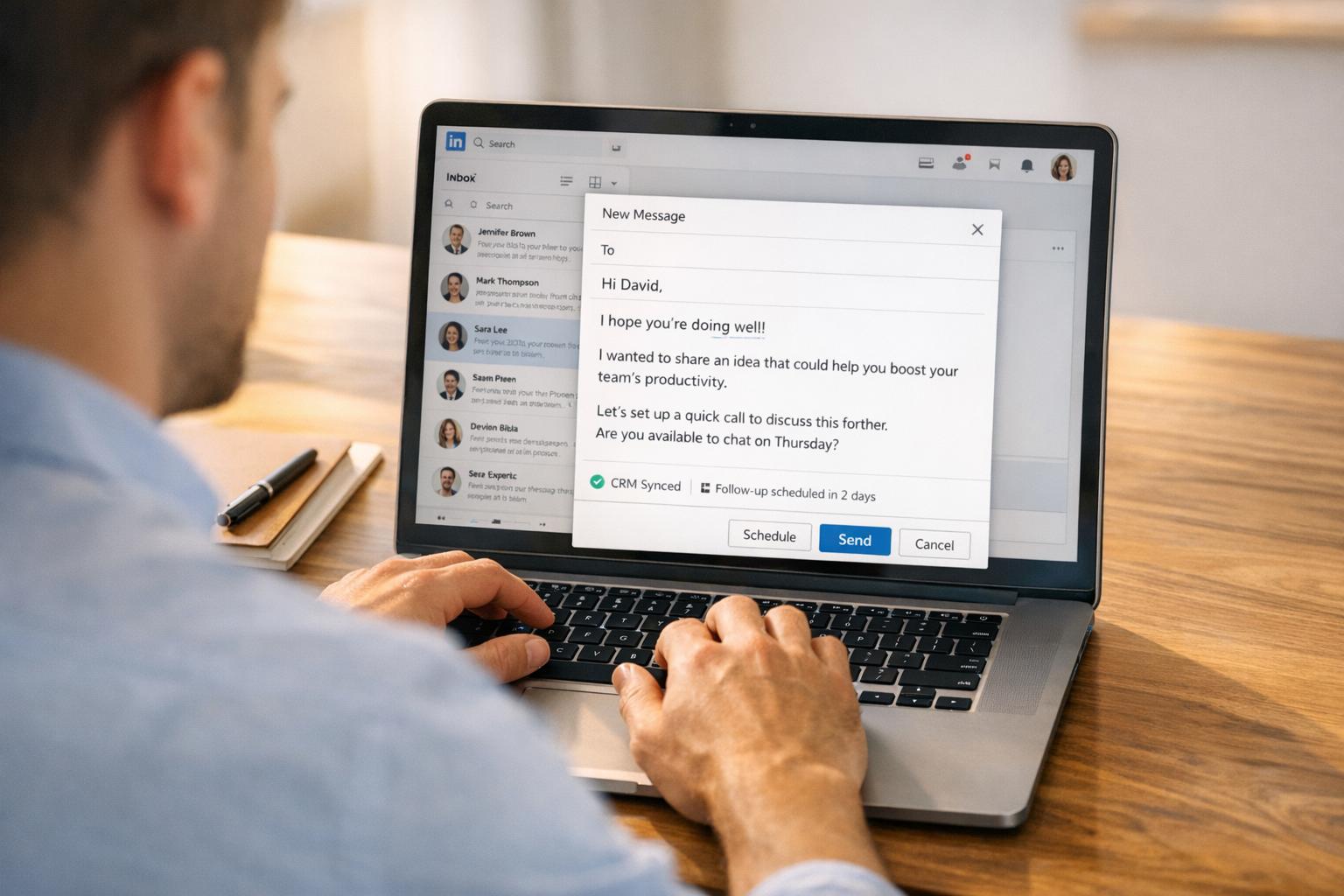
Managing your LinkedIn inbox can feel overwhelming when dealing with hundreds of messages daily. Missed responses can cost you opportunities and harm your reputation. Here’s how to take control:
- Prioritize Messages: Use labels like “Urgent” or “Follow-Up” to organize and respond faster.
- Clear the Clutter: Archive or delete irrelevant messages to keep your inbox focused.
- Use Tools: Split inboxes, saved reply templates, and keyboard shortcuts can save hours weekly.
- Automate: Sync LinkedIn with your ATS or CRM to reduce manual work and improve accuracy.
- Track Performance: Monitor response rates, time savings, and message effectiveness to refine your workflow.
Inbox Mastery for People Professional: Conquer Email Overload
sbb-itb-3e8f5dc
Daily Inbox Triage Checklist
Your LinkedIn inbox can quickly spiral into chaos without a plan. Messages pile up, priorities blur, and before you know it, you’re wasting time just figuring out where to start. The trick? Decide the fate of each message immediately: respond, label, snooze, or archive. Here’s how to make it work.
Categorize Messages by Priority
Start by creating a simple labeling system to classify messages as you read them. For instance, you might use labels like P1-Urgent for messages needing a response within two hours, P2-High for follow-ups due within 24 hours, and Standard for those you can handle within three days. You can also organize by pipeline stage (e.g., Screening or Interview Scheduled) or by role type (Developer, Marketing, etc.). To avoid overcomplicating things, stick to 7–10 core labels.
Labeling messages immediately saves you from re-reading conversations and helps prevent decision fatigue. Pin critical threads to keep them front and center, and for non-urgent items, use the snooze feature to temporarily hide them until you’re ready to tackle them.
Archive or Delete Irrelevant Messages
Once you’ve prioritized your inbox, clear out anything that doesn’t need further action. Think of your inbox as a to-do list – once you’ve replied or decided a message isn’t actionable, archive it. Archiving keeps your inbox clean while still allowing you to search for messages later. As Kondo puts it:
"Inbox Zero… is about spending zero mental energy wondering what’s in your inbox." – Kondo
Before archiving, make sure to label and note any important context. For threads you want to keep but don’t want constant notifications from, use the mute function. To stay efficient, schedule 15- to 30-minute blocks twice daily to batch process your inbox instead of checking it randomly throughout the day.
Use Split Inboxes to Separate Message Types
A split inbox system takes your labeling strategy to the next level. By separating your inbox into tabs or sections, you can quickly focus on specific categories like high-priority leads, scheduled interviews, or general inquiries. Tools like Cesar.chat allow you to automatically sort labeled conversations into dedicated inboxes, ensuring that your most important messages never get buried.
This setup not only makes triaging faster but also pairs well with keyboard shortcuts (e.g., "L" for labeling, "E" for archiving, "H" for snoozing). These shortcuts can speed up your workflow by as much as 50%. Teams using split inboxes report saving up to 4 hours each week on message management while responding to candidates 12 hours faster on average.
How to Respond Faster
In recruiting, speed is everything. With countless conversations happening daily, saving time is key. The aim? Cut down on repetitive tasks and focus on engaging with candidates.
Use Saved Reply Snippets
Pre-written templates can help you handle routine scenarios quickly without losing that personal touch. The trick is to create snippets that feel tailored, even when automated. Use a simple three-part structure: start with a relevance hook (why you’re reaching out), follow with a value statement (what’s in it for them), and end with an easy call-to-action. Go beyond just inserting a name – personalize using details like recent promotions, specific projects, or industry news.
For example, a message to a passive candidate might highlight their expertise and avoid a pushy tone, while one for an active job seeker should focus on clarity and directly outline the role. Use placeholders like {firstName} or {currentCompany} to keep the message personal while staying efficient.
Keep your snippets concise – 25 to 50 words deliver up to 65% more replies. Aim for under 400 characters. Speed things up by using keyboard commands like ; to instantly insert snippets. Combine these with shortcuts to further streamline your workflow.
Use Keyboard Shortcuts
Clicking through menus slows you down. Keyboard shortcuts let you process messages up to 10 times faster than navigating LinkedIn manually. Pair shortcuts with a clear labeling system, so you can categorize conversations at a glance and move on without re-reading threads.
Send Messages at the Right Time
Once your message templates and workflow are set, timing becomes the next big factor. Messages sent mid-week – Tuesday through Thursday – between 9:00 AM and 11:00 AM or from 1:00 PM to 3:00 PM tend to perform the best. Always consider the recipient’s time zone, as sending a message at 10:00 PM their time could mean it gets lost in a pile of overnight notifications.
Avoid weekends, especially Saturdays, which see 8% fewer responses, and Fridays, which see a 4% drop. If you’re drafting messages on a Friday afternoon, schedule them for Monday morning instead. Fun fact: 65% of LinkedIn message responses come within 24 hours, so you’ll know quickly if your timing worked.
How to Organize and Filter Messages
A well-structured inbox can make a huge difference in how quickly and effectively you engage with candidates. By filtering and labeling messages thoughtfully, you can zero in on the conversations that truly matter.
Set Up Message Filters
Take advantage of filters to streamline your inbox. On LinkedIn, you can use options like Focused, Unread, and Starred. If you’re using LinkedIn Recruiter, additional filters – like Accepted, Declined, and Awaiting Reply – can help you prioritize. For example, the Awaiting Reply folder is perfect for identifying candidates who haven’t responded yet, so you can follow up at the right time.
Start your day by checking the Accepted InMails first. These candidates have already shown interest and should be your top priority. You can also filter by specific Projects to focus on particular job openings. Before reaching out, look for shared connections, schools, or LinkedIn Groups with candidates – this can make a big difference, as candidates with mutual connections are 46% more likely to accept an InMail.
These filters integrate seamlessly with your triage process, ensuring you’re always focusing on actionable conversations.
Create Custom Labels for Your Pipeline
Once your messages are filtered, take organization a step further by using Project Folders in LinkedIn Recruiter. These folders act like labels, helping you track candidates by hiring stage. For example, you might create categories like "Screening", "Interview Scheduled", "Offer Stage", or "Not a Fit". The key is to label candidates as soon as their status changes – delaying this can quickly lead to a cluttered inbox.
For tasks that require immediate attention, labels like "Follow Up", "Waiting Response", or "Schedule Call" can keep your workflow moving. Keep the system simple with 7 to 10 essential categories to avoid overcomplicating things.
Clean Up Old Conversations Weekly
Spend 10–15 minutes each week clearing out old threads. Archive conversations that are complete or no longer relevant while keeping them searchable for future reference. Reserve deleting for spam or truly irrelevant messages.
"Treat your inbox as a task list to be cleared, not a repository of old messages." – TryKondo
Use bulk actions to mark multiple messages as read or archive entire groups of conversations in one go. For threads that don’t require immediate action but might be important later, use a "snooze" or reminder tool to revisit them at the right time. This approach keeps your inbox focused on the tasks that matter most right now.
Connect Your Tools for Better Workflow
Manually transferring data between LinkedIn and your recruiting tools eats up valuable time. Logging LinkedIn messages by hand can take about 3–5 minutes per action, which means spending over 80 minutes daily if you’re managing just 20 prospects. Instead, linking your LinkedIn inbox directly to your ATS or CRM automates the process, streamlining conversations, candidate updates, and collaboration.
Sync LinkedIn Messages with Your ATS or CRM
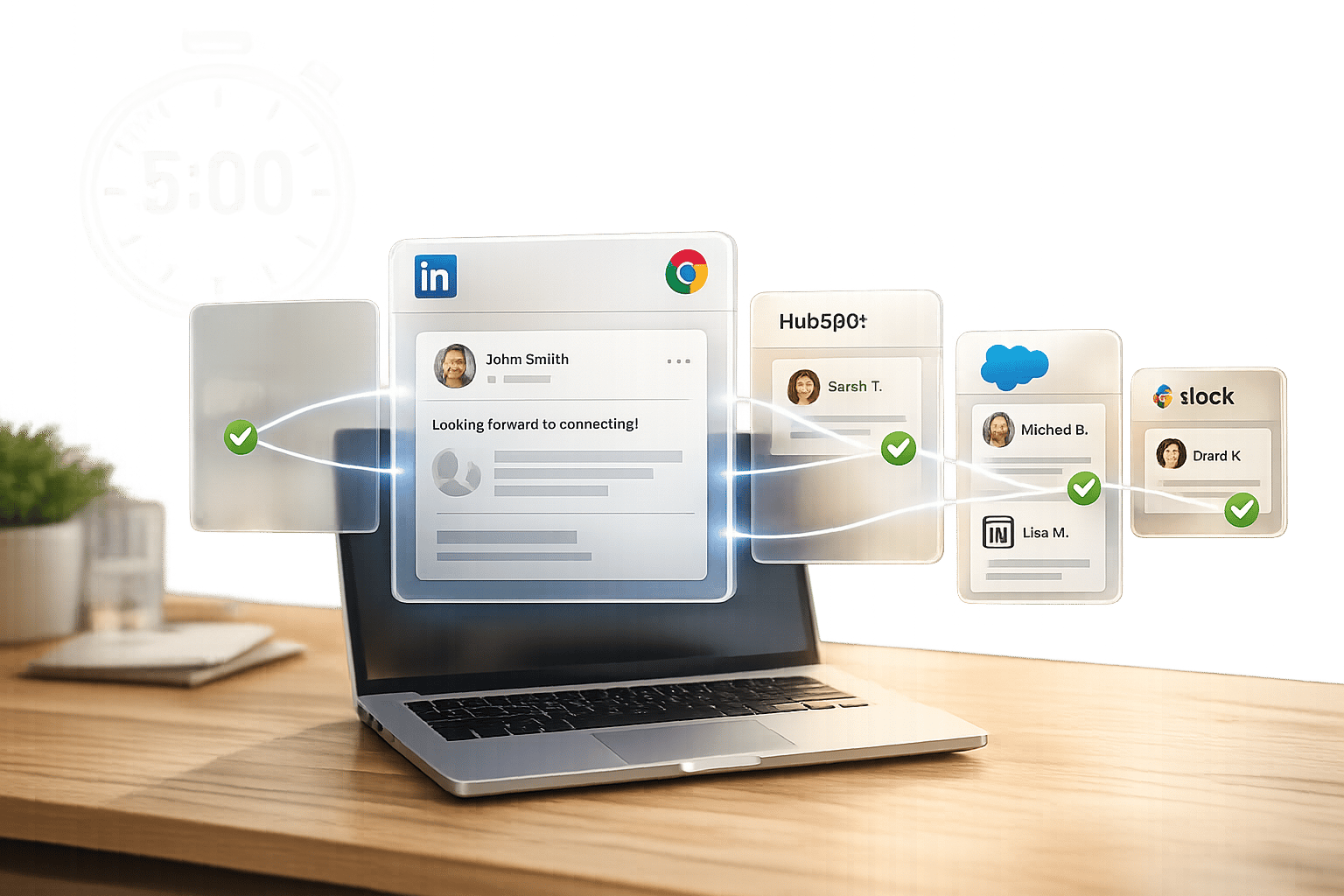
Third-party Chrome extensions can automatically log LinkedIn DMs and InMails into popular ATS and CRM platforms like HubSpot, Pipedrive, Salesforce, and Notion. These tools typically cost between $29 and $80 per month, with enterprise-level options priced higher.
But the benefits go beyond just saving messages. CRM overlays let you view key details – like candidate data, deal stages, and notes – directly on LinkedIn profiles, so you don’t have to keep switching tabs. Look for tools that sync entire conversation histories, not just future messages, to give you a complete picture.
"The Pipedrive overlay on LinkedIn profiles is a game-changer. I can see deal stages and contact history without leaving LinkedIn. It prevented several embarrassing duplicate outreach attempts." – Marcus Rivera, VP Sales
This kind of integration sets the stage for even more automation.
Enable Automated Updates
Once your tools are synced, you can create workflows that update candidate statuses in real time. For example, if a candidate replies on LinkedIn, the system can automatically queue the next step or update their stage in your ATS. By mapping fields correctly, you ensure all candidate details align with your CRM records. Automation like this can reduce manual data entry by up to 77% and improve data accuracy by 88%.
You can also enable waterfall enrichment, which pulls in verified emails and phone numbers from multiple sources automatically. Some tools even detect LinkedIn signals – like job changes or promotions – and trigger workflows in your CRM, such as assigning task owners or scheduling follow-ups.
Use Voice Notes for Team Handoffs
With updates handled automatically, clear team communication becomes even more important. Summarizing a complex candidate thread in writing can be time-consuming. Voice notes offer a faster, more personal way to share updates. They capture tone and context that text often misses, making a 30-second voice update more effective than a long written summary.
Desktop integrations make it simple to record and send voice notes without disrupting your workflow. Tools like Cesar.chat let you use keyboard shortcuts to create and send voice updates directly from your computer. This keeps team handoffs smooth and eliminates the need to switch devices mid-task.
Track and Improve Your Inbox Performance
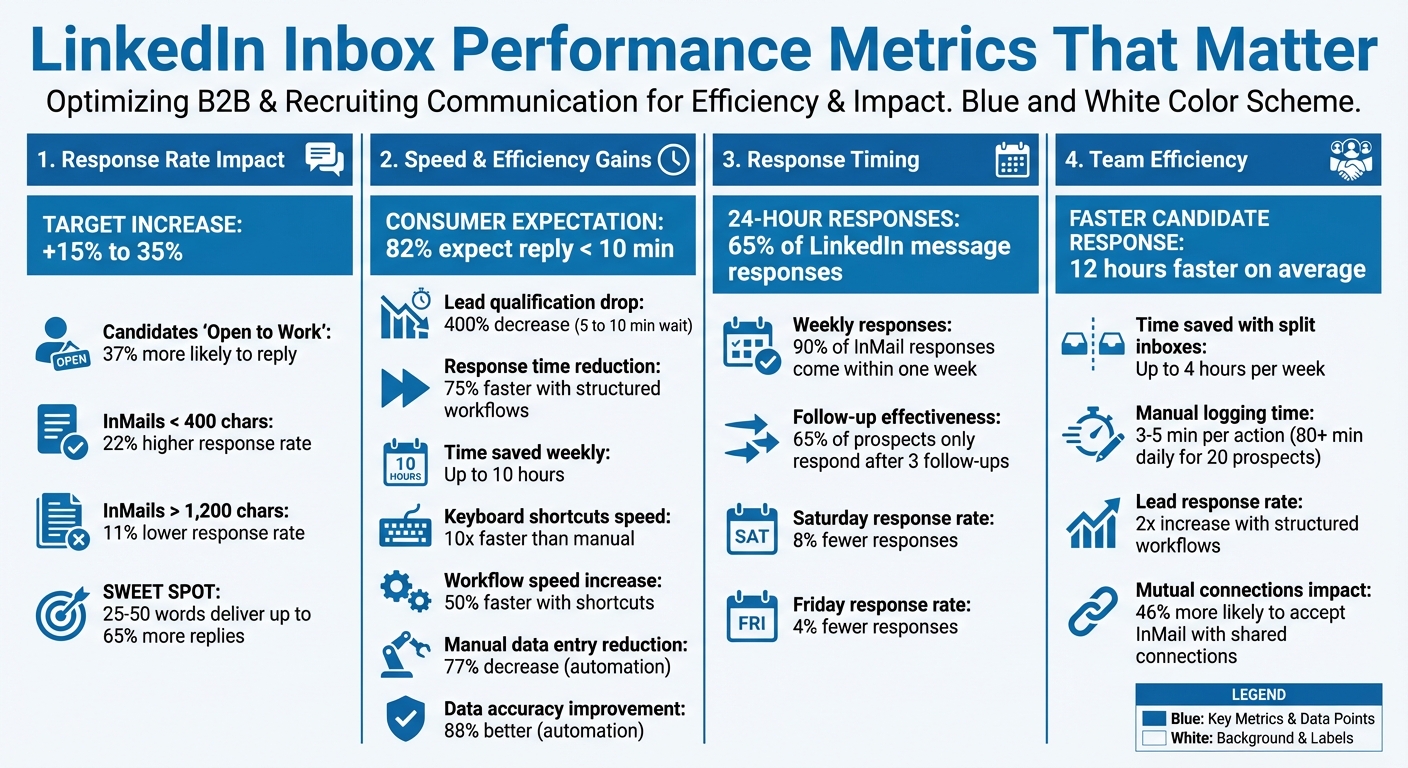
LinkedIn Inbox Management Statistics: Response Rates, Time Savings, and Performance Metrics
Once your inbox is organized, the next step is to evaluate how well it’s performing. Keeping an eye on key metrics ensures that your efforts are paying off. Start by analyzing response rates – this is the percentage of InMails that get a reply, whether positive or negative. LinkedIn’s InMail Analytics refreshes every few hours, giving you timely insights into what’s working. Additionally, track response time (how quickly candidates reply) and message volume (the total number of messages sent versus those responded to). As Greg Lewis points out, "Response rates not only reflect candidate engagement but also recruiter efficiency".
Track Key Metrics
Focus on metrics that directly influence your recruiting outcomes. For example, template performance is worth examining – test different InMail formats to figure out which ones resonate best. Look at candidate segment performance to identify which groups are the most responsive. Candidates marked as "Open to Work", for instance, are 37% more likely to reply. Don’t forget to consider message length: InMails under 400 characters have a 22% higher response rate, while those exceeding 1,200 characters underperform by 11%. If you’re using follow-up sequences, measure their impact – 65% of prospects only respond after three follow-ups.
Review Your Inbox Weekly
Set aside 15–30 minutes each Monday or Friday to review your inbox. Check labeled conversations (e.g., "Developer", "Offer Stage", or "P1-Urgent") to ensure no candidate is left in limbo. Confirm that follow-ups are sent within the planned 3–5 day window. Use this time to archive resolved threads and delete irrelevant cold messages to keep your workspace tidy. Since 65% of InMail responses come within 24 hours and 90% within a week, a weekly review helps you catch anything missed during daily checks.
Compare Before and After Performance
To gauge the impact of your changes, compare metrics from before and after implementing new strategies. Record baseline data for response rates, response times, and the hours spent managing your inbox each week. After trying updates like shorter templates or automated snippets, evaluate the results. Peter Rigano, Director of Product Management at LinkedIn, explains:
"InMail Analytics just got a lot more useful – and easier to use. Now you can quickly see: Your current response rate and performance over time… and how your response rate compares to industry benchmarks".
Recruiters who adopt structured inbox workflows report saving up to 10 hours per week, cutting response times by 75%, and doubling lead response rates.
| Metric to Track | Purpose | Target Improvement |
|---|---|---|
| Response Rate | Measures message effectiveness | +15% to 35% |
| Time Saved | Tracks efficiency gains from shortcuts | Up to 10 hours/week |
| Response Time | Assesses engagement speed | 75% reduction |
| Template Success | Identifies the best-performing formats | Varies by segment |
Cesar.chat Setup Checklist
Once you’ve established your baseline metrics, it’s time to implement the right tools. Cesar.chat acts as a messaging layer that enhances LinkedIn’s internal APIs. It syncs messages in real-time without relying on automation or bots, helping you handle LinkedIn DMs twice as fast with keyboard shortcuts and saved snippets.
Choose Your Plan
Start by picking the subscription plan that fits your recruiting needs. Cesar.chat offers three options:
- Basic Plan: $24/month. Includes unlimited labels, snippets, reminders, and voice notes.
- Business Plan: $32/month. Adds up to 3 integrations, Sales Navigator message support, and analytics.
- Enterprise Plan: $40/month. Features white-glove integration setup, unlimited sync destinations, and VIP support.
If you prefer annual billing, you’ll get a 20% discount. For solo recruiters, the Basic plan is a great choice. For those working with high-volume pipelines or syncing with CRMs, the Business plan is ideal.
Set Up Split Inboxes and Labels
Once you’ve chosen your plan, set up split inboxes to keep high-priority conversations separate from less critical ones. Use labels to organize candidate conversations by their status – like "Interview Scheduled" or "Offer Pending." Then, assign these labels to dedicated tabs using the split inbox feature, creating a workspace that highlights urgent opportunities. This setup ensures important leads don’t get lost in your general inbox.
For added efficiency, labels and conversation notes can sync automatically with external tools like HubSpot, Salesforce, Notion, and Clay. This eliminates the hassle of manual data entry and keeps everything streamlined.
Test Core Features First
Before rolling out Cesar.chat fully, take some time to test its key features. Learn the keyboard shortcuts and confirm that your saved snippets work as intended to cut down on repetitive tasks. Use the snooze feature to set reminders for candidates who aren’t ready yet – this way, they’ll pop back into your inbox in 3–6 months.
If you’re using the Business or Enterprise plan, connect your CRM to tools like HubSpot or Salesforce to automatically log conversation data and labels. For high-value candidates, try sending voice notes to add a personal touch. These steps will help you optimize your workflow and maintain the speed required for high-volume recruiting.
Conclusion
An unorganized LinkedIn inbox can cost you valuable opportunities. In fact, the likelihood of qualifying a lead drops by 400% when your response time stretches from 5 to 10 minutes. On top of that, 82% of consumers expect a reply within 10 minutes. Every moment spent wading through cluttered messages is a moment lost to connect with top candidates.
The checklist above outlines a clear plan: prioritize messages, speed up responses with saved snippets and shortcuts, use custom filters and labels to stay organized, integrate your tools for smoother workflows, and review your performance weekly. A well-structured inbox can save you hours each week, allowing you to focus on what truly matters – building relationships and closing deals. By following these steps, from triaging to tool integration, you can create a system that works efficiently on your behalf.
"Every minute wasted scrolling through an unorganized inbox is a minute not spent building relationships with top candidates." – Kondo
Kondo’s words are a powerful reminder: focus is key. Start small – maybe by setting up split inboxes or creating saved snippets – and take action this week. Track your current metrics today, then reassess after 30 days to see the difference. Quick, timely follow-ups can dramatically improve your success rate.
Turn your inbox from a source of frustration into a well-oiled pipeline. With tools like Cesar.chat, these practices can be seamlessly woven into your routine, helping you achieve consistent results.
FAQs
What labels should I use for LinkedIn inbox triage?
Effective labels for managing your LinkedIn inbox can make a big difference in keeping things organized and ensuring you respond promptly. Some useful categories to consider include:
- Hot leads or urgent inquiries: Messages that need immediate attention.
- Candidates or potential hires: Conversations with individuals you’re considering for roles.
- Clients or strategic partners: Important business relationships to nurture.
- Follow-up needed: Messages requiring a response or action later.
- Responded or completed: Conversations that are resolved or no longer need attention.
- Unread or new messages: Messages you haven’t opened yet.
These labels act as a visual guide, helping you sort through conversations efficiently while ensuring no important messages slip through the cracks.
How often should I check and clean my LinkedIn inbox?
To keep things running smoothly and ensure you don’t overlook important messages, make it a habit to check and organize your LinkedIn inbox daily – or at least a few times a week. Try strategies like categorizing messages, responding promptly, archiving old conversations, or setting reminders for follow-ups. Staying on top of your inbox helps keep everything organized and makes managing your workflow much easier.
Which inbox metrics should recruiters track weekly?
Recruiters need to keep an eye on a few key metrics every week to gauge how well their communication and workflows are running. Pay close attention to response rates, InMail response data, message engagement, and activity trends. These numbers can reveal where things might need tweaking and help maintain steady productivity. Leverage tools and filters to simplify tracking and keep your inbox organized for smoother operations.