
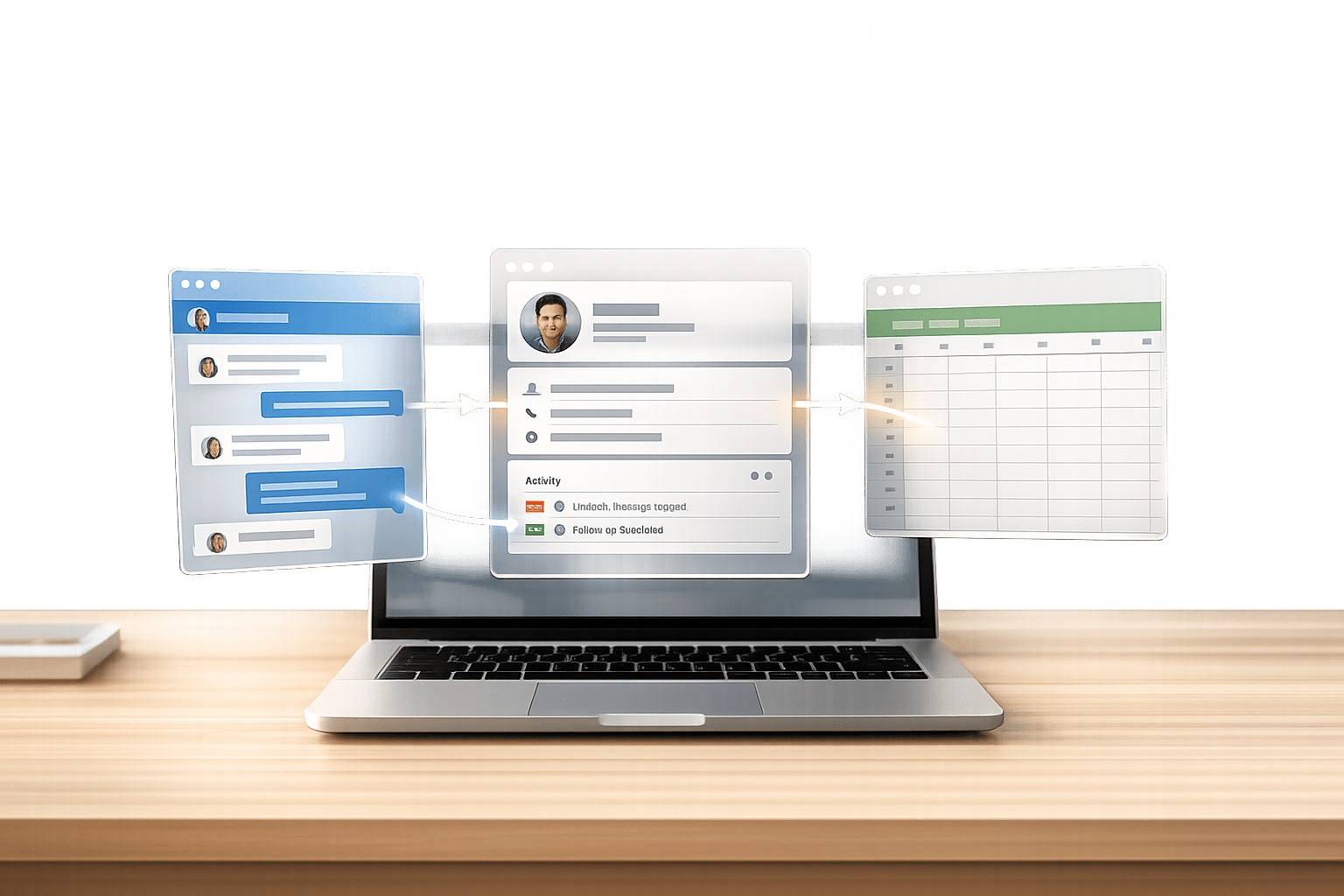
If you’re tired of manually copying LinkedIn messages into your CRM, there’s a better way to save time and keep your workflow organized. Syncing LinkedIn DMs with your CRM ensures every message, note, and label is automatically logged, giving you a clear view of your leads or candidates without switching tabs. Here’s the gist:
- Why it matters: LinkedIn drives 80% of B2B social leads, but without syncing, critical data can get lost.
- What you need: A LinkedIn account, a CRM like HubSpot or Google Sheets, and the Cesar.chat app. Check out our LinkedIn power user tips for more ways to optimize your workflow.
- How it works: Connect Cesar.chat to LinkedIn and your CRM, choose your sync preferences (manual or automatic), and test the integration.
- Cost: Free for early access users (896 spots left), then plans start at $32/month.
This setup eliminates manual data entry, prevents missed follow-ups, and helps you focus on building relationships. Keep reading for step-by-step instructions.
HubSpot LinkedIn CRM Sync Explained
sbb-itb-3e8f5dc
What You Need Before Getting Started
Before diving in, make sure you have the right accounts and permissions in place. The setup process is simple, and if you’re among the first 1,000 users, you can enjoy free access to all features during the early access period.
Required Tools
To get started, you’ll need a Cesar.chat account. The platform offers two plans: the Business plan at $32/month and the Enterprise plan at $40/month. The Business plan includes support for up to three integrations and Sales Navigator, while the Enterprise plan provides unlimited sync destinations and white-glove setup assistance. If you’re part of the early access group, you can unlock all features without any cost.
An active LinkedIn profile is also essential. Cesar.chat works with both standard LinkedIn accounts and Sales Navigator, ensuring a unified view of your messaging.
You’ll need a supported CRM account as well. Currently, integrations are live for HubSpot and Google Sheets. If you’re using Salesforce, Zoho CRM, or Notion, those options are on the way.
Lastly, download the Cesar.chat native desktop app. Unlike browser extensions, this app connects directly to LinkedIn’s internal APIs without relying on scraping or automation methods that could violate LinkedIn’s terms. This ensures your account remains compliant and secure.
Once your tools are ready, make sure permissions are updated to activate the sync.
Required Access Permissions
Granting the right permissions is crucial for a secure and compliant setup that keeps your workflows running smoothly. Cesar.chat requires access to both your LinkedIn and CRM accounts.
For LinkedIn, the app uses official APIs to manage tasks like reading and sending messages, syncing labels, and accessing notes from both standard LinkedIn and Sales Navigator inboxes.
If you’re using HubSpot as your CRM, you’ll need administrative permissions to authorize third-party native apps. Cesar.chat integrates directly with HubSpot, allowing you to push message threads, notes, and custom labels (such as "Hot Lead") to contact timelines. It can even create new contact records automatically if no match exists in your CRM.
During setup, you can choose between "on-demand" sync, which updates specific conversations as needed, or "automatic streaming", which provides real-time updates. Automatic streaming is particularly useful for sales teams managing large volumes of outreach. According to Cesar.chat, this feature saves sales teams over five hours each week by eliminating the need for manual data entry.
How to Sync LinkedIn DMs with Your CRM
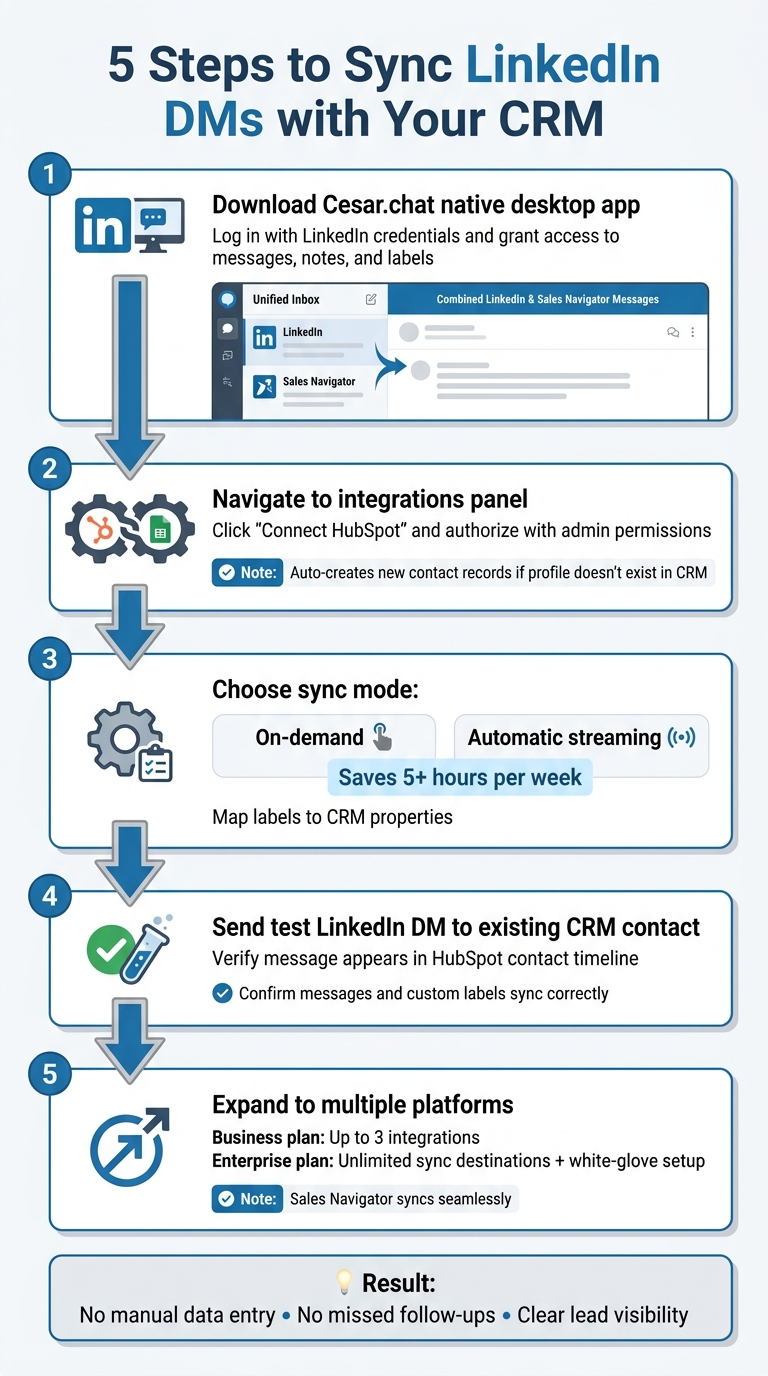
5-Step Process to Sync LinkedIn DMs with Your CRM Using Cesar.chat
Setting up LinkedIn DM syncing with your CRM through Cesar.chat is quick and straightforward once your tools and permissions are ready. This process connects your LinkedIn account to Cesar.chat, links your CRM, and configures how and when messages sync. Follow these steps carefully for a smooth integration.
Step 1: Connect Cesar.chat to LinkedIn
Start by downloading and installing the Cesar.chat native desktop app from its official website. Unlike browser extensions, this app uses LinkedIn’s internal APIs for a direct connection.
Once installed, log in with your LinkedIn credentials. The app will ask for access to your messages, notes, and labels. After granting permission, you’ll see a unified inbox that merges your standard LinkedIn DMs with Sales Navigator messages.
To keep things organized before syncing, enable features like split inboxes and custom labels.
Step 2: Connect Your CRM to Cesar.chat
Head to the integrations panel within Cesar.chat. Currently, the platform supports HubSpot and Google Sheets, with Salesforce, Notion, and Zoho CRM integrations on the horizon.
For HubSpot users, click "Connect HubSpot" and authorize access using administrative permissions. Once connected, Cesar.chat matches LinkedIn conversations, notes, and labels to the corresponding contact timelines in HubSpot. If a LinkedIn profile isn’t already in your CRM, the system automatically creates a new contact record during the sync. This ensures that no interaction is missed.
Step 3: Set Up Your Sync Preferences
Decide between "on-demand" syncing or "automatic streaming".
- On-demand syncing allows you to manually push specific conversations from your inbox to the CRM.
- Automatic streaming updates your CRM in real time, removing the need for manual input. Teams using automatic streaming save over five hours per week by cutting down on data entry.
Map your labels to CRM properties for accurate sales tracking. Additionally, configure whether to sync just the latest messages or the entire conversation history, including any internal notes. These settings can be adjusted later as your needs evolve.
Step 4: Test Your Integration
To ensure everything is set up correctly, send a test LinkedIn DM to a contact already in your CRM. If automatic streaming is enabled, the message should appear in the contact’s timeline in HubSpot almost instantly. For on-demand syncing, use the sync button in Cesar.chat and confirm that the message is logged in your CRM.
Double-check that messages and custom labels are syncing correctly. If issues arise, such as permission errors or API rate limits, reauthorize the connection or space out bulk sync attempts to resolve them.
Step 5: Scale Your Integration
Once basic syncing is verified, you can expand the setup to include bulk syncing across multiple platforms. For example, sync messages to both HubSpot for tracking and Google Sheets for reporting.
- On the Business plan, you can sync with up to three integrations.
- The Enterprise plan offers unlimited sync destinations and provides white-glove setup support, including custom field mapping or syncing with multiple CRMs.
If you’re using Sales Navigator, the process is the same. Messages from Sales Navigator will appear in the unified Cesar.chat inbox and sync seamlessly with your CRM. As Cesar.chat explains, "Cesar.chat pushes every LinkedIn conversation, label, and note straight into HubSpot – saving hours weekly while making sure no lead falls through the cracks".
Common Problems and How to Fix Them
Even with everything set up correctly, issues can still pop up during regular use. The most frequent challenges usually involve API limits, permission errors, and sync delays. Here’s how you can tackle each one.
Dealing with API Limits
Platforms like LinkedIn and CRMs such as HubSpot impose rate limits, which can cause errors or incomplete syncs when processing a large number of conversations at once.
To avoid this, switch from automatic streaming to manual syncing. Use the "sync on demand" feature in Cesar.chat to push only the most critical threads into your CRM. This method helps you control the flow of data, keeps your CRM tidy, and prevents unnecessary data transfers.
Fixing Permission Problems
Permission errors can occur if Cesar.chat or your CRM lacks the necessary access to transfer data between platforms. These issues often show up as authorization failures or missing credential errors.
To resolve this, reauthenticate your connections through the integrations panel in Cesar.chat. Simply log back into your CRM (e.g., HubSpot) using an account with administrative privileges. Accounts with fewer permissions may not have the ability to create contact records or update timelines.
Additionally, double-check your subscription plan. Certain syncing features may require higher-tier LinkedIn accounts. If you’re on a basic plan, consider opting for manual syncing to avoid compatibility issues.
Fixing Sync Delays
If messages are taking longer than expected to appear in your CRM, the issue is often tied to your sync mode or the stability of your connection.
Start by reviewing your sync mode. Automatic streaming updates your CRM roughly every 12 seconds, but for immediate updates, you can use the manual "sync on demand" feature.
Next, check the connection status in the "Active syncs" section of your Cesar.chat dashboard. If the integration isn’t marked as "healthy", reauthenticate your CRM connection by logging back in through the settings panel. Limiting the amount of data processed with selective syncing can also speed things up and prevent bottlenecks.
Once delays are addressed, you may want to explore pricing options to expand your integration capabilities.
Cesar.chat Pricing for CRM Sync
Cesar.chat is currently in early access and is completely free for the first 1,000 users. At the moment, there are 896 free seats left (104 out of 1,000 have been claimed). Once all the free spots are taken, three pricing plans will become available.
If you’re looking for CRM and system sync features – such as the native HubSpot and Google Sheets integrations – you’ll need to choose either the Business or Enterprise plan. The Basic plan is focused on inbox management and doesn’t include CRM connectivity. For syncing LinkedIn DMs with your CRM, the Business plan starts at $32/month (billed monthly).
The Business plan allows for up to 3 integrations, while the Enterprise plan provides unlimited sync destinations, along with white-glove setup and VIP support. Both of these plans also include AI analytics and Sales Navigator sync. If you choose annual billing, you’ll save 20% on all tiers.
Plan Comparison Table
| Feature | Basic | Business | Enterprise |
|---|---|---|---|
| Monthly Price | $24 | $32 | $40 |
| CRM & System Sync | Not Included | Included (Up to 3) | Included (Unlimited) |
| Live Integrations | None | HubSpot, Google Sheets | HubSpot, Google Sheets |
| Labels & Snippets | Unlimited | Unlimited | Unlimited |
| AI Analytics | No | Included | Included |
| Sales Navigator Sync | No | Coming Soon | Coming Soon |
| Support & Setup | Standard | Standard | VIP Support & White-glove Setup |
Integrations for Notion, Zoho CRM, and Salesforce are marked as "coming soon." If these platforms are essential for your workflow, you can join the waitlist. For now, HubSpot and Google Sheets are your immediate options for CRM syncing.
Conclusion
By following the setup and troubleshooting steps, you can seamlessly integrate LinkedIn DMs with your CRM for a smoother workflow.
Connecting Cesar.chat to LinkedIn, linking it with your CRM, and setting up sync preferences removes the hassle of manual data entry, missed follow-ups, and scattered conversations. This integration saves you time every week by automating tasks and ensuring real-time updates across platforms – whether you’re using HubSpot, Google Sheets, or another CRM.
For sales professionals, recruiters, and founders juggling numerous LinkedIn conversations, this tool simplifies everything. Features like smart labels (e.g., "Hot Lead" or "Client") sync directly with your CRM, built-in reminders ensure no lead gets overlooked, and the unified inbox merges regular LinkedIn and Sales Navigator messages into one convenient place.
Cesar.chat is currently free during its early access phase. Afterward, the Business plan starts at $32/month, offering up to 3 CRM integrations – perfect for automating LinkedIn workflows so you can focus on building relationships and closing deals.
FAQs
Will syncing LinkedIn DMs create duplicate contacts in my CRM?
Syncing LinkedIn DMs with your CRM can sometimes lead to duplicate contacts, especially if the system doesn’t have tools to identify and merge existing records effectively. Many CRMs include features like matching rules to help cut down on duplicates, but these need to be properly set up to work as intended. Automation tools like Cesar.chat can make syncing easier, but duplicates might still pop up if the system struggles to match contacts accurately. Configuring your CRM’s matching rules carefully can go a long way in reducing this issue.
Can I sync only selected LinkedIn conversations instead of everything?
Most integration tools for LinkedIn currently sync all conversations automatically with your CRM. The focus of these solutions is to ensure every interaction is logged, aiming to streamline workflows. However, as of now, there doesn’t seem to be an option for selectively syncing specific conversations.
What LinkedIn data besides messages can be synced to my CRM?
Syncing LinkedIn data – such as contacts, profiles, notes, labels, and activity details – directly to your CRM can simplify your workflow. By centralizing this information, you can streamline communication and stay more organized, whether you’re managing sales pipelines or recruitment processes.



