
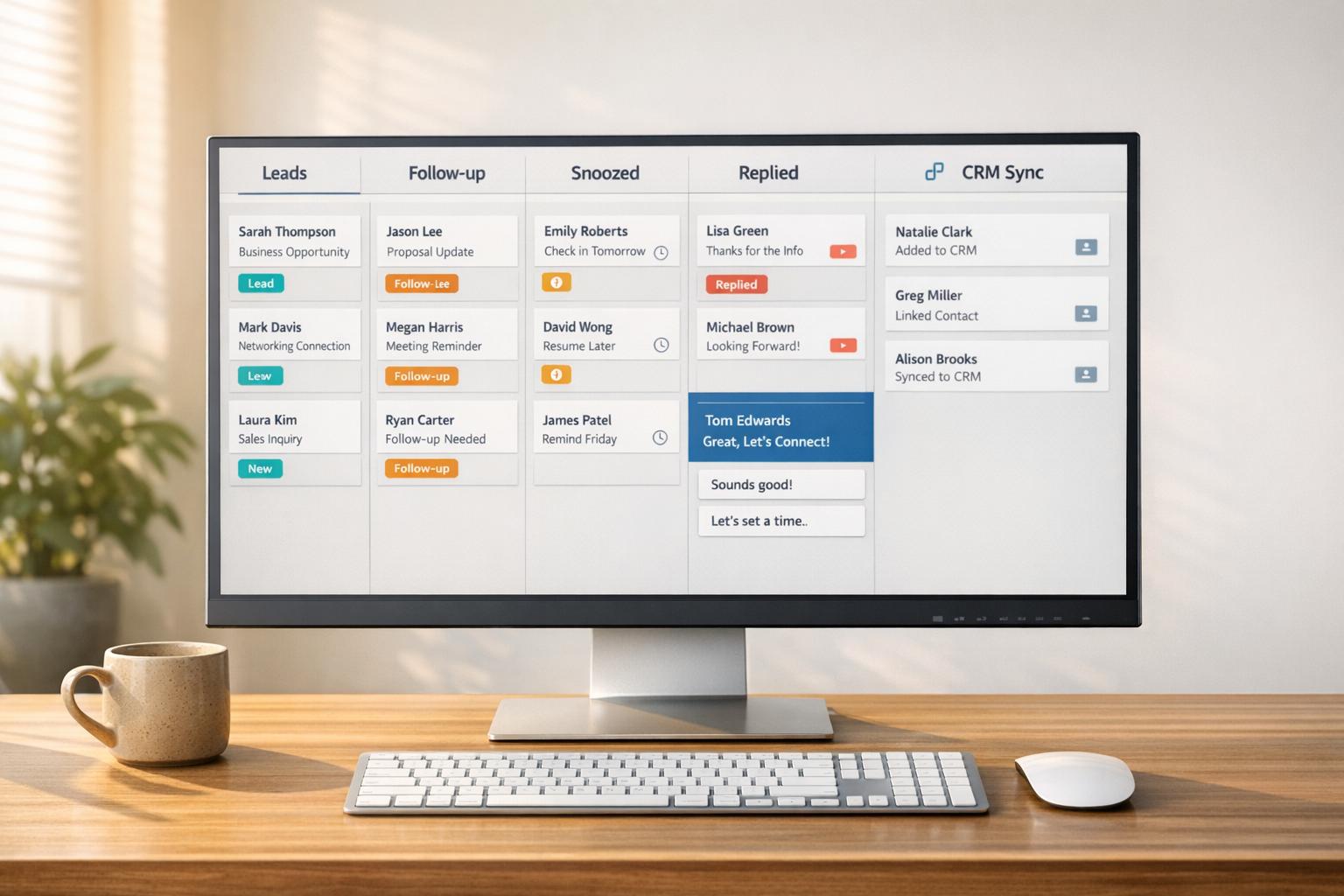
Managing LinkedIn messages can be overwhelming, especially when dealing with 50–200+ daily. Critical leads and opportunities often get lost in the clutter of connection requests and casual chats. A split inbox solves this by organizing conversations into labeled categories like "Hot Leads" or "Follow-Up Today", helping you focus on priority messages without distractions.
Using tools like Cesar.chat, you can streamline LinkedIn inbox management with features like labels, keyboard shortcuts, snooze reminders, and CRM integrations. This approach saves time, reduces mental strain, and improves response rates. For example, responding to leads within an hour increases conversion rates by 7x, and professionals using split inbox systems report saving up to 10 hours weekly.
Here’s what you’ll learn:
- How to set up split inboxes with Cesar.chat.
- Tips for labeling, time-blocking, and achieving inbox zero.
- Advanced tools like snooze features, saved snippets, and CRM syncing.
- Metrics to track inbox efficiency and engagement.
With the right strategy, you can process messages faster, prioritize effectively, and ensure no opportunity slips through the cracks.
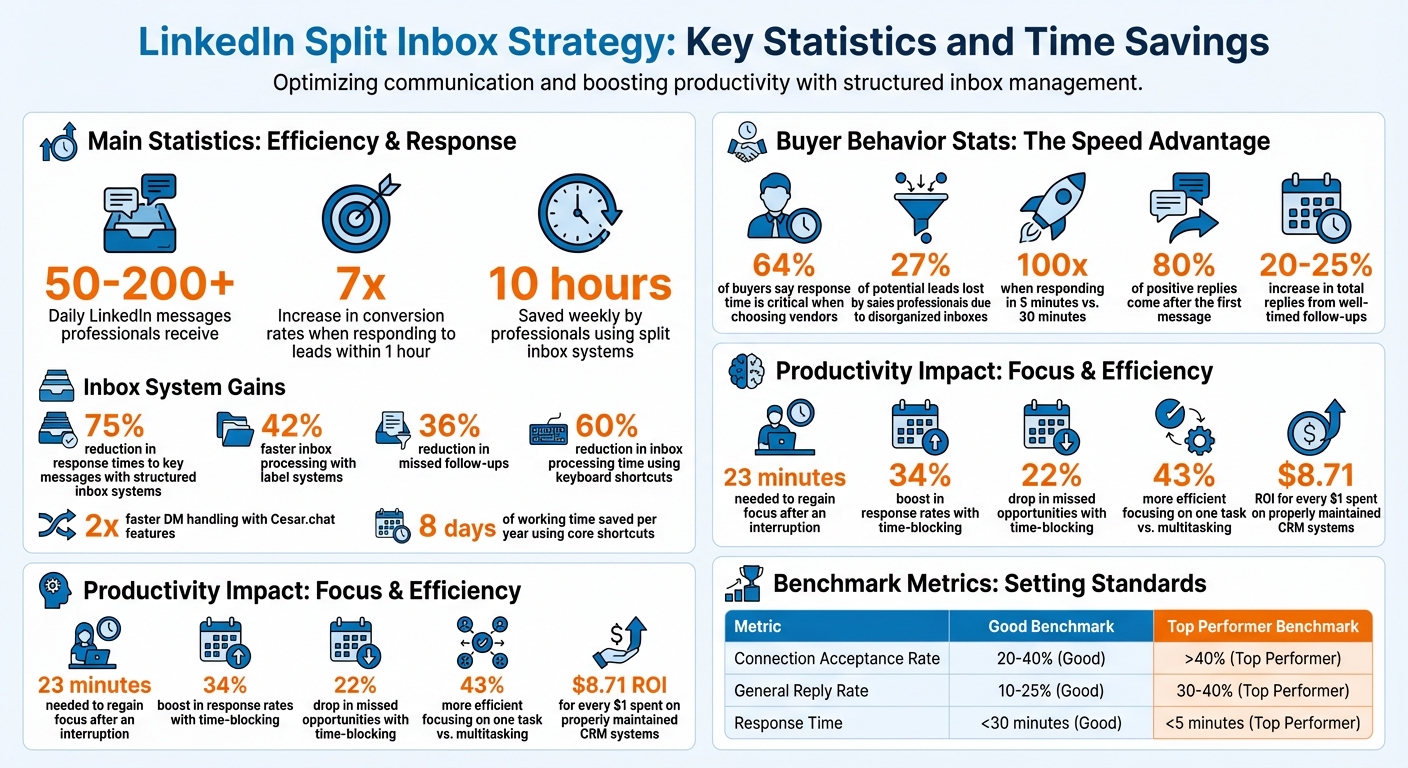
LinkedIn Split Inbox Strategy: Key Statistics and Time Savings
How to Set Up Split Inboxes with Cesar.chat
Getting Started with Cesar.chat
To streamline your LinkedIn inbox management, start by heading over to cesar.chat, signing up, and linking your LinkedIn account. This syncs your messages in real time, making it easier to stay on top of conversations. As Cesar.chat puts it, "You can see us as a messaging app for DMs the same way your email app layers on top of Gmail".
Cesar.chat offers three pricing plans to suit different needs:
- Basic ($24/month): Includes unlimited labels, snippets, reminders, and voice notes.
- Business ($32/month): Adds up to three integrations, Sales Navigator support, and analytics.
- Enterprise ($40/month): Features white-glove setup, unlimited sync destinations, and VIP support.
If you opt for annual billing, you can save 20% on any plan. Once your account is set up and synced, you can start organizing your inbox with labels for better conversation management.
Creating Labels for Your Split Inboxes
Labels are at the heart of Cesar.chat’s split inbox system. After logging in, create labels that fit your LinkedIn workflow. For instance:
- Recruiters might use labels like "Candidates", "Screening Scheduled", and "Hiring Managers."
- Sales professionals could set up "Hot Leads", "Follow-Up Required", and "Demo Booked."
- Founders managing partnerships might organize with "Partners", "Industry Peers", and "Event Leads."
To assign a label, simply open a conversation and press L to bring up the labeling menu. Once labeled, the conversation will automatically appear in its designated split inbox, keeping your workspace focused and free of unnecessary clutter.
Using Keyboard Shortcuts and Core Features
Cesar.chat’s keyboard shortcuts make managing your messages faster and more efficient. These shortcuts help you handle DMs with ease:
- L: Label conversations
- H: Snooze messages
- J/K: Navigate between messages
- E: Archive conversations
- I: Open LinkedIn profiles instantly
The snooze feature is particularly useful for maintaining inbox zero. It temporarily removes conversations from view and brings them back at a time you choose. Paired with saved snippets for common responses, these tools help you stay productive and organized across your split inboxes, allowing you to work through messages at twice the speed.
sbb-itb-3e8f5dc
Core Strategies for Managing Split Inboxes
Building a Smart Labeling System
Labels are like folders that help you categorize conversations by their purpose, priority, or status. For instance, you might tag a message as both a "Hot Lead" (relationship type) and "Follow Up" (action required). To keep things simple, stick to 7–10 labels and group them into three main categories: Relationship Type (e.g., Leads, Clients, Partners), Action Required (e.g., Follow Up, Schedule Call, Send Info), and Priority Level (e.g., Urgent, High, Medium, Low).
If you’re juggling a high volume of messages, nested labels like "Lead > Hot" or "Candidate > Software Engineer" can help you stay organized without overwhelming your sidebar. To make it even easier, assign unique colors and icons to your labels, and apply them immediately to incoming messages. This small step can save you time and effort down the line.
Once your labeling system is set up, you’ll be ready to tackle messages efficiently and work toward inbox zero.
Achieving Inbox Zero with Split Inboxes
Getting to inbox zero is all about making quick, decisive actions on every message. If a response takes less than two minutes, reply right away and archive it. For tasks that need more time, label and snooze the thread so it pops back up when you’re ready to handle it. Archive anything that doesn’t require follow-up.
Disorganized inboxes can lead to missed opportunities – sales professionals, for example, risk losing up to 27% of potential leads due to overlooked or delayed responses. On top of that, 64% of buyers say response time is a critical factor when choosing vendors. By using a label system, you can process your inbox 42% faster and reduce missed follow-ups by 36%. To stay focused, tackle one category at a time, which minimizes distractions and helps you work more efficiently.
As LinkedIn Growth Expert Shoaib Ahmed aptly puts it:
"Your inbox is a TO-DO list made by OTHER people".
Once you’ve categorized and addressed your messages, structuring your workday can further enhance your productivity.
Time-Blocking for Focused Messaging
Constantly checking your inbox can wreck your productivity. Research shows it takes up to 23 minutes to regain focus after an interruption. A better approach? Dedicate specific time blocks to handle your split inboxes. Sales professionals who use time-blocking see a 34% boost in response rates and a 22% drop in missed opportunities.
Here’s one way to structure your day: start with "Urgent/High Priority" messages in the morning, handle "Follow Up" items around midday, and clear out "Low Priority" messages before wrapping up. Two focused sessions are far more effective than repeatedly checking your inbox throughout the day.
During these blocks, take advantage of keyboard shortcuts – they can cut your inbox processing time by up to 60%. Plus, focusing on one task at a time is 43% more efficient than multitasking.
The LinkedIn Inbox Secret Nobody Talks About
Advanced Cesar.chat Features for Split Inbox Management
Take your split inbox management to the next level with these advanced Cesar.chat tools, designed to streamline your messaging workflow and keep everything running smoothly.
Snoozing Threads for Follow-Ups
The snooze feature is a game-changer for staying organized. It allows you to temporarily remove conversations from your inbox and have them reappear at a specific time – perfect for follow-ups without the hassle of constant scrolling or manual tracking. Got a sales prospect who hasn’t responded? Set a 3-day snooze to stay top of mind. Need to follow up on a networking lead? A 1-week snooze might be just right. You can even align reminders with hiring timelines for recruitment purposes.
To make this even easier, Cesar.chat offers a Follow-Up Reminder Calculator to help you determine the best timing and tone for your follow-ups. By snoozing non-urgent threads, you can focus on what truly matters without distractions.
And when it’s time to respond, saved snippets can speed things up even more.
Saved Snippets for Quick Responses
Saved snippets are a lifesaver for repetitive messaging. Cesar.chat provides unlimited snippets across all subscription plans, so you can build a library of responses without worrying about limits. With keyboard shortcuts, you can send messages in seconds.
Use smart trigger keywords like intro_sales or followup_recruit to quickly find the right snippet, even if you haven’t used it in months. Add placeholders like {firstName} to personalize your messages while keeping them efficient and professional.
As Mohamed Lamine Allal explains:
"Snippets are what you set yourself as the ideal final thing. It’s a framework for organizing and maintaining quality and standard."
For even greater efficiency, align your snippet library with your split inbox labels. For example, create preset responses for stages like "Discovery", "Negotiation", and "Closed" so you’re always ready with the right message. Regularly update your snippets to ensure they’re concise and effective.
Once your messaging is optimized, you can seamlessly integrate it with your favorite productivity tools.
CRM and Productivity Tool Integration
Cesar.chat makes it easy to integrate with top CRM and productivity platforms, ensuring you never miss an opportunity. It syncs live with tools like Notion, HubSpot, Salesforce, and Slack, automatically transferring conversation data, labels, and notes into your tech stack. This eliminates the need for manual data entry and keeps everything organized.
The Business plan ($32/month) allows up to 3 integrations, while the Enterprise plan ($40/month) offers unlimited sync destinations along with white-glove setup support. A quick five-minute Chrome extension setup connects your CRM, ensuring that every labeled conversation in your split inbox is logged for long-term tracking.
These integrations work hand-in-hand with snoozing and snippets. For example, when you snooze a thread, the CRM logs a reminder. When you send a snippet, your response is automatically recorded. Plus, your team can access shared conversation histories in tools like Slack or Notion, making collaboration simple. Considering that CRM systems typically deliver an ROI of $8.71 for every dollar spent when properly maintained, keeping your data in sync is a smart investment.
Measuring Your Split Inbox Strategy Results
Once you’ve set up your split inbox using Cesar.chat, it’s time to measure how well it’s working. Tracking performance is crucial to ensure your strategy is delivering results and to spot areas where you can improve.
Tracking Time Savings and Efficiency
One of the biggest benefits of split inboxes is the time they save. With Cesar.chat, you can handle LinkedIn DMs twice as fast using features like saved snippets and keyboard shortcuts. Start by establishing a baseline with tools like the LinkedIn Response Time Analyzer to measure how quickly you’re replying. After a week or two, check back to see how much your response speed has improved.
Keep an eye on how often you’re using snippets. For example, if you send the same snippet 20 times in a week, that’s 20 moments where you avoided typing everything out manually. Over time, this adds up. Considering that 64% of employees lose three hours of productivity each week due to inefficient collaboration, these small wins can make a big difference.
You can also sync your CRM to see how an organized inbox impacts deal closures. Are deals closing faster? Are your high-priority leads moving through the funnel more efficiently? These are clear indicators that your split inbox strategy is paying off.
Once you’ve nailed down how much time you’re saving, shift your focus to the impact on engagement.
Monitoring Response Rates and Engagement
Engagement metrics are the next step in evaluating your strategy. Instead of just looking at surface-level data, dig into the numbers that truly matter.
Track your funnel metrics: Connection Sent → Connection Accepted → Conversation Started → Replied → Meeting Booked. For cold outreach, a healthy connection request acceptance rate typically falls between 20–40%, while reply rates hover around 10–25%. Top performers often hit reply rates of 30–40%.
Pay close attention to your Positive Reply Rate – responses that show genuine interest, ask questions, or lead to a call. As Ilija Stojkovski says:
"Reply rate is overrated. Focus on positive intent; even curiosity is a win."
Response speed also plays a huge role. Responding within five minutes can boost your conversion rate by 100x compared to waiting 30 minutes. If your split inbox helps you prioritize and respond faster to key leads, you should see this reflected in your conversion rates.
Don’t underestimate the power of follow-ups. About 80% of positive replies come after the first message, and well-timed follow-ups can increase total replies by 20–25%. Use Cesar.chat’s Snooze feature to resurface conversations at the right moment, and track whether these follow-ups lead to better engagement.
| Metric | Benchmark (Good/Healthy) | Top Performer Benchmark |
|---|---|---|
| Connection Acceptance Rate | 20–40% | >40% |
| General Reply Rate | 10–25% | 30–40% |
| Response Time | <30 minutes | <5 minutes |
By keeping an eye on these metrics, you can confirm whether your split inbox strategy is not just saving time but also improving your LinkedIn engagement.
Using Analytics in Cesar.chat
Cesar.chat’s Analytics feature takes your performance tracking to the next level. Available on the Business plan ($32/month) and Enterprise plan ($40/month), these tools provide detailed insights into your messaging efficiency.
- Response Time Analyzer: See how quickly you’re replying to messages and whether you’re meeting your engagement goals.
- Conversation Priority Checker: Identify whether you’re focusing on the most important conversations, like those with recruiters, clients, or high-value leads.
- Follow-Up Reminder Calculator: Get recommendations for the best timing and tone for follow-ups, helping you stay on top of opportunities.
You can also monitor engagement within specific split inboxes (or labels). For instance, if your "Hot Leads" label consistently shows higher reply rates and faster response times, it’s a sign your prioritization system is working. On the flip side, if a label is underperforming, it might be time to tweak your messaging or rethink how you’re categorizing conversations.
Conclusion
Key Takeaways
Split inboxes bring order to the chaos of managing LinkedIn messages by letting you sort conversations based on intent – whether they involve leads, clients, partnerships, or general networking. This approach ensures important opportunities don’t get buried under connection requests or irrelevant messages.
Research shows that professionals using structured inbox systems can cut response times to key messages by 75%. Pairing split inboxes with tools like snooze reminders, saved snippets, and keyboard shortcuts can help you process messages twice as fast.
The real game-changer is shifting from simply storing messages to actively processing them. Use the Two-Minute Rule for quick replies, label messages immediately, and strategically snooze less urgent ones. Core shortcuts like J/K for navigation and E for archiving can save you 8 days of working time per year. As Martine Ellis, a Productivity Researcher, explains:
"Inbox Zero is about straightforward processing, not endless organizing or deleting".
Cesar.chat simplifies these steps, making it an essential tool for professionals handling high volumes of LinkedIn messages. With these strategies, you can take your LinkedIn messaging workflow to the next level.
Next Steps
Start by auditing your current response times with tools like the LinkedIn Response Time Analyzer to establish a baseline. Then, set up split inboxes with labels that match your workflow – think leads, clients, or candidates.
If scaling your LinkedIn messaging is a priority, Cesar.chat has you covered. The Basic plan ($24/month) includes unlimited labels, snippets, and reminders to kickstart your efforts. The Business plan ($32/month) adds analytics and integrates with up to three CRMs like HubSpot, Salesforce, Notion, and Slack. For teams managing larger volumes, the Enterprise plan ($40/month) offers unlimited sync destinations and VIP support.
Connecting Cesar.chat to your CRM is quick and easy – just use the Chrome extension, and you’ll have it up and running in about 5 minutes. Start with the features that solve your biggest challenges, and expand your workflow as you grow more comfortable.
FAQs
What labels should I create first for my LinkedIn split inbox?
To get started with your LinkedIn split inbox, create labels that align with the purpose or urgency of your conversations. Some useful examples might be Hot Leads, Follow-Up, Candidates, Clients, and Partnerships. These labels act as visual cues, helping you quickly sort and prioritize messages so you can stay on top of important discussions without any hassle.
How do I avoid missing follow-ups when I snooze threads?
Managing snoozed threads effectively is key to staying on top of your follow-ups. Tools like Cesar.chat can make this easier by automatically resurfacing snoozed conversations at their scheduled times, ensuring they don’t slip through the cracks. To stay organized, regularly review these threads as they reappear, set reminders for important messages, and take advantage of features like live CRM sync to streamline and keep your follow-ups in order.
Which metrics best prove my split inbox is improving results?
To determine if your split inbox is actually boosting performance, focus on tracking these key metrics:
- Response times: How quickly are you replying to messages? Faster responses often lead to better engagement.
- Reply rates: What percentage of your messages are getting responses? This shows how well your approach resonates with recipients.
- Qualification rates: How many of those replies turn into qualified leads or meaningful interactions? This metric measures the quality of your outreach.
You can track these metrics using spreadsheets or automation tools. These methods help break down complex data into manageable insights, making it easier to gauge your progress as your communication volume increases.



