
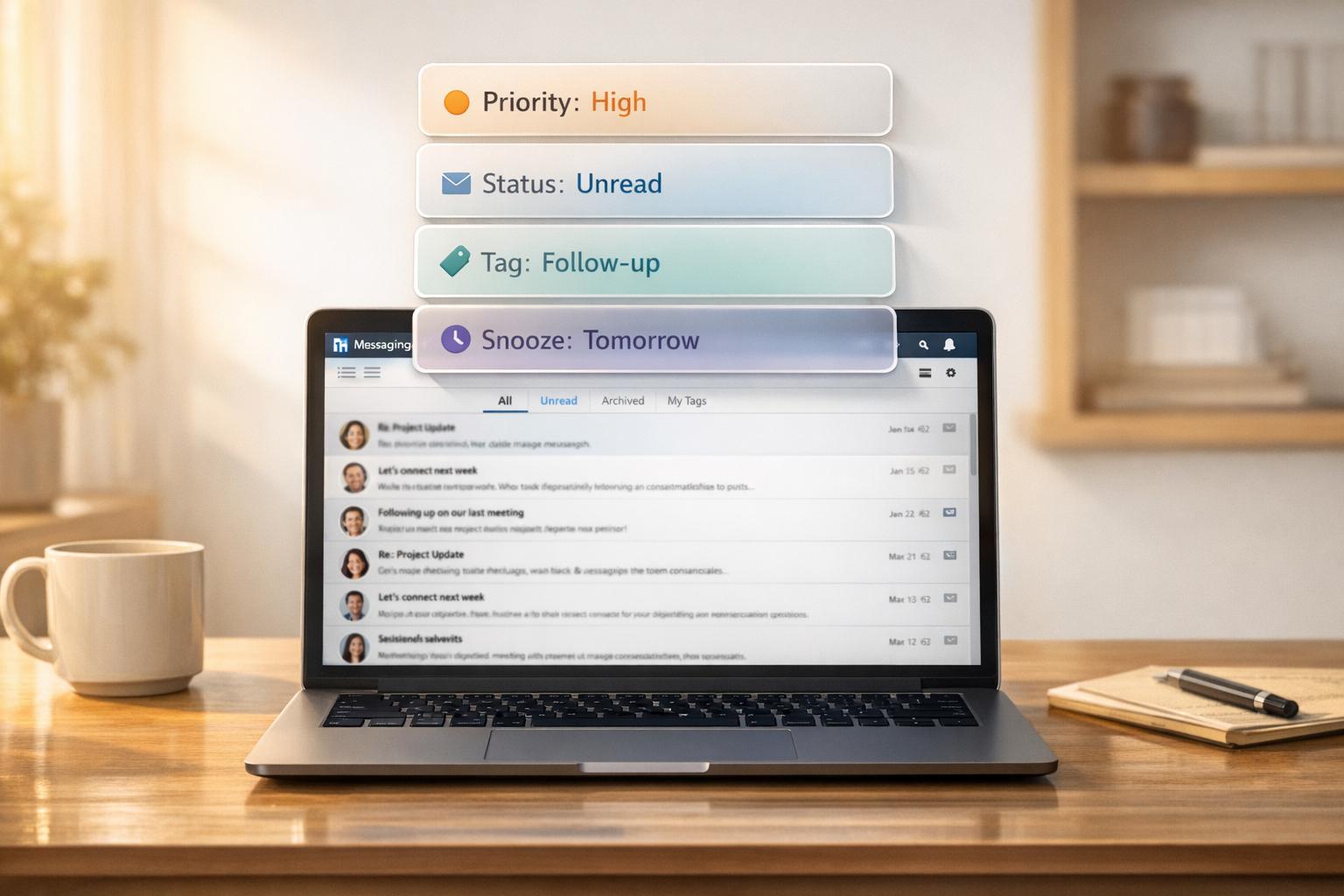
Managing your LinkedIn inbox effectively can save time and ensure you don’t miss important messages. LinkedIn’s built-in filters like Unread, Starred, and My Connections help you organize conversations, but they may not be enough for high-volume users. Tools like Cesar.chat offer advanced features, such as Split Inboxes, Snooze, and custom labels, to prioritize and categorize messages seamlessly.
Here’s a quick breakdown:
- LinkedIn Filters: Basic options like Unread, Starred, and InMail help sort messages but require manual effort.
- Cesar.chat Features: Automates sorting with custom rules, integrates with CRMs like HubSpot, and includes tools like Snooze and AI lead scoring.
- Daily Workflow: Start with triaging unread messages, focus on high-priority leads, and use tools like tags and reminders to stay on track.
For professionals handling numerous conversations, combining LinkedIn filters with Cesar.chat’s features can simplify inbox management and keep you focused on key opportunities.
How to Keep Your LinkedIn Inbox Organized – Messaging Tips for 2024
sbb-itb-3e8f5dc
LinkedIn’s Built-in Message Filters
LinkedIn offers built-in filters to organize your inbox, providing basic sorting options rather than full CRM-level management. These filters include Unread, Starred, My Connections, InMail, and Spam, and they work seamlessly across desktop and mobile platforms. While these tools can help you get started with message organization, they may fall short for users managing large volumes of outreach. They serve as a foundation for more advanced strategies covered later.
How to Access and Use LinkedIn’s Filters
On desktop, access LinkedIn’s filters by clicking the Messaging icon, then using the dropdown menu and the Filter icon in the "Search messages" section. On mobile, tap Messaging, then use the category dropdown or swipe through the filter chips.
Here are the core filters available:
- Focused/Other: Automatically sorts messages based on relevance.
- Unread: Displays messages you haven’t opened yet.
- Starred: Highlights conversations you’ve manually marked as important.
- My Connections: Shows messages from 1st-degree connections.
- InMail: Filters messages from people outside your network.
- Jobs: Focuses on threads related to job opportunities.
- Drafts (mobile only): Displays unsent messages.
To keep your inbox tidy, you can archive conversations once they’re complete. This preserves the message history for future reference without cluttering your main inbox.
How to Use LinkedIn Filters Strategically
- Unread: Start your day by checking the Unread filter to identify new leads and respond to time-sensitive messages.
- Starred: Use this filter to keep track of VIP prospects, such as decision-makers requesting demos or pricing details, ensuring their messages don’t get lost.
- My Connections: Focus on warm leads who have already accepted your connection request. These connections are statistically more likely to engage with your outreach.
A suggested workflow: Begin with the Unread filter for triaging new messages, move to Starred for high-priority follow-ups, and finish with My Connections to nurture warm leads. Archiving conversations after they’re resolved keeps your inbox manageable while retaining a searchable history for future use.
Next, we’ll explore how to use targeted keyword searches to identify high-intent conversations more effectively.
Using Keyword Search to Sort Messages
The "Search messages" bar is a quick way to locate conversations with intent signals. Enter keywords like "pricing," "proposal," "budget," or "next steps" to uncover messages from prospects ready to take action. This approach helps you pinpoint hot leads that might otherwise get buried in your inbox.
However, LinkedIn’s search has its limits. It only supports exact keyword matches and lacks advanced query options or saved searches. This means you’ll need to manually repeat these searches daily. For professionals managing 50+ weekly conversations, this manual process can become overwhelming – highlighting the need for advanced LinkedIn messenger tools to streamline the workflow.
| Filter Type | Strategic Use Case | Best For |
|---|---|---|
| Unread | Daily triage and immediate response | New lead identification |
| Starred | Tracking VIP prospects and active deals | High-priority management |
| My Connections | Warm outreach and existing network focus | Follow-up prioritization |
| InMail | Monitoring cold outreach performance | Paid campaign tracking |
| Archived | Keeping a clean inbox without losing history | Completed conversations |
How to Use Cesar.chat‘s Split Inboxes
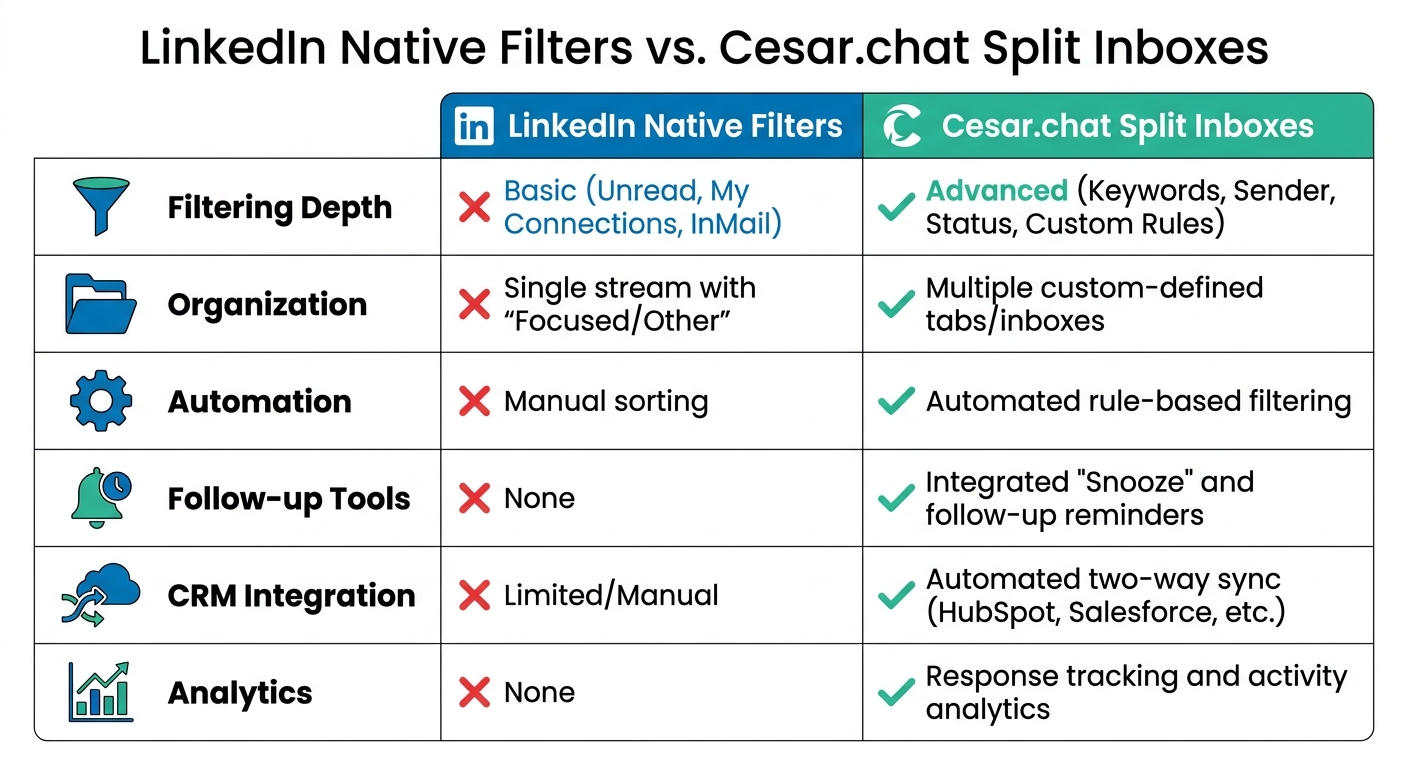
LinkedIn Native Filters vs Cesar.chat Split Inboxes Feature Comparison
LinkedIn’s filters might handle basic sorting, but Cesar.chat’s split inboxes take it a step further, helping you zero in on the conversations that matter most. By using this feature, you can set up custom views for your messages based on factors like sender, keywords, or status, making it much easier to focus on high-priority leads and ongoing conversations instead of wading through a cluttered inbox.
Think of split inboxes as personalized tabs for your messages. For instance, you could set up an inbox for "Replied" messages, another for "Follow-up Needed," and a third for "New Leads." This way, you can quickly identify opportunities that need immediate attention, ensuring no potential revenue slips through the cracks.
Cesar.chat also includes tools like Snooze, which hides messages until a specific follow-up time, and CRM sync, which seamlessly transfers important data to platforms like HubSpot or Salesforce. As the platform explains:
Label conversations and split them into different inboxes to track and prioritize. Never lose a hot opportunity in mess again.
Here’s how you can set up and customize split inboxes to streamline your workflow.
How to Set Up Split Inboxes
Start by heading to your inbox settings to create split inboxes labeled for categories like "Hot Leads," "Awaiting Response," or "Demo Requests."
Next, establish the rules for each inbox. You can filter messages by:
- Sender: Specific individuals or companies.
- Keywords: Terms like "pricing", "budget", or "proposal."
- Conversation Status: For example, messages that are replied to versus those still waiting on a response.
For example, you could set up a rule that directs any message containing the word "demo" straight into your "Hot Leads" inbox. You can assign labels manually or let Cesar.chat handle it automatically based on the rules you’ve defined. These rules are flexible, so you can tweak them as your goals shift. Running a campaign for enterprise clients? Create a temporary inbox that filters messages from specific company domains.
To keep your inbox tidy, use the Snooze feature to hide less urgent messages until you’re ready to deal with them.
LinkedIn Filters vs. Cesar.chat Split Inboxes
Once you’ve configured your split inboxes, you’ll notice a dramatic improvement in how you manage and follow up on conversations. The main advantage Cesar.chat offers over LinkedIn’s native filters is its depth and automation. While LinkedIn provides basic sorting options like "Unread" or "My Connections", Cesar.chat allows for custom rules and automatic organization based on intent signals.
| Feature | LinkedIn Native Filters | Cesar.chat Split Inboxes |
|---|---|---|
| Filtering Depth | Basic (Unread, My Connections, InMail) | Advanced (Keywords, Sender, Status, Custom Rules) |
| Organization | Single stream with "Focused/Other" | Multiple custom-defined tabs/inboxes |
| Automation | Manual sorting | Automated rule-based filtering |
| Follow-up Tools | None | Integrated "Snooze" and follow-up reminders |
| CRM Integration | Limited/Manual | Automated two-way sync (HubSpot, Salesforce, etc.) |
| Analytics | None | Response tracking and activity analytics |
For anyone juggling 50+ conversations a week, split inboxes save you from endlessly searching for specific keywords or scrolling to find unreplied messages. Instead, you can jump straight to the inbox that shows exactly what needs your attention – whether it’s following up on a lead, scheduling a demo, or nurturing a potential client.
How to Use Tags and Labels in Cesar.chat
Tags and labels in Cesar.chat take your message organization to the next level by helping you categorize conversations with specific statuses like "Hot Lead", "Needs Nurture", or "Follow Up Later." This way, you can quickly assess where each conversation stands without diving into every thread.
These labels work seamlessly with your existing tools. Cesar.chat syncs directly with HubSpot and Google Sheets, so when you update a LinkedIn conversation’s status, it automatically reflects in your CRM. This integration saves time and ensures your lead tracking stays consistent across platforms.
As Cesar.chat explains:
Label conversations and split them into different inboxes to track and prioritize. Never lose a hot opportunity in mess again.
- Cesar.chat
Here’s a step-by-step guide to setting up and using tags to keep your LinkedIn inbox organized by priority and status.
How to Create and Apply Tags
Setting up tags in Cesar.chat is simple. Start by creating labels that align with your workflow. Examples include "Hot Lead" for urgent prospects, "Waiting on Response" for pending replies, "Demo Scheduled" for confirmed meetings, and "Needs Nurture" for longer-term opportunities.
You can apply these tags manually as you review conversations or let split inbox rules handle it automatically. For example, if you set up a rule to filter messages containing the word "pricing" into a specific inbox, you can also configure it to auto-apply a "Hot Lead" tag. This dual-layer approach keeps your messages organized and helps track their status throughout the sales process.
The Basic plan ($24/month) includes unlimited labels, so your system can scale with your contact list. The Business plan ($32/month) syncs labels live with up to three integrations, while the Enterprise plan ($40/month) supports unlimited sync destinations. For instance, tagging a conversation as "Closed-Won" in Cesar.chat will instantly update that status in HubSpot.
Once you’ve tagged your conversations, take advantage of the Snooze feature to align follow-ups with each conversation’s priority.
How to Snooze Threads for Follow-Ups
The Snooze feature helps you schedule follow-ups without cluttering your inbox. If a conversation doesn’t need immediate attention but requires action later, snooze it. The thread will temporarily disappear from your main view and reappear at the top of your inbox at the scheduled time, ensuring you never miss a follow-up.
This tool is especially useful for threads tagged as "Follow Up Later" or "Needs Nurture." Pairing Snooze with your tagging system ensures that follow-ups are timely and well-organized.
The Snooze function is available on all paid plans – Basic, Business, and Enterprise – so you can make the most of this feature no matter which tier you choose.
Daily Workflow for Managing LinkedIn Messages
Keeping your LinkedIn inbox organized and addressing high-priority leads efficiently requires a solid daily routine. By dedicating focused time to manage your messages, you can ensure no opportunities slip through the cracks. Tools like Cesar.chat can double your efficiency compared to LinkedIn’s standard interface by offering features such as split inboxes, AI lead scoring, and saved snippets. These tools streamline your workflow and help you focus on what matters most.
Start your day with a quick 10-minute triage session. Open Cesar.chat, review your split inboxes, and identify key conversations right away. The AI scoring system (on a scale of 0–100) helps you prioritize by flagging the most promising leads. Focus on messages tagged as "Hot Lead" or those scoring above 80, and use the snooze feature to temporarily set aside less urgent threads without losing track of them.
For faster responses, take advantage of unlimited snippets (available starting at $24/month). These pre-written templates allow you to reply to common questions – like pricing inquiries or demo requests – while keeping your responses professional and personalized. This approach avoids the pitfalls of automation while saving time.
Additionally, live sync with tools like HubSpot or Google Sheets eliminates the need for manual data entry. Any updates or notes you add in Cesar.chat are automatically reflected in your CRM, making it easier to keep records accurate and up-to-date.
Here’s a quick guide to response times based on lead priority:
| Priority Level | Lead Score | Recommended Response Time | Action |
|---|---|---|---|
| Hot Lead | 80–100 | Within 2 hours | Respond promptly and schedule a call if necessary |
| Warm Lead | 50–79 | Within 24 hours | Send a personalized message and tag appropriately |
| Follow-Up | 30–49 | Within 48 hours | Share a nurture message and snooze for a later check-in |
| Low Priority | 0–29 | Within 72 hours | Acknowledge briefly and snooze for future review |
Cesar.chat Pricing Plans
Cesar.chat is currently in Early Access, offering an exclusive opportunity: the first 1,000 users can access every feature entirely free – no credit card required. So far, 104 of these spots have been claimed, leaving 896 still open. This is your chance to test features like split inboxes, unlimited tags, AI lead scoring, and CRM integrations without any risk.
Once the Early Access period ends and the 1,000-user limit is reached, Cesar.chat will introduce three paid tiers: Basic, Business, and Enterprise. Each plan comes with essential tools for message filtering, such as unlimited labels, saved snippets, and snooze/reminder options. The main differences between the plans lie in AI-powered analytics, CRM integration capabilities, and the level of customer support provided. Here’s a closer look at the details:
Plan Comparison
Here’s how the plans stack up when it comes to message filtering and prioritization:
| Feature | Basic ($19/mo) | Business ($27/mo) | Enterprise ($36/mo) |
|---|---|---|---|
| Message Labels & Tags | Unlimited | Unlimited | Unlimited |
| Saved Snippets | Unlimited | Unlimited | Unlimited |
| Snooze/Reminders | Included | Included | Included |
| AI Lead Scoring | Not included | Included | Included |
| CRM Integrations | Not included | Up to 3 destinations | Unlimited destinations |
| Sales Navigator DMs | Not included | Coming Soon | Coming Soon |
| Support | Standard | Standard | VIP + White Glove Setup |
The Basic plan is priced at $19/month (or $15.20/month with annual billing) and is ideal for those looking to manually organize messages and manage follow-ups. If you’re looking for automated lead prioritization and the ability to sync with tools like HubSpot or Google Sheets, the Business plan is available for $27/month (or $21.60/month annually). For users handling higher volumes and multiple CRM systems, the Enterprise plan at $36/month (or $28.80/month annually) offers unlimited integration destinations and premium support, including white-glove setup.
Conclusion
Prioritizing and categorizing LinkedIn messages helps ensure that important conversations don’t slip through the cracks. Using LinkedIn’s built-in filters like Focused, Starred, and Unread provides an initial layer of organization, making it easier to separate critical messages from less urgent ones. This simple step can save you a lot of time and effort when hunting for key communications.
Cesar.chat takes this organization to the next level with features like Split Inboxes and Tags. These tools allow you to create workflows tailored to your needs, whether you’re managing industry leads, recruitment efforts, or partnership opportunities. The Snooze feature is another game-changer, letting you schedule follow-ups at the perfect time.
By combining LinkedIn’s native tools with Cesar.chat’s advanced features, you can boost your productivity. Start with daily triage techniques to identify priority messages, then use Cesar.chat to sort those messages into actionable categories, respond faster with Saved Snippets, and sync everything to your CRM. This seamless integration simplifies your workflow and strengthens your messaging strategy.
Once you adopt this system, manual message management will feel like a thing of the past.
FAQs
Which LinkedIn message filters should I check first each day?
To keep things organized, begin by using the Unread filter to tackle new messages. Then, switch to the Starred filter to focus on those you’ve marked as important. These tools make it easier to prioritize unopened and high-priority messages, ensuring nothing slips through the cracks.
How do I set up split inbox rules for “hot leads” and follow-ups?
To organize your inbox and stay on top of important messages, tools like Cesar.chat can help you set up split inbox rules. Start by creating categories such as "Hot Leads" and "Follow-ups". Then, establish rules to automatically sort messages into these categories based on specific criteria, like certain keywords or the sender’s email address.
Take advantage of snooze features to set reminders for follow-ups, ensuring you never miss a critical response. Make it a habit to regularly review each category so that high-priority messages are addressed quickly and follow-ups are handled efficiently. This approach keeps your workflow organized and ensures nothing slips through the cracks.
Will my tags and message statuses sync to HubSpot automatically?
No, your tags and message statuses won’t automatically sync with HubSpot. LinkedIn’s filtering and read receipt features don’t have the capability to integrate directly with HubSpot for automatic updates.



