
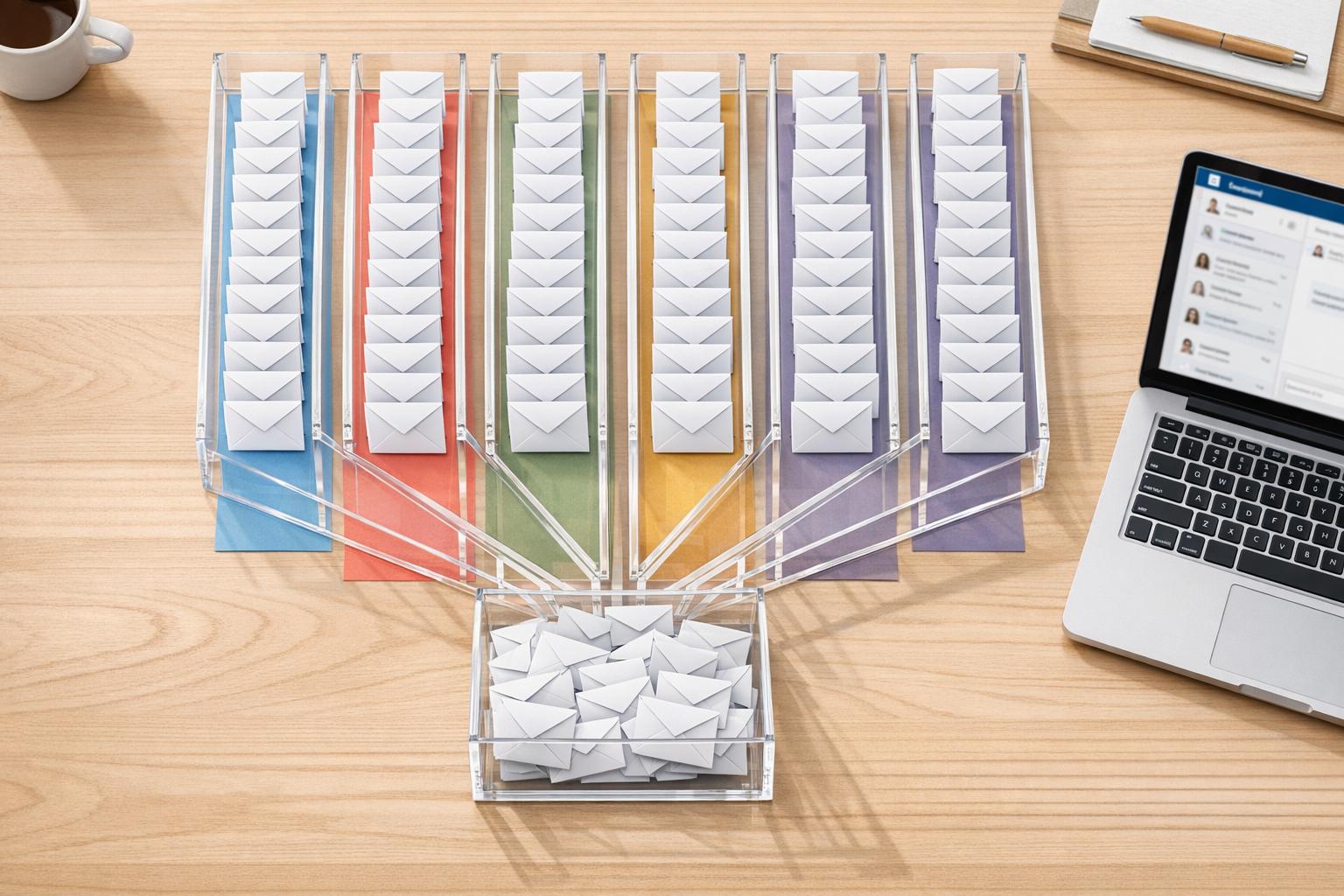
Managing 200+ LinkedIn messages daily? It’s not impossible – but without a system, it can quickly spiral out of control. Missed leads, lost opportunities, and wasted time are common pitfalls. Here’s how to stay on top of your inbox effectively:
- Use LinkedIn’s Filters: Sort messages by unread, starred, or InMail to prioritize.
- Archive Smartly: Keep your inbox clean by archiving inactive or irrelevant threads.
- Focused vs. Other Inbox: Prioritize the Focused tab but check the Other tab periodically.
- Daily Workflow:
- Remove non-actionable messages.
- Respond to quick messages in under 2 minutes.
- Set reminders for follow-ups.
For high-volume users, tools like Cesar.chat can simplify inbox management with features like split inboxes, snoozing threads, and CRM integrations. By combining LinkedIn tools with advanced automation, you can save time and ensure no message goes unanswered.
Key takeaway: A structured approach and the right tools can turn LinkedIn inbox chaos into a manageable process.
How To Manage Your LinkedIn Inbox
sbb-itb-3e8f5dc
Using LinkedIn’s Built-In Inbox Features
Start by mastering LinkedIn’s native tools. If you’re handling over 200 messages a day, these built-in features can help you stay organized and focused. They’re free, easy to access, and can make a big difference when used wisely.
Filtering Messages by Type and Status
LinkedIn’s message filters, located at the top of your inbox, are a game-changer for managing conversations. These filters let you quickly sort and prioritize messages based on your needs. For example, you can filter by Unread messages to focus on new inquiries or use Starred to keep important contacts front and center. If you’re tracking outreach performance, the InMail filter is your go-to. Additionally, searching for keywords like "pricing", "demo", or "proposal" can help you uncover hidden opportunities.
Here’s a quick guide to LinkedIn’s filters:
| Filter Types & Use Cases | |
|---|---|
| Unread | Spot and handle new inquiries efficiently. |
| Starred | Highlight and track VIPs or high-priority contacts. |
| My Connections | Focus on leads who are already part of your network. |
| InMail | Monitor responses and engagement from paid outreach efforts. |
When to Archive or Delete Messages
Keep your inbox clean by archiving inactive or irrelevant messages. Archiving is better than deleting because it keeps the conversation history intact, which you can retrieve later using the Archived filter. Use this feature for cold outreach that hasn’t received a reply in over a month, expired job offers, or conversations that have run their course. To archive a message, click the three dots in the conversation and select "Archive."
Set aside 15 minutes daily to archive or process messages. This small habit can help you maintain a clutter-free, organized inbox without losing important information.
Managing Focused vs Other Inbox
LinkedIn’s AI divides your inbox into Focused and Other tabs. Messages in the Focused tab are typically from prospects, clients, or key connections, while the Other tab houses lower-priority conversations, like cold outreach or less relevant contacts.
Make the Focused tab your priority. Address these messages first to ensure high-value leads get timely responses. If you find an important message in the Other tab, move it to Focused – this helps train LinkedIn’s algorithm. Likewise, move non-urgent messages to Other to declutter your main inbox. Instead of constantly checking the Other tab, schedule time to review it in bulk, either daily or weekly, so you don’t miss anything important while staying focused on top priorities.
These features lay the groundwork for managing a high-volume inbox effectively, helping you stay efficient and responsive.
3-Step Daily Workflow for High-Volume Inboxes
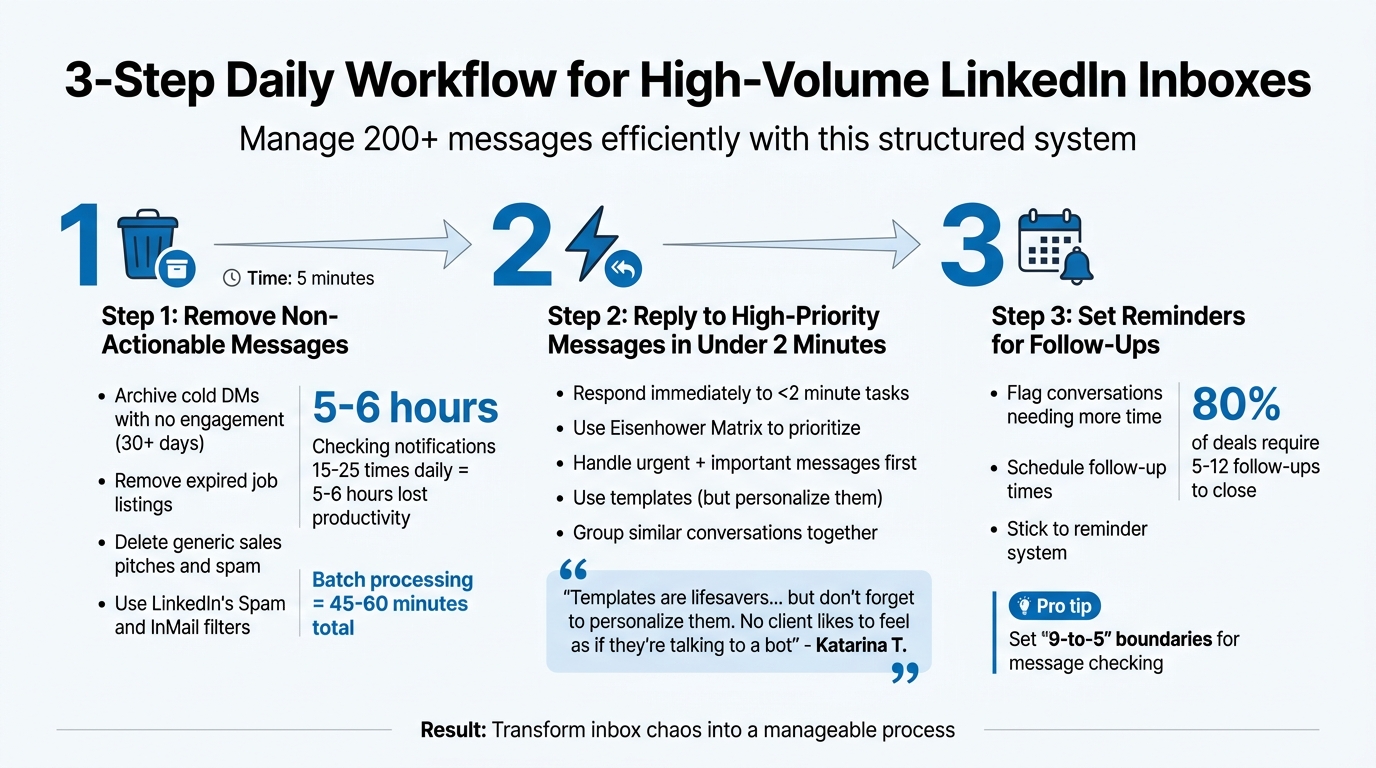
3-Step Daily Workflow for Managing 200+ LinkedIn Messages
Using LinkedIn power user strategies and built-in tools, this workflow is designed to help you manage a high volume of messages efficiently. When dealing with 200+ messages daily, having a structured and repeatable system is essential. This three-step process ensures you can handle your inbox effectively without letting important messages slip through.
Step 1: Remove Non-Actionable Messages
Start each session with a quick 5-minute scan. Go through all unread messages and archive anything that doesn’t require action. This includes cold DMs with no engagement for over a month, expired job listings, generic sales pitches, and spammy promotions.
Leverage LinkedIn’s Spam and InMail filters to speed things up. These tools allow you to bulk-process low-priority messages efficiently. The key here is to treat your inbox as a processing station – not a storage space.
Why batch your inbox sessions? Studies show that checking notifications 15–25 times a day can lead to 5–6 hours of lost productivity. By batching your message processing into two dedicated sessions daily, you can cut that loss down to just 45–60 minutes.
Step 2: Reply to High-Priority Messages in Under 2 Minutes
Once the clutter is cleared, focus on quick wins. Respond immediately to messages that take less than 2 minutes – things like simple confirmations or quick answers. This keeps small tasks from piling up and becoming overwhelming.
For the remaining messages, use the Eisenhower Matrix to prioritize. Address urgent and important messages right away, while scheduling time for more complex ones that require research. For frequently asked questions, saved snippets or templates can save time – but don’t forget to personalize them. As Katarina T., Owner of PrioriKeti, puts it:
"Templates are lifesavers when it comes to repetitive questions, however don’t forget to personalize them a bit. No client likes to feel as if they’re talking to a bot".
To maintain focus, group similar conversations together. If you’re answering pricing questions, handle all of them in one go to stay in the same mindset.
Step 3: Set Reminders for Follow-Ups
Some messages require more time or a delayed response. For these, create a system to ensure you follow up at the right moment. Flag these conversations and schedule follow-up times.
Keep in mind that 80% of deals require between five and twelve follow-ups to close. Missing a follow-up could mean losing an opportunity, so stick to your scheduled reminders.
Tom Patterson, founder of Tommy John, shared how he managed 300–400 daily messages by introducing a "9-to-5" auto-responder in 2017. His message let senders know he’d only check messages before 9 am and after 5 pm EST. Patterson explained:
"It forced me to delegate and empower others to respond. Matters that seemed urgent resolved themselves without 200-plus emails flying across a ‘Reply All’ terrain".
This strategy helped Patterson regain control of his time while setting clear expectations for response times.
How Cesar.chat Improves LinkedIn Inbox Management
Cesar.chat takes LinkedIn’s existing messaging tools and adds a layer of advanced functionality, making it easier to manage high volumes of messages. If you’re receiving 200+ DMs daily, LinkedIn’s built-in tools might not cut it – but Cesar.chat steps in to streamline your workflow without compromising account safety.
Split Inboxes for Organizing Leads and Opportunities
Managing a crowded inbox becomes effortless with Cesar.chat’s split inbox feature. This tool lets you create separate folders for different types of conversations, such as "Hot Leads", "Opportunities", and "General Inquiries." Instead of wading through one long list of messages, you can quickly access the most relevant conversations.
The system uses automatic categorization, routing messages based on keywords, sender details, or content. For instance, any message mentioning "demo" or "pricing" can go straight to your "Opportunities" folder. Users have reported cutting search times by up to 70% with this feature. One venture capitalist, juggling over 250 DMs weekly, reduced their inbox triage time from two hours to just 45 minutes.
The real advantage lies in multitasking. You can focus on high-priority leads in one view while clearing out low-priority messages in another, keeping your inbox manageable and ensuring that important conversations get the attention they deserve. And when it’s time to follow up, Cesar.chat’s snooze feature makes it easy.
Snoozing Threads to Schedule Follow-Ups
The snooze feature allows you to hide threads temporarily and have them reappear at a specific time. Whether you need a reminder in three days or next Monday at 9:00 AM, snoozing ensures that no conversation gets lost. Simply right-click or use Cmd/Ctrl+S to set a snooze duration and add a quick note like "Follow up after proposal sent".
For professionals handling hundreds of messages, this feature is a lifesaver. You can snooze 20–30 less-urgent chats in the morning and have them return when you’re ready. Users have reported a 25% increase in follow-up completion rates when snooze reminders are paired with calendar events.
Using Keyboard Shortcuts and Saved Snippets
Cesar.chat also speeds up your workflow with handy keyboard shortcuts. For example, "A" archives a message, "R" replies, "S" snoozes, "L" adds a label, and Cmd/Ctrl + Enter sends a message. Saved snippets further simplify replies. By pressing Cmd/Ctrl + K and typing a keyword like "thanks", you can pull up a pre-written template, customize it, and send.
This is a game-changer for high-volume users. A recruiter, for instance, managed to reply to 50 interview requests in just 15 minutes, reducing response time from two minutes per message to only 20 seconds. By creating 10–15 snippets for common responses – like pricing details, demo requests, or thank-you notes – you can save half your time while keeping replies personalized with variables like {name} and {company}.
Syncing Conversations with Your CRM
Cesar.chat integrates seamlessly with tools like HubSpot, Salesforce, Pipedrive, Slack, Notion, Google Calendar, and Zapier, connecting you to over 5,000 apps. This bidirectional sync ensures that messages automatically create CRM contacts and deals, complete with LinkedIn profile data, timestamps, and full conversation histories.
Creating Templates and Automating Responses
Once your inbox is organized, the next step is speeding up responses with templates and automation. If you’re dealing with 200+ DMs daily, typing out repetitive replies is a major time sink. A library of saved snippets for common situations – like demo requests, pricing questions, or polite declines – can save you a ton of time. The trick? Keep these templates short and conversational. Skip the formalities like "Dear" or "I hope this finds you well." Instead, write like you’re texting a coworker. Messages under 300 characters for connection requests and 500 characters for DMs tend to get 19% more responses.
Building Saved Snippets for Frequent Questions
Start by identifying the 10–15 questions you get asked most often. Then, create concise, ready-to-use snippets for each. These should be conversational and easy to tweak. Use placeholders like {name} or {company} for quick personalization. For example, a simple decline might look like this:
"Hi {Name}, thanks for reaching out. This doesn’t align with my priorities right now, but I appreciate you thinking of me. Best of luck with {their initiative}!".
Each snippet should focus on one clear goal – whether that’s scheduling a call, sharing a resource, or starting a conversation. Avoid trying to do too much at once, like pitching and closing in a single message.
Setting Up Automated Replies for Standard Questions
Automation works best when it feels like a natural conversation. Instead of generic, one-size-fits-all messages, aim for targeted, problem-focused replies. For example, reaching out to people who’ve already interacted with your content tends to convert at 10–25%, compared to just 1–3% for cold outreach.
Your automated messages should address specific pain points rather than simply listing features. Wrap up with a low-pressure question that’s easy to answer, like, "Worth sharing?". As Chris Cozzolino explains:
"Relevant messages get responses from people with real problems. Personalized messages get responses from people being polite".
Once your automated replies are in place, you can take efficiency a step further by grouping similar conversations together.
Processing Similar Conversations in Batches
Grouping similar conversations together – also known as batching – helps cut down on context switching. This approach is especially useful for handling template-based responses and automated messages, as opposed to general inbox management. Batching can reduce processing time by 40–60%.
Here’s how to do it: First, scan your unread messages to identify urgent items and "quick wins" (those you can respond to in under 2 minutes). Then, sort the rest into categories like "Hot Lead", "Requires Research", or "Low Priority". Work through each category using the same templates to maintain focus and minimize mental fatigue.
Why does this work so well? Once you’re interrupted, it takes an average of 23 minutes and 15 seconds to fully refocus on a task. Batching eliminates these constant interruptions. To make it even more effective, set aside 2–3 blocks of time each day – say 9:00 AM, 1:00 PM, and 5:00 PM – for 20–45 minutes each, depending on the demands of your role.
Maintaining Inbox Zero with 200+ Daily Messages
Inbox zero isn’t about replying to every message the moment it arrives – it’s about creating a system you can stick to that prevents your inbox from spiraling out of control. When managing 200+ messages a day, the key is to process them during planned intervals and keep your inbox clear in between. This means setting boundaries, using smart organization, and reviewing what works best for your workflow.
Scheduling Dedicated Inbox Time Blocks
Constantly checking LinkedIn can derail your focus. Did you know that a single interruption can take 23 minutes to recover from?. Instead, stick to a routine: check your inbox just three times a day, spending 21 minutes per session, and resist the urge to peek at other times. Research shows that limiting inbox checks to three times daily reduces stress and boosts productivity.
Set specific times – like 9:00 AM, 1:00 PM, and 5:00 PM – and block 15–30 minutes on your calendar for this task. Turn off push notifications to avoid distractions. As Lorraine K. Lee wisely said:
"Your best work happens in deep focus, not in your inbox… ‘Always available’ ≠ ‘high performer’."
During these sessions, follow the 4Ds rule:
- Delete: Remove irrelevant messages.
- Do: Handle anything that takes less than 2 minutes.
- Delegate: Pass it along if someone else can handle it.
- Defer: Move bigger tasks (like writing proposals) to a dedicated Tasks folder and schedule them for later.
This structured approach ensures you stay on top of your inbox without letting it dominate your day.
Using Labels to Categorize Conversations
While LinkedIn doesn’t have built-in labeling, you can still create a system to keep things organized. Use predefined keywords, like "Hot Lead", "Follow-Up", or "Meeting Scheduled", in your messages. This way, you can easily find them later using LinkedIn’s search function.
For those managing high volumes, third-party tools can help by adding tags based on sales stages. A simple color-coded system works wonders for prioritization:
- Red: Hot leads.
- Yellow: Follow-ups.
- Green: Scheduled meetings.
- Gray: Archived conversations.
This method transforms your inbox into a streamlined processing hub, making it easier to manage conversations and stay focused on your goals.
Monitoring Response Rates and Performance Metrics
Good organization is just one piece of the puzzle. To refine your approach, keep an eye on performance metrics. Start with your Social Selling Index (SSI) – a score from 0 to 100 that measures your professional brand and engagement. A score above 70 is ideal for strong visibility. But instead of obsessing over total response rates, focus on the quality of responses – like the number of meetings booked.
Here’s an example: In late 2025, Chris Cozzolino tested two LinkedIn outreach strategies over 30 days. By switching from highly personalized messages to shorter, 47-word messages focused on key pain points, his response rate dropped from 35% to 28%. However, the number of qualified buyers booked for meetings jumped from 3 to 10 – a 233% increase in meaningful outcomes.
Also, track your connection acceptance rate. If it’s under 40%, it might be time to tweak your profile or outreach strategy. Finally, monitor your message volume to stay within LinkedIn’s weekly limit of around 200 connection requests. Stick to these practices, and you’ll maintain inbox zero while keeping your workflow efficient.
Wrapping It Up
Tackling over 200 LinkedIn messages daily might sound overwhelming, but with a straightforward, organized system, it’s entirely doable. By using LinkedIn’s built-in tools – like filters and archiving – paired with a simple 3-step daily process, you can turn your inbox into a well-oiled communication machine that supports your business goals.
Tools like Cesar.chat take it a step further, offering features like split inboxes, snoozing messages, keyboard shortcuts, and saved snippets. These capabilities not only cut response times in half but also help streamline your sales efforts. Users have even reported a 25% boost in lead conversion rates. It’s all about integrating these tools seamlessly into your routine to maximize efficiency and results.
FAQs
How many times a day should I check LinkedIn messages?
To keep things organized and ensure timely responses, make it a habit to check your LinkedIn messages several times a day. This helps you stay connected and avoid missing important conversations.
One effective approach is using the 4D method: decide whether to do it, delegate it, defer it, or delete it. Pair this with setting specific times during your day for handling messages. These strategies can help you manage your inbox efficiently without feeling overwhelmed.
What’s the fastest way to avoid missing follow-ups?
To keep track of follow-ups on LinkedIn, try using a structured inbox system like the Inbox Zero method, which employs the 4D approach: Do, Defer, Archive, Label. Set aside specific times to sort through your messages and prioritize them. Additionally, tools like Cesar.chat can simplify the process by automating follow-up reminders, snoozing threads, and organizing conversations into categories like "Follow-ups" or "Hot Leads." This way, you can manage important messages more effectively without letting anything slip through the cracks.
How can I use templates without sounding like a bot?
To keep your communication feeling natural, make your templates more personal by adding the recipient’s name or referencing specific details from your interaction. Take the time to review and tweak each response so your tone comes across as warm and conversational. Striking this balance between personalization and efficiency ensures your messages remain relatable while still benefiting from the convenience of templates.



