
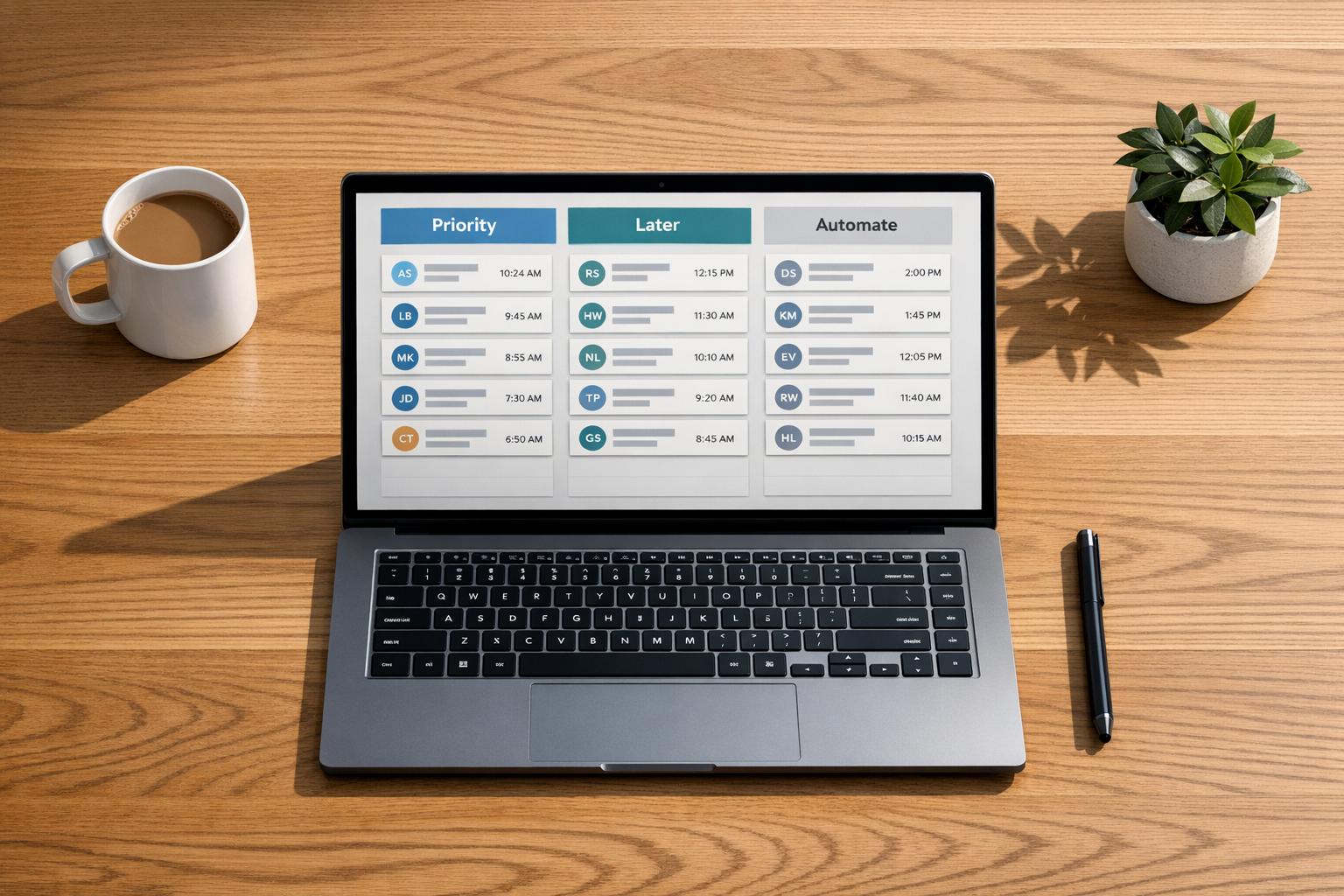
Managing over 50 LinkedIn messages daily can feel overwhelming, but it doesn’t have to be. Here’s how to regain control of your inbox and save hours each week:
- Batch Process Messages: Set aside 2–3 specific times daily to handle your inbox, cutting sorting time by up to 60%.
- Use a Priority System: Focus on urgent leads first, reply to warm connections within the day, and archive low-priority or spam messages immediately.
- Leverage LinkedIn Tools: Use features like Focused/Other tabs, starred messages, and filters to organize and streamline your workflow.
- Adopt Automation Tools: Tools like Cesar.chat offer split inboxes, message templates, and CRM integrations to simplify and speed up message management.
- Weekly Inbox Review: Dedicate 30–60 minutes weekly to review flagged threads, update templates, and track response times.
LinkedIn Inbox Management for Beginners (2026)
sbb-itb-3e8f5dc
Use the Inbox Zero Method
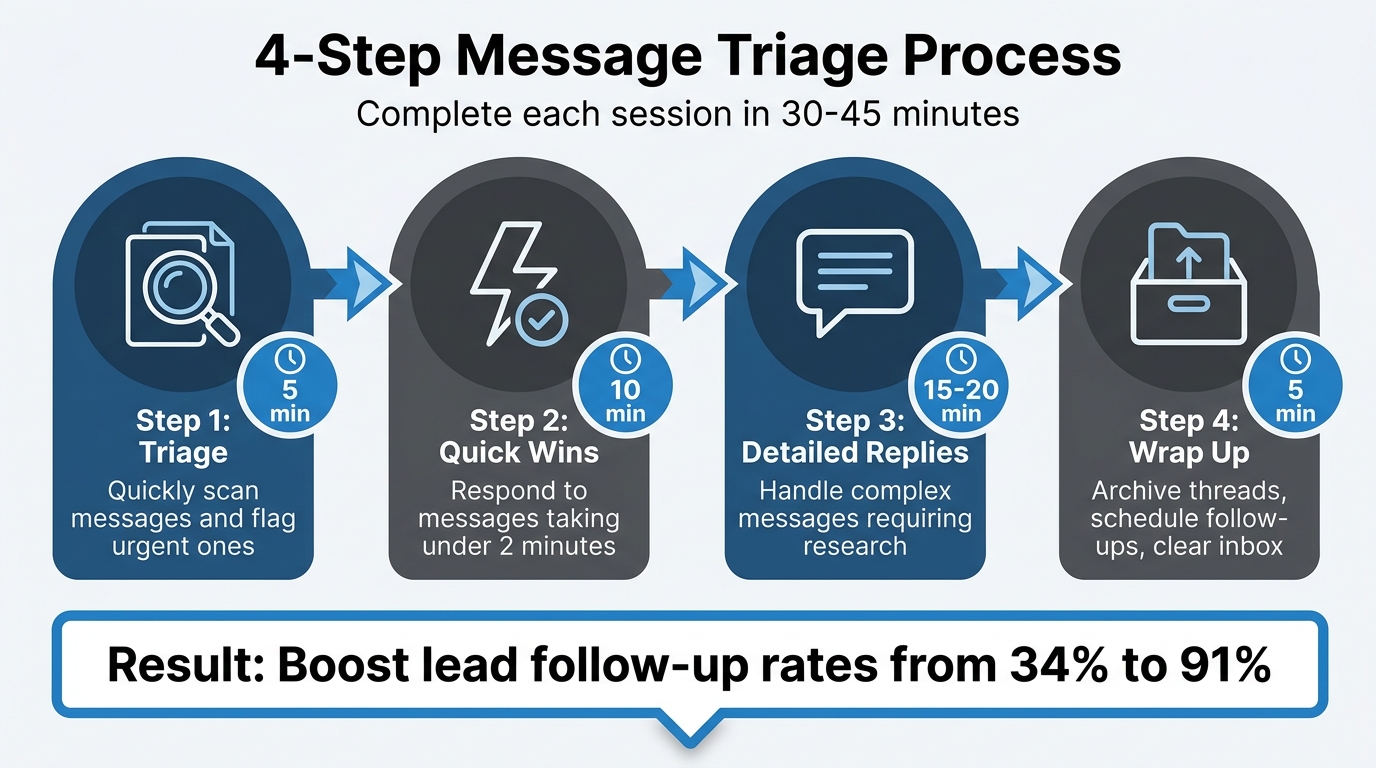
4-Step LinkedIn Message Triage Process for Managing 50+ Daily Messages
The Inbox Zero method treats your inbox as a workspace, not a storage bin. If you’re managing 50+ LinkedIn messages daily, the goal is to process each one and keep your inbox clear. Why? Research shows it takes about 23 minutes and 15 seconds to fully refocus after an interruption. On top of that, constant notifications can drain 3–4 hours of productivity daily. By batching your LinkedIn messages – setting aside 2–3 specific times a day to handle them – you can cut your LinkedIn time by 40–60%.
Set Daily Clear-Out Goals
Plan fixed times each day to tackle your inbox. For example, sales professionals might schedule three 30–45 minute sessions (e.g., 9:00 AM, 1:00 PM, and 5:00 PM), while executives might get by with two shorter sessions of 20–30 minutes. To stay focused, turn off all push notifications between these sessions.
Each session should follow four steps:
- 5 minutes for triage: Quickly scan messages and flag urgent ones.
- 10 minutes for quick wins: Respond to messages that take under two minutes.
- 15–20 minutes for detailed replies: Handle more complex messages.
- 5 minutes to wrap up: Archive threads, schedule follow-ups, and clear your inbox.
This structured approach has been shown to boost lead follow-up rates from 34% to 91%.
Create a Priority System
Organize your messages by priority:
- Hot leads: These are active buyers or decision-makers who’ve shown interest. Respond to them immediately during your current session.
- Warm contacts: Existing connections or potential opportunities should get a same-day reply.
- Messages needing research: Save these for your next scheduled session.
- Low-priority messages: Generic networking requests can wait – or be ignored.
- Spam: Archive or delete irrelevant pitches on the spot.
This system ensures you’re focusing on what matters most – high-value conversations – while keeping your inbox manageable. To make this even easier, take advantage of LinkedIn’s built-in tools for organizing and sorting messages.
Use LinkedIn’s Built-In Organization Features
LinkedIn offers some handy tools to help you stay on top of your messages and make your daily workflow more efficient. The platform automatically organizes your inbox into Focused, Other, Archived, and Spam categories. Here’s how it works: the Focused tab highlights your most important conversations – think active leads, key connections, and meaningful exchanges. Meanwhile, the Other tab gathers less urgent messages, like automated outreach. This automatic sorting ensures you can focus on high-priority conversations without getting bogged down in clutter.
Pin, Archive, and Filter Messages
First, take advantage of the filter icon to sort your inbox. You can quickly display Unread messages to catch anything you might have overlooked, check Starred conversations for important follow-ups, or focus on messages from My Connections to prioritize your established network over cold outreach.
On desktop, you can access these options by clicking the Messaging icon and selecting filters from the dropdown menu. On mobile, simply swipe through the filter options to see the full list.
Here’s how to use these features effectively:
- Starred Messages: Think of this as your go-to bookmark for conversations that need follow-ups or immediate attention.
- Archived Conversations: Tidy up your inbox by moving completed threads here, keeping things streamlined.
To fit these tools into your daily routine, use filters strategically:
| Filter Type | Purpose |
|---|---|
| Focused | Keep track of active conversations and top-priority leads. |
| Starred | Quickly access messages that need urgent responses or follow-ups. |
| Unread | Double-check for any new inquiries you might have missed. |
| InMail | Review outreach from recruiters or prospects outside your network. |
| Archived | Store completed conversations for future reference. |
Use Labels to Categorize Messages
If you want to take your organization a step further, consider categorizing messages with labels. While LinkedIn doesn’t offer custom labels, you can still achieve a similar effect by pairing the Starred feature with keyword searches. For example, searching for terms like "demo", "proposal", or specific company names can help you quickly locate relevant threads without scrolling endlessly.
Don’t forget to check the Other tab occasionally. LinkedIn’s filters aren’t perfect, and you might find a legitimate networking opportunity that was misplaced there.
The InMail filter is especially helpful for sorting cold outreach from people outside your immediate network. This lets you focus on conversations with your existing connections while still keeping tabs on new opportunities. For even better results, combine multiple filters to sort messages more precisely and ensure timely responses.
Use Time-Saving Tools and Automation
Once you’ve organized and prioritized your LinkedIn inbox with built-in features, you can take things up a notch by using tools like Cesar.chat. Managing 50+ messages daily is no small feat, and LinkedIn’s native tools often fall short. Cesar.chat, a desktop app that integrates directly with LinkedIn via its official API, offers advanced organization features to make your workflow smoother and more efficient.
Cesar.chat Split Inboxes for Prioritization
One of the biggest pain points of LinkedIn’s inbox is the lack of custom folders or categories. Cesar.chat solves this with Split Inboxes, letting you group messages into categories like prospects, follow-ups, and personal messages. It even consolidates messages from LinkedIn and Sales Navigator into one view, where you can filter by priority or status. Want more control? You can create and sync conversation labels, making your inbox organized and easy to search.
Once you’ve neatly categorized your conversations, you can speed things up even more with quick replies using saved snippets.
Use Snippets and Message Templates
Typing out the same responses repeatedly wastes valuable time. With Cesar.chat’s unlimited snippets, you can reply in half the time while still keeping your messages personal. These snippets are designed for manual use, not automation, ensuring your interactions remain authentic. For example, keep follow-up snippets short – under 75 words – and customize them for each recipient. A simple 3-touch sequence over 14 days often works well.
Snooze Threads for Follow-Ups
Another way to stay on top of your inbox is by using the Snooze feature. Instead of letting important threads get buried, snooze them to pop back up at a specific time.
"Snooze conversations to bring them back to the top of your inbox later. No more scrolling around to find who to follow up with." – Cesar.chat
To make this even more effective, combine snoozing with labels. For instance, tag a conversation as "Hot Lead" or "Follow-up" before snoozing it. When the thread resurfaces, you’ll immediately know its priority and context. This method aligns with the Inbox Zero philosophy, clearing non-urgent messages from your view while ensuring nothing slips through the cracks. Plus, you can sync snoozed and labeled conversations directly to your CRM – whether it’s HubSpot, Salesforce, or Google Sheets – through Cesar.chat’s integrations, eliminating the need for manual data entry.
Connect Your Inbox with CRM and Productivity Tools
Linking your LinkedIn inbox to CRM and productivity tools can save you from the headache of manual data entry while keeping your workflows smooth. By syncing data automatically, you can speed up response times by 40-50% and avoid the dreaded data silos.
Here’s the proof: The HubSpot State of Sales Report 2024 revealed that 78% of salespeople using CRM integrations report greater productivity and faster deal closures. Meanwhile, the Salesforce 2025 Customer Trends Report highlights a 25% boost in lead conversion rates for teams integrating LinkedIn with CRMs. Why? Better data consolidation. These aren’t just minor tweaks – they’re game-changers for keeping your pipeline clean and organized instead of losing deals in a messy inbox.
Let’s break down how syncing your messages with a CRM can sharpen your data accuracy and enhance workflow efficiency.
Sync Messages with CRMs
Cesar.chat makes it easy to sync your LinkedIn inbox with CRMs like HubSpot and Salesforce in real time. Conversations, labels, and notes are automatically pushed to your CRM, so when a prospect messages you, their full conversation history is instantly available in their contact record. For example:
- In HubSpot, LinkedIn messages appear in the "Conversations" tab.
- In Salesforce, they’re added to the Activity timeline in order.
Bidirectional syncing takes it a step further. You can log activities, create tasks, or even update deal stages directly from your LinkedIn message thread. Imagine this: A prospect asks about pricing. You can create a Salesforce task, assign it, schedule a follow-up for May 15, 2026, and move the deal stage to "Negotiation" – all without leaving the conversation. This automation not only keeps your CRM updated but also prevents duplicate outreach, saving teams over 5 hours every week by cutting out manual logging.
Connect with Productivity Tools
CRMs aren’t the only tools that can supercharge your LinkedIn inbox. Cesar.chat also integrates with Slack and Google Sheets to keep your team on the same page.
- Slack Integration: Set up alerts for high-priority LinkedIn messages. For instance, when a Fortune 500 prospect reaches out, a notification pops up in your #linkedin-leads Slack channel. It includes their profile summary, a preview of their message, and a direct link to respond. Your team can then triage messages during business hours (9:00 AM–5:00 PM EST) without constantly checking LinkedIn.
- Google Sheets Integration: Create a live, searchable database of LinkedIn conversations with label columns. This allows your team to track conversations efficiently. And soon, with the upcoming Notion integration, you’ll be able to convert key conversations into actionable tasks. These tasks will include structured records like the prospect’s company, industry, message date, and status. You can even test the system with 10 sample conversations to ensure the data syncs correctly.
Set Up a Weekly Inbox Review Routine
Even with efficient workflows in place, your LinkedIn inbox benefits from regular upkeep. Dedicate 30-60 minutes every Friday afternoon to review your inbox. This simple habit ensures your system stays efficient and prevents small tasks from piling up into bigger headaches.
Start by auditing snoozed and flagged threads. Check if high-value leads need a follow-up or if the timing for outreach needs tweaking. For instance, a "Hot Lead" flagged two weeks ago might require a quick nudge, while a "Warm Contact" could be ready to move forward. Then, take a closer look at your label system. If you notice trends – like an increase in partnership inquiries or support-related messages – create new categories to match these patterns. Keeping your inbox aligned with evolving priorities ensures smoother management. This review naturally transitions into improving your messaging approach and syncing your data.
Evaluate how your message templates and snippets are performing. If certain responses took too long to get replies or were ignored altogether, adjust the wording to make them more engaging and tailored. After updating your templates, double-check that all key conversations from the week have synced properly with your CRM or tools like HubSpot or Salesforce.
During this review, track your performance metrics. Pay attention to how much time you’re spending on LinkedIn daily, your average response time, and any conversations that may have slipped through the cracks. Research shows that checking LinkedIn 10 times a day can lead to nearly 4 hours of lost productivity due to context-switching. If this sounds familiar, consider adjusting your notification settings and grouping your message handling into fewer, more focused sessions.
"By spotting these patterns, you can fine-tune your approach, reallocate resources and make sure every DM gets the attention it deserves." – Sprout Social
This routine isn’t about chasing perfection – it’s about steady improvement. Each weekly review helps you pinpoint what’s working and what needs tweaking, enabling you to manage 50+ messages without feeling overwhelmed.
Wrapping It Up
Handling over 50 LinkedIn messages a day doesn’t have to feel overwhelming or chaotic. The secret lies in blending structured workflows with smart tools. Approaches like the Inbox Zero method, leveraging LinkedIn’s built-in features (like pinning and archiving), and establishing a clear priority system can help you stay on top of your inbox without losing track of important conversations.
Tools such as Cesar.chat make the process faster and more efficient. With features like split inboxes, snooze reminders, unified views for LinkedIn and Sales Navigator messages, and AI-powered lead scoring, you can manage messages in half the time. Plus, it syncs seamlessly with platforms like HubSpot and Salesforce.
Adding a weekly inbox review to your routine ensures nothing gets missed. Using message templates and automating workflows can also keep your CRM updated without the need for manual input. And by batching your messages into dedicated focus sessions, you can reclaim a significant chunk of your productivity.
FAQs
What should I do if I can’t reply to every LinkedIn message?
If responding to every LinkedIn message feels overwhelming, you can focus on staying organized and prioritizing effectively. Tools like CRM integrations can help centralize your communication, making it easier to track key interactions. You can also set up custom notifications for important messages and categorize your inbox into sections like "Hot Leads" or "Follow-ups" to streamline your workflow.
Another helpful tactic is using the inbox zero method with the 4D approach:
- Do: Respond to messages that require immediate attention.
- Defer: Schedule time to reply later if it’s not urgent.
- Archive: Move messages you don’t need to act on but want to keep for reference.
- Label: Organize messages into categories for easy access.
This strategy allows you to manage your LinkedIn inbox efficiently while avoiding the pressure of replying to every message right away.
How do I decide which messages are “hot leads” vs. low priority?
Hot leads are those golden opportunities in your inbox – messages from people who are genuinely interested in what you offer. These contacts typically respond quickly, ask specific questions, or match your target audience based on factors like industry or job title. Another clue? They might have recently interacted with your posts or content.
On the flip side, low-priority messages come from contacts who are less engaged or don’t align with your ideal customer profile. These could be people outside your target audience or those showing minimal interest.
To keep your focus where it matters, use tools like categorization features. They help you prioritize high-value conversations and manage your inbox more efficiently.
How can I connect LinkedIn messages to my CRM without manual logging?
You can integrate automation tools to sync your LinkedIn messages directly with your CRM. These tools link your LinkedIn and CRM accounts, allowing you to set up sync preferences and automatically log messages, notes, and tags. For instance, Cesar.chat simplifies this process, removing the need for manual updates and ensuring your data is updated in real-time or on a set schedule. This approach not only saves time but also keeps your communications neatly organized.



