Managing LinkedIn messages effectively can save you hours and improve your professional success. Whether you’re a recruiter, salesperson, or networker, these three methods will help you stay organized, prioritize high-value conversations, and boost response rates:
- Triage and Prioritization: Categorize messages into urgent, important, and non-urgent tiers. Use tools like LinkedIn’s Focused Inbox and custom labels to keep your inbox organized.
- Snooze and Reminder Workflow: Snooze less-urgent messages and set automated reminders to follow up at the right time, ensuring no leads are forgotten.
- Templates with Personalization: Save time with pre-written message templates, but always add a personal touch to stand out and increase reply rates.
3 Methods to Manage LinkedIn Messages Effectively
Method 1: Triage and Prioritization System
3-Tier Categorization for Messages
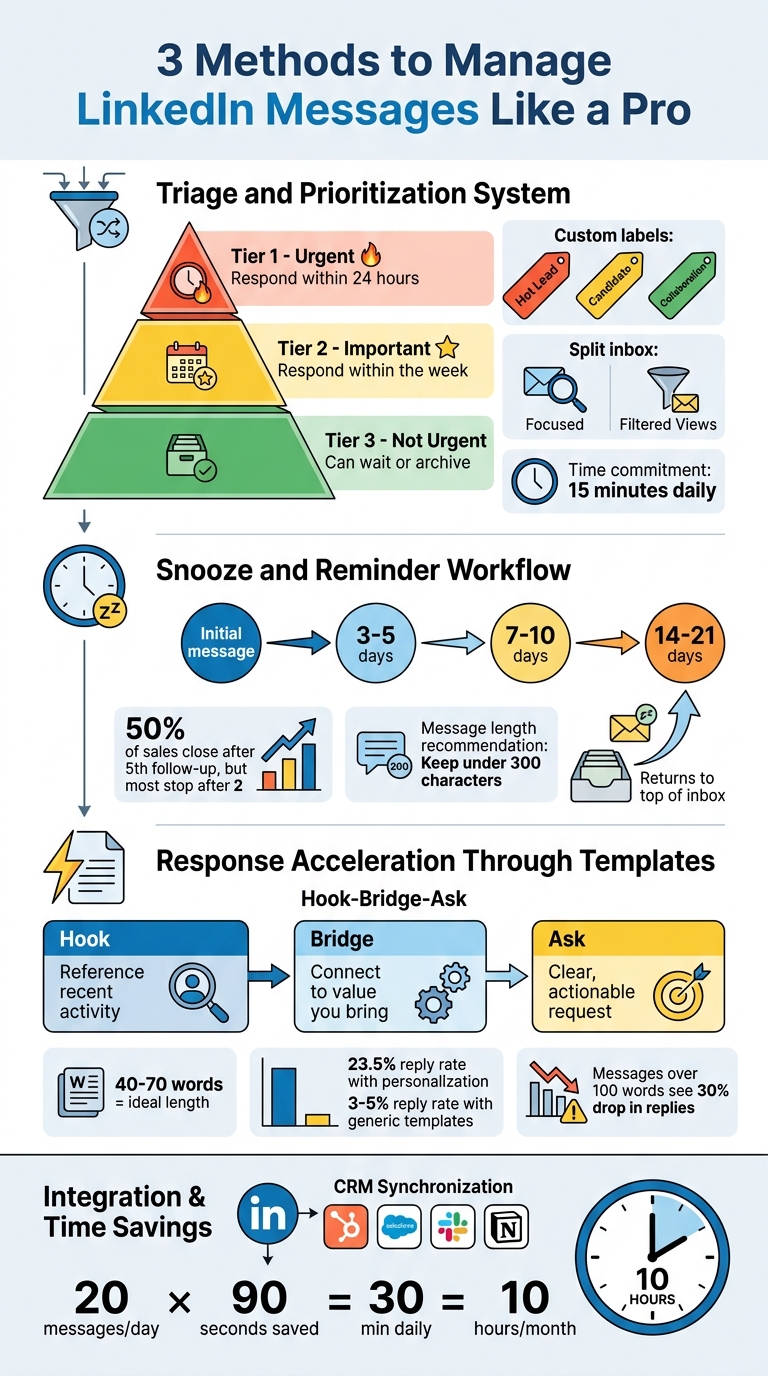
Organize your messages into three clear categories: Urgent (respond within 24 hours), Important (respond within the week), and Not Urgent (can wait or be archived). This approach helps cut through the clutter and focus your energy where it’s needed most.
Take advantage of LinkedIn’s "Focused" inbox for messages requiring immediate attention, while moving less pressing conversations to the "Other" tab. For key discussions that need to stay visible, use the "Star" feature to keep them front and center. Dedicate just 15 minutes a day to triaging your inbox, and you’ll be on your way to achieving Inbox Zero on LinkedIn.
Once you’ve sorted your messages by urgency, you can refine this method further by creating categories tailored to your specific role.
Custom Labels for Different Roles
Standard categories might not cover everything, especially if you’re juggling a variety of conversations. For instance, sales professionals can tag messages as "Hot Lead" or "Generic Reply," while recruiters might label inquiries as "Candidate." Networking professionals could use tags like "Collaboration" to quickly identify valuable opportunities. These tailored labels save time and make it easier to locate critical messages when you need them.
Tools like Cesar.chat make this even simpler by allowing unlimited custom labels for better organization. Adding strategic keywords to your labels also makes searching for specific conversations a breeze.
Using Split Inboxes to Separate Messages
A split inbox is a game-changer for managing priorities. Instead of wading through all your messages, you can create focused views for specific types of conversations. For example, one view might display only unread messages flagged as "Hot Lead," while another might focus on recruiting-related threads.
Cesar.chat’s split inbox feature lets you create multiple views based on your custom labels, allowing you to manage your inbox without distractions. Pair this with LinkedIn’s built-in filters – like "Unread", "InMail," and "Spam" – to efficiently handle different message categories and save time.
This triage system sets the stage for smoother follow-ups and more effective use of automated responses.
sbb-itb-3e8f5dc
Method 2: Snooze and Reminder Workflow
Why Snoozing Works Better Than Marking as Unread
Marking messages as unread can quickly clutter your inbox, making it harder to find important conversations. Critical threads often get lost under less urgent notifications, like connection requests or updates.
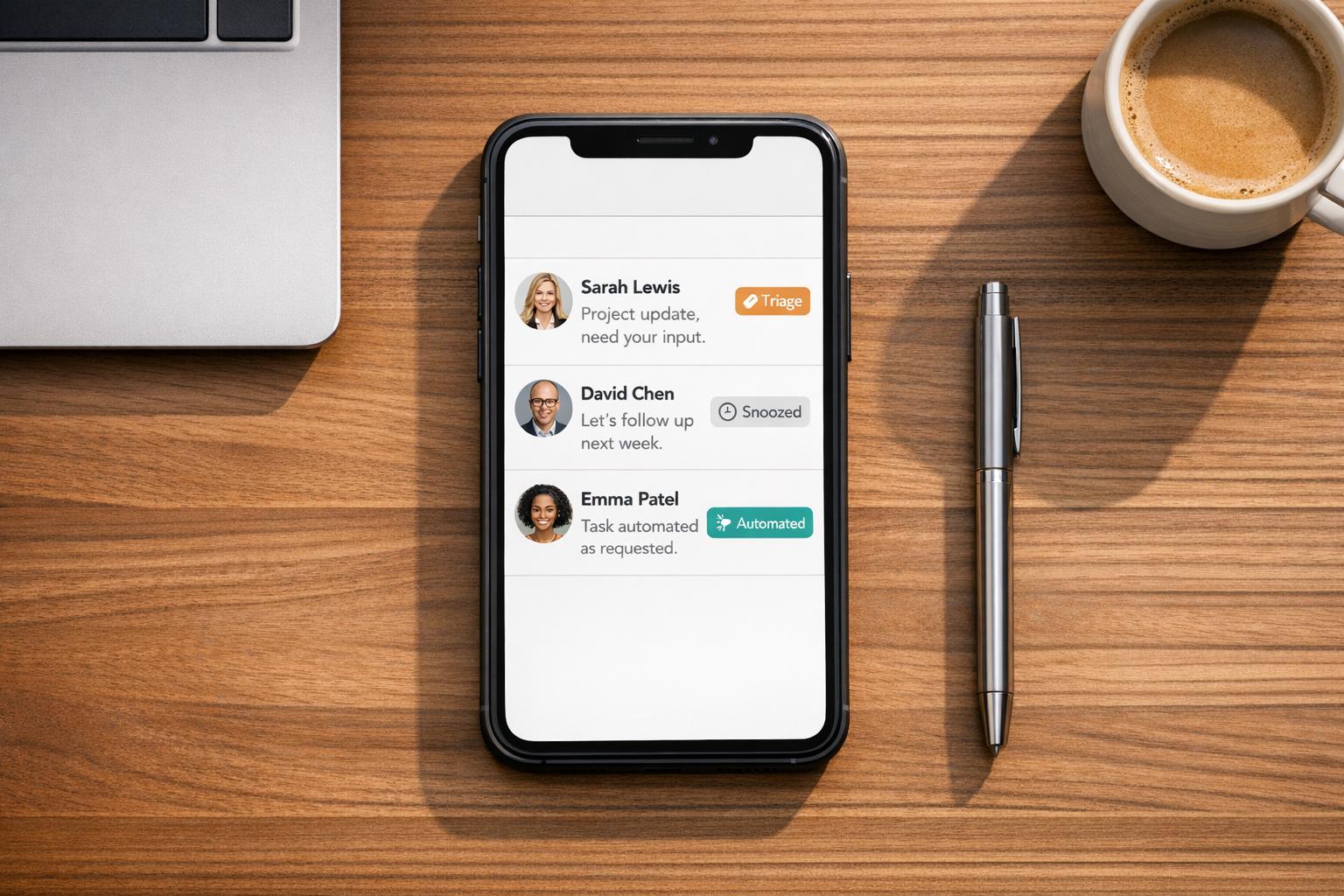
Snoozing offers a cleaner, more effective approach. It temporarily removes messages from your inbox until you’re ready to address them, helping you stay focused. This workflow aligns with the Inbox Zero method, ensuring your inbox remains organized. When the scheduled time arrives, the snoozed message pops back to the top of your inbox, so you never miss a follow-up. A handy feature in Cesar.chat even cancels a scheduled reminder if the recipient responds before your follow-up time, saving you from sending unnecessary messages.
Now, let’s explore how to set up reminders that help you stay on top of your follow-ups.
How to Set Reminders for Follow-Ups
Once you’ve triaged your inbox, the next step is setting reminders to ensure no conversation falls through the cracks.
Using Cesar.chat, setting reminders is simple. Press H to snooze a conversation and schedule when it should return to your inbox. The reminder stays linked to the specific LinkedIn thread, so you don’t lose the context of the original conversation. This is far more efficient than relying on manual calendar reminders, which often require digging through old messages.
A good follow-up cadence might look like this: send a follow-up 3–5 days after the initial message, another 7–10 days later, and a final one 14–21 days after that. Keep your follow-up messages under 300 characters for better response rates. Instead of a generic "just checking in" note, try adding value by sharing a useful article, case study, or insight.
This structured reminder system not only keeps you on track but also sets the stage for automating your workflow.
Reducing Mental Load with Automation
Snoozing also helps lighten your mental load. With snoozed messages out of sight until action is needed, you avoid the constant stress of scanning your inbox for follow-ups you might have missed.
Cesar.chat takes this a step further by syncing with CRMs like HubSpot and Salesforce. It automatically tracks follow-up statuses, eliminating the need for manual data entry. Your team can easily see the full conversation history and any scheduled reminders, reducing the chances of duplicate outreach or missed opportunities.
This combination of snoozing and automation keeps your workflow smooth and stress-free.
Method 3: Response Acceleration Through Templates and Automation
Creating and Using Saved Message Templates
Streamlining your messaging process saves time and ensures consistency in communication. Sending the same type of message repeatedly can be a time sink, but templates offer a practical solution by providing a pre-written framework for common scenarios.
Start by identifying the five to seven message types you use most frequently. For example, sales professionals often rely on templates for outreach addressing pain points or requesting feedback. Recruiters might need templates designed for skill-specific roles or inquiries about remote positions. Meanwhile, networking templates could focus on alumni connections or seeking advice.
A helpful structure for these templates is the Hook-Bridge-Ask framework. Here’s how it works:
- Hook: Reference a recent activity or event related to the recipient.
- Bridge: Connect that activity to the value you bring.
- Ask: Include a clear, actionable request.
Keep your templates concise – 40 to 70 words is ideal for higher response rates. Messages exceeding 100 words tend to see reply rates drop by about 30%.
Tools like Cesar.chat let you save and organize an unlimited number of snippets, which you can quickly insert with simple keyboard commands, making the process even more efficient.
Balancing Templates with Personalization
While templates save time, they shouldn’t feel robotic. Personalization is crucial, especially when reaching out to professionals who likely receive multiple unsolicited messages each week. The median B2B professional, for instance, gets 11 such messages on LinkedIn alone. Using generic templates with basic merge fields (e.g., "I noticed you’re a {title}") often results in reply rates as low as 3–5%.
To stand out, tailor your opening line with specific details that show you’ve done your research. For instance, referencing a recent post they shared, a company achievement, or a mutual connection can significantly boost response rates. Messages with this level of personalization have been shown to achieve reply rates as high as 23.5%.
"The message matters more than the messenger. Always has. The tools just help you write better messages at a pace that makes outbound viable." – Ibby Syed, Founder, Cotera
The focus of modern automation tools has shifted toward quality over quantity. By combining concise templates with meaningful personalization, you can ensure your messages feel authentic.
Using Keyboard Shortcuts for Speed
Once your templates are polished, the next step is maximizing speed. Tools like Cesar.chat allow you to insert saved snippets with quick keyboard shortcuts, eliminating the need for mouse clicks and reducing the time spent switching between tasks.
This efficiency can have a noticeable impact. For example, if you send 20 messages per day and save 90 seconds per message, that adds up to 30 extra minutes daily. Over the course of a month, this translates to approximately 10 hours that can be redirected to building relationships or focusing on strategic initiatives.
Pair these shortcuts with the prioritization system from Method 1. With just a keystroke, you can insert a template, personalize it with relevant details, and move on to the next task – keeping your workflow smooth and your productivity high.
How I Organize LinkedIn Inbox (So I Don’t Miss Leads)
Connecting Messaging Methods with Productivity Tools
Integrate these messaging techniques into your existing tools to streamline workflows and boost efficiency.
Syncing with CRM and Other Tools
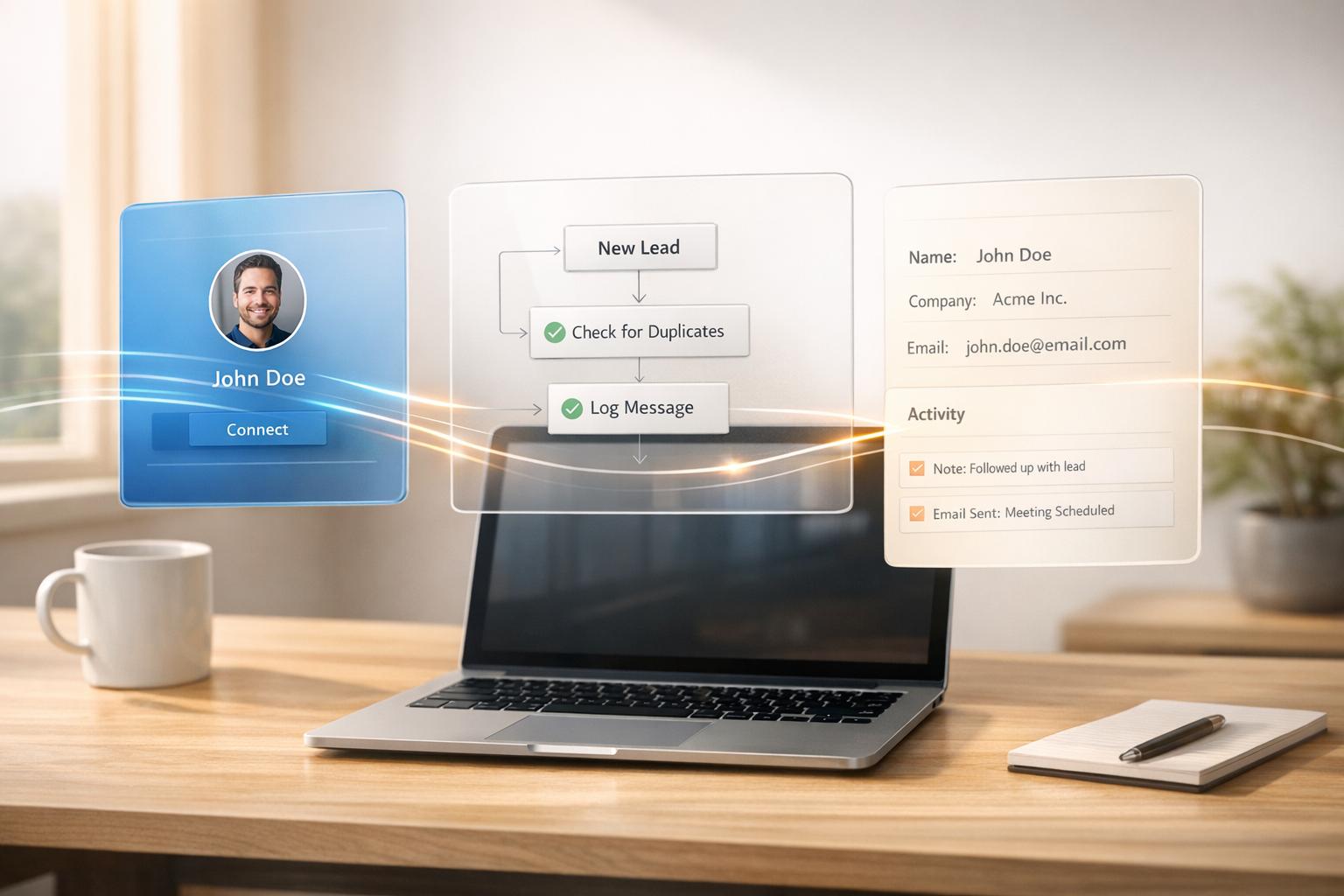
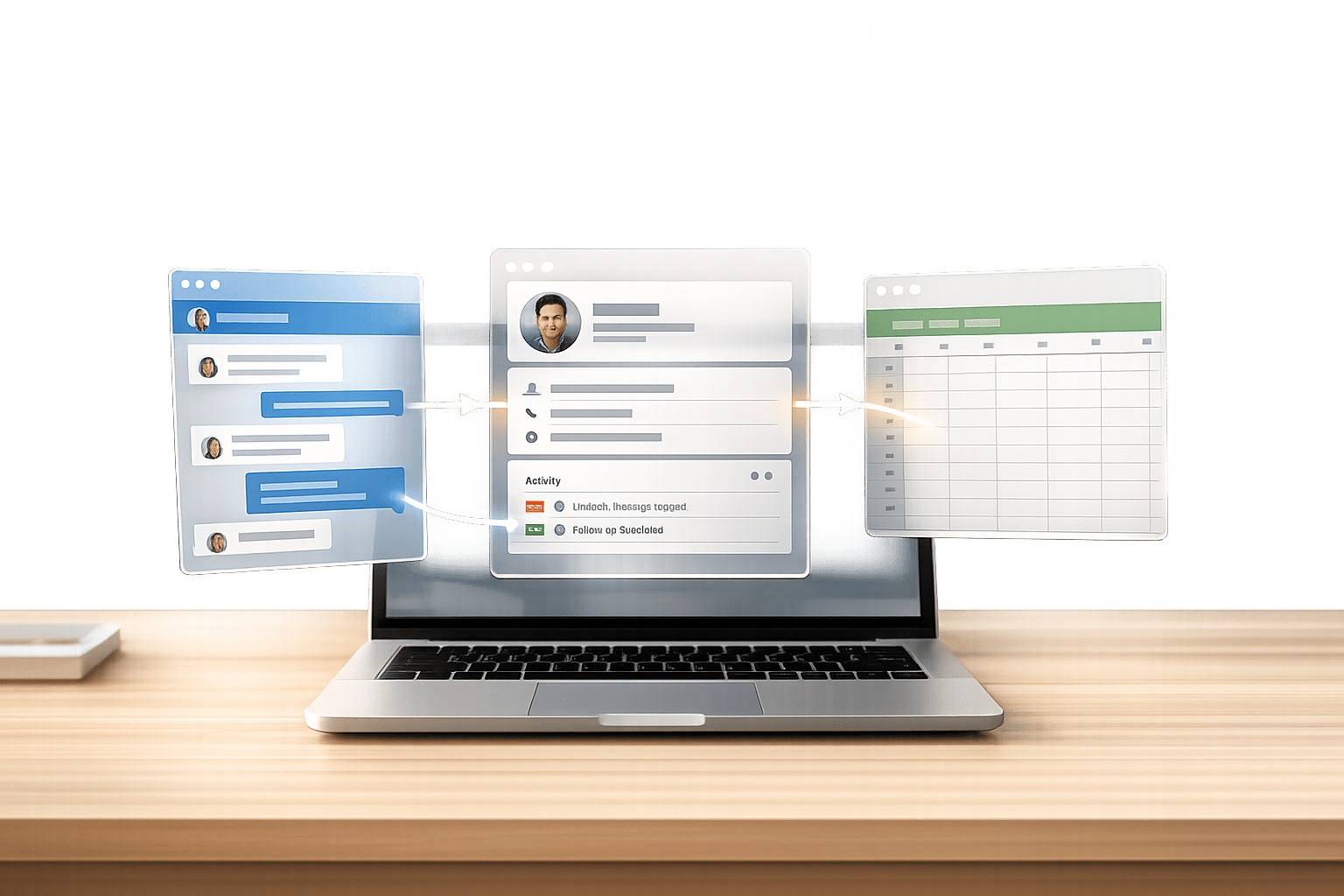
When features like triage, snooze, and templates are integrated with your CRM or productivity tools, every interaction becomes more efficient. Instead of confining LinkedIn conversations to your inbox, syncing them with a CRM creates a centralized hub for managing professional relationships.
Cesar.chat takes this a step further by syncing your conversations, labels, and notes in real time with platforms like HubSpot, Salesforce, Pipedrive, Notion, Clay, and Slack. This eliminates the need for manual data entry and reduces the risk of errors. For example, labeling a LinkedIn conversation as "Hot Lead" automatically updates the corresponding record in your CRM.
"Using the right LinkedIn CRM Chrome extension halves manual work by syncing messages, enriching contacts, and automating lead capture." – Volodymyr Bondarchuk, Founder, Cesar.chat
This integration works both ways. For instance, you can receive instant Slack notifications when a high-priority contact responds, allowing your team to act quickly. Recruiters can sync notes directly to Notion, creating a searchable database accessible to the entire team. Importantly, tools that rely on official API interactions ensure secure and reliable syncing, avoiding risks associated with scraping methods.
By combining synchronization with automation, you can enhance every interaction, making your workflow smoother and more effective.
Combining Methods for Better Results
When these synced methods are used together, their impact multiplies. A triage system ensures you prioritize the most critical messages, snooze workflows prevent important follow-ups from falling through the cracks, and saved templates enable quick yet thoughtful responses.
Integrating these methods with external tools amplifies their benefits. For instance, assigning a "Follow-up Required" label can trigger an automated task in your project management system using tools like Zapier or Make. Similarly, snoozing a thread for a few days can sync with your calendar to block time for follow-up. Even something as simple as using a snippet to send a meeting link can result in the interaction being logged in your CRM, providing a complete history of the conversation.
These integrations create an automated, seamless workflow that supports timely follow-ups and smarter workload management.
Example Messaging Workflow
Here’s how these methods can come together in a typical day for a sales professional:
Morning (9:00 AM): The day starts with a flood of LinkedIn messages. Using a split inbox, the professional categorizes messages into "High Priority" (e.g., warm leads), "Follow-up" (responses needed later), and "Low Priority" (generic outreach). High-priority messages sync automatically to Salesforce and trigger Slack notifications for the sales team.
Mid-Morning (10:30 AM): High-priority messages are addressed first using personalized snippets, cutting down response time. If a lead mentions being unavailable, the conversation is snoozed for a week to ensure a timely follow-up.
Afternoon (2:00 PM): A snoozed conversation resurfaces. Using a "Meeting Link" snippet, the professional responds instantly, and the interaction is logged in the CRM with a label noting that a demo is scheduled.
This workflow illustrates how integrating messaging methods with the right tools can double the efficiency of processing LinkedIn DMs. By combining automation with structured workflows, you can stay on top of your conversations while maintaining a professional edge.
Quick Implementation Checklist
This checklist is designed to help you set up a LinkedIn messaging system that’s efficient and compliant. Below, you’ll find step-by-step instructions for each method, tips to avoid common mistakes, and ways to measure your progress.
Step-by-Step Setup Guide for Each Method
Method 1: Triage and Prioritization System
Start by defining a clear three-tier system:
- Tier 1: High-priority leads and urgent inquiries.
- Tier 2: Networking contacts and scheduled follow-ups.
- Tier 3: Cold pitches and less critical messages.
Choose a compliant tool like Cesar.chat to manage your inbox. It offers split inboxes and custom labels while staying within LinkedIn’s Terms of Service. Create labels such as "Demo Scheduled", "Warm Lead", or "Follow-up Required" to easily track where each conversation stands. Configure the tool to display these labels in separate inbox views, so critical messages don’t get lost.
Integrate your messaging tool with your CRM. This ensures conversations are logged automatically, eliminating the need for manual data entry and keeping your sales pipeline updated.
Method 2: Snooze and Reminder Workflow
Instead of marking messages as unread, use the snooze feature to manage follow-ups. For example, if a lead mentions they’re available next week, snooze the message for seven days. This creates an automatic reminder and ensures important threads don’t slip through the cracks.
Method 3: Response Acceleration Through Templates and Automation
Build a library of message templates using a three-part structure:
- Hook: Show specific knowledge about the recipient.
- Bridge: Connect their situation to the value you provide.
- Small Ask: End with a low-pressure question, not a meeting request.
To avoid LinkedIn’s spam filters, diversify your templates. Use Cesar.chat’s keyboard shortcuts to quickly insert these templates into your messages. This helps you respond faster while maintaining a personal touch, whether you’re sharing a meeting link or sending a tailored follow-up.
Common Mistakes to Avoid
Watch out for these common errors before finalizing your setup:
- Using non-compliant tools: Automation systems that violate LinkedIn’s guidelines can trigger security filters, leading to account restrictions. Always ensure your tools are compliant.
- Over-relying on templates: Generic templates with placeholders often result in poor response rates. Personalized sequences typically see reply rates of 15–25%, while generic ones often drop below 5%. Use details like recent posts, company updates, or role-specific insights to make your messages stand out.
- Exceeding LinkedIn’s activity limits: Keep connection requests below 80 per week, total actions (likes, views, messages) under 150 per day, and messages to existing connections under 150 daily.
- Skipping CRM integration: Failing to sync messages with your CRM can lead to data fragmentation and missed opportunities.
- Formal messaging style: Avoid writing LinkedIn messages like emails (e.g., starting with "Dear" or using formal closings). Also, don’t pitch immediately after a connection is accepted – this often lowers response rates.
Tracking Progress and Measuring Results
To ensure your system is working, keep an eye on these metrics:
- Inbox Zero rate: Track how often you end the day with all messages triaged, responded to, or snoozed.
- Response time for Tier 1 messages: High-priority leads should get quick replies during business hours. If this isn’t happening, refine your triage process.
- Reply rates for templates: Personalized templates should achieve reply rates above 20%. If your rates dip below 15%, revisit your personalization strategy and ensure your templates follow the hook-bridge-small ask framework.
- Conversion rates from nurture sequences: Over a 30-day period, evaluate whether your snooze and reminder workflow is helping move leads through your pipeline.
- Connection acceptance rates: Requests without notes typically see 55–68% acceptance, while those with notes range from 28–45%.
Review these metrics weekly during the first month, then switch to monthly reviews as your system stabilizes. Cesar.chat’s analytics dashboard can help you identify trends and determine which strategies are driving the best results for your workflow.
Conclusion: Mastering LinkedIn Messaging for Professional Success
Key Takeaways from the Guide
Becoming skilled at LinkedIn messaging can open doors to professional opportunities. By using the methods outlined, LinkedIn messaging can transform into a tool that boosts productivity. Triage and prioritization help you focus on the most critical conversations first. A centralized Smart Inbox cuts through the clutter, ensuring no important messages slip through the cracks. Snooze and reminder workflows address the common follow-up challenge – consider this: 50% of sales are closed after the fifth follow-up, but most professionals stop after just two. Response acceleration with templates and automation can increase acceptance rates by 40% when personalized effectively, and keeping messages under 400 characters can improve response rates by 22%.
These strategies don’t just improve efficiency – they redefine how you manage professional relationships. Syncing messages with your CRM eliminates tedious manual data entry, creating a central hub for all your connections. This approach allows you to handle a higher volume of interactions without compromising on quality or losing that personal touch.
Armed with these insights, you’re ready to refine your LinkedIn messaging strategy and see measurable results.
Next Steps for Professionals
Now that you’ve got the tools, it’s time to act. Start by implementing a three-tier system with custom labels to organize your inbox right away. Next, try snoozing one conversation instead of marking it unread – you’ll immediately notice how it lightens your mental load.
For those juggling multiple accounts or managing high message volumes, Cesar.chat offers a streamlined solution. Its features include split inboxes, snooze options, keyboard shortcuts, and direct CRM integration with platforms like HubSpot and Salesforce, cutting manual tasks by 50%. The Basic plan costs $24/month – roughly the price of a weekly latte – and gives you unlimited labels, snippets, and reminders.
The difference between average and standout LinkedIn messaging isn’t about talent – it’s about having the right system. Put these methods into action, measure your progress weekly for the first month, and watch your response rates climb while your inbox stress fades away.
FAQs
What’s the fastest way to set up a 3-tier LinkedIn inbox?
To set up a 3-tier LinkedIn inbox quickly, start by categorizing your messages into high-priority, follow-up, and general conversations. Using tools like Cesar.chat can make this process seamless. Features such as split inboxes, labels, and snooze options allow you to automatically sort and organize messages. This approach ensures you respond faster to key leads while managing all conversations more efficiently.
How often should I follow up without sounding pushy?
To maintain professionalism and avoid appearing overly persistent, wait 3-5 business days after your initial LinkedIn message before following up. Aim for 2-3 concise follow-ups that offer value to the recipient. If they’ve viewed your profile but haven’t responded, this approach gives them time to consider your message while gently encouraging a reply.
How do I personalize templates without spending extra time?
Using pre-written templates with customizable placeholders is a smart way to personalize messages without starting from scratch. These placeholders can include details like the recipient’s name or specific interests, which can be quickly updated before sending the message.
Tools such as Cesar.chat’s saved snippets feature make this process even easier. With just a few clicks, you can insert personalized elements into your responses, ensuring they feel tailored and professional while saving you valuable time.